

Product
Socket for Jira Is Now Available
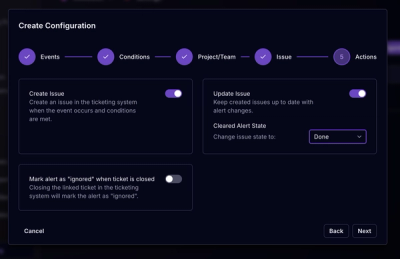
Socket for Jira lets teams turn alerts into Jira tickets with manual creation, automated ticketing rules, and two-way sync.
By Jeppe Hasseriis - Apr 20, 2026
@neomint-pst/mintapp-mcp-bridge
Advanced tools
MINTapp MCP Bridge - Connects Claude Desktop to MINTapp's HTTP MCP gateway via stdio
MINTapp MCP Bridge - Connects Claude Desktop directly to your MINTapp's HTTP MCP gateway via stdio
This package is specifically designed for MINTapp users who want to use their gateway's connected MCP servers directly in Claude Desktop. It acts as a bridge between Claude Desktop's stdio interface and MINTapp's HTTP MCP gateway.
Start MINTapp and connect to any MCP servers (the HTTP gateway starts automatically on port 3001)
Configure Claude Desktop by adding this to your claude_desktop_config.json:
{
  "mcpServers": {
    "mintapp-gateway": {
      "command": "npx",
      "args": ["-y", "@neomint-pst/mintapp-mcp-bridge"]
    }
  }
}
~/Library/Application Support/Claude/claude_desktop_config.json%APPDATA%\\Claude\\claude_desktop_config.json~/.config/claude/claude_desktop_config.json{
"mcpServers": {
"mintapp-gateway": {
"command": "npx",
"args": ["-y", "@neomint-pst/mintapp-mcp-bridge"]
}
}
}
{
  "mcpServers": {
    "mintapp-gateway": {
      "command": "npx",
      "args": ["-y", "@neomint-pst/mintapp-mcp-bridge", "--port", "3002"]
    }
  }
}
{
  "mcpServers": {
    "mintapp-gateway": {
      "command": "npx",
      "args": ["-y", "@neomint-pst/mintapp-mcp-bridge", "--debug"]
    }
  }
}
npx @neomint-pst/mintapp-mcp-bridge [options]

Options:
  --host <host>      Host to connect to (default: localhost)
  --port <port>      Port to connect to (default: 3001)
  --timeout <ms>     Connection timeout in ms (default: 30000)
  --debug            Enable debug logging
  --help, -h         Show help message
http://localhost:3001 exposing all connected toolsClaude Desktop ←→ stdio ←→ MINTapp Bridge ←→ HTTP ←→ MINTapp Gateway ←→ Your MCP Servers
# Your MINTapp starts up
npm start
/path/to/your/files@modelcontextprotocol/server-web-search{
"mcpServers": {
"mintapp": {
"command": "npx",
"args": ["-y", "@neomint-pst/mintapp-mcp-bridge"]
}
}
}
All your MINTapp tools are now available in Claude Desktop! You can:
Problem: Bridge can't connect to MINTapp's HTTP gateway
Solutions:
--debug flag--port <your-port>Problem: Bridge connects but Claude sees no tools
Solutions:
Solutions:
--timeout 60000http://localhost:3001 in browser)Enable detailed logging to see what's happening:
{
  "mcpServers": {
    "mintapp": {
      "command": "npx",
      "args": ["-y", "@neomint-pst/mintapp-mcp-bridge", "--debug"]
    }
  }
}
MIT License - see LICENSE file for details
FAQs
MINTapp MCP Bridge - Connects Claude Desktop to MINTapp's HTTP MCP gateway via stdio
We found that @neomint-pst/mintapp-mcp-bridge demonstrated a healthy version release cadence and project activity because the last version was released less than a year ago. It has 1 open source maintainer collaborating on the project.
Did you know?

Socket for GitHub automatically highlights issues in each pull request and monitors the health of all your open source dependencies. Discover the contents of your packages and block harmful activity before you install or update your dependencies.
Product
Socket for Jira lets teams turn alerts into Jira tickets with manual creation, automated ticketing rules, and two-way sync.

Company News
Socket won two 2026 Reppy Awards from RepVue, ranking in the top 5% of all sales orgs. AE Alexandra Lister shares what it's like to grow a sales career here.

Security News
NIST will stop enriching most CVEs under a new risk-based model, narrowing the NVD's scope as vulnerability submissions continue to surge.