

Product
Introducing Supply Chain Attack Campaigns Tracking in the Socket Dashboard
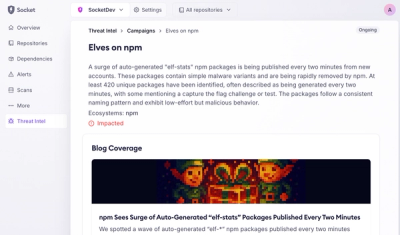
Campaign-level threat intelligence in Socket now shows when active supply chain attacks affect your repositories and packages.
By Philipp Burckhardt - Jan 21, 2026
@urbit/hoon-language-server
Advanced tools
Earth-side component of a language server for Hoon. Enables two-way communication between supported text editors and the language-server agent on an urbit ship.
npm install -g @urbit/hoon-language-server
nix-build -E 'with import <nixpkgs> {}; callPackage ./default.nix {}'
nix-env -i ./result
NOTE: Usually your editor will handle this, you just need to set the correct parameters in your editor configuration.
hoon-language-server -p 80 -d 0 -u http://localhost -s zod -c lidlut-tabwed-pillex-ridrup
-p: HTTP port of your (running) ship-d: didSave event delay-u: ship url-s: @p of ship (without a sig)-c: +code of ship (without a sig)You must have an urbit ship running (can be a livenet ship) with the language-server agent started. To create and start a fake ~zod:
urbit -F zod -c zod
In the urbit dojo, start the language server:
dojo> |start %language-server
get the +code
dojo> +code
To start the same ship again in the future just run:
urbit zod
in the same directory it was created in.
Your code editor now needs to use hoon-language-server as an LSP provider. Supported plugins:
hoon.vim does not use the language server itself, but the github page describes a setup using vim-lsp.
Neovim users should use hoon.vim with one of the following LSP setups:
Install nvim-lspconfig. To use the default configuration, add the following to init.lua:
require'lspconfig'.hoon_ls.setup{}
To modify the default options use:
require'lspconfig'.hoon_ls.setup{
  cmd = {"hoon-language-server", "-p", "8080"}
}
You can include lua snippets in your init.vim like so:
lua << EOF
require'lspconfig'.hoon_ls.setup{}
EOF
Install and configure coc.nvim, then add a languageserver entry to ~/.config/nvim/coc-settings.json:
{
  "languageserver": {
    "hoon-language-server": {
      "command": "hoon-language-server",
      "args": ["-p", "8080"],
      "filetypes": ["hoon"]
    }
  }
}
FAQs
LSP bridge for Hoon.
We found that @urbit/hoon-language-server demonstrated a not healthy version release cadence and project activity because the last version was released a year ago. It has 7 open source maintainers collaborating on the project.
Did you know?

Socket for GitHub automatically highlights issues in each pull request and monitors the health of all your open source dependencies. Discover the contents of your packages and block harmful activity before you install or update your dependencies.
Product
Campaign-level threat intelligence in Socket now shows when active supply chain attacks affect your repositories and packages.

Research
Malicious PyPI package sympy-dev targets SymPy users, a Python symbolic math library with 85 million monthly downloads.

Security News
Node.js 25.4.0 makes require(esm) stable, formalizing CommonJS and ESM compatibility across supported Node versions.