claude-ticker




A customizable status bar for Claude CLI — built so you always know which project, branch, model, and budget you're working with, at a glance.
Zero token cost. claude-ticker runs entirely on your machine as a status-bar hook — it never touches the Claude API and uses none of your context window or quota.
Quick start
npm install -g claude-ticker
claude-ticker init
That's it. init wires claude-ticker into Claude CLI's settings.json (your existing config is backed up automatically). Restart Claude CLI and the status bar is live.
Want to see it without restarting?
claude-ticker preview
Why claude-ticker?
1. Never mix up which project you're in — dir-name + dir-color
The flagship feature, and the one that changes how you work.
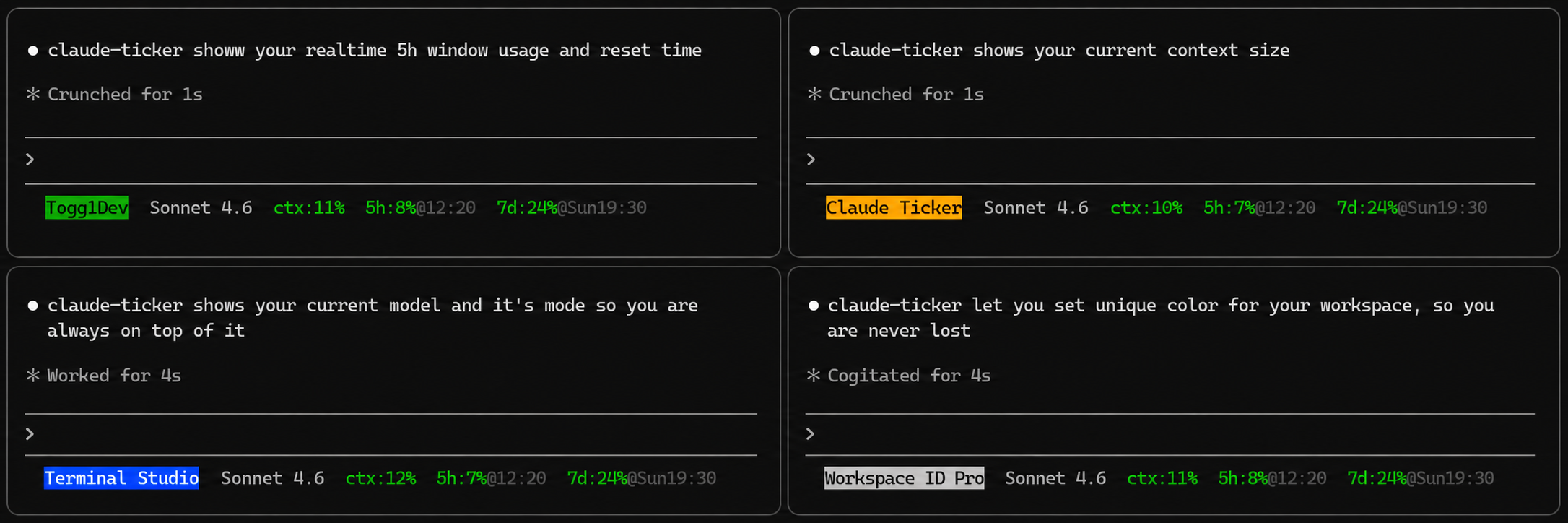
Assign every project a short alias and a background color. From that moment on, every Claude session and every terminal shows the same color-coded label for the repo you're in.
claude-ticker dir-name set ~/ws/my-app "my-app"
claude-ticker dir-color set ~/ws/my-app blue

claude-ticker dir-name set ~/ws/client-work "client"
claude-ticker dir-color set ~/ws/client-work red
When you tab between five terminals running five Claude sessions, your eyes land on the right one in under a second. No more pwd. No more "wait — which repo did I just run that command in?" No more pasting changes into the wrong project.
2. Always know your branch — git_branch
git_branch is on by default. Every render of the status bar shows the branch you're on, so you don't accidentally commit to main, lose track of a feature branch mid-session, or get surprised by a stale checkout after switching worktrees.
Tip: Paired with dir-name + dir-color, this is the combo that makes claude-ticker indispensable when you're juggling sessions: one Claude on feature/payments in the API repo (blue), another on bugfix/login in the web repo (red), a third on main doing a docs read (green). All instantly readable from the bar — you stop "swapping contexts" in your head because the bar already shows you which context you're in.
3. Read the bar, not the numbers
The fields that matter most when you're deep in a session:
ctx — context window fill %. Know when you're approaching a compaction.5h / 7d — Pro / Max rate-limit usage with reset times.cost — session spend in USD.duration — wall-clock time on the current session.lines — lines added/removed this session.
Each shifts green → yellow → red as you climb toward a limit, with configurable thresholds (default: warn at 50%, critical at 75%). You don't read the numbers — you read the color.
4. 17 fields, fully customizable
Show, hide, reorder, or recolor any field with a single command. Override colors with named colors, CSS color names (coral, tomato, …), or hex (#ff7f50). Configure the separator, 12h / 24h clock, and your own warning / critical thresholds.
5. Blazingly fast, zero dependencies, zero token cost
- Sub-millisecond rendering. Directly parses
.git/HEAD to resolve your branch without spawning costly child processes.
- No runtime dependencies. Nothing extra in your
node_modules.
- ~29 kB on the wire. Installs in a blink, starts in a blink.
- No tokens consumed. Runs as a local status-bar hook, not an API client.
- Safe
init. Your existing settings.json is backed up before any changes.
Prerequisites
- Claude CLI installed (
npm install -g @anthropic-ai/claude-code)
- Node.js ≥ 18 (already required by Claude CLI)
Commands
claude-ticker init
Wires claude-ticker into Claude CLI as the status bar. Your existing ~/.claude/settings.json is backed up to settings.json.bak before any changes.
claude-ticker preview
Renders the status bar with sample data, so you can see your current configuration without restarting Claude CLI.
claude-ticker fields
claude-ticker fields [list]
claude-ticker fields show <field>
claude-ticker fields hide <field>
claude-ticker fields order <f1> <f2> …
claude-ticker fields reset
Available fields:
dir | on | Current working directory (home folder shortened to ~) |
git_branch | on | Current git branch name |
model_id | on | Active model ID, claude- prefix stripped (e.g. sonnet-4-6) |
ctx | on | Context window fill % — how full this conversation's memory is |
5h | on | 5-hour usage % with reset time |
7d | on | 7-day usage % with reset day+time |
model | off | Active Claude model display name, "Claude " prefix stripped |
worktree | off | Git worktree branch, shown as wt:<branch> |
cost | off | Session cost in USD, e.g. $0.042 |
duration | off | Session wall time, e.g. 4m32s |
lines | off | Lines added/removed this session, e.g. +84 -12 |
session | off | Session name, shown as session:<name> |
version | off | Claude Code version, e.g. v1.9.0 |
effort | off | Reasoning effort level, e.g. effort:high |
thinking | off | Extended thinking state, e.g. thinking:on |
vim | off | Vim mode (INSERT, NORMAL, etc.) |
agent | off | Agent name when running a sub-agent, shown as agent:<name> |
Examples:
claude-ticker fields hide model
claude-ticker fields show cost duration
claude-ticker fields order ctx 5h 7d dir cost
claude-ticker color
claude-ticker color [list]
claude-ticker color set <field> <color>
claude-ticker color thresholds <warn%> <crit%>
Available colors: red green yellow blue magenta cyan white dim dynamic none, any CSS color name (coral, tomato, …), or hex (#rgb / #rrggbb).
dynamic — percentage / level fields only; color shifts green → yellow → red based on thresholds (default for ctx, 5h, 7d, effort)none — no color applied
Default thresholds: warning at 50%, critical at 75%.
Field color defaults:
dir | yellow |
git_branch | cyan |
worktree | cyan |
agent | magenta |
session | dim |
version | dim |
ctx | dynamic |
5h | dynamic |
7d | dynamic |
effort | dynamic |
| everything else | none |
Examples:
claude-ticker color set dir cyan
claude-ticker color set ctx green
claude-ticker color set model coral
claude-ticker color set model "#ff7f50"
claude-ticker color thresholds 40 70
claude-ticker dir-color
Assign a background color to a directory. When your current working directory is at or under a configured path, the dir field is highlighted with that background color. The longest-matching path wins.
claude-ticker dir-color [list]
claude-ticker dir-color set <path> <color>
claude-ticker dir-color reset <path>
Valid colors: red green yellow blue magenta cyan white, any CSS color name (coral, tomato, …), or hex (#rgb / #rrggbb).
~ in paths is expanded to your home directory. Use . to refer to the current directory. Matching is case-insensitive on Windows.
Examples:
claude-ticker dir-color set ~/ws/my-project blue
claude-ticker dir-color set ~/ws/client-work red
claude-ticker dir-color set . coral
claude-ticker dir-color set . "#4682b4"
claude-ticker dir-color list
claude-ticker dir-color reset ~/ws/my-project
claude-ticker dir-color reset .
claude-ticker dir-name
Assign a human-readable alias to a directory. When your current working directory is at or under a configured path, the alias is shown in the dir field instead of the full path. Pairs with dir-color — the alias gets the background color if one is set.
claude-ticker dir-name [list]
claude-ticker dir-name set <path> <name>
claude-ticker dir-name set-long <path> <name>
claude-ticker dir-name reset <path>
set — always shows just the alias, regardless of how deep in the directory tree you areset-long — shows the alias plus the subdirectory path relative to the named root (e.g. my-project/src/components)
Name constraints: 2–30 characters, no ANSI escape codes. Matching uses the longest-matching path prefix, same as dir-color. ~ is expanded to your home directory. Use . to refer to the current directory.
Examples:
claude-ticker dir-name set ~/ws/my-project "my-project"
claude-ticker dir-name set-long ~/ws/client-work "client"
claude-ticker dir-name set . "cur"
claude-ticker dir-name set-long . "cur"
claude-ticker dir-name set ~/ws/my-project "proj" && claude-ticker dir-color set ~/ws/my-project blue
claude-ticker dir-name list
claude-ticker dir-name reset ~/ws/my-project
claude-ticker dir-name reset .
claude-ticker separator [value]
Get or set the string printed between fields. Default is two spaces (" ").
claude-ticker separator
claude-ticker separator " | "
claude-ticker separator " "
claude-ticker time <12h|24h>
Controls how reset times are displayed. Default is 24h.
claude-ticker time 12h
claude-ticker time 24h
claude-ticker config
claude-ticker config [show]
claude-ticker config reset
Configuration file
Settings are stored in ~/.claude/claude-ticker.json. You can edit it directly or use the commands above — but you'll rarely need to touch it by hand.
{
  "fields": ["dir", "git_branch", "model_id", "ctx", "5h", "7d"],
  "colors": {},
  "thresholds": {
    "warning": 50,
    "critical": 75
  },
  "separator": "  ",
  "timeFormat": "24h",
  "dirColors": {},
  "dirNames": {}
}
colors defaults to {} — each field uses its built-in default color unless overridden here.
dirColors maps directory paths to background colors for the dir field.
dirNames maps directory paths to alias objects: { "name": "my-project", "long": false }. Use the dir-name command to manage these.
Rate limit fields
5h and 7d are only populated by Claude CLI for Claude.ai subscribers (Pro / Max) and only appear after the first API response in a session. They are silently omitted until data is available.
Contributing
Issues and PRs welcome. The project has zero runtime dependencies — please keep it that way.
git clone https://github.com/dpkay-io/claude-ticker
cd claude-ticker
npm install
npm run dev
npm run build
A note from the author
I built claude-ticker because I was running multiple Claude sessions across repos and constantly losing track of which terminal was where. pwd-ing every two minutes broke my flow. The status bar fixes that — and once dir-color clicked, I couldn't go back. If it saves you the same friction, that's the whole point.
License
MIT