

Product
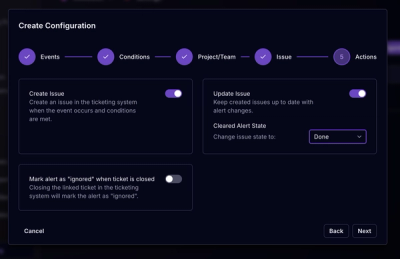
Socket for Jira Is Now Available
Socket for Jira lets teams turn alerts into Jira tickets with manual creation, automated ticketing rules, and two-way sync.
By Jeppe Hasseriis - Apr 20, 2026
create-bud-app
Advanced tools




Get up and running fast with our interactive app scaffolding utility
Creating a project is as simple as:
npx create-bud-app
You’ll need to have Node 18.0.0 or later version on your local development machine (but it’s not required on the server).
To create a new app, you may choose one of the following methods:
Using npx:
npx create-react-app my-app
Using yarn:
yarn create react-app my-app
The command will create a directory called my-app inside the current folder.
Inside that directory, it will generate the initial project structure and install any transitive dependencies:
my-app
├── README.md
├── node_modules
├── package.json
├── .gitignore
├── tsconfig.json
└── src
    ├── index.css
    ├── index.js
    └── logo.svg
Your actual project may look somewhat different depending on what you chosen to install. For example, if you add support for eslint, you will wind up with an eslint.config.js file in your project root.
There are several presets available to quickly build popular project types:
Includes support for TypeScript, ES6 and postcss:
npx create-bud-app --recommended
Includes support for TypeScript, JSX and postcss:
npx create-bud-app --react
Includes support for Typescript, ES6, and postcss for WordPress themes and plugins:
npx create-bud-app --wordpress
Presets are installed non-interactively. If you want to customize a preset interactively use the --customize flag:
npx create-bud-app --wordpress --customize
This is nice if you want to use a preset but need to just make a couple changes to it.
When targeting a non-empty directory you will be prompted to confirm your intent.
Even after confirming your intent, by default the tool will not overwrite existing files. You can override this behavior with the --overwrite flag:
npx create-bud-app --overwrite
To run create-bud-app without interactive prompts use the --no-interactive flag:
npx create-bud-app --no-interactive
All options available via interactive prompts are also passable with CLI flags. Run create-bud-app --help for a listing of available command line flags.
When running --no-interactive in a non-empty directory there is obviously no way for you to confirm that was your intention. Instead, you can use the --confirm-existing flag to enable use of the tool in these situations:
npx create-bud-app --no-interactive --confirm-existing
A more complex example might look like:
npx create-bud-app react-app --no-interactive -p yarn -s swc -s postcss -s react -d redux
Contributions are welcome from everyone.
We have contribution guidelines to help you get started.
create-bud-app is licensed under MIT.
Keep track of development and community news.
Bud is an open source project and completely free to use.
However, the amount of effort needed to maintain and develop new features and projects within the Roots ecosystem is not sustainable without proper financial backing. If you have the capability, please consider sponsoring Roots.






FAQs
Create bud app CLI
The npm package create-bud-app receives a total of 8 weekly downloads. As such, create-bud-app popularity was classified as not popular.
We found that create-bud-app demonstrated a not healthy version release cadence and project activity because the last version was released a year ago. It has 1 open source maintainer collaborating on the project.
Did you know?

Socket for GitHub automatically highlights issues in each pull request and monitors the health of all your open source dependencies. Discover the contents of your packages and block harmful activity before you install or update your dependencies.
Product
Socket for Jira lets teams turn alerts into Jira tickets with manual creation, automated ticketing rules, and two-way sync.

Company News
Socket won two 2026 Reppy Awards from RepVue, ranking in the top 5% of all sales orgs. AE Alexandra Lister shares what it's like to grow a sales career here.

Security News
NIST will stop enriching most CVEs under a new risk-based model, narrowing the NVD's scope as vulnerability submissions continue to surge.