excelize-wasm







Excelize-wasm is a pure WebAssembly / Javascript port of Go Excelize library that allow you to write to and read from XLAM / XLSM / XLSX / XLTM / XLTX files. Supports reading and writing spreadsheet documents generated by Microsoft Excel™ 2007 and later. Supports complex components by high compatibility. The full API docs can be found at docs reference.
Environment Compatibility
| Chrome | ≥57 |
| Chrome for Android and Android Browser | ≥105 |
| Edge | ≥16 |
| Safari on macOS and iOS | ≥11 |
| Firefox | ≥52 |
| Firefox for Android | ≥104 |
| Opera | ≥44 |
| Opera Mobile | ≥64 |
| Samsung Internet | ≥7.2 |
| UC Browser for Android | ≥13.4 |
| QQ Browser | ≥10.4 |
| Node.js | ≥12.0.0 |
| Deno | ≥1.0 |
Basic Usage
Installation
Node.js
npm install --save excelize-wasm
Browser
<script src="excelize-wasm/index.js"></script>
Create spreadsheet
Here is a minimal example usage that will create spreadsheet file.
const { init } = require('excelize-wasm');
const fs = require('fs');
init('./node_modules/excelize-wasm/excelize.wasm.gz').then((excelize) => {
const f = excelize.NewFile();
if (f.error) {
console.log(f.error);
return;
}
const { index } = f.NewSheet('Sheet2');
f.SetCellValue('Sheet2', 'A2', 'Hello world.');
f.SetCellValue('Sheet1', 'B2', 100);
f.SetActiveSheet(index);
const { buffer, error } = f.WriteToBuffer();
if (error) {
console.log(error);
return;
}
fs.writeFile('Book1.xlsx', buffer, 'binary', (error) => {
if (error) {
console.log(error);
}
});
});
Create spreadsheet in browser:
View code
<html>
<head>
<meta charset="utf-8">
<script src="https://<your_hostname>/excelize-wasm/index.js"></script>
</head>
<body>
<div>
<button onclick="download()">Download</button>
</div>
<script>
function download() {
excelizeWASM
.init('https://<your_hostname>/excelize-wasm/excelize.wasm.gz')
.then((excelize) => {
const f = excelize.NewFile();
if (f.error) {
console.log(f.error);
return;
}
const { index } = f.NewSheet('Sheet2');
f.SetCellValue('Sheet2', 'A2', 'Hello world.');
f.SetCellValue('Sheet1', 'B2', 100);
f.SetActiveSheet(index);
const { buffer, error } = f.WriteToBuffer();
if (error) {
console.log(error);
return;
}
const link = document.createElement('a');
link.download = 'Book1.xlsx';
link.href = URL.createObjectURL(
new Blob([buffer], {
type: 'application/vnd.openxmlformats-officedocument.spreadsheetml.sheet',
})
);
link.click();
});
}
</script>
</body>
Reading spreadsheet
The following constitutes the bare to read a spreadsheet document.
const { init } = require('excelize-wasm');
const fs = require('fs');
init('./node_modules/excelize-wasm/excelize.wasm.gz').then((excelize) => {
const f = excelize.OpenReader(fs.readFileSync('Book1.xlsx'));
if (f.error) {
console.log(f.error);
return;
}
const ret1 = f.GetCellValue('Sheet1', 'B2');
if (ret1.error) {
console.log(ret1.error);
return;
}
console.log(ret1.value);
const ret2 = f.GetRows('Sheet1');
if (ret2.error) {
console.log(ret2.error);
return;
}
ret2.result.forEach((row) => {
row.forEach((colCell) => {
process.stdout.write(`${colCell}\t`);
});
console.log();
});
});
Add chart to spreadsheet file
With excelize-wasm chart generation and management is as easy as a few lines of code. You can build charts based on data in your worksheet or generate charts without any data in your worksheet at all.
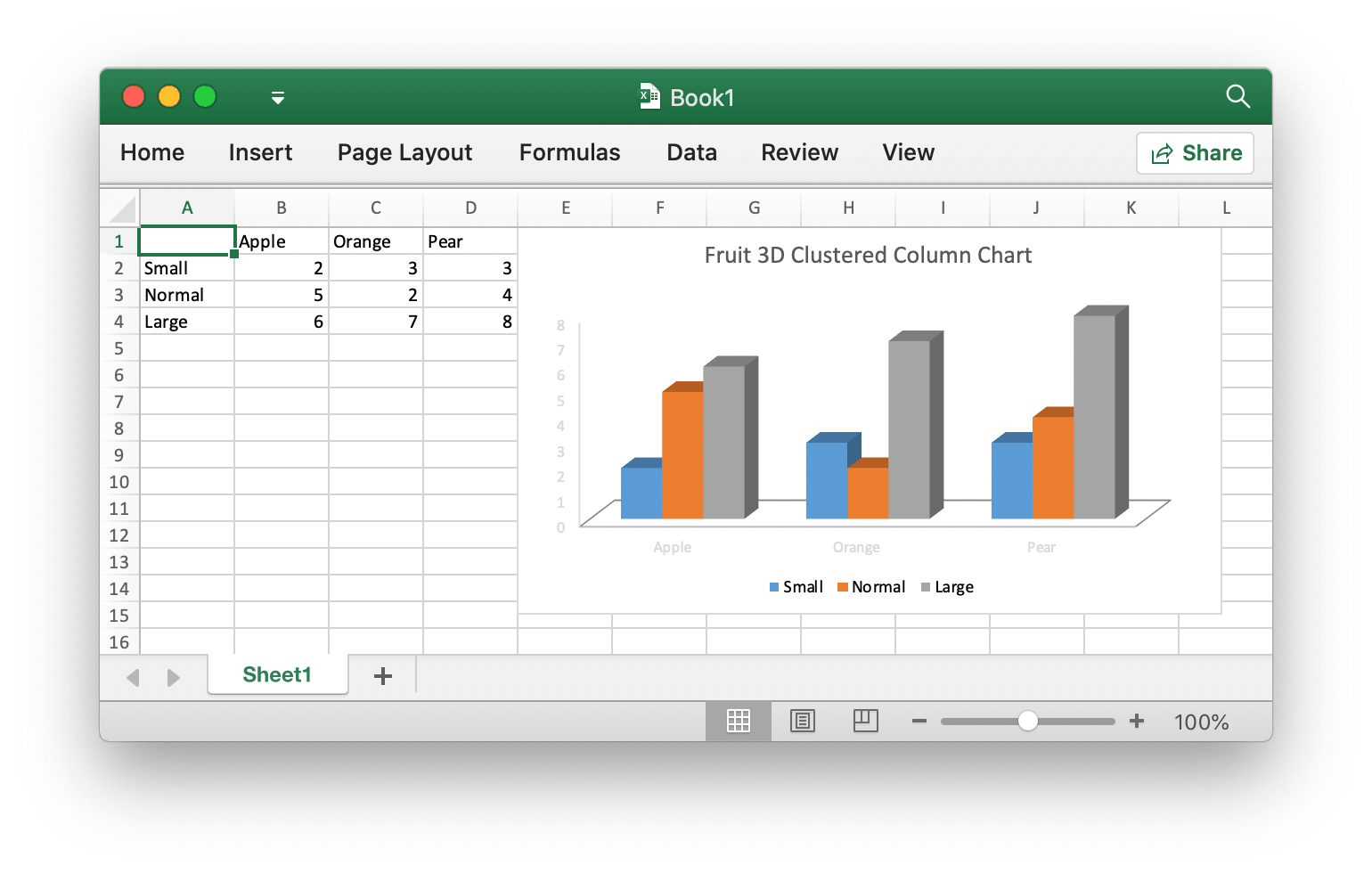
const { init } = require('excelize-wasm');
const fs = require('fs');
init('./node_modules/excelize-wasm/excelize.wasm.gz').then((excelize) => {
const f = excelize.NewFile();
if (f.error) {
console.log(f.error);
return;
}
[
[null, 'Apple', 'Orange', 'Pear'],
['Small', 2, 3, 3],
['Normal', 5, 2, 4],
['Large', 6, 7, 8],
].forEach((row, idx) => {
const ret1 = excelize.CoordinatesToCellName(1, idx + 1);
if (ret1.error) {
console.log(ret1.error);
return;
}
const res2 = f.SetSheetRow('Sheet1', ret1.cell, row);
if (res2.error) {
console.log(res2.error);
return;
}
});
const ret3 = f.AddChart('Sheet1', 'E1', {
Type: excelize.Col3DClustered,
Series: [
{
Name: 'Sheet1!$A$2',
Categories: 'Sheet1!$B$1:$D$1',
Values: 'Sheet1!$B$2:$D$2',
},
{
Name: 'Sheet1!$A$3',
Categories: 'Sheet1!$B$1:$D$1',
Values: 'Sheet1!$B$3:$D$3',
},
{
Name: 'Sheet1!$A$4',
Categories: 'Sheet1!$B$1:$D$1',
Values: 'Sheet1!$B$4:$D$4',
},
],
Title: [{
Text: 'Fruit 3D Clustered Column Chart',
}],
});
if (ret3.error) {
console.log(ret3.error);
return;
}
const { buffer, error } = f.WriteToBuffer();
if (error) {
console.log(error);
return;
}
fs.writeFile('Book1.xlsx', buffer, 'binary', (error) => {
if (error) {
console.log(error);
}
});
});
Add picture to spreadsheet file
const { init } = require('excelize-wasm');
const fs = require('fs');
init('./node_modules/excelize-wasm/excelize.wasm.gz').then((excelize) => {
const f = excelize.OpenReader(fs.readFileSync('Book1.xlsx'));
if (f.error) {
console.log(f.error);
return;
}
const ret1 = f.AddPictureFromBytes('Sheet1', 'A2', {
Extension: '.png',
File: fs.readFileSync('image.png'),
Format: { AltText: 'Picture 1' },
});
if (ret1.error) {
console.log(ret1.error);
return;
}
const ret2 = f.AddPictureFromBytes('Sheet1', 'D2', {
Extension: '.jpg',
File: fs.readFileSync('image.jpg'),
Format: { AltText: 'Picture 2', ScaleX: 0.5, ScaleY: 0.5 },
});
if (ret2.error) {
console.log(ret2.error);
return;
}
const ret3 = f.AddPictureFromBytes('Sheet1', 'H2', {
Extension: '.gif',
File: fs.readFileSync('image.gif'),
Format: {
AltText: 'Picture 3',
OffsetX: 15,
OffsetY: 10,
PrintObject: true,
LockAspectRatio: false,
Locked: false,
},
});
if (ret3.error) {
console.log(ret3.error);
return;
}
const { buffer, error } = f.WriteToBuffer();
if (error) {
console.log(error);
return;
}
fs.writeFile('Book1.xlsx', buffer, 'binary', (error) => {
if (error) {
console.log(error);
}
});
});
Contributing
Contributions are welcome! Open a pull request to fix a bug, or open an issue to discuss a new feature or change.
Licenses
This program is under the terms of the BSD 3-Clause License. See https://opensource.org/licenses/BSD-3-Clause.
The Excel logo is a trademark of Microsoft Corporation. This artwork is an adaptation.
The Go gopher was created by Renee French. Licensed under the Creative Commons 4.0 Attributions license.





