Fs Browsers
An easy to use files functions and api for browsers.
In your client side code, you can easilly download any file by a url or even export anything you want to several types of files like txt, js, yml, csv, and even excel files.




Whats New?
- Add sheet title option to add title in the top of the sheet
- Add option to override the default excel cells styles
Install
npm install fs-browsers
Download File
downloadFile(url, filename?)
Download file based on url by the following code:
import { downloadFile } from 'fs-browsers';
downloadFile('url-to-file')
You can set the downloaded file name to anything you want like this:
import { downloadFile } from 'fs-browsers';
downloadFile('url-to-file', 'my-file.txt')
In some browsers the file name change might not work, read about HTTP Header Content-Disposition
Parameters
| url | string | the url for downloading the wanted file | true | - |
| fileName | string | the name of the file which will be downloaded | false | - |
Export File
exportFile(data, fileName?)
Export data or any text to a file using the following code:
import { exportFile } from 'fs-browsers';
exportFile("this string will be exported to txt file");
The default file type is 'txt' but you can export to any file you want like this:
import { exportFile } from 'fs-browsers';
exportFile("this string will be exported to js file", 'file-new-name.js');
Parameters
| text | string | the text that will be exported to the file | true | - |
| fileName | string | the name of the file which will be exported, including the suffix | false | file.txt |
exportCsvFile(data, fileName, headings?)
To export data to csv file use the following code:
import { exportCsvFile } from 'fs-browsers';
const data = [
{
firstName: 'John',
lastName: 'Doe',
age: 20,
},
{
firstName: 'Peter',
lastName: 'Parker',
age: 30,
},
{
firstName: 'Mark',
lastName: 'Twain',
age: 40,
},
]
exportCsvFile(data);
You can override the csv headings by giving a headings list:
import { exportCsvFile } from 'fs-browsers';
const data = [
{
firstName: 'John',
lastName: 'Doe',
age: 20,
},
{
firstName: 'Peter',
lastName: 'Parker',
age: 30,
},
{
firstName: 'Mark',
lastName: 'Twain',
age: 40,
},
]
const headings = ["First Name", "Last Name", "Age"];
exportCsvFile(data, 'name.csv', headings);
Parameters
| data | {}[] | the array of data that will be exported into the Csv file | true | - |
| fileName | string | the name of the Csv which will be exported, including the suffix | false | file.csv |
| headings | string[] | array of string for the Csv headings row | false | null |
exportXlsxFile(data, fileName, options?)
To export data to Excel file ('xlsx') use the following code:
import { exportXlsxFile } from 'fs-browsers';
const data = [
{
firstName: 'John',
lastName: 'Doe',
age: 20,
},
{
firstName: 'Peter',
lastName: 'Parker',
age: 30,
},
{
firstName: 'Mark',
lastName: 'Twain',
age: 40,
},
]
exportXlsxFile(data);
You can override the excel headings by giving a headings list:
import { exportXlsxFile } from 'fs-browsers';
const data = [
    {
      firstName: 'John',
      lastName: 'Doe',
      age: 20,
    },
    {
      firstName: 'Peter',
      lastName: 'Parker',
      age: 30,
    },
    {
      firstName: 'Mark',
      lastName: 'Twain',
      age: 40,
    },
  ]
const headings = ["First Name", "Last Name", "Age"];
exportXlsxFile(data, 'names.xlsx', { headings: headings });
You can add title to the excel sheet that will be presented above the data table:
import { exportXlsxFile } from 'fs-browsers';
const data = [
    {
      firstName: 'John',
      lastName: 'Doe',
      age: 20,
    },
    {
      firstName: 'Peter',
      lastName: 'Parker',
      age: 30,
    },
    {
      firstName: 'Mark',
      lastName: 'Twain',
      age: 40,
    },
  ]
const headings = ["First Name", "Last Name", "Age"];
const title = "People";
exportXlsxFile(data, 'names.xlsx', { headings: headings, sheetTitle: title });
It is very much the same as csv files in the code, but the result is a bit different. The Excel file has some simple design and the csv file has not.
Moreover, xlsx files are more complex and functional then csv files.
The Excel file with the title looks like -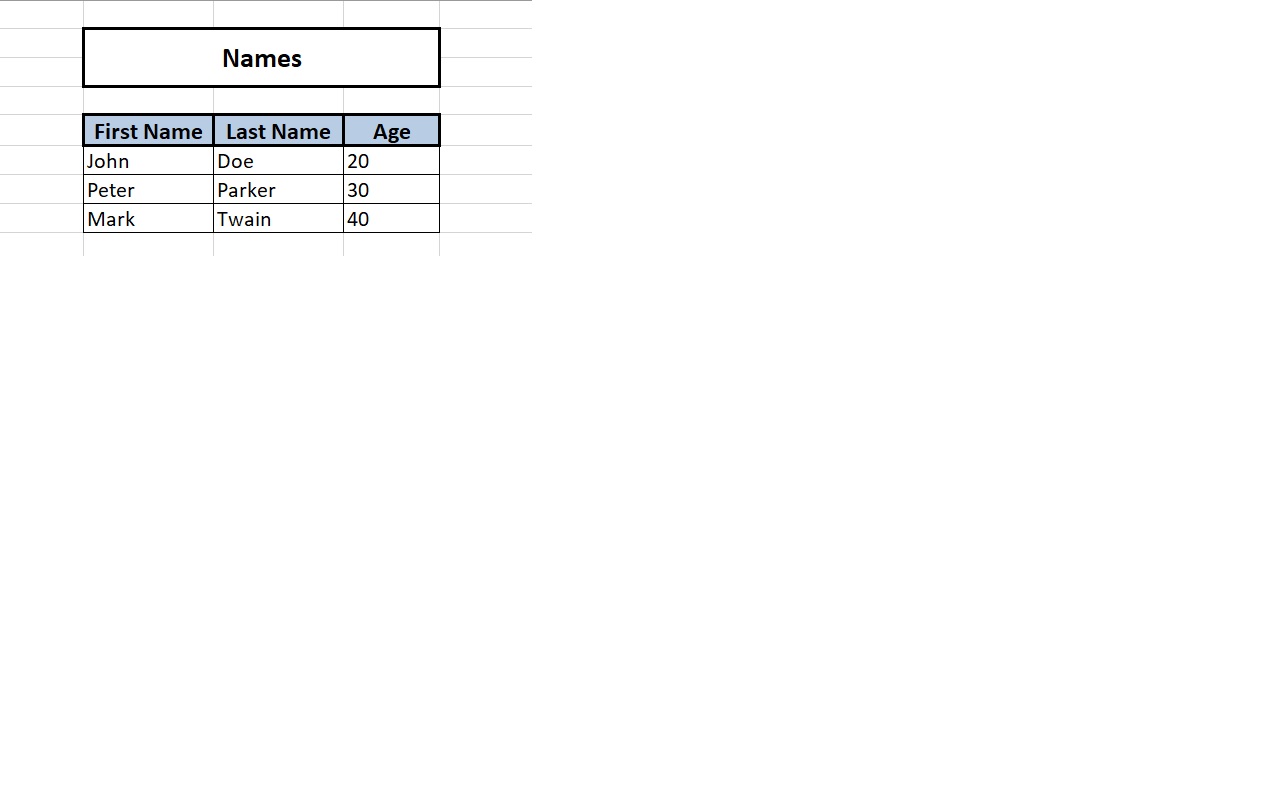
Parameters
| data | {}[] | the array of data that will be exported into the Excel file | true | - |
| fileName | string | the name of the Excel which will be exported, including the suffix | false | file.xlsx |
| options | ExcelOptions | the advanced options of the Excel file | false | null |
Options
| headings | string[] | array of string for the Excel headings row | false | null |
| sheetName | string | the name of the sheet in the Excel | false | Sheet1 |
| sheetTitle | string | title to be prensented in the top sheet above the data table | false | - |
| cellStyle | CellStyle | style object to the data table cells as described in the xlsx-js-style package | false | defaultCellStyle |
| headingStyle | CellStyle | style object to the data table heading cells as described in the xlsx-js-style package | false | defaultHeadingStyle |
| titleStyle | CellStyle | style object to the sheet title cells as described in the xlsx-js-style package | false | defaultTitleStyle |
License
MIT