



Security News
Deno 2.6 + Socket: Supply Chain Defense In Your CLI
Deno 2.6 introduces deno audit with a new --socket flag that plugs directly into Socket to bring supply chain security checks into the Deno CLI.
By Sarah Gooding - Dec 12, 2025
image-color-scheme
Advanced tools


Calculate the color scheme from an image ("dark" | "light" | "grayscale" | "color").
npm install image-color-scheme
getImageColorScheme(image, options);
image: Input image source (CanvasImageSource: can be img or svg element).options?: Optional options object.context: Custom CanvasRenderingContext2D.sampleCount: Number of pixel samples, default: 23.canvasSize: Canvas resolution, default: 16.colorThreshold: Normalized saturation value to consider a pixel as colorful (0-1), default: 0.1.colorAggregate: Detect color using all sampled pixels, boolean, default: false.
false: Only one sampled pixel needs to be saturated for the scheme to return "color".true: Majority of sampled pixels need to be saturated for the scheme to return "color"."dark": Image is only dark grayscale pixels."light": Image is only light grayscale pixels."grayscale": Image has light and dark grayscale pixels."color": Image has colored pixels (see colorAggregate option for specifics).The most common use case for this utility is to invert an icon to contrast with the page theme. This is useful for dynamically-fetched images which would otherwise require manual configuration based on their color scheme.
Here's how I do this in React & CSS Modules:
import { ImageColorScheme, getImageColorScheme } from "image-color-scheme";
import styles from "./InvertingIcon.module.css";

export const InvertingIcon = () => {
  const [colorScheme, setColorScheme] = useState<ImageColorScheme>("color");

  return (
    <img
      src="/some-image.png"
      className={styles[colorScheme]}
      onLoad={(e) => {
        setColorScheme(getImageColorScheme(e.currentTarget));
      }}
    />
  );
};
If the icon color scheme matches the theme, invert the icon to maximize contrast:
@media (prefers-color-scheme: dark) {
  .dark {
    filter: invert(1);
  }
}

@media (prefers-color-scheme: light) {
  .light {
    filter: invert(1);
  }
}
This will not invert colored icons as they are detected as "color" scheme.
FAQs
Handy utility for detecting the color scheme of an image.
We found that image-color-scheme demonstrated a healthy version release cadence and project activity because the last version was released less than a year ago. It has 0 open source maintainers collaborating on the project.
Did you know?

Socket for GitHub automatically highlights issues in each pull request and monitors the health of all your open source dependencies. Discover the contents of your packages and block harmful activity before you install or update your dependencies.
Security News
Deno 2.6 introduces deno audit with a new --socket flag that plugs directly into Socket to bring supply chain security checks into the Deno CLI.
Security News
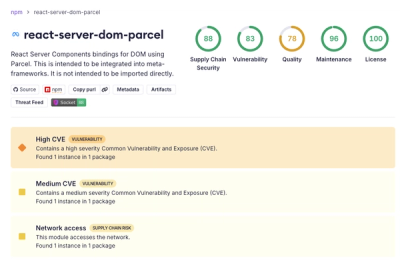
New DoS and source code exposure bugs in React Server Components and Next.js: what’s affected and how to update safely.

Security News
Socket CEO Feross Aboukhadijeh joins Software Engineering Daily to discuss modern software supply chain attacks and rising AI-driven security risks.