
Material Icon Theme
Material Design icons for Visual Studio Code



Enjoying Material Icon Theme? Support the project by starring it or becoming a sponsor!


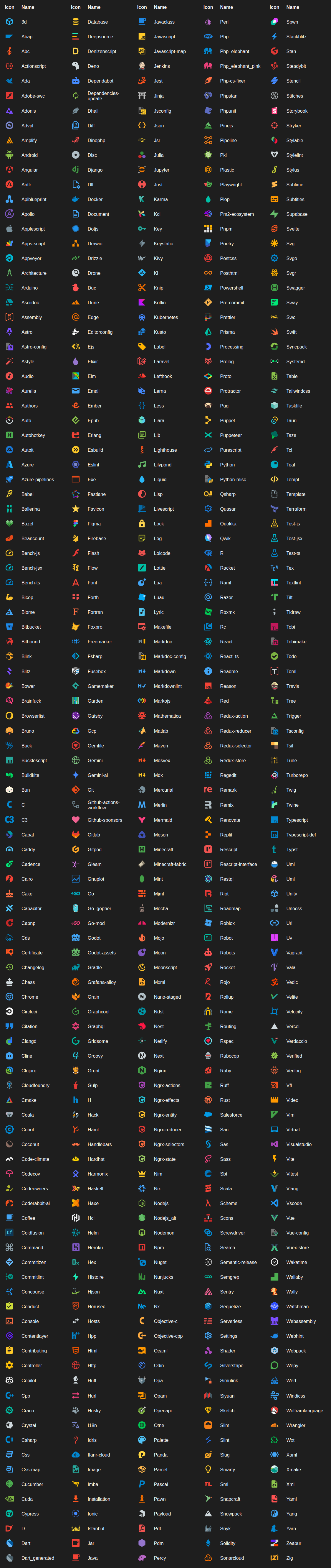
File icons
🏞️ Show all available file icons
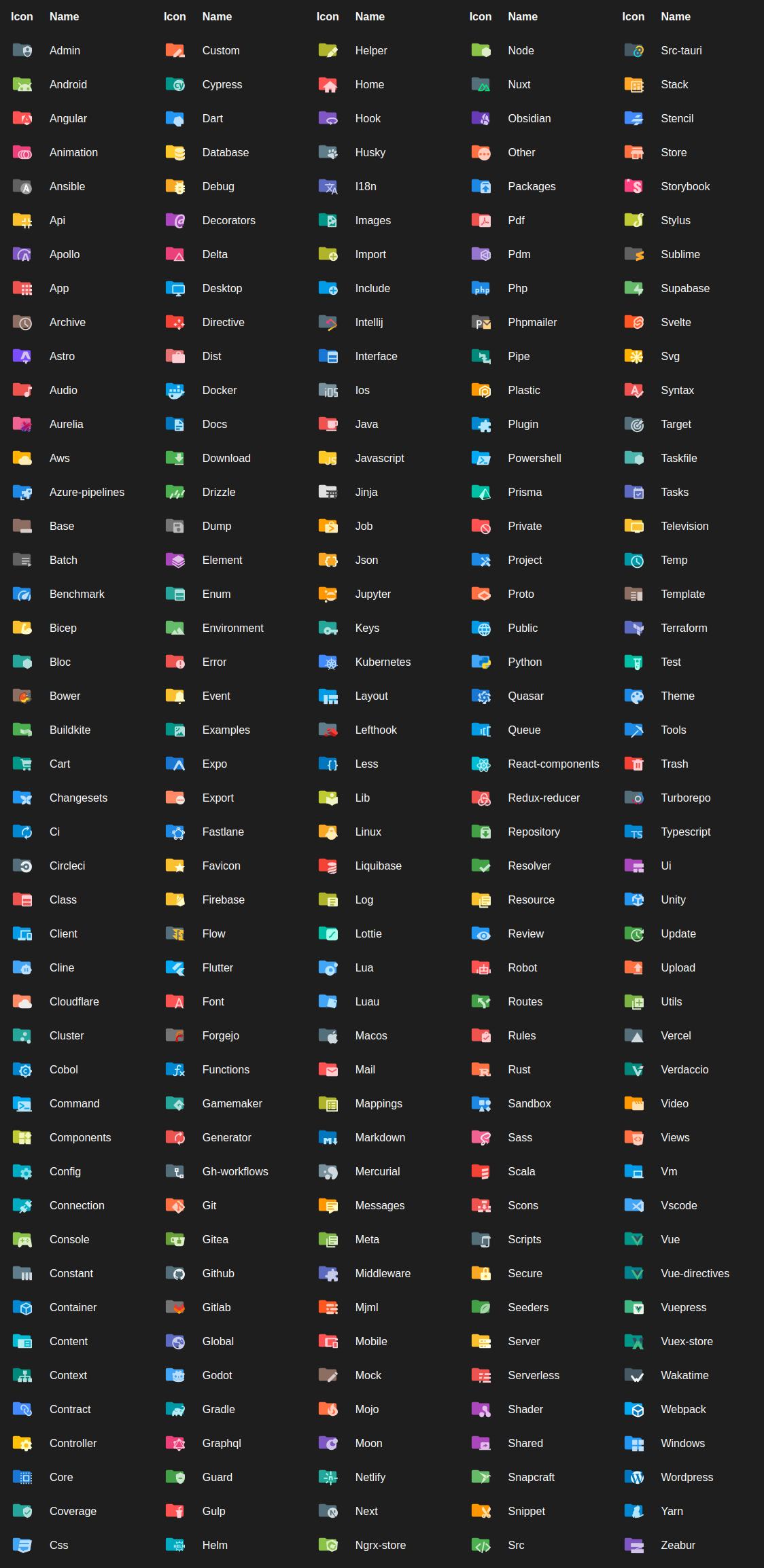
Folder icons
🏞️ Show all available folder icons
Description
This npm module provides all icons from the VS Code Material Icon Theme as an npm package. The icons are available as SVG files and can be used in any web project.
Installation
Install the npm module:
npm install material-icon-theme
Usage
All SVG files can be found in the node_modules/material-icon-theme/icons folder. To get the mapping between file/folder names and icons, use the generateManifest function:
import { generateManifest } from 'material-icon-theme';
The generateManifest function returns a JSON object with the mapping between file/folder names and icons. This object can be used to display icons in web projects.
This manifest follows the official VS Code extension API guidelines. More information about the manifest structure and usage can be found in the VS Code documentation.
The type definition for the manifest can be found in the material-icon-theme module:
import { Manifest } from 'material-icon-theme';
Configure the icons
When generating the manifest, you can pass configuration options to the generateManifest function. These options are the same as those used in the VS Code Material Icon Theme extension:
import { type ManifestConfig, type IconAssociations, type IconPackValue, generateManifest } from 'material-icon-theme';

const config: ManifestConfig = {
  activeIconPack: 'angular';
  hidesExplorerArrows: true;
  folders: {
    theme: 'classic';
    associations: {};
  };
  files: {
    associations: {};
  };
  languages: {
    associations: {};
  };
};

const manifest = generateManifest(config);
Not all configuration options are required. The generateManifest function uses default values for any options not provided.
Icon packs
The Material Icon Theme provides different icon packs. The icon pack can be changed by setting the activeIconPack in the configuration options. To get a list of all available icon packs, the getIconPacks function can be used:
import { availableIconPacks, type IconPackValue } from 'material-icon-theme';

const iconPacks: Array<IconPackValue> = availableIconPacks;

console.log('Available icon packs:', iconPacks);
Icon sources
Contributors
Thank you to all our amazing contributors!
Your support helps make Material Icon Theme better for everyone.

Contributing
We welcome contributions of all kinds! Whether you want to add new icons, improve documentation, fix bugs, or help with translations, your input is appreciated.
How to get involved:
-
📖 Read the Contribution Guidelines
Learn about our coding standards, icon design tips, and workflow.
-
🐛 Report Issues
Found a bug or have an icon request? Open an issue.
-
💡 Submit Pull Requests
Ready to contribute code or icons? Create a pull request.
-
🌍 Help with Translations
Improve or add translations by editing the files in src/i18n and package.nls.*.json.
Enjoying Material Icon Theme? Support the project by starring it or becoming a sponsor!





