


An interactive Javascript Plotting Boilerplate
For plotting visual 2D data with Javascript on HTML canvas (in 2d-context) or SVG nodes.
This is a simple collection of useful functions, methods, classes, algorithms and concepts which I
often use for the visualization of 2D geometries. Basic features are
- adding elements like
- vertices
(docs,
example)
- lines
(docs,
example)
- vectors docs,
example)
- triangles
(docs,
example)
- curves
(docs,
example)
- circles
(docs,
example)
- circle sectors
(docs,
example)
- polygons
(docs,
example)
- ellipses
(docs,
example)
- ellipse sectors
(docs,
example)
- images
(docs,
example)
- text
(docs,
example)
- configuration of the canvas behavior
- fullsize and auto-resizing
- enable/disable mouse, touch or keyboard interaction
- draw rasters
- default colors and darkmode
- mouse and touch interaction
- zoom
- pan
- drag and select elements
- keyboard interaction customizable
The compressed library has 159kb.
It once has been my aim to keep the base library less than 80kb – but the more powerful the lib gets
the more difficult this turned out.
Install the package via npm
$ npm i plotboilerplate
The HTML file
For a full example see main-dist.html :
<canvas id="my-canvas"> Your browser does not support the canvas tag. </canvas>
The element canvas will be used to draw on.
The javascript
var pb = new PlotBoilerplate({
  canvas: document.getElementById("my-canvas"),
  fullSize: true
});
Alternative with SVG elements
Use SVG elements instead of canvas:
<svg id="my-svg"></svg>
And pass the SVG element:
var pb = new PlotBoilerplate({
  canvas: document.getElementById("my-svg"),
  fullSize: true
});
Add elements to your canvas
var pointA = new Vertex(-100, -100);
var pointB = new Vertex(100, 100);
pb.add(new Line(pointA, pointB));
pointA.listeners.addDragListener(function (e) {
pointB.sub(e.params.dragAmount);
pb.redraw();
});
pointB.listeners.addDragListener(function (e) {
pointA.sub(e.params.dragAmount);
pb.redraw();
});
Typescript
import { PlotBoilerplate, Vertex, Line } from "plotboilerplate";
globalThis.addEventListener("load", () => {
const pointA: Vertex = new Vertex(100, -100);
const pointB: Vertex = new Vertex(-100, 100);
console.log(pointA, pointB);
const line: Line = new Line(pointA, pointB);
const pb: PlotBoilerplate = new PlotBoilerplate({
canvas: document.getElementById("my-canvas"),
fullSize: true
});
pb.add(line);
});
For a guide of how to Getting Started click here.
A full working demo repository about the Usage with Typescript is here.
Codepen Demos
Basic Setup in a Codepen.io demo
Voronoi Diagram in a Codepen.io demo
Screenshot
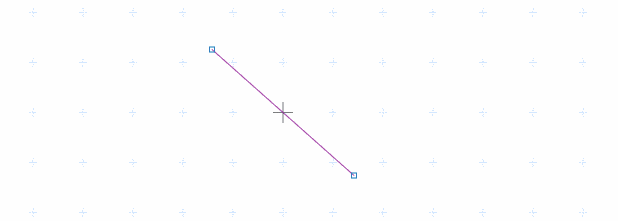
And the simple demo is here
API
See API Documentation for details.
Screenshot
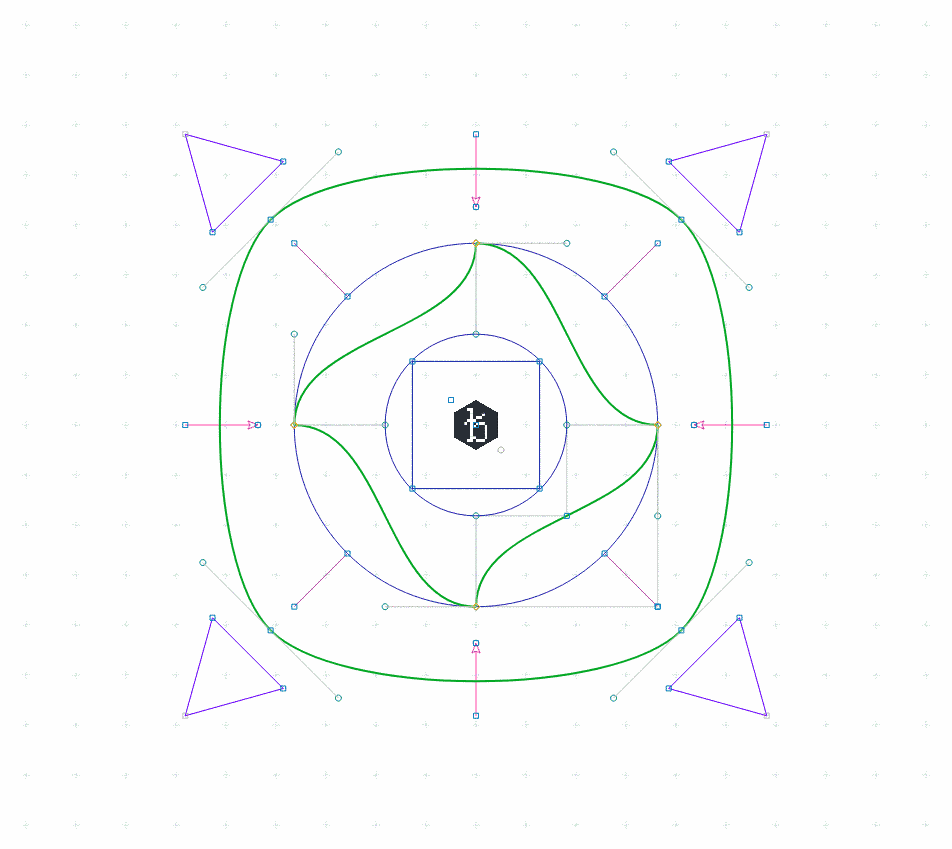
See the demo
Examples and Demos
Examples and Demos
Initialization parameters
canvas | HTMLCanvasElement | SVGElement | string | null | The canvas or its query selector string (required). |
fullsize | boolean | true | If true, then the canvas will always claim tha max available screen size. |
fitToParent | boolean | true | If true, then the canvas will alway claim the max available parent container size. |
scaleX | number | 1.0 | The initial horizontal zoom. Default is 1.0. |
scaleY | number | 1.0 | The initial vertical zoom. Default is 1.0. |
offsetX | number | 0.0 | The initial offset. Default is 0.0. Note that autoAdjustOffset=true overrides these values. |
offsetY | number | 0.0 | The initial offset. Default is 0.0. Note that autoAdjustOffset=true overrides these values. |
drawGrid | boolean | true | Specifies if the raster should be drawn. |
rasterScaleX | number | 1.0 | Define the default horizontal raster scale. |
rasterScaleY | number | 1.0 | Define the default vertical raster scale. |
rasterGrid | boolean | true | If set to true the background grid will be drawn rastered. |
rasterAdjustFactor | number | 2.0 | The exponential limit for wrapping down the grid. (2.0 means: halve the grid each 2.0*n zoom step). |
drawOrigin | boolean | false | Draw a crosshair at (0,0). |
autoAdjustOffset | boolean | true | When set to true then the origin of the XY plane will be re-adjusted automatically (see the params offsetAdjust{X,Y}Percent for more). |
offsetAdjustXPercent | number | 50 | The x- and y- fallback position for the origin after resizing the canvas. |
offsetAdjustYPercent | number | 50 | The x- and y- fallback position for the origin after resizing the canvas. |
defaultCanvasWidth | number | 1024 | The canvas size fallback if no automatic resizing is switched on. |
defaultCanvasHeight | number | 768 | The canvas size fallback if no automatic resizing is switched on. |
canvasWidthFactor | number | 1.0 | Two scaling factors (width and height) upon the canvas size. In combination with cssScale{X,Y} this can be used to obtain sub pixel resolutions for retina displays. |
canvasHeightFactor | number | 1.0 | Two scaling factors (width and height) upon the canvas size. In combination with cssScale{X,Y} this can be used to obtain sub pixel resolutions for retina displays. |
cssScaleX | number | 1.0 | Visually resize the canvas using CSS transforms (scale x). |
cssScaleY | number | 1.0 | Visually resize the canvas using CSS transforms (scale y). |
cssUniformScale | boolean | 1.0 | If set to true only cssScaleX applies for both dimensions. |
autoDetectRetina | boolean | true | When set to true (default) the canvas will try to use the display's pixel ratio. |
backgroundColor | string | #ffffff | A background color (CSS string) for the canvas. |
redrawOnResize | boolean | true | Switch auto-redrawing on resize on/off (some applications might want to prevent automatic redrawing to avoid data loss from the drae buffer). |
drawBezierHandleLines | boolean | true | Indicates if Bézier curve handle points should be drawn. |
drawBezierHandlePoints | boolean | true | Indicates if Bézier curve handle points should be drawn. |
preClear | function | null | A callback function that will be triggered just before the draw function clears the canvas (before anything else was drawn). |
preDraw | function | null | A callback function that will be triggered just before the draw function starts. |
postDraw | function | null | A callback function that will be triggered right after the drawing process finished. |
enableMouse | boolean | true | Indicates if the application should handle touch events for you. |
enableTouch | boolean | true | Indicates if the application should handle touch events for you. |
enableKeys | boolean | true | Indicates if the application should handle key events for you. |
enableMouseWheel | boolean | true | Indicates if the application should handle mouse wheelevents for you. |
enableSVGExport | boolean | true | Indicates if the SVG export should be enabled (default is true). |
enableGL | boolean | false | [Experimental] Indicates if the application should use the experimental WebGL features. |
Example
var pb = new PlotBoilerplate({
canvas: document.getElementById("my-canvas"),
fullSize: true,
fitToParent: true,
scaleX: 1.0,
scaleY: 1.0,
offsetX: 0.0,
offsetY: 0.0,
drawGrid: true,
rasterGrid: true,
rasterAdjustFactor: 2.0,
drawOrigin: false,
autoAdjustOffset: true,
offsetAdjustXPercent: 50,
offsetAdjustYPercent: 50,
defaultCanvasWidth: 1024,
defaultCanvasHeight: 768,
canvasWidthFactor: 1.0,
canvasHeightFactor: 1.0,
cssScaleX: 1.0,
cssScaleY: 1.0,
cssUniformScale: true,
autoDetectRetina: true,
backgroundColor: isDarkmode ? "#000000" : "#ffffff",
redrawOnResize: true,
drawBezierHandleLines: true,
drawBezierHandlePoints: true,
preClear: function () {
console.log("before clearing the canvas on redraw.");
},
preDraw: function (draw, fill) {
console.log("after clearing and before drawing.");
},
postDraw: function (draw, fill) {
console.log("after drawing.");
},
onContentChanged: function (event) {
console.log("Event type (DRAWABLES_ADDED or DRAWABLES_REMOVED)", event.type);
console.log("Added drawables:", event.addedDrawables);
console.log("Removed drawables:", event.removedDrawables);
},
enableMouse: true,
enableTouch: true,
enableKeys: true,
enableMouseWheel: true,
enablePan: true,
enableZoom: true,
enableSVGExport: true,
enableGL: false
});
Events
The Vertex class has basic drag event support:
var vert = new Vertex(100, 100);
vert.listeners.addDragListener(function (e) {
console.log("vertex was dragged by: ", "x=" + e.params.dragAmount.x, "y=" + e.params.dragAmount.y);
});
The e.params object
{
element : [HTMLElement],
name : string,
pos : { x : number, y : number },
button : number,
leftButton : boolean,
middleButton : boolean,
rightButton : boolean,
mouseDownPos : { x : number, y : number },
draggedFrom : { x : number, y : number },
wasDragged : boolean,
dragAmount : { x : number, y : number }
}
element | HTMLCanvasElement | [HTMLCanvasElement] | The canvas that fired the event. |
name | string | drag | The event name (default is 'drag'). |
pos | position | { x : 20, y : 50 } | The current drag position. |
button | number | 0 | A mouse button indicator (if mouse event). 0=left, 1=middle, 2=right |
leftButton | boolean | true | A flag indicating if event comes from left mouse button. |
middleButton | boolean | false | A flag indicating if event comes from middle mouse button. |
rightButton | boolean | false | A flag indicating if event comes from right mouse button. |
mouseDownPos | position | { x : 0, y : 20 } | A mouse-down-position: position where the dragging started. This will not change during one drag process. |
draggedFrom | position | { x : 10, y : -5 } | The most recent drag position (position before current drag step). |
wasDragged | boolean | true | True if this is a drag event (nothing else available at the moment). |
dragAmount | position | { x : 100, y : 34 } | The x-y-amount of the current drag step. This is the difference between the recent drag step and the actual drag position. |
Mouse, Keyboard and Touch interaction
- [SHIFT] + [Click] : Select/Deselect vertex
- [Y] + [Click]: Toggle Bézier auto-adjustment for clicked bézier path point
- [ALT or SPACE] + [Mousedown] + [Drag] : Pan the area
- [Mousewheel-up] : Zoom in
- [Mousewheel-down] : Zoom out
- Touch & move (1 finger): Move item
- Touch & move (2 fingers): Pan the area
- Touch & pinch: Zoom in/out
Custom keyboard events
new KeyHandler({ trackAll: true })
  .down("enter", function () {
    console.log("ENTER was hit.");
  })
  .press("enter", function () {
    console.log("ENTER was pressed.");
  })
  .up("enter", function () {
    console.log("ENTER was released.");
  })
  .down("e", function () {
    console.log("e was hit. shift is pressed?", keyHandler.isDown("shift"));
  })
  .up("spacebar", function () {
    console.log("spacebar was released.");
  });
For a list of all supported key codes see Full list of supported key codes.
Custom mouse event
new MouseHandler(document.getElementById("mycanvas"))
  .drag(function (e) {
    console.log("Mouse dragged: " + JSON.stringify(e));
    if (e.params.leftMouse);
    else if (e.params.rightMouse);
  })
  .move(function (e) {
    console.log("Mouse moved: " + JSON.stringify(e.params));
  })
  .up(function (e) {
    console.log("Mouse up. Was dragged?", e.params.wasDragged);
  })
  .down(function (e) {
    console.log("Mouse down.");
  })
  .click(function (e) {
    console.log("Click.");
  })
  .wheel(function (e) {
    console.log("Wheel. delta=" + e.deltaY);
  });
Build the package
Compile and build howto
Browsers support
| IE11 & Edge | latest | latest | latest |
Credits
Todos
What needs to be done
Known bugs
- SVG resizing does not work in Firefox (aspect ratio is always kept, even if clip box changes). Please use PNGs until this is fixed.
- The BBTree.iterator() fails if the tree is empty! (Demos)
- The minifid BBTree and BBTreeCollection files do not export anything. The un-minified does. Why that?
- Arcs and ellipses break when non-uniform scaling (scalex!=scaley) is applied. Convert them to Bézier curves before drawing.
- Currently no more known. Please report bugs.
Oh look, a cat
ᓚᘏᗢ







