react-native-music-control
Display and manage media controls on lock screen and notification center for iOS and Android.


Project
With Yarn:
yarn add react-native-music-control
or with NPM:
npm install react-native-music-control --save
iOS
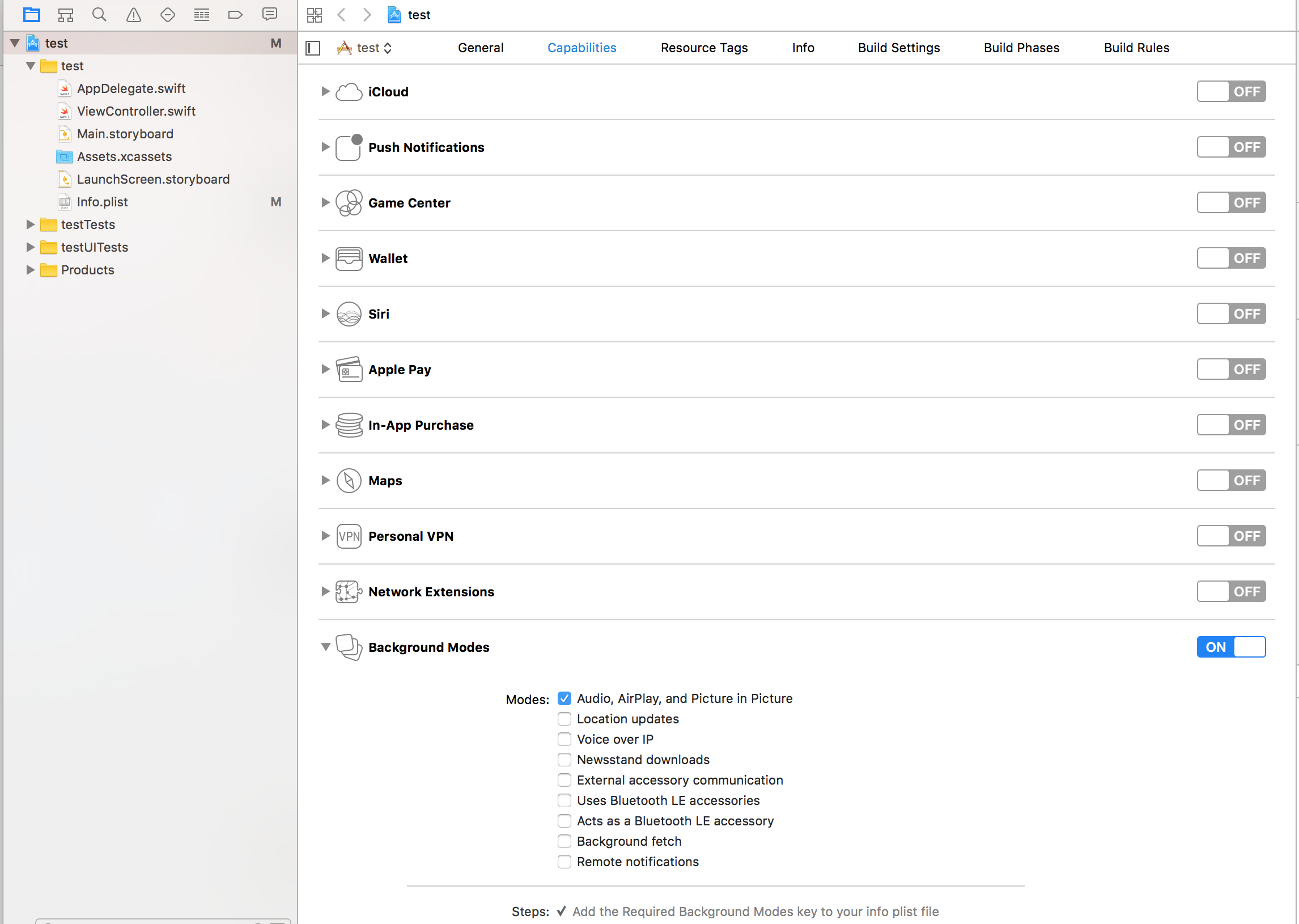
pod install --project-directory=ios/- Enable Audio Background mode in XCode project settings
Android
For React Native < v0.60
See here: README-PRE-0.60.md
Troubleshooting
See TROUBLESHOOTING.md
Usage
import MusicControl from 'react-native-music-control'
Now Playing
The setNowPlaying method enables the music controls. To disable them, use resetNowPlaying().
You should call this method after a sound is playing.
For Android's rating system, remove the rating value for unrated tracks, use a boolean for RATING_HEART or RATING_THUMBS_UP_DOWN and use a number for other types.
Note: To use custom types, you have to define the type with updatePlayback before calling this function.
MusicControl.setNowPlaying({
title: 'Billie Jean',
artwork: 'https://i.imgur.com/e1cpwdo.png',
artist: 'Michael Jackson',
album: 'Thriller',
genre: 'Post-disco, Rhythm and Blues, Funk, Dance-pop',
duration: 294,
description: '',
color: 0xffffff,
colorized: true,
date: '1983-01-02T00:00:00Z',
rating: 84,
notificationIcon: 'my_custom_icon',
isLiveStream: true,
})
Enable and Disable controls
iOS: Lockscreen
Android: Notification and external devices (smartwatches, cars)
MusicControl.enableControl('play', true)
MusicControl.enableControl('pause', true)
MusicControl.enableControl('stop', false)
MusicControl.enableControl('nextTrack', true)
MusicControl.enableControl('previousTrack', false)
MusicControl.enableControl('changePlaybackPosition', true)
MusicControl.enableControl('seekForward', false)
MusicControl.enableControl('seekBackward', false)
MusicControl.enableControl('seek', false)
MusicControl.enableControl('skipForward', false)
MusicControl.enableControl('skipBackward', false)
MusicControl.enableControl('setRating', false)
MusicControl.enableControl('volume', true)
MusicControl.enableControl('remoteVolume', false)
MusicControl.enableControl('enableLanguageOption', false)
MusicControl.enableControl('disableLanguageOption', false)
skipBackward and skipForward controls on accept additional configuration options with interval key:
MusicControl.enableControl('skipBackward', true, { interval: 15 })
MusicControl.enableControl('skipForward', true, { interval: 30 })
For Android, 5, 10 and 30 is fixed
For iOS, it is dynamic so any number is accepted
Update Playback
You don't need to set all properties when calling the updatePlayback method, but you should always set elapsedTime for iOS support and better performance on Android.
You don't need to call this method repeatedly to update the elapsedTime -- only call it when you need to update any other property.
MusicControl.updatePlayback({
state: MusicControl.STATE_PLAYING,
speed: 1,
elapsedTime: 103,
bufferedTime: 200,
volume: 10,
maxVolume: 10,
rating: MusicControl.RATING_PERCENTAGE,
})
Examples
MusicControl.updatePlayback({
state: MusicControl.STATE_PAUSED,
elapsedTime: 135,
})
MusicControl.updatePlayback({
volume: 9,
elapsedTime: 167,
})
Reset Now Playing
Resets and hides the music controls.
MusicControl.resetNowPlaying()
Stop Controls
Resets, hides the music controls and disables everything.
MusicControl.stopControl()
Set notification id and channel id (Android Only).
MusicControl.setNotificationId(10, 'channel')
If you want to change the default notification id and channel name, call this once before displaying any notifications.
There is also a closeNotification control on Android controls the swipe behavior of the audio playing notification, and accepts additional configuration options with the when key:
MusicControl.enableControl('closeNotification', true, { when: 'always' })
MusicControl.enableControl('closeNotification', true, { when: 'paused' })
MusicControl.enableControl('closeNotification', true, { when: 'never' })
Register to Events
import { Command } from 'react-native-music-control'
componentDidMount() {
MusicControl.enableBackgroundMode(true);
MusicControl.handleAudioInterruptions(true);
MusicControl.on(Command.play, ()=> {
this.props.dispatch(playRemoteControl());
})
MusicControl.on(Command.pause, ()=> {
this.props.dispatch(pauseRemoteControl());
})
MusicControl.on(Command.stop, ()=> {
this.props.dispatch(stopRemoteControl());
})
MusicControl.on(Command.nextTrack, ()=> {
this.props.dispatch(nextRemoteControl());
})
MusicControl.on(Command.previousTrack, ()=> {
this.props.dispatch(previousRemoteControl());
})
MusicControl.on(Command.changePlaybackPosition, (playbackPosition)=> {
this.props.dispatch(updateRemoteControl(playbackPosition));
})
MusicControl.on(Command.seekForward, ()=> {});
MusicControl.on(Command.seekBackward, ()=> {});
MusicControl.on(Command.seek, (pos)=> {});
MusicControl.on(Command.volume, (volume)=> {});
MusicControl.on(Command.setRating, (rating)=> {});
MusicControl.on(Command.togglePlayPause, ()=> {});
MusicControl.on(Command.enableLanguageOption, ()=> {});
MusicControl.on(Command.disableLanguageOption, ()=> {});
MusicControl.on(Command.skipForward, ()=> {});
MusicControl.on(Command.skipBackward, ()=> {});
MusicControl.on(Command.closeNotification, ()=> {
this.props.dispatch(onAudioEnd());
})
}
Note: Enabling both the 'play' and 'pause' controls will only show one icon -- either a play or a pause icon. The Music Control notification will switch which one is displayed based on the state set via the updatePlayback method. While the state is MusicControl.STATE_PLAYING it will show the pause icon, and while the state is MusicControl.STATE_PAUSED it will show the play icon.
Important Notes
- Android only supports the intervals 5, 10, & 30, while iOS supports any number
- Make sure when you call
MusicControl.resetNowPlaying() and MusicControl.stopControl() you must have controls enabled otherwise it will create issues
- You can also use
Command constants in enableControl
- The interval value only changes what number displays in the UI, the actual logic to skip forward or backward by a given amount must be implemented in the appropriate callbacks
- Android 10+ does support the seek bar in the notification, but only when meeting specific requirements: setNowPlaying() must be called with a duration value before enabling any controls
- When using react-native-sound for audio playback, make sure that on iOS
mixWithOthers is set to false in Sound.setCategory(value, mixWithOthers). MusicControl will not work on a real device when this is set to true.
- For lockscreen controls to appear enabled instead of greyed out, the accompanying listener for each control that you want to display on the lock screen must contain a valid function:
MusicControl.on(Command.play, () => {
  // A valid funcion must be present
  player.play()
})
Customization
It is possible to customize the icon used in the notification on Android. By default you can add a drawable resource to your package with the file name music_control_icon and the notification will use your custom icon. If you need to specify a custom icon name, or change your notification icon during runtime, the setNowPlaying function accepts a string for an Android drawable resource name in the notificationIcon prop. Keep in mind that just like with music_control_icon the resource specified has to be in the drawable package of your Android app.
MusicControl.setCustomNotificationIcon('my_custom_icon')
Contributing
Of course! We are waiting for your PR :)





