

Product
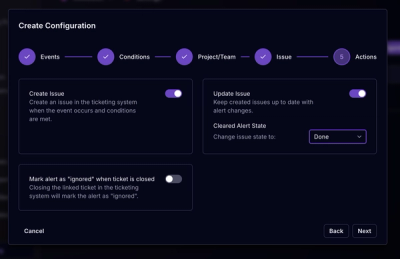
Socket for Jira Is Now Available
Socket for Jira lets teams turn alerts into Jira tickets with manual creation, automated ticketing rules, and two-way sync.
By Jeppe Hasseriis - Apr 20, 2026
react-native-video-processing
Advanced tools




npm install react-native-video-processing --save
yarn add react-native-video-processing
$ npm test or $ yarn test
Note: For RN 0.4x use 1.0 version, for RN 0.3x use 0.16
Open up android/app/src/main/java/[...]/MainApplication.java
Add import com.shahenlibrary.RNVideoProcessingPackage; to the imports at the top of the file
Add new new RNVideoProcessingPackage() to the list returned by the getPackages() method
Append the following lines to android/settings.gradle:
include ':react-native-video-processing'
project(':react-native-video-processing').projectDir = new File(rootProject.projectDir, '../node_modules/react-native-video-processing/android')
android/app/build.gradle: compile project(':react-native-video-processing')
AndroidManifest.xml: <uses-permission android:name="android.permission.READ_EXTERNAL_STORAGE" />
<uses-permission android:name="android.permission.WRITE_EXTERNAL_STORAGE"/>
In Xcode, right click your Xcode project and create New Group called RNVideoProcessing.
Go to node_modules/react-native-video-processing/ios/RNVideoProcessing and drag the .swift files under the group you just created. Press Create folder references option if not pressed.
Repeat steps 1 & 2 for the subdirectories RNVideoTrimmer, RNTrimmerView, and ICGVideoTrimmer and all the files underneath them. Make sure you keep the folders hierarchy the same.
Go to node_modules/react-native-video-processing/ios/GPUImage/framework and drag GPUImage.xcodeproj to your project's root directory in Xcode.

Under your project's Build Phases, make sure the .swift files you added appear under Compile Sources.
Under your project's General tab, add the following frameworks to Linked Frameworks and Libraries :
Add GPUImage.frameworkiOS to Embedded Binaries.
Navigate to your project's bridging header file <ProjectName-Bridging-Header.h> and add #import "RNVideoProcessing.h".
Clean and run your project.
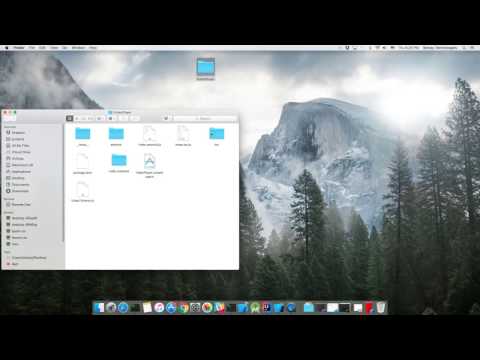
Check the following video for more setup reference.
build/android-ffmpeg.sh so it generates binaries (more info)
./android.sh --lts --disable-arm-v7a-neon --enable-x264 --enable-gpl --speed. The command might finish with failed. That's okay because we modified the build script. Make sure every build outputs: ffmpeg: ok.ffmpeg binaries in prebuilt/[android-arm|android-arm64|android-x86|android-x86_64]/ffmpeg/bin/ffmpegandroid/src/main/jniLibs/[armeabi-v7a|arm64-v8a|x86|x86_64]/libffmpeg.so. Make sure you rename the binaries from ffmpeg to libffmpeg.so!import React, { Component } from 'react';
import { View } from 'react-native';
import { VideoPlayer, Trimmer } from 'react-native-video-processing';
class App extends Component {
trimVideo() {
const options = {
startTime: 0,
endTime: 15,
quality: VideoPlayer.Constants.quality.QUALITY_1280x720, // iOS only
saveToCameraRoll: true, // default is false // iOS only
saveWithCurrentDate: true, // default is false // iOS only
};
this.videoPlayerRef.trim(options)
.then((newSource) => console.log(newSource))
.catch(console.warn);
}
compressVideo() {
const options = {
width: 720,
height: 1280,
bitrateMultiplier: 3,
saveToCameraRoll: true, // default is false, iOS only
saveWithCurrentDate: true, // default is false, iOS only
minimumBitrate: 300000,
removeAudio: true, // default is false
};
this.videoPlayerRef.compress(options)
.then((newSource) => console.log(newSource))
.catch(console.warn);
}
getPreviewImageForSecond(second) {
const maximumSize = { width: 640, height: 1024 }; // default is { width: 1080, height: 1080 } iOS only
this.videoPlayerRef.getPreviewForSecond(second, maximumSize) // maximumSize is iOS only
.then((base64String) => console.log('This is BASE64 of image', base64String))
.catch(console.warn);
}
getVideoInfo() {
this.videoPlayerRef.getVideoInfo()
.then((info) => console.log(info))
.catch(console.warn);
}
render() {
return (
<View style={{ flex: 1 }}>
<VideoPlayer
ref={ref => this.videoPlayerRef = ref}
startTime={30} // seconds
endTime={120} // seconds
play={true} // default false
replay={true} // should player play video again if it's ended
rotate={true} // use this prop to rotate video if it captured in landscape mode iOS only
source={'file:///sdcard/DCIM/....'}
playerWidth={300} // iOS only
playerHeight={500} // iOS only
style={{ backgroundColor: 'black' }}
resizeMode={VideoPlayer.Constants.resizeMode.CONTAIN}
onChange={({ nativeEvent }) => console.log({ nativeEvent })} // get Current time on every second
/>
<Trimmer
source={'file:///sdcard/DCIM/....'}
height={100}
width={300}
onTrackerMove={(e) => console.log(e.currentTime)} // iOS only
currentTime={this.video.currentTime} // use this prop to set tracker position iOS only
themeColor={'white'} // iOS only
thumbWidth={30} // iOS only
trackerColor={'green'} // iOS only
onChange={(e) => console.log(e.startTime, e.endTime)}
/>
</View>
);
}
}
Or you can use ProcessingManager without mounting VideoPlayer component:
import React, { Component } from 'react';
import { View } from 'react-native';
import { ProcessingManager } from 'react-native-video-processing';
export class App extends Component {
  componentWillMount() {
    const { source } = this.props;
    ProcessingManager.getVideoInfo(source)
      .then(({ duration, size, frameRate, bitrate }) => console.log(duration, size, frameRate, bitrate));

    // on iOS it's possible to trim remote files by using remote file as source
    ProcessingManager.trim(source, options) // like VideoPlayer trim options
          .then((data) => console.log(data));

    ProcessingManager.compress(source, options) // like VideoPlayer compress options
              .then((data) => console.log(data));

    ProcessingManager.reverse(source) // reverses the source video
              .then((data) => console.log(data)); // returns the new file source

    ProcessingManager.boomerang(source) // creates a "boomerang" of the surce video (plays forward then plays backwards)
              .then((data) => console.log(data)); // returns the new file source

    const maximumSize = { width: 100, height: 200 };
    ProcessingManager.getPreviewForSecond(source, forSecond, maximumSize)
      .then((data) => console.log(data))
  }
  render() {
    return <View />;
  }
}
If this project was helpful to you, please

$ npm run commitFAQs
Native Video processing/editing for React-Native
The npm package react-native-video-processing receives a total of 471 weekly downloads. As such, react-native-video-processing popularity was classified as not popular.
We found that react-native-video-processing demonstrated a not healthy version release cadence and project activity because the last version was released a year ago. It has 1 open source maintainer collaborating on the project.
Did you know?

Socket for GitHub automatically highlights issues in each pull request and monitors the health of all your open source dependencies. Discover the contents of your packages and block harmful activity before you install or update your dependencies.
Product
Socket for Jira lets teams turn alerts into Jira tickets with manual creation, automated ticketing rules, and two-way sync.

Company News
Socket won two 2026 Reppy Awards from RepVue, ranking in the top 5% of all sales orgs. AE Alexandra Lister shares what it's like to grow a sales career here.

Security News
NIST will stop enriching most CVEs under a new risk-based model, narrowing the NVD's scope as vulnerability submissions continue to surge.