

Product
Socket for Jira Is Now Available
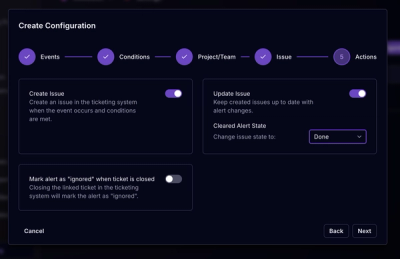
Socket for Jira lets teams turn alerts into Jira tickets with manual creation, automated ticketing rules, and two-way sync.
By Jeppe Hasseriis - Apr 20, 2026
react-native-zip-archive
Advanced tools

Zip archive utility for react-native
In order to comply with the new privacy policy of the App Store on iOS, you need to upgrade react-native-zip-archive to version 7.0.0, which requires the deployment target to be iOS 15.5 or later.
The only way to make this work with Expo is to create a dev build, the expo go is not supported.
| react-native version | react-native-zip-archive version |
|---|---|
| ^0.60 | ^5.0.0 |
| ^0.58 | ^4.0.0 |
| <0.58 | ^3.0.0 |
npm install react-native-zip-archive --save
For iOS, run the command below in your app's root folder once the package has been installed
cd ./ios && pod install
For Android, it's ready to go.
import it into your code
import { zip, unzip, unzipAssets, subscribe } from 'react-native-zip-archive'
you may also want to use something like react-native-fs to access the file system (check its repo for more information)
import { MainBundlePath, DocumentDirectoryPath } from 'react-native-fs'
zip(source: string | string[], target: string, compressionLevel?: number): Promise<string>
zip source to target
NOTE: the string version of source is for folder, the string[] version is for file, so if you want to zip a single file, use zip([file]) instead of zip(file)
NOTE: customizing the compression level is not supported on iOS with a files source and will be ignored, use a directory source instead.
Example
const targetPath = `${DocumentDirectoryPath}/myFile.zip`
const sourcePath = DocumentDirectoryPath

zip(sourcePath, targetPath)
.then((path) => {
  console.log(`zip completed at ${path}`)
})
.catch((error) => {
  console.error(error)
})
zipWithPassword(source: string | string[], target: string, password: string, encryptionType?: string, compressionLevel?: number): Promise<string>
zip source to target
NOTE: the string version of source is for folder, the string[] version is for file, so if you want to zip a single file, use zip([file]) instead of zip(file)
NOTE: On iOS, AES-256 and AES-128 both use AES-256 encryption.
NOTE: customizing the compression level is not supported on iOS with a files source and will be ignored, use a directory source instead.
Example
const targetPath = `${DocumentDirectoryPath}/myFile.zip`
const sourcePath = DocumentDirectoryPath
const password = 'password'
const encryptionType = 'STANDARD'; //possible values: AES-256, AES-128, STANDARD. default is STANDARD

zipWithPassword(sourcePath, targetPath, password, encryptionType)
.then((path) => {
  console.log(`zip completed at ${path}`)
})
.catch((error) => {
  console.error(error)
})
unzip(source: string, target: string): Promise<string>
unzip from source to target
Example
const sourcePath = `${DocumentDirectoryPath}/myFile.zip`
const targetPath = DocumentDirectoryPath
const charset = 'UTF-8'
// charset possible values: UTF-8, GBK, US-ASCII and so on. If none was passed, default value is UTF-8


unzip(sourcePath, targetPath, charset)
.then((path) => {
  console.log(`unzip completed at ${path}`)
})
.catch((error) => {
  console.error(error)
})
unzipWithPassword(source: string, target: string, password: string): Promise<string>
unzip from source to target
Example
const sourcePath = `${DocumentDirectoryPath}/myFile.zip`
const targetPath = DocumentDirectoryPath
const password = 'password'

unzipWithPassword(sourcePath, targetPath, password)
.then((path) => {
  console.log(`unzip completed at ${path}`)
})
.catch((error) => {
  console.error(error)
})
unzipAssets(assetPath: string, target: string): Promise<string>
unzip file from Android
assetsfolder to target path
Note: Android only.
assetPath is the relative path to the file inside the pre-bundled assets folder, e.g. folder/myFile.zip. Do not pass an absolute directory.
const assetPath = './myFile.zip'
const targetPath = DocumentDirectoryPath

unzipAssets(assetPath, targetPath)
.then((path) => {
  console.log(`unzip completed at ${path}`)
})
.catch((error) => {
  console.error(error)
})
subscribe(callback: ({ progress: number, filePath: string }) => void): EmitterSubscription
Subscribe to the progress callbacks. Useful for displaying a progress bar on your UI during the process.
Your callback will be passed an object with the following fields:
progress (number) a value from 0 to 1 representing the progress of the unzip method. 1 is completed.filePath (string) the zip file path of zipped or unzipped file.Note: Remember to check the filename while processing progress, to be sure that the unzipped or zipped file is the right one, because the event is global.
Note: Remember to unsubscribe! Run .remove() on the object returned by this method.
componentDidMount() {
  this.zipProgress = subscribe(({ progress, filePath }) => {
    // the filePath is always empty on iOS for zipping.
    console.log(`progress: ${progress}\nprocessed at: ${filePath}`)
  })
}

componentWillUnmount() {
  // Important: Unsubscribe from the progress events
  this.zipProgress.remove()
}
You can use this repo, https://github.com/plrthink/RNZATestApp, for testing and contribution. For more information please refer to its README.

FAQs
A little wrapper on ZipArchive for react-native
The npm package react-native-zip-archive receives a total of 43,744 weekly downloads. As such, react-native-zip-archive popularity was classified as popular.
We found that react-native-zip-archive demonstrated a healthy version release cadence and project activity because the last version was released less than a year ago. It has 13 open source maintainers collaborating on the project.
Did you know?

Socket for GitHub automatically highlights issues in each pull request and monitors the health of all your open source dependencies. Discover the contents of your packages and block harmful activity before you install or update your dependencies.
Product
Socket for Jira lets teams turn alerts into Jira tickets with manual creation, automated ticketing rules, and two-way sync.

Company News
Socket won two 2026 Reppy Awards from RepVue, ranking in the top 5% of all sales orgs. AE Alexandra Lister shares what it's like to grow a sales career here.

Security News
NIST will stop enriching most CVEs under a new risk-based model, narrowing the NVD's scope as vulnerability submissions continue to surge.