Security News
Attackers Are Hunting High-Impact Node.js Maintainers in a Coordinated Social Engineering Campaign
Multiple high-impact npm maintainers confirm they have been targeted in the same social engineering campaign that compromised Axios.
react-weekly-calendar
Advanced tools
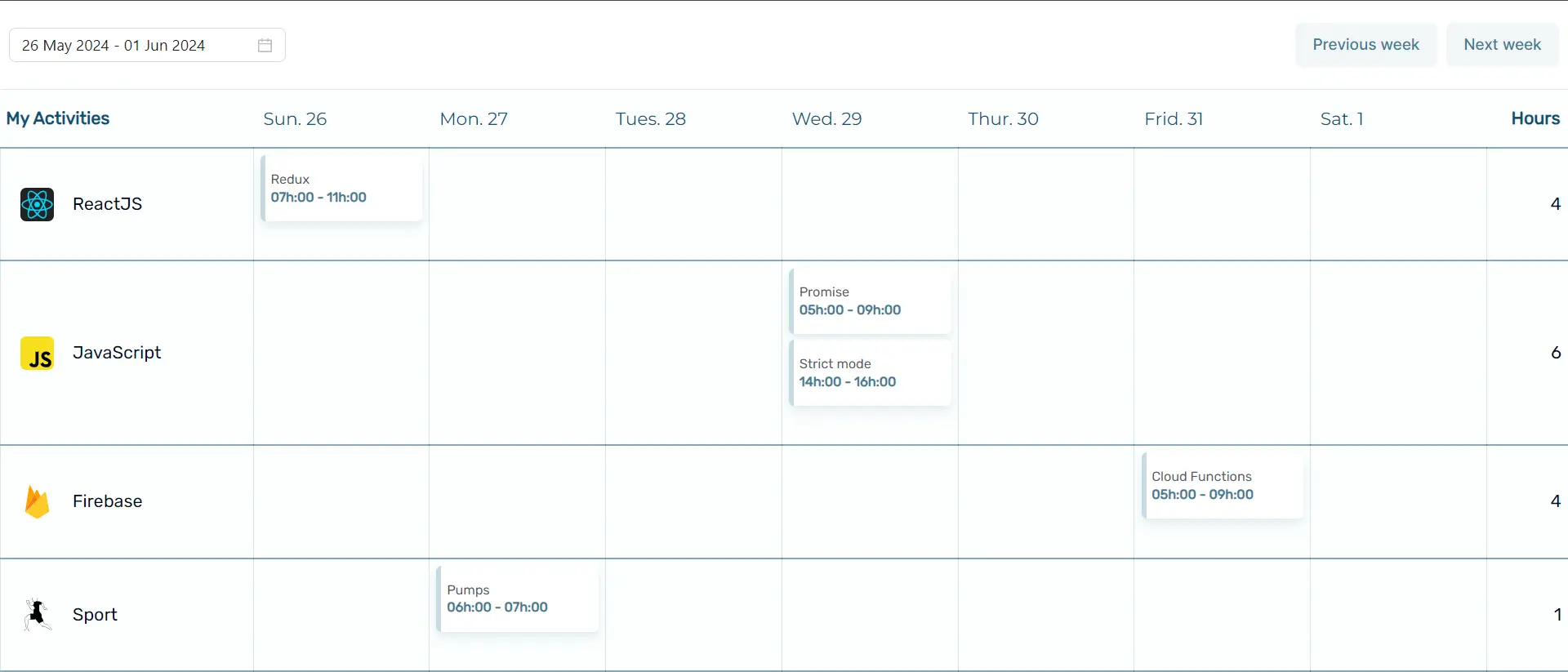
react-weekly-planning provides a React component for weekly planning. Easily set up and manage a weekly schedule with customizable tasks, groups and views.
This project is licensed under the MIT License - see the LICENSE file for details.
react-weekly-calendar provides a React component for weekly planning. Easily set up and manage a weekly schedule with customizable tasks, groups and views.

weekOffsetDescription: This prop sets the offset for the week being displayed in the calendar.
Type: number
Use Case: If you want to show the previous week's calendar, you can set weekOffset to -7. For the next week, set it to 7. For the current week, set it to 0.
Example:
<Calendar weekOffset={-7} ... />
groupsGroupFeildsType[]const groups = [
{ id: '1', label: 'Group 1', imageUrl: 'url1', ... },
{ id: '2', label: 'Group 2', imageUrl: 'url2', ... }
];
<Calendar groups={groups} ... />
It is possible to use either Weekoffset or Date, or even both simultaneously.
dateDescription: This prop sets the current date to display in the calendar.
Type: Date
Use Case: Use this prop to set the focus date of the calendar. It helps in aligning the calendar view to a specific date.
Example:
const currentDate = new Date();
<Calendar date={currentDate} ... />
tasksDescription: This prop is an array of tasks to be displayed in the calendar.
Type: TasksType
Use Case: Use this prop to manage and display tasks in the calendar. Each task should contain details such as start time, end time, description, date, group ID, and day index. taskId, taskStart taskEnd, task, taskDate, groupId, dayIndex Example:
const tasks = [
{ taskId: '1', taskStart:'Time in milliseconde', taskEnd:'Time in milliseconde', task: 'Task 1', taskDate: new Date(), groupId: '1', dayIndex: 0, ... }
];
<Calendar tasks={tasks} ... />
Supplementary property : If you want the tasks to be saved up to a date of your choice you can define the taskExpiryDate property. It's an idea of Patrick Aimé.
Example:Here's how to create a task that will expire in a day.
const tasks = [
{ taskId: '1', taskStart:'Time in milliseconde', taskEnd:'Time in milliseconde', task: 'Task 1', taskDate: new Date(), groupId: '1', dayIndex: 0,taskExpiryDate:new Date(Date.now() + 86400000) ... }
];
<Calendar tasks={tasks} ... />
taskExpiryDate is used with getSavedTasks() To obtain the saved tasks.
Example:
import {getSavedTasks} from "react-weekly-planning/lib/utils";
const [tasks,setTasks]=useState([])
useEffect(()=>{
setTasks(getSavedTasks())
},[])
<Calendar tasks={tasks} ... />
CalendarPropsTypeProps for the Calendar component.
| Prop Name | Type | Description |
|---|---|---|
weekOffset | number | Offset for the week (e.g., -7 for last week, 0 for current week, 7 for next week). |
groups | GroupFeildsType[] | Array of group data to be displayed in the calendar. |
className | string | Additional class names for the calendar component. |
style | React.CSSProperties | undefined | Additional styles for the calendar component. |
date | Date | The current date to display in the calendar. |
groupRender | ({ currentGroup }: { currentGroup: GroupFeildsType }) => React.ReactNode | Custom render function for a group. |
dayRender | ({ dayIndex, day, dayOfTheMonth, dayMonth, dayYear }: { dayIndex: number; day: string; dayOfTheMonth: number; dayMonth: string; dayYear: number; }) => React.ReactNode | Custom render function for a day. |
taskRender | ({ currentTask, handleDragTask }: { currentTask: TaskFeildsType}) => React.ReactNode | Custom render function for a task. |
rowsStyle | React.CSSProperties | undefined | Additional styles for the rows. |
rowsClassName | string | Additional class names for the rows. |
groupsColsStyle | React.CSSProperties | undefined | Additional styles for the group columns. |
groupsColsClassName | string | Additional class names for the group columns. |
daysColsStyle | React.CSSProperties | undefined | Additional styles for the day columns. |
daysColsClassName | string | Additional class names for the day columns. |
addTaskClassName | string | Additional class names for the add task button. |
addTaskStyle | React.CSSProperties | undefined | Additional styles for the add task button. |
groupClassName | string | Additional class names for the groups. |
groupStyle | React.CSSProperties | undefined | Additional styles for the groups. |
dayClassName | string | Additional class names for the days. |
dayStyle | React.CSSProperties | undefined | Additional styles for the days. |
taskContainerStyle | React.CSSProperties | undefined | Additional styles for the task container. |
taskContainerClassName | string | Additional class names for the task container. |
groupHeadContainerStyle | React.CSSProperties | undefined | Additional styles for the group head container. |
groupHeadContainerClassName | string | Additional class names for the group head container. |
sumHoursContainerStyle | React.CSSProperties | undefined | Additional styles for the sum hours container. |
sumHoursContainerClassName | string | Additional class names for the sum hours container. |
sumHoursHeadStyle | React.CSSProperties | undefined | Additional styles for the sum hours header. |
sumHoursHeadClassName | string | Additional class names for the sum hours header. |
handleAddTask | handleAddTask?: (currentGroup: GroupFeildsType, dayInfo: dayInfoType) => void; | Handler function for adding a new task. |
addTaskRender | addTaskRender?: ({currentGroup,dayInfo}:{currentGroup: GroupFeildsType;dayInfo: dayInfoType}) => React.ReactNode; | Custom render function for adding a task. |
tasks | TasksType | Array of tasks to be displayed in the calendar. |
handleDragTask | (event: React.DragEvent, currentTask: TaskFeildsType) => void | Handler function for dragging a task. |
handleDropTask | (event: React.DragEvent, taskStart: number, taskEnd: number, taskDate: Date, groupId: string, dayIndex: number, newTask: TaskFeildsType, newTasks: TasksType) => void | Handler function for dropping a task. |
handleDragTaskEnd | (event: React.DragEvent) => void | Handler function for ending the drag of a task. |
groupsHeadRender | () => React.ReactNode | Custom render function for the groups header. |
sumHoursRender | ({ groupId, tasks, weekOffset, calendarDate, sumHoursByGroups }: { groupId: string; tasks: TasksType; weekOffset: number; calendarDate: Date; sumHoursByGroups: number; }) => React.ReactNode | Custom render function for the sum of hours. |
sumHoursHeadRender | () => React.ReactNode | Custom render function for the sum of hours header. |
handleClickTask | (currentTask: TaskFeildsType) => void | Handler function for clicking a task. |
handleClickGroup | (currentGroup: GroupFeildsType) => void | Handler function for clicking a group. |

updateCalendarDateWithOffsetDescription: Updates the calendar date based on the week offset.
Parameters:
offset (number): This represents the difference in days between the current calendar date and the same date from the previous week. A shift of 7 days takes us to the following week, while a shift of -7 days takes us back to last week. weekOffset is different and represents the difference in days between the current date and the week we want to reach. A shift of 14 days brings us back to the next week starting from the current date new Date().
The current date new Date() is not necessarily the one selected in the calendar.calendarDate (Date): The current calendar date.Returns: A new Date object with the updated date.
Example:
const updatedDate = updateCalendarDateWithOffset(7, new Date());
console.log(updatedDate); // Logs the date one week ahead
updateOffsetWithDateCalendarDescription: Calculates the week offset from a given calendar date.
Parameters:
calendarDate (Date): The calendar date.Returns: The calculated week offset.
Example:
import {updateOffsetWithDateCalendar} from "react-weekly-planning/lib/utils";
const offset = updateOffsetWithDateCalendar(new Date());
console.log(offset); // Logs the week offset for the given date
millisecondsToHoursDescription: Converts milliseconds to a formatted hour string.
Parameters:
milliseconds (number): The time duration in milliseconds.Returns: A formatted date string.
Example:
import {millisecondsToHours} from "react-weekly-planning/lib/utils";
const formattedTime = millisecondsToHours(1716905215397);
console.log(formattedTime); // Logs the formatted time for 14h06
checkDuplicatestasks (TasksType): An array of existing tasks. Each task should have groupId,taskStart and taskEnd properties representing the groupId of new task, the start and end times of the task.taskStart (number): The start time in milliseconds of the new task to be checked.taskEnd (number): The end time in milliseconds of the new task to be checked.groupId (string): The groupId of new task.boolean - Returns true if there is an overlap with any existing task, otherwise returns false.FAQs
react-weekly-planning provides a React component for weekly planning. Easily set up and manage a weekly schedule with customizable tasks, groups and views.
We found that react-weekly-calendar demonstrated a healthy version release cadence and project activity because the last version was released less than a year ago. It has 1 open source maintainer collaborating on the project.
Did you know?

Socket for GitHub automatically highlights issues in each pull request and monitors the health of all your open source dependencies. Discover the contents of your packages and block harmful activity before you install or update your dependencies.

Security News
Multiple high-impact npm maintainers confirm they have been targeted in the same social engineering campaign that compromised Axios.

Security News
Axios compromise traced to social engineering, showing how attacks on maintainers can bypass controls and expose the broader software supply chain.

Security News
Node.js has paused its bug bounty program after funding ended, removing payouts for vulnerability reports but keeping its security process unchanged.