

Research
Active Supply Chain Attack Compromises @antv Packages on npm
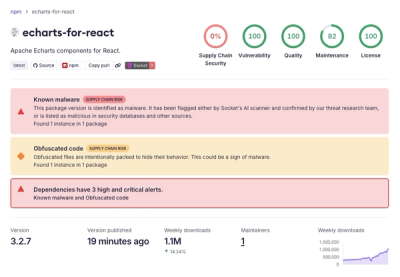
Active npm supply chain attack compromises @antv packages in a fast-moving malicious publish wave tied to Mini Shai-Hulud.
By Socket Research Team - May 19, 2026
shader-art
Advanced tools
<shader-art> componentThe <shader-art> component is a web component that creates a WebGL canvas, running a shader animation.
npm i shader-art
import { ShaderArt } from 'https://cdn.skypack.dev/shader-art';

ShaderArt.register();
You can style your shader-element according to your needs. Just provide a display: block (default would be display: inline) and specify a width and height according to your needs.
shader-art {
  display: block;
  width: 100vmin;
  height: 100vmin;
}
The HTML structure of a shader-art component looks like this:
<shader-art autoplay>
  <script type="vert">
    precision highp float;
    attribute vec4 position;
    void main() {
      gl_Position = position;
    }
  </script>

  <script type="frag">
    precision highp float;
    uniform float time;
    uniform vec2 resolution;
    void main() {
      float t = time * 1e-3;
      vec2 p = gl_FragCoord.xy / resolution;
      vec3 color = vec3(1.0, sin(p.x + t * 2.), sin(p.y + t));
      gl_FragColor=vec4(color, 1.0);
    }
  </script>
</shader-art>
Provide the #version 300 es pragma inside your fragment and vertex shader code.
<shader-art> attributesautoplay immediately starts playingplay-state="running|stopped" get/set current play-state (it is set to running automatically when autoplay is enabled)play-state the component respects the user's prefers-reduced-motion settingsdpr="auto|number" get/set device pixel ratio (default is "auto", which uses window.devicePixelRatio)uniform float time: number of ticks passeduniform vec2 resolution: resolution of the canvasTexture support can be added via a TexturePlugin.
You can load the texture plugin by importing the TexturePlugin and adding it to the ShaderArt.register call like this:
import { TexturePlugin } from 'https://cdn.skypack.dev/shader-art/plugins/texture-plugin';

ShaderArt.register([() => new TexturePlugin()]);
You can build your own plugins by implementing this interface:
export interface ShaderArtPlugin {
  name: string;
  setup(
    hostElement: HTMLElement,
    gl: WebGLRenderingContext | WebGL2RenderingContext,
    program: WebGLProgram,
    canvas: HTMLCanvasElement
  ): void | Promise<void>;
  dispose(): void;
}
If the setup method returns a promise, the shader-art component will wait until the promise resolves.
FAQs
A web component running WebGL shaders
The npm package shader-art receives a total of 32 weekly downloads. As such, shader-art popularity was classified as not popular.
We found that shader-art demonstrated a not healthy version release cadence and project activity because the last version was released a year ago. It has 1 open source maintainer collaborating on the project.
Did you know?

Socket for GitHub automatically highlights issues in each pull request and monitors the health of all your open source dependencies. Discover the contents of your packages and block harmful activity before you install or update your dependencies.
Research
Active npm supply chain attack compromises @antv packages in a fast-moving malicious publish wave tied to Mini Shai-Hulud.
Security News
/Research
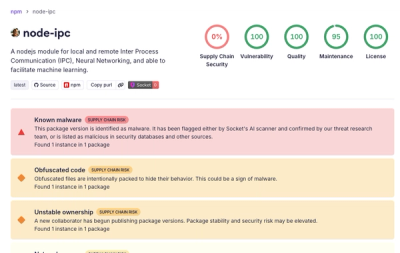
Socket detected malicious node-ipc versions with obfuscated stealer/backdoor behavior in a developing npm supply chain attack.

Security News
TeamPCP and BreachForums are promoting a Shai-Hulud supply chain attack contest with a $1,000 prize for the biggest package compromise.