


Company News
Socket Has Acquired Secure Annex
Socket has acquired Secure Annex to expand extension security across browsers, IDEs, and AI tools.
By Feross Aboukhadijeh - Apr 28, 2026
TimelinerNet
Advanced tools
Interactive control for visualizing the schedule
The GUI element is designed for WPF .NET applications. Allows the developer to show tasks grouped in a timeline. An element can include multiple Items within which multiple Jobs can be included. Jobs must not overlap. The control is under development.
Some features:
dotnet add package TimelinerNet
It has the data structure shown below. Arrange your data in these structures:
TimelinerData
    List<TimelinerItem> Items
        string Name
        string Description
        List<TimelinerJob> Jobs
            string Name
            string TextUp
            string TextDown
            string TextRight
            Brush Color
            bool IsStripedColor
            DateTime Begin
            DateTime End
To use it, you need to insert a XAML element.
Data - TimelinerData | Restriction for setting by the user. Less than this value, the user will not be able to set.Now - DateTime | At this time, a red marker will be shown.LeftEdge - DateTime | Left border of screen time.RightEdge - DateTime | Right border of screen time.TrackNow - bool | When changed the Now parameter, the time bar will follow it.<tl:Timeliner Data="{Binding Data}"/>
Don't forget to add the library to the list:
<Window x:Class="Example.MainWindow"
        ...
        xmlns:tl="clr-namespace:TimelinerNet;assembly=TimelinerNet"
        ...
In addition. Clicking on a Job shows a Popup with additional information. To change the view of this window, use the DataTemplatePopup property.
<tl:Timeliner Data="{Binding Data}">
    <tl:Timeliner.DataTemplatePopup>
        <DataTemplate>
            <StackPanel>
                <TextBlock Text="{Binding Name}"/>
                <TextBlock Text="{Binding CustomObject.CustomString}" TextWrapping="Wrap"/>
                <TextBlock Text="{Binding Begin, StringFormat={}{0:dd.MM.yyyy HH:mm}}"/>
            </StackPanel>
        </DataTemplate>
    </tl:Timeliner.DataTemplatePopup>
</tl:Timeliner>
Distributed under the MIT License. See LICENSE for more information.
FAQs
Interactive control for visualizing the schedule
We found that timelinernet demonstrated a not healthy version release cadence and project activity because the last version was released a year ago. It has 1 open source maintainer collaborating on the project.
Did you know?

Socket for GitHub automatically highlights issues in each pull request and monitors the health of all your open source dependencies. Discover the contents of your packages and block harmful activity before you install or update your dependencies.
Company News
Socket has acquired Secure Annex to expand extension security across browsers, IDEs, and AI tools.

Research
/Security News
Socket is tracking cloned Open VSX extensions tied to GlassWorm, with several updated from benign-looking sleepers into malware delivery vehicles.
Product
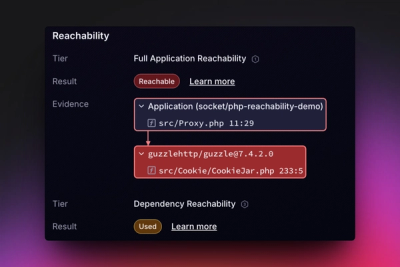
Reachability analysis for PHP is now available in experimental, helping teams identify which vulnerabilities are actually exploitable.