C/C++ Code Runner
🚀 Compile, run, and debug your C/C++/CUDA code with a single click – from single-file test cases to full folder builds!
No command line knowledge needed – focus on coding!
Requirements
- 🔧 Any C/C++/CUDA compiler: GCC, Clang, MSVC, or NVCC
Make sure your compiler is available in your system's PATH or set the path in the extension's settings.
Windows—Visual Studio compiler (MSVC) is supported.
🏁 Quick Start
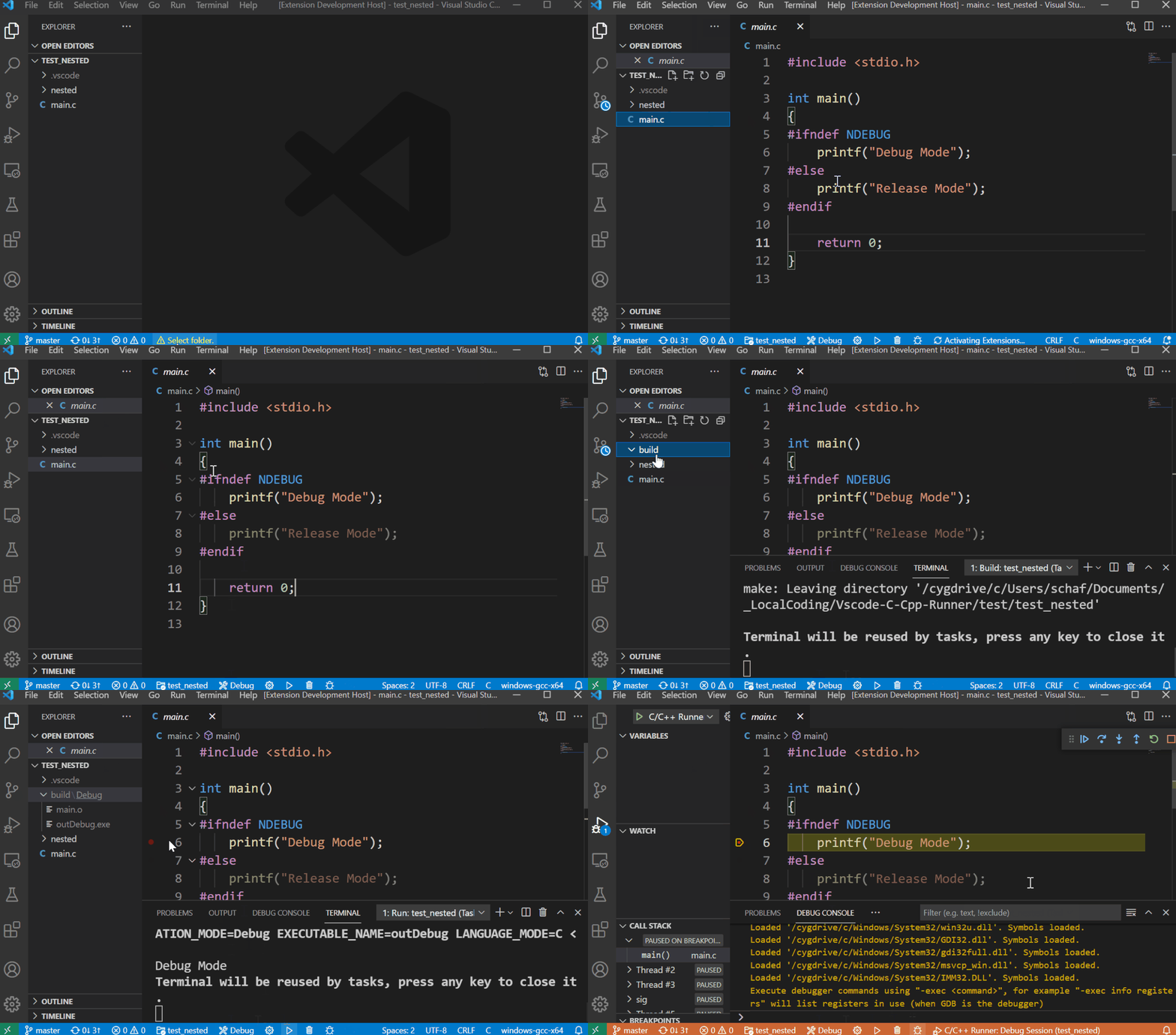
Compile a Single File:
- Open your source file (
.c, .cpp, etc).
- Choose debug or release mode.
- Hit Ctrl+Alt+B to build.
- Run with Ctrl+Alt+R, or click ▶️ in the status bar.
- Debug with Ctrl+Alt+D or via 🐞 on the status bar.

Build All Files in a Folder:
- Select a folder containing C/C++ sources via the folder picker:

- Optionally, switch between debug and release mode:

- Click a statusbar icon or use the keyboard for build / run / debug,
see example above.
- Build – compile all C/C++ files in the folder.
- Run – runs the resulting executable.
- Debug – opens a debugging session.
- Clean – cleans the build files.
* Tasks require build to be executed once.
⚙️ Settings & Configuration
All configuration is handled locally in .vscode/settings.json.
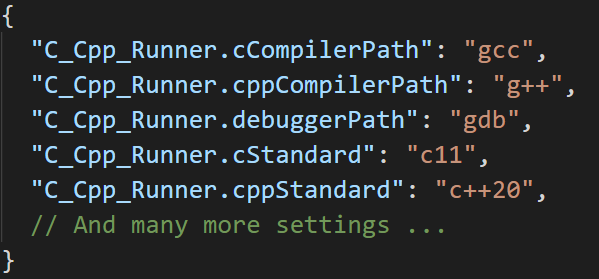
No need to edit c_cpp_properties.json directly, it's managed automatically.
Key options (customizable):
- C Compiler Path (default: gcc)
- C++ Compiler Path (default: g++)
- C Standard (default: auto)
- C++ Standard (default: auto)
- Debugger Path (default: gdb)
- MSVC Batch Path (for MSVC, Windows)
- Use MSVC (toggle)
- Enable Compiler Warnings
- Enable Warnings as Errors
- GCC/Clang Compiler Warnings (string array)
- MSVC Compiler Warnings (string array)
- Disable MSVC Security Warnings
💡 Features
Pass Command-line Arguments
Add custom CLI arguments for running or debugging your program.
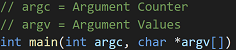
Press Ctrl+Alt+A to input your arguments.

Arguments are saved to launch.json for reuse in debug mode.
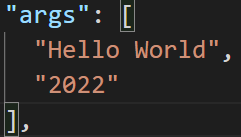
When you select a new folder, stored arguments reset.
To pass whitespaces: wrap values in double quotes.
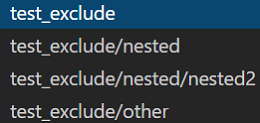
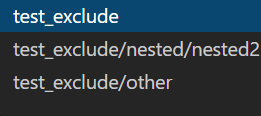
🎯 Folder Selection with Include/Exclude Patterns
You can refine which folders are available for build with glob patterns.

Left: Before exclude, Right: After exclude
🛠️ Generate Assembler Code
On running Generate Assembler Code, assembly output is placed in your build folder (experimental, single-file support only).
🔬 Advanced
- Sanitizer support (address, undefined, leak) in debug builds.
- Display compilation time stats.
- Link Time Optimization toggle (release mode).
- Set extra compiler/linker args (arrays).
- Set include folders (no
-I needed).
- Fine tune folder globbing for builds.
⚠️ Notes
- Supported headers:
.h, .hpp, .hh, .hxx
- Supported sources:
.c, .cpp, .cc, .cxx
- Filenames with spaces or
& etc. can cause issues—prefer simple names!
If CMakeLists.txt exists at the workspace root, status bar icons auto-hide to prevent conflict with CMake tools.
You may use the command "Toggle extension buttons in status bar" to override.
📢 Updates
See CHANGELOG at publisher_name
📜 License
Copyright (C) publisher_name
Licensed under the MIT License
☕ Support
If you like this extension and want to support further development:
Donate via PayPal