

Security News
New React Server Components Vulnerabilities: DoS and Source Code Exposure
New DoS and source code exposure bugs in React Server Components and Next.js: what’s affected and how to update safely.
By Sarah Gooding - Dec 12, 2025
PySimpleGUIQt6
Advanced tools
Python GUIs for Humans. Launched in 2018. It's 2022 & PySimpleGUI is an ACTIVE & supported project. Super-simple to create custom GUI's. 325+ Demo programs & Cookbook for rapid start. Extensive documentation. Main docs at www.PySimpleGUI.org. Fun & your success are the focus. Examples using Machine Learning (GUI, OpenCV Integration), Rainmeter Style Desktop Widgets, Matplotlib + Pyplot, PIL support, add GUI to command line scripts, PDF & Image Viewers. Great for beginners & advanced GUI programmers.


PySimpleGUIQt on PyPI...

"Qt without the ugly"
(For newbies... "Qt" is prouncounced "Cute")
Announcements of Latest Developments
Welcome to the Alpha Release of PySimpleGUI for Qt!
You can use the exact same code that you are running on the older, tkinter, version of PySimpleGUI.
PySimpleGUIQt uses PySide2 OR PySide6 for access to Qt. PyQt5 support was removed.
To "port" your code from the tkinter implementation. Follow these steps:
import PySimpleGUI to PySimpleGUIQtThat's it! OK, maybe I should have said step instead of steps. It may not be that simple in all cases, but it's pretty simple generally speaking.
While you can use "Character-based" sizes like you did in tkinter, it's best to use pixel based sizes as that is what Qt uses. PySimpleGUIQt does some very rough / basic conversions from the character sizes to pixel sizes. It's enough that your elements will at least be visible. But the conversion is likely to not be ideal.
Fonts should be in the format (font family, size). You can use the older string based too, but it will not work with setting like bold and italics. PySimpleGUIQt converts from the string 'Courier 20' to the tuple ('Courier', 20) for you.
pip install --upgrade PySimpleGUIQt
On Linux systems you need to run pip3.
pip3 install --upgrade --no-cache-dir PySimpleGUIQt
It is highly recommended that you use PySide2. The code will attempt to use PySide2 if PySide6 isn't found.
To install Pyside6:
pip install PySide6
To install Pyside2:
pip install PySide2
PyQt5 is no longer supported. Only PySide6 and PySide2 are supported
Too many differences were causing a lot of headaches. Supporting just 1 Qt port is difficult enough. Parsing out the differences between pyside2 and pyqt5 was simply getting to be too much
Once you have installed, or copied the .py file to your app folder, you can test the installation using python. At the command prompt start up Python.
  python3
    >>> import PySimpleGUIQt
    >>> PySimpleGUIQt.main()
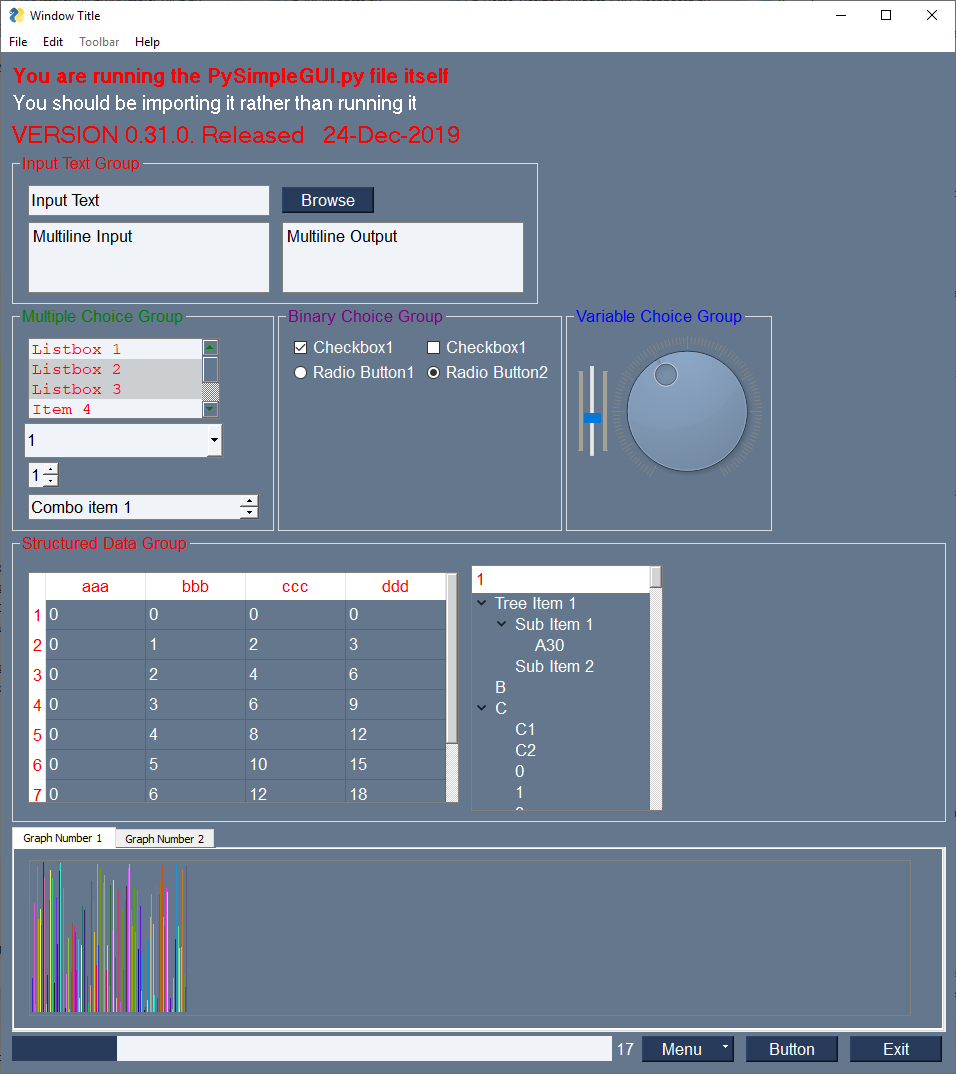
You will see a sample window in the center of your screen. If it's not installed correctly you are likely to get an error message during one of those commands
Here is the window you should see:
PySide6 or PySide2
To use in your code, simply import....
import PySimpleGUIQt as sg
Then use the exact same code as any other PySimpleGUI program that runs on tkinter.
For the primary PySimpleGUI documentation go to http://www.PySimpleGUI.org. HOWEVER, bear in mind that is the tkinter version. But it's the best documentation for the package at the moment. Docstrings are coming to this Qt Release, but it's going to take some time to get them done. When they are, then this readme will also be fabulous.s
All of the major features are DONE. They may not have all of their options working, but they can be added to your windows. It's been an amazing week to get here.
I hope you enjoy this ALPHA release! Please post a screenshot on the GitHub site. There is an Issue where users have been posting their applications. It's a place for you to show-off and a place for others to learn from your designs. Your window does not have to be complex.... all GUIs, no matter how simple, are something we can learn from.
Features are being added daily to this Qt port of PySimpleGUI.
These Elements are "complete" (a relative term... more are more complete than others):
Text
Input single line
Input multiline
Output multiline (new)
Dial (new)
Output - reroute stdout
Spinner
Sliders
Buttons - RButtons, CButtons, Short-cut Buttons
Checkbox
Radio Buttons
Listbox
ComboBox
Labeled Frames
Columns - enables you to make pretty much any layout!
Alpha channel for windows
No Title Bar setting
Enter submits for multiline
Fonts
Colors for text and background
Timeouts for Read calls
Change Submits parameters for most Elements
Table
Image as a background (new feature)
Graph - Draw line, draw circle, draw text
Image Element
Tree Element
Tabs
Menus
Menu Button Element
Notable MISSING features at the moment include:
There are a number of new features that are only available in PySimpleGUIQt. These include:
This is a PySimpleGUIQt only feature. Don't know of a way to do it using tkinter. It looks likely to work on WxPython however.
In addition to running normal windows, it's now also possible to have an icon down in the system tray that you can read to get menu events. There is a new SystemTray object that is used much like a Window object. You first get one, then you perform Reads in order to get events.
Here is the definition of the SystemTray object.
SystemTray(menu=None, filename=None, data=None, data_base64=None, tooltip=None):
        '''
 SystemTray - create an icon in the system tray
 :param menu: Menu definition
 :param filename: filename for icon
 :param data: in-ram image for icon
 :param data_base64: basee-64 data for icon
 :param tooltip: tooltip string '''
You'll notice that there are 3 different ways to specify the icon image. The base-64 parameter allows you to define a variable in your .py code that is the encoded image so that you do not need any additional files. Very handy feature.
Here is a design pattern you can use to get a jump-start.
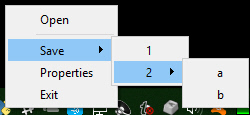
This program will create a system tray icon and perform a blocking Read. If the item "Open" is chosen from the system tray, then a popup is shown.
import PySimpleGUIQt as sg

menu_def = ['BLANK', ['&Open', '---', '&Save', ['1', '2', ['a', 'b']], '&Properties', 'E&xit']]

tray = sg.SystemTray(menu=menu_def, filename=r'default_icon.ico')

while True:  # The event loop
  menu_item = tray.Read()
    print(menu_item)
    if menu_item == 'Exit':
        break
    elif menu_item == 'Open':
        sg.Popup('Menu item chosen', menu_item)
The design pattern creates an icon that will display this menu:
When specifying "icons", you can use 3 different formats.
filename- filenamedata_base64 - base64 byte stringdata - in-ram bitmap or other "raw" imageYou will find 3 parameters used to specify these 3 options on both the initialize statement and on the Update method.
menu_def = ['BLANK', ['&Open', '&Save', ['1', '2', ['a', 'b']], '!&Properties', 'E&xit']]
A menu is defined using a list. A "Menu entry" is a string that specifies:
See section on Menu Keys for more information on using keys with menus.
An entry without a key and keyboard shortcut is a simple string
'Menu Item'
If you want to make the "M" be a keyboard shortcut, place an & in front of the letter that is the shortcut.
'&Menu Item'
You can add "keys" to make menu items unique or as another way of identifying a menu item than the text shown. The key is added to the text portion by placing :: after the text.
'Menu Item::key'
The first entry can be ignored.'BLANK' was chosen for this example. It's this way because normally you would specify these menus under some heading on a menu-bar. But here there is no heading so it's filled in with any value you want.
Separators
If you want a separator between 2 items, add the entry '---' and it will add a separator item at that place in your menu.
Disabled menu entries
If you want to disable a menu entry, place a ! before the menu entry
Use the Stretch Element to left justify, right justify or center justify one or more elements within their container.
If a single Stretch Element is on a row, then it will push the other elements on the row to either the left or right. If Stretch is on the left, then the elements to the rigth will be pushed to the right.
To center elements, place a Stretch Element on each side of them (2 Stretch Elements will be on the same row)
def Read(timeout=None)
    '''
 Reads the context menu
 :param timeout: Optional.  Any value other than None indicates a non-blocking read
 :return:   String representing meny item chosen. None if nothing read.
    '''
The timeout parameter specifies how long to wait for an event to take place. If nothing happens within the timeout period, then a "timeout event" is returned. These types of reads make it possible to run asynchronously. To run non-blocked, specify timeout=0on the Read call.
Read returns the menu text, complete with key, for the menu item chosen. If you specified Open::key as the menu entry, and the user clicked on Open, then you will receive the string Open::key upon completion of the Read.
In addition to Menu Items, the Read call can return several special values. They include:
EVENT_SYSTEM_TRAY_ICON_DOUBLE_CLICKED - Tray icon was double clicked EVENT_SYSTEM_TRAY_ICON_ACTIVATED - Tray icon was single clicked EVENT_SYSTEM_TRAY_MESSAGE_CLICKED - a message balloon was clicked TIMEOUT_KEY is returned if no events are available if the timeout value is set in the Read call
Hides the icon. Note that no message balloons are shown while an icon is hidden.
def Hide()
Does the same thing as hide
def Close()
Shows a previously hidden icon
def UnHide()
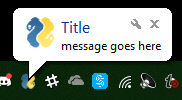
Shows a balloon above the icon in the system tray area. You can specify your own icon to be shown in the balloon, or you can set messageicon to one of the preset values.
This message has a custom icon.
The preset messageicon values are:
SYSTEM_TRAY_MESSAGE_ICON_INFORMATION
SYSTEM_TRAY_MESSAGE_ICON_WARNING
SYSTEM_TRAY_MESSAGE_ICON_CRITICAL
SYSTEM_TRAY_MESSAGE_ICON_NOICON
ShowMessage(title, message, filename=None, data=None, data_base64=None, messageicon=None, time=10000):
    '''
 Shows a balloon above icon in system tray
 :param title:  Title shown in balloon
 :param message: Message to be displayed
 :param filename: Optional icon filename
 :param data: Optional in-ram icon
 :param data_base64: Optional base64 icon
 :param time: How long to display message in milliseconds  :return:
 '''
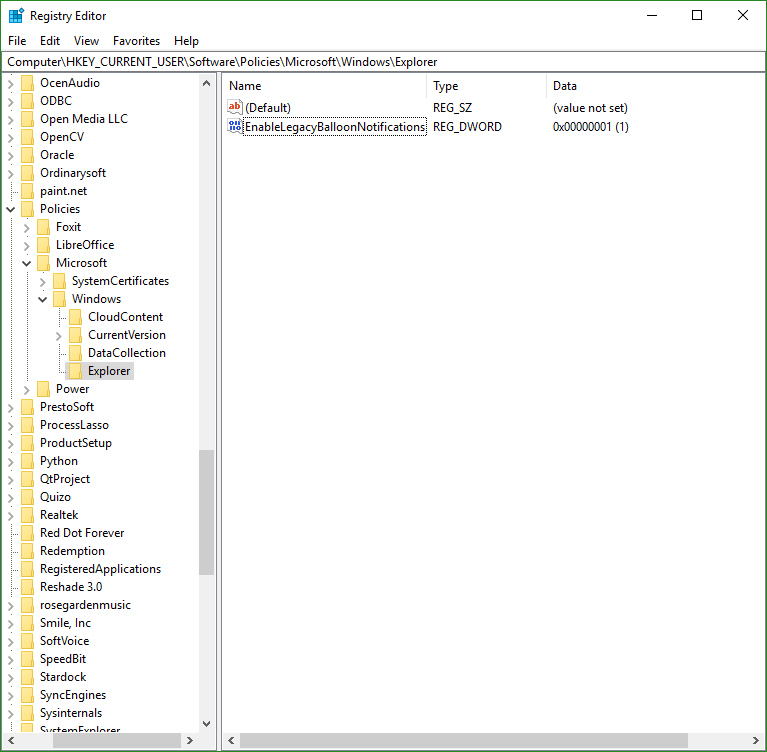
Note, on windows it may be necessary to make a registry change to enable message balloons to be seen. To fix this, you must create the DWORD you see in this screenshot.
You can update any of these items within a SystemTray object
Change them all or just 1.
Update(menu=None, tooltip=None,filename=None, data=None, data_base64=None,)
    '''
 Updates the menu, tooltip or icon
 :param menu: menu defintion
 :param tooltip: string representing tooltip
 :param filename:  icon filename
 :param data:  icon raw image
 :param data_base64: icon base 64 image
 :return:
 '''
PySimpleGUIQt offers the ability to add a key to your menu items. To do so, you add :: and the key value to the end of your menu definition.
menu_def = ['File', ['Hide::key', '&Open::key', '&Save',['1', '2', ['a','b']], '&Properties', 'E&xit']]
The menu definition adds a key "key" to the menu entries Hide and Open.
If you want to change the separator characters from :: top something else,change the variable MENU_KEY_SEPARATOR
When a menu item has a key and it is chosen, then entire string is returned. If Hide were selected, then Hide::key would be returned from the Read. Note that the shortcut character & is NOT returned from Reads.
Finally, the ability to grow and shrink has been added as of release 0.20.0
While the window appears to be dynamic, the reality is that the elements are created up front, when you define the window layout. You will create these "extra" elements with the flag visible=False. Then, when you wish to show those elements, call the element's Update method setting visible=True.
After you call the Update method, it's important to call window.VisibilityChanged() so that your window can change sizes. Without that call your window will not shrink. It will grow properly, but it will not shrink. While this could have been done by PySimpleGUI on the user's behalf, the thought was that perhaps the user wants the window size to remain the same and the element simply appears and disappears, leaving a blank spot. If the window automatically grew and shrank, this would not be possible. Just buck-up and make the call to VisibilityChanged.
enable_events ParameterAll elements that are capable of producing events now have a parameter enable_events. This is identical to the old parameter change_submits or click_submits. The idea is to standardize on 1 name that all elements use. The old parameters will continue to work, but the documentation and sample programs will steer you away from them and towards enable_events.
Correctly restore stdout when Output Element is deleted
Added Finalize ability
Better multi-window handling... maybe it's finally fixed!
Radio button default value
Dial element default value
Show expanded option for trees
Titles for popups
Focus for Input Text and Multiline Input
Get focus
Set focus Window.FindElementWithFocus works Multiline input
Change submits
Update - disabled, append
Multiline output - Update value, append, disabled, get value Text clicked submits File types for open files Initial folder, file types, for browse buttons File types standardized on tkinter data format Find Element With Focus now works for input and multiline input Yet more multiwindow handling Relief for Text element Input text disable Correct sizing of Comboboxes using visible items parm Correct default values for input and multiline input Change submits for multiline Horizontal and Vertical separators PopupGetFile and PopupGetFolder - no_window option works
Slider tick positions set using relief parm ButtonMenu Element Multiline.Update font parm Text.Update color and font now work Button.Update font support Window.Element = Window.FindElement Better font support for all elements - underline, bold Element padding - complete rework Text element padding Button padding Input Text padding Input Text password char Listbox padding Combobox padding Multiline padding Checkbox padding Radio padding Progress Bar padding Output padding Image padding Graph padding Slider - set tick marks using relief parm Dial - set tick information using resolution and tick interval Table padding Tree padding Separator padding Force window sizing should mean windows are better sized Popup - better layout
New SystemTray feature! margin paramter for Text Element. Takes 4 ints Corrected button colors when disabled. For now am restoring them to original colors Border Depth for all elements that support it (inputs, slider, table, tree, etc) Fix for Element padding done incorrectly!! Sorry about this one
Easier forcing to use PyQt5 for testing Predefined events for Tray Icons
Tray icon tooltip Menu keys with programmable separator Better element padding hierarchy Menubar now returns values as does the ButtonMenu
Window.Hide and UnHide methods
Tooltips for all elements Completion of all SystemTray features Read with or without timeout Specify icons from 3 sources Show message with custom or preset icons Update
Ability to disable menu items by adding ! to the front Disable menu works for menus, button menus, system tray menus Combo - Update Method - Value, values, disabled, font Listbox - Update Method - Values, disabled Listbox - SetValue Method - sets the selected items Radio Button - Update Method - value, disabled Checkbox - Update Method - value, disabled Spinner - Update Method - value, values, disabled Spinner - change_submits works Image - New feature! click_submits option (acts like a button in a way) Window - Get screen dimensions Slider - disable Dial - disable
Uses built-in Default Base64 Logo! (no more .ico file needed)
New shortcuts for Elements
Convert user supplied button text to string just in case not a string
Parameter icon in Window call can be Base64 byte string in addition to filename
It's been a LONG LONG LONG time coming
Themes and more!
The "Jeez... it's been way too LONG since a release" release
Highlights - Read with close (Single line GUIs!), Print to Multiline, Scrollable columns
This time for REAL added the constants. I don't know how to changes got lost but they did.
Element justification within Window and Containers! Finally a unified justification
The PySimpleGUI Organization PySimpleGUI.org
GNU Lesser General Public License (LGPL 3) +
Copyright 2018, 2019, 2020, 2022 PySimpleGUI
FAQs
Python GUIs for Humans. Launched in 2018. It's 2022 & PySimpleGUI is an ACTIVE & supported project. Super-simple to create custom GUI's. 325+ Demo programs & Cookbook for rapid start. Extensive documentation. Main docs at www.PySimpleGUI.org. Fun & your success are the focus. Examples using Machine Learning (GUI, OpenCV Integration), Rainmeter Style Desktop Widgets, Matplotlib + Pyplot, PIL support, add GUI to command line scripts, PDF & Image Viewers. Great for beginners & advanced GUI programmers.
We found that PySimpleGUIQt6 demonstrated a healthy version release cadence and project activity because the last version was released less than a year ago. It has 1 open source maintainer collaborating on the project.
Did you know?

Socket for GitHub automatically highlights issues in each pull request and monitors the health of all your open source dependencies. Discover the contents of your packages and block harmful activity before you install or update your dependencies.
Security News
New DoS and source code exposure bugs in React Server Components and Next.js: what’s affected and how to update safely.

Security News
Socket CEO Feross Aboukhadijeh joins Software Engineering Daily to discuss modern software supply chain attacks and rising AI-driven security risks.
Security News
GitHub has revoked npm classic tokens for publishing; maintainers must migrate, but OpenJS warns OIDC trusted publishing still has risky gaps for critical projects.