


Security News
The Hidden Blast Radius of the Axios Compromise
The Axios compromise shows how time-dependent dependency resolution makes exposure harder to detect and contain.
By Ahmad Nassri - Apr 01, 2026
programmify
Advanced tools
Quickly make a windows executable with a system tray icon and an configurable (read empty) PyQT5 window
Quickly make a windows executable with a system tray icon and an configurable (read empty) PyQT5 window

Task Manager

Yes! You can use your own icon
Make a new python project folder, let's call it myprogram
Make a virtual environment if you want, or just use your system python
Install programmify
pip install programmify
Make a new file in myprogram, let's call it myapp.py
import and use either ProgrammifyWidget or ProgrammifyMainWindow from programmify in your script
# myprogram/myapp.py
from PyQt5 import QtWidgets

from programmify import ProgrammifyWidget


class MyWidget(ProgrammifyWidget):
    def setupUI(self):
        # Create a layout
        layout = QtWidgets.QVBoxLayout(self)

        # Add a label
        label = QtWidgets.QLabel("Hello, Programmify!")
        layout.addWidget(label)

        # Add a button
        button = QtWidgets.QPushButton("Click Me")
        button.clicked.connect(self.on_button_clicked)  # Connect to a method to handle the click event
        layout.addWidget(button)

        # Set the layout on the QWidget
        self.setLayout(layout)

    def on_button_clicked(self):
        QtWidgets.QMessageBox.information(self, "Action", "Button was clicked!")


if __name__ == '__main__':
    MyWidget.run()
Build the executable
From command prompt in the project directory:
(venv) C:\Users\user\myprogram> programmify --desktop
NOTES:
programmify myapp.pyfavicon.ico in your current working directory to use as the icon for the program--desktop will copy the executable to your desktopmyprogram/myapp.exe and also copied to your desktop. Double click to run!programmify myapp.py --name testprogram --icon testicon.ico
programmify --help to see all options--show_cmd to show the pyinstaller command that will be run instead of running it (useful for debugging)>programmify --help
usage: programmify [-h] [--name NAME] [--dst DST] [--icon ICON] [--mode MODE] [--nocleanup] [--show_cmd] [--cmd CMD] [--hidden_imports [HIDDEN_IMPORTS ...]]
[--extra_files [EXTRA_FILES ...]] [--debug] [--args ...] [--desktop] [--version VERSION]
file
positional arguments:
file File to build. If not specified, will try ...
1. main.py in current working directory if found
2. __main__.py
3. the only .py file in the current working directory if only one is found (excluding __init__.py)
4. if there is a src directory, will search in src and its subdirectories to find a single option
5. if the above fails, will raise an error and you will need to specify the file to build.
options:
-h, --help show this help message and exit
--name NAME Program name. If not specified, the name of the either the file or its parent directory will be used.
--dst DST Destination directory for the built program
--icon ICON Path to a 16x16 .ico file. If not specified, will try to find favicon.ico or any other .ico or .png in the current working directory.
--mode MODE Program mode: window or widget
--nocleanup Cleanup build files
--show_cmd Show the command that will be run instead of running it
--cmd CMD Expert level: command to run instead of pyinstaller
--hidden_imports [HIDDEN_IMPORTS ...]
Hidden imports
--extra-files [EXTRA_FILES ...]
Extra files to include
--debug Does not run in windowed mode, instead shows the terminal and stdout
--args ... Additional arguments to pass to pyinstaller
--desktop Copy the file to the desktop
--version VERSION Adds the version string to the end of the program name. e.g. --version 1 => my_program v1
png2ico to convert a .png to a .ico file
png2ico --help for usageRun any subprocess command (bash) and display a live feed of stdout and stderr in a PyQT5 widget.
# count.py
import time
import sys

def count(start, stop, interval=1):
    for i in range(start, stop):
        print(i)
        sys.stdout.flush() # unfortunately, this is necessary to get the output to show up in the widget
        time.sleep(interval)
    sys.stderr.flush()

if __name__ == '__main__':
    start = int(sys.argv[1])
    stop = int(sys.argv[2])
    interval = int(sys.argv[3])
    count(start, stop, interval)
IMPORTANT: sys.stdout.flush() is necessary to get the output to show up in the widget.
This is a bug I am working on fixing. It is not necessary when running main.py directly, only when running the executable.
# main.py
from programmify import SubprocessWidget

if __name__ == '__main__':
    cmd = ["python", "count.py", '1000', '1010', '1']
    SubprocessWidget.run(cmd=cmd)
programmify main.py --name count --extra-files count.py
pyinstaller doesn't see that we are depending on the count.py to be included as well, so we must specify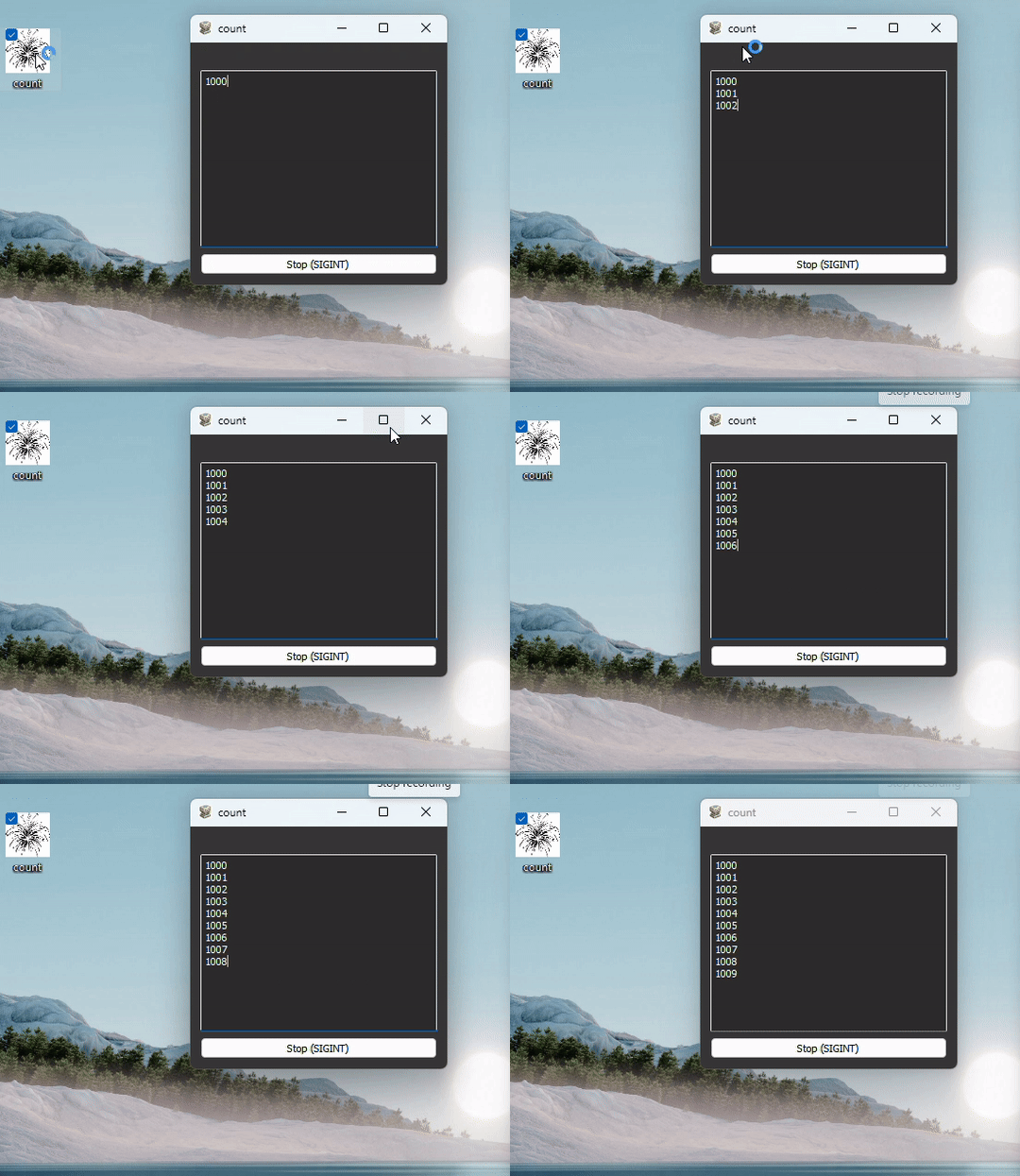
FAQs
Quickly make a windows executable with a system tray icon and an configurable (read empty) PyQT5 window
We found that programmify demonstrated a healthy version release cadence and project activity because the last version was released less than a year ago. It has 1 open source maintainer collaborating on the project.
Did you know?

Socket for GitHub automatically highlights issues in each pull request and monitors the health of all your open source dependencies. Discover the contents of your packages and block harmful activity before you install or update your dependencies.
Security News
The Axios compromise shows how time-dependent dependency resolution makes exposure harder to detect and contain.

Research
A supply chain attack on Axios introduced a malicious dependency, plain-crypto-js@4.2.1, published minutes earlier and absent from the project’s GitHub releases.

Research
Malicious versions of the Telnyx Python SDK on PyPI delivered credential-stealing malware via a multi-stage supply chain attack.