

Product
Socket for Jira Is Now Available
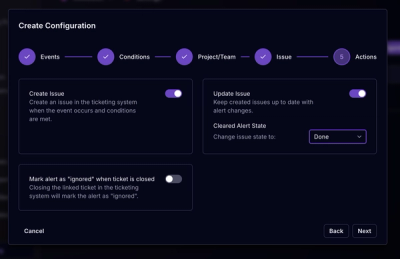
Socket for Jira lets teams turn alerts into Jira tickets with manual creation, automated ticketing rules, and two-way sync.
By Jeppe Hasseriis - Apr 20, 2026
github.com/skrashevich/go2rtc
Advanced tools



Ultimate camera streaming application with support for RTSP, WebRTC, HomeKit, FFmpeg, RTMP, etc.

Inspired by:
[!CAUTION] There is NO existing website for go2rtc project other than this GitHub repository. The website go2rtc[.]com is in no way associated with the authors of this project.
http://localhost:1984/Optionally:
Developers:
Download binary for your OS from latest release:
go2rtc_win64.zip - Windows 10+ 64-bitgo2rtc_win32.zip - Windows 10+ 32-bitgo2rtc_win_arm64.zip - Windows ARM 64-bitgo2rtc_linux_amd64 - Linux 64-bitgo2rtc_linux_i386 - Linux 32-bitgo2rtc_linux_arm64 - Linux ARM 64-bit (ex. Raspberry 64-bit OS)go2rtc_linux_arm - Linux ARM 32-bit (ex. Raspberry 32-bit OS)go2rtc_linux_armv6 - Linux ARMv6 (for old Raspberry 1 and Zero)go2rtc_linux_mipsel - Linux MIPS (ex. Xiaomi Gateway 3, Wyze cameras)go2rtc_mac_amd64.zip - macOS 11+ Intel 64-bitgo2rtc_mac_arm64.zip - macOS ARM 64-bitgo2rtc_freebsd_amd64.zip - FreeBSD 64-bitgo2rtc_freebsd_arm64.zip - FreeBSD ARM 64-bitDon't forget to fix the rights chmod +x go2rtc_xxx_xxx on Linux and Mac.
The Docker container alexxit/go2rtc supports multiple architectures including amd64, 386, arm64, and arm. This container offers the same functionality as the Home Assistant Add-on but is designed to operate independently of Home Assistant. It comes preinstalled with FFmpeg and Python.

https://github.com/AlexxIT/hassio-addonsWebRTC Camera custom component can be used on any Home Assistant installation, including HassWP on Windows. It can automatically download and use the latest version of go2rtc. Or it can connect to an existing version of go2rtc. Addon installation in this case is optional.
Latest, but maybe unstable version:
alexxit/go2rtc:master or alexxit/go2rtc:master-hardware versionsgo2rtc master or go2rtc master hardware versionsgo2rtc.yaml in the current work directoryapi server will start on default 1984 port (TCP)rtsp server will start on default 8554 port (TCP)webrtc will use port 8555 (TCP/UDP) for connectionsffmpeg will use default transcoding optionsConfiguration options and a complete list of settings can be found in the wiki.
Available modules:
go2rtc supports different stream source types. You can config one or multiple links of any type as a stream source.
Available source types:
RTSP and RTSPS cameras with two-way audio supportRTMP streamsHTTP-FLV, MPEG-TS, JPEG (snapshots), MJPEG streamsRTSP link and snapshot link using ONVIF protocolHLS, files and many others)Read more about incoming sources
Supported sources:
Two-way audio can be used in browser with WebRTC technology. The browser will give access to the microphone only for HTTPS sites (read more).
go2rtc also supports play audio files and live streams on this cameras.
streams:
  sonoff_camera: rtsp://rtsp:12345678@192.168.1.123/av_stream/ch0
  dahua_camera:
    - rtsp://admin:password@192.168.1.123/cam/realmonitor?channel=1&subtype=0&unicast=true&proto=Onvif
    - rtsp://admin:password@192.168.1.123/cam/realmonitor?channel=1&subtype=1#backchannel=0
  amcrest_doorbell:
    - rtsp://username:password@192.168.1.123:554/cam/realmonitor?channel=1&subtype=0#backchannel=0
  unifi_camera: rtspx://192.168.1.123:7441/fD6ouM72bWoFijxK
  glichy_camera: ffmpeg:rtsp://username:password@192.168.1.123/live/ch00_1
Recommendations
#backchannel=0 to the end of your RTSP link in YAML config file#backchannel=0 to other stream sources of the same doorbell. The unicast=true&proto=Onvif is preferred for 2-way audio as this makes the doorbell accept multiple codecs for the incoming audiortspx:// prefix instead of rtsps://. And don't use ?enableSrtp suffixOther options
Format: rtsp...#{param1}#{param2}#{param3}
#timeout=30 (in seconds)#media=video or ignore video - #media=audio#backchannel=0 - important for some glitchy cameras#transport=ws...RTSP over WebSocket
streams:
  # WebSocket with authorization, RTSP - without
  axis-rtsp-ws:  rtsp://192.168.1.123:4567/axis-media/media.amp?overview=0&camera=1&resolution=1280x720&videoframeskipmode=empty&Axis-Orig-Sw=true#transport=ws://user:pass@192.168.1.123:4567/rtsp-over-websocket
  # WebSocket without authorization, RTSP - with
  dahua-rtsp-ws: rtsp://user:pass@192.168.1.123/cam/realmonitor?channel=1&subtype=1&proto=Private3#transport=ws://192.168.1.123/rtspoverwebsocket
You can get a stream from an RTMP server, for example Nginx with nginx-rtmp-module.
streams:
  rtmp_stream: rtmp://192.168.1.123/live/camera1
Support Content-Type:
video/x-flv) - same as RTMP, but over HTTPimage/jpeg) - camera snapshot link, can be converted by go2rtc to MJPEG streammultipart/x) - simple MJPEG stream over HTTPvideo/mpeg) - legacy streaming formatSource also supports HTTP and TCP streams with autodetection for different formats: MJPEG, H.264/H.265 bitstream, MPEG-TS.
streams:
  # [HTTP-FLV] stream in video/x-flv format
  http_flv: http://192.168.1.123:20880/api/camera/stream/780900131155/657617

  # [JPEG] snapshots from Dahua camera, will be converted to MJPEG stream
  dahua_snap: http://admin:password@192.168.1.123/cgi-bin/snapshot.cgi?channel=1

  # [MJPEG] stream will be proxied without modification
  http_mjpeg: https://mjpeg.sanford.io/count.mjpeg

  # [MJPEG or H.264/H.265 bitstream or MPEG-TS]
  tcp_magic: tcp://192.168.1.123:12345

  # Add custom header
  custom_header: "https://mjpeg.sanford.io/count.mjpeg#header=Authorization: Bearer XXX"
PS. Dahua camera has a bug: if you select MJPEG codec for RTSP second stream, snapshot won't work.
The source is not very useful if you already know RTSP and snapshot links for your camera. But it can be useful if you don't.
WebUI > Add webpage support ONVIF autodiscovery. Your server must be on the same subnet as the camera. If you use Docker, you must use "network host".
streams:
  dahua1: onvif://admin:password@192.168.1.123
  reolink1: onvif://admin:password@192.168.1.123:8000
  tapo1: onvif://admin:password@192.168.1.123:2020
You can get any stream, file or device via FFmpeg and push it to go2rtc. The app will automatically start FFmpeg with the proper arguments when someone starts watching the stream.
Format: ffmpeg:{input}#{param1}#{param2}#{param3}. Examples:
streams:
  # [FILE] all tracks will be copied without transcoding codecs
  file1: ffmpeg:/media/BigBuckBunny.mp4

  # [FILE] video will be transcoded to H264, audio will be skipped
  file2: ffmpeg:/media/BigBuckBunny.mp4#video=h264

  # [FILE] video will be copied, audio will be transcoded to PCMU
  file3: ffmpeg:/media/BigBuckBunny.mp4#video=copy#audio=pcmu

  # [HLS] video will be copied, audio will be skipped
  hls: ffmpeg:https://devstreaming-cdn.apple.com/videos/streaming/examples/bipbop_16x9/gear5/prog_index.m3u8#video=copy

  # [MJPEG] video will be transcoded to H264
  mjpeg: ffmpeg:http://185.97.122.128/cgi-bin/faststream.jpg#video=h264

  # [RTSP] video with rotation, should be transcoded, so select H264
  rotate: ffmpeg:rtsp://12345678@192.168.1.123/av_stream/ch0#video=h264#rotate=90
All transcoding formats have built-in templates: h264, h265, opus, pcmu, pcmu/16000, pcmu/48000, pcma, pcma/16000, pcma/48000, aac, aac/16000.
But you can override them via YAML config. You can also add your own formats to the config and use them with source params.
ffmpeg:
  bin: ffmpeg  # path to ffmpeg binary
  h264: "-codec:v libx264 -g:v 30 -preset:v superfast -tune:v zerolatency -profile:v main -level:v 4.1"
  mycodec: "-any args that supported by ffmpeg..."
  myinput: "-fflags nobuffer -flags low_delay -timeout 5000000 -i {input}"
  myraw: "-ss 00:00:20"
ffmpeg:camera1#video=h264)video and audio params multiple times (ex. #video=copy#audio=copy#audio=pcmu)rotate param with 90, 180, 270 or -90 values, important with transcoding (ex. #video=h264#rotate=90)width and/or height params, important with transcoding (ex. #video=h264#width=1280)drawtext to add a timestamp (ex. drawtext=x=2:y=2:fontsize=12:fontcolor=white:box=1:boxcolor=black)
raw param for any additional FFmpeg arguments (ex. #raw=-vf transpose=1)input param to override default input template (ex. #input=rtsp/udp will change RTSP transport from TCP to UDP+TCP)
#input=-timeout 5000000 -i {input})Read more about hardware acceleration.
PS. It is recommended to check the available hardware in the WebUI add page.
You can get video from any USB camera or Webcam as RTSP or WebRTC stream. This is part of FFmpeg integration.
video_size and framerate must be supported by your camera!Format: ffmpeg:device?{input-params}#{param1}#{param2}#{param3}
streams:
  linux_usbcam:   ffmpeg:device?video=0&video_size=1280x720#video=h264
  windows_webcam: ffmpeg:device?video=0#video=h264
  macos_facetime: ffmpeg:device?video=0&audio=1&video_size=1280x720&framerate=30#video=h264#audio=pcma
PS. It is recommended to check the available devices in the WebUI add page.
Exec source can run any external application and expect data from it. Two transports are supported - pipe (from v1.5.0) and RTSP.
If you want to use RTSP transport, the command must contain the {output} argument in any place. On launch, it will be replaced by the local address of the RTSP server.
pipe reads data from app stdout in different formats: MJPEG, H.264/H.265 bitstream, MPEG-TS. Also pipe can write data to app stdin in two formats: PCMA and PCM/48000.
The source can be used with:
Pipe commands support parameters (format: exec:{command}#{param1}#{param2}):
killsignal - signal which will be sent to stop the process (numeric form)killtimeout - time in seconds for forced termination with sigkillbackchannel - enable backchannel for two-way audiostreams:
stream: exec:ffmpeg -re -i /media/BigBuckBunny.mp4 -c copy -rtsp_transport tcp -f rtsp {output}
picam_h264: exec:libcamera-vid -t 0 --inline -o -
picam_mjpeg: exec:libcamera-vid -t 0 --codec mjpeg -o -
pi5cam_h264: exec:libcamera-vid -t 0 --libav-format h264 -o -
canon: exec:gphoto2 --capture-movie --stdout#killsignal=2#killtimeout=5
play_pcma: exec:ffplay -fflags nobuffer -f alaw -ar 8000 -i -#backchannel=1
play_pcm48k: exec:ffplay -fflags nobuffer -f s16be -ar 48000 -i -#backchannel=1
Some sources may have a dynamic link. And you will need to get it using a Bash or Python script. Your script should echo a link to the source. RTSP, FFmpeg or any of the supported sources.
Docker and Hass Add-on users has preinstalled python3, curl, jq.
Check examples in wiki.
streams:
  apple_hls: echo:python3 hls.py https://developer.apple.com/streaming/examples/basic-stream-osx-ios5.html
Like echo source, but uses the built-in expr expression language (read more).
Important:
go2rtc supports importing paired HomeKit devices from Home Assistant. So you can use HomeKit camera with Hass and go2rtc simultaneously. If you are using Hass, I recommend pairing devices with it; it will give you more options.
You can pair device with go2rtc on the HomeKit page. If you can't see your devices, reload the page. Also, try rebooting your HomeKit device (power off). If you still can't see it, you have a problem with mDNS.
If you see a device but it does not have a pairing button, it is paired to some ecosystem (Apple Home, Home Assistant, HomeBridge etc). You need to delete the device from that ecosystem, and it will be available for pairing. If you cannot unpair the device, you will have to reset it.
Important:
VLC and probably any other playerRecommended settings for using HomeKit Camera with WebRTC, MSE, MP4, RTSP:
streams:
  aqara_g3:
    - hass:Camera-Hub-G3-AB12
    - ffmpeg:aqara_g3#audio=aac#audio=opus
RTSP link with "normal" audio for any player: rtsp://192.168.1.123:8554/aqara_g3?video&audio=aac
This source is in active development! Tested only with Aqara Camera Hub G3 (both EU and CN versions).
Other names: ESeeCloud, dvr163.
username, password, port, ch and stream if they are defaultstreams:
camera1: bubble://username:password@192.168.1.123:34567/bubble/live?ch=0&stream=0
Other names: DVR-IP, NetSurveillance, Sofia protocol (NETsurveillance ActiveX plugin XMeye SDK).
username, password, port, channel and subtype if they are defaultsubtype=0 for Main stream, and subtype=1 for Extra1 streamstreams:
only_stream: dvrip://username:password@192.168.1.123:34567?channel=0&subtype=0
only_tts: dvrip://username:password@192.168.1.123:34567?backchannel=1
two_way_audio:
- dvrip://username:password@192.168.1.123:34567?channel=0&subtype=0
- dvrip://username:password@192.168.1.123:34567?backchannel=1
streams:
  camera1: eseecloud://user:pass@192.168.1.123:80/livestream/12
TP-Link Tapo proprietary camera protocol with two way audio support.
admin usernamestreams:
# cloud password without username
camera1: tapo://cloud-password@192.168.1.123
# admin username and UPPERCASE MD5 cloud-password hash
camera2: tapo://admin:UPPERCASE-MD5@192.168.1.123
# admin username and UPPERCASE SHA256 cloud-password hash
camera3: tapo://admin:UPPERCASE-SHA256@192.168.1.123
# VGA stream (the so called substream, the lower resolution one)
camera4: tapo://cloud-password@192.168.1.123?subtype=1
# HD stream (default)
camera5: tapo://cloud-password@192.168.1.123?subtype=0
echo -n "cloud password" | md5 | awk '{print toupper($0)}'
echo -n "cloud password" | shasum -a 256 | awk '{print toupper($0)}'
TP-Link Kasa non-standard protocol more info.
username - urlsafe email, alex@gmail.com -> alex%40gmail.compassword - base64password, secret1 -> c2VjcmV0MQ==streams:
kc401: kasa://username:password@192.168.1.123:19443/https/stream/mixed
Tested: KD110, KC200, KC401, KC420WS, EC71.
Tuya proprietary camera protocol with two way audio support. Go2rtc supports Tuya Smart API and Tuya Cloud API. Read more.
This source allows you to view cameras from the Xiaomi Mi Home ecosystem. Read more.
Support streaming from GoPro cameras, connected via USB or Wi-Fi to Linux, Mac, Windows. Read more.
Support public cameras from the service Ivideon.
streams:
  quailcam: ivideon:100-tu5dkUPct39cTp9oNEN2B6/0
Support import camera links from Home Assistant config files:
hass:
  config: "/config"  # skip this setting if you Hass add-on user

streams:
  generic_camera: hass:Camera1  # Settings > Integrations > Integration Name
  aqara_g3: hass:Camera-Hub-G3-AB12
WebRTC Cameras (from v1.6.0)
Any cameras in WebRTC format are supported. But at the moment Home Assistant only supports some Nest cameras in this format.
Important. The Nest API only allows you to get a link to a stream for 5 minutes. Do not use this with Frigate! If the stream expires, Frigate will consume all available RAM on your machine within seconds. It's recommended to use Nest source - it supports extending the stream.
streams:
  # link to Home Assistant Supervised
  hass-webrtc1: hass://supervisor?entity_id=camera.nest_doorbell
  # link to external Hass with Long-Lived Access Tokens
  hass-webrtc2: hass://192.168.1.123:8123?entity_id=camera.nest_doorbell&token=eyXYZ...
RTSP Cameras
By default, the Home Assistant API does not allow you to get a dynamic RTSP link to a camera stream. So more cameras, like Tuya, and possibly others, can also be imported using this method.
This source type supports only backchannel audio for the Hikvision ISAPI protocol. So it should be used as a second source in addition to the RTSP protocol.
streams:
  hikvision1:
    - rtsp://admin:password@192.168.1.123:554/Streaming/Channels/101
    - isapi://admin:password@192.168.1.123:80/
Currently, only WebRTC cameras are supported.
For simplicity, it is recommended to connect the Nest/WebRTC camera to the Home Assistant. But if you can somehow get the below parameters, Nest/WebRTC source will work without Hass.
streams:
  nest-doorbell: nest:?client_id=***&client_secret=***&refresh_token=***&project_id=***&device_id=***
This source type support Ring cameras with two way audio support. If you have a refresh_token and device_id - you can use it in go2rtc.yaml config file. Otherwise, you can use the go2rtc interface and add your ring account (WebUI > Add > Ring). Once added, it will list all your Ring cameras.
streams:
  ring: ring:?device_id=XXX&refresh_token=XXX
  ring_snapshot: ring:?device_id=XXX&refresh_token=XXX&snapshot
This source type supports Roborock vacuums with cameras. Known working models:
Source supports loading Roborock credentials from Home Assistant custom integration or the core integration. Otherwise, you need to log in to your Roborock account (MiHome account is not supported). Go to: go2rtc WebUI > Add webpage. Copy roborock://... source for your vacuum and paste it to go2rtc.yaml config.
If you have a graphic PIN for your vacuum, add it as a numeric PIN (lines: 123, 456, 789) to the end of the roborock link.
This source type supports Doorbird devices including MJPEG stream, audio stream as well as two-way audio.
streams:
  doorbird1:
    - rtsp://admin:password@192.168.1.123:8557/mpeg/720p/media.amp  # RTSP stream
    - doorbird://admin:password@192.168.1.123?media=video           # MJPEG stream
    - doorbird://admin:password@192.168.1.123?media=audio           # audio stream
    - doorbird://admin:password@192.168.1.123                       # two-way audio
This source type supports four connection formats.
whep
WebRTC/WHEP is replaced by WebRTC/WISH standard for WebRTC video/audio viewers. But it may already be supported in some third-party software. It is supported in go2rtc.
go2rtc
This format is only supported in go2rtc. Unlike WHEP, it supports asynchronous WebRTC connections and two-way audio.
openipc (from v1.7.0)
Support connection to OpenIPC cameras.
wyze (from v1.6.1)
Supports connection to Wyze cameras, using WebRTC protocol. You can use the docker-wyze-bridge project to get connection credentials.
kinesis (from v1.6.1)
Supports Amazon Kinesis Video Streams, using WebRTC protocol. You need to specify the signalling WebSocket URL with all credentials in query params, client_id and ice_servers list in JSON format.
switchbot
Support connection to SwitchBot cameras that are based on Kinesis Video Streams. Specifically, this includes Pan/Tilt Cam Plus 2K and Pan/Tilt Cam Plus 3K and Smart Video Doorbell. Outdoor Spotlight Cam 1080P, Outdoor Spotlight Cam 2K, Pan/Tilt Cam, Pan/Tilt Cam 2K, Indoor Cam are based on Tuya, so this feature is not available.
streams:
  webrtc-whep:      webrtc:http://192.168.1.123:1984/api/webrtc?src=camera1
  webrtc-go2rtc:    webrtc:ws://192.168.1.123:1984/api/ws?src=camera1
  webrtc-openipc:   webrtc:ws://192.168.1.123/webrtc_ws#format=openipc#ice_servers=[{"urls":"stun:stun.kinesisvideo.eu-north-1.amazonaws.com:443"}]
  webrtc-wyze:      webrtc:http://192.168.1.123:5000/signaling/camera1?kvs#format=wyze
  webrtc-kinesis:   webrtc:wss://...amazonaws.com/?...#format=kinesis#client_id=...#ice_servers=[{...},{...}]
  webrtc-switchbot: webrtc:wss://...amazonaws.com/?...#format=switchbot#resolution=hd#play_type=0#client_id=...#ice_servers=[{...},{...}]
PS. For kinesis sources, you can use echo to get connection params using bash, python or any other script language.
This source can get a stream from another go2rtc via WebTorrent protocol.
streams:
  webtorrent1: webtorrent:?share=huofssuxaty00izc&pwd=k3l2j9djeg8v8r7e
By default, go2rtc establishes a connection to the source when any client requests it. Go2rtc drops the connection to the source when it has no clients left.
Examples
ffmpeg -re -i BigBuckBunny.mp4 -c copy -rtsp_transport tcp -f rtsp rtsp://localhost:8554/camera1
ffmpeg -re -i BigBuckBunny.mp4 -c mjpeg -f mpjpeg http://localhost:1984/api/stream.mjpeg?dst=camera1
ffmpeg -re -i BigBuckBunny.mp4 -c copy -f flv http://localhost:1984/api/stream.flv?dst=camera1
ffmpeg -re -i BigBuckBunny.mp4 -c copy -f mpegts http://localhost:1984/api/stream.ts?dst=camera1
You can turn the browser of any PC or mobile into an IP camera with support for video and two-way audio. Or even broadcast your PC screen:
go2rtc.yamllinks page for your streamcamera+microphone or display+speaker optionwebrtc local page (your go2rtc should work over HTTPS!) or share link via WebTorrent technology (work over HTTPS by default)You can use OBS Studio or any other broadcast software with WHIP protocol support. This standard has not yet been approved. But you can download OBS Studio dev version:
go2rtc supports playing audio files (ex. music or TTS) and live streams (ex. radio) on cameras with two-way audio support (RTSP/ONVIF cameras, TP-Link Tapo, Hikvision ISAPI, Roborock vacuums, any Browser).
API example:
POST http://localhost:1984/api/streams?dst=camera1&src=ffmpeg:http://example.com/song.mp3#audio=pcma#input=file
PCMA/8000 codec (ex. Tapo)PCMA/48000 for some Dahua cameras)http link, you need to add #input=file params for transcoding, so the file will be transcoded and played in real time#input param, because it is already in real timesrc parameterYou can publish any stream to streaming services (YouTube, Telegram, etc.) via RTMP/RTMPS. Important:
You can use the API:
POST http://localhost:1984/api/streams?src=camera1&dst=rtmps://...
Or config file:
publish:
  # publish stream "video_audio_transcode" to Telegram
  video_audio_transcode:
    - rtmps://xxx-x.rtmp.t.me/s/xxxxxxxxxx:xxxxxxxxxxxxxxxxxxxxxx
  # publish stream "audio_transcode" to Telegram and YouTube
  audio_transcode:
    - rtmps://xxx-x.rtmp.t.me/s/xxxxxxxxxx:xxxxxxxxxxxxxxxxxxxxxx
    - rtmp://xxx.rtmp.youtube.com/live2/xxxx-xxxx-xxxx-xxxx-xxxx

streams:
  video_audio_transcode:
    - ffmpeg:rtsp://user:pass@192.168.1.123/stream1#video=h264#hardware#audio=aac
  audio_transcode:
    - ffmpeg:rtsp://user:pass@192.168.1.123/stream1#video=copy#audio=aac
You can preload any stream on go2rtc start. This is useful for cameras that take a long time to start up.
preload:
  camera1:                                     # default: video&audio = ANY
  camera2: "video"                             # preload only video track
  camera3: "video=h264&audio=opus"             # preload H264 video and OPUS audio

streams:
  camera1:
    - rtsp://192.168.1.100/stream
  camera2:
    - rtsp://192.168.1.101/stream
  camera3:
    - rtsp://192.168.1.102/h265stream
    - ffmpeg:camera3#video=h264#audio=opus#hardware
The HTTP API is the main part for interacting with the application. Default address: http://localhost:1984/.
Important! go2rtc passes requests from localhost and from Unix sockets without HTTP authorisation, even if you have it configured! It is your responsibility to set up secure external access to the API. If not properly configured, an attacker can gain access to your cameras and even your server.
Module config
listen: "" and use, for example, only RTSP client/server protocollisten: "127.0.0.1:1984" settingbase_path and host go2rtc on your main app webserver suburlstatic_dir hosted on root path: /api:
listen: ":1984" # default ":1984", HTTP API port ("" - disabled)
username: "admin" # default "", Basic auth for WebUI
password: "pass" # default "", Basic auth for WebUI
local_auth: true # default false, Enable auth check for localhost requests
base_path: "/rtc" # default "", API prefix for serving on suburl (/api => /rtc/api)
static_dir: "www" # default "", folder for static files (custom web interface)
origin: "*" # default "", allow CORS requests (only * supported)
tls_listen: ":443" # default "", enable HTTPS server
tls_cert: | # default "", PEM-encoded fullchain certificate for HTTPS
-----BEGIN CERTIFICATE-----
...
-----END CERTIFICATE-----
tls_key: | # default "", PEM-encoded private key for HTTPS
-----BEGIN PRIVATE KEY-----
...
-----END PRIVATE KEY-----
unix_listen: "/tmp/go2rtc.sock" # default "", unix socket listener for API
PS:
You can get any stream as RTSP-stream: rtsp://192.168.1.123:8554/{stream_name}
You can enable external password protection for your RTSP streams. Password protection is always disabled for localhost calls (ex. FFmpeg or Hass on the same server).
rtsp:
  listen: ":8554"    # RTSP Server TCP port, default - 8554
  username: "admin"  # optional, default - disabled
  password: "pass"   # optional, default - disabled
  default_query: "video&audio"  # optional, default codecs filters
By default go2rtc provide RTSP-stream with only one first video and only one first audio. You can change it with the default_query setting:
default_query: "mp4" - MP4 compatible codecs (H264, H265, AAC)default_query: "video=all&audio=all" - all tracks from all source (not all players can handle this)default_query: "video=h264,h265" - only one video track (H264 or H265)default_query: "video&audio=all" - only one first any video and all audio as separate tracksRead more about codecs filters.
You can get any stream as RTMP-stream: rtmp://192.168.1.123/{stream_name}. Only H264/AAC codecs supported right now.
Incoming stream in RTMP format tested only with OBS Studio and a Dahua camera. Different FFmpeg versions have different problems with this format.
rtmp:
  listen: ":1935"  # by default - disabled!
In most cases, WebRTC uses a direct peer-to-peer connection from your browser to go2rtc and sends media data via UDP. It can't pass media data through your Nginx or Cloudflare or Nabu Casa HTTP TCP connection! It can automatically detect your external IP via a public STUN server. It can establish an external direct connection via UDP hole punching technology even if you do not open your server to the World.
But about 10-20% of users may need to configure additional settings for external access if mobile phone or go2rtc server is behind Symmetric NAT.
webrtc:
  listen: ":8555"  # address of your local server and port (TCP/UDP)
Static public IP
webrtc:
  candidates:
    - 216.58.210.174:8555  # if you have a static public IP address
Dynamic public IP
stun word and external port to YAML config
webrtc:
  candidates:
    - stun:8555  # if you have a dynamic public IP address
Hard tech way 1. Own TCP-tunnel
If you have a personal VPS, you can create a TCP tunnel and setup in the same way as "Static public IP". But use your VPS IP address in the YAML config.
Hard tech way 2. Using TURN-server
If you have personal VPS, you can install TURN server (e.g. coturn, config example).
webrtc:
  ice_servers:
    - urls: [stun:stun.l.google.com:19302]
    - urls: [turn:123.123.123.123:3478]
      username: your_user
      credential: your_pass
HomeKit module can work in two modes:
Important
Minimal config
streams:
  dahua1: rtsp://admin:password@192.168.1.123/cam/realmonitor?channel=1&subtype=0
homekit:
  dahua1:  # same stream ID from streams list, default PIN - 19550224
Full config
streams:
  dahua1:
    - rtsp://admin:password@192.168.1.123/cam/realmonitor?channel=1&subtype=0
    - ffmpeg:dahua1#video=h264#hardware  # if your camera doesn't support H264, important for HomeKit
    - ffmpeg:dahua1#audio=opus           # only OPUS audio supported by HomeKit

homekit:
  dahua1:                   # same stream ID from streams list
    pin: 12345678           # custom PIN, default: 19550224
    name: Dahua camera      # custom camera name, default: generated from stream ID
    device_id: dahua1       # custom ID, default: generated from stream ID
    device_private: dahua1  # custom key, default: generated from stream ID
Proxy HomeKit camera
streams:
  aqara1:
    - homekit://...
    - ffmpeg:aqara1#audio=aac#audio=opus  # optional audio transcoding

homekit:
  aqara1:  # same stream ID from streams list
This module supports:
Securely and freely. You do not need to open a public access to the go2rtc server. But in some cases (Symmetric NAT), you may need to set up external access to WebRTC module.
To generate a sharing link or incoming link, go to the go2rtc WebUI (stream links page). This link is temporary and will stop working after go2rtc is restarted!
You can create permanent external links in the go2rtc config:
webtorrent:
  shares:
    super-secret-share:  # share name, should be unique among all go2rtc users!
      pwd: super-secret-password
      src: rtsp-dahua1   # stream name from streams section
Link example: https://alexxit.github.io/go2rtc/#share=02SNtgjKXY&pwd=wznEQqznxW&media=video+audio
With ngrok integration, you can get external access to your streams in situations when you have Internet with a private IP address (read more).
The best and easiest way to use go2rtc inside Home Assistant is to install the custom integration WebRTC Camera and custom Lovelace card.
But go2rtc is also compatible and can be used with the RTSPtoWebRTC built-in integration.
You have several options on how to add a camera to Home Assistant:
127.0.0.1, Port: 1984rtsp://127.0.0.1:8554/camera1 (change to your stream name, leave everything else as is)You have several options on how to watch the stream from the cameras in Home Assistant:
Camera Entity => Picture Entity Card => Technology HLS, codecs: H264/H265/AAC, poor latency.Camera Entity => RTSPtoWebRTC => Picture Entity Card => Technology WebRTC, codecs: H264/PCMU/PCMA/OPUS, best latency.
http://127.0.0.1:1984/stun.l.google.com:19302Camera Entity or Camera URL => WebRTC Camera => Technology: WebRTC/MSE/MP4/MJPEG, codecs: H264/H265/AAC/PCMU/PCMA/OPUS, best latency, best compatibility.
You can add camera entity_id to go2rtc config if you need transcoding:
streams:
  "camera.hall": ffmpeg:{input}#video=copy#audio=opus
PS. Default Home Assistant lovelace cards don't support two-way audio. You can use 2-way audio from Add-on Web UI, but you need to use HTTPS to access the microphone. This is a browser restriction and cannot be avoided.
PS. There is also another nice card with go2rtc support - Frigate Lovelace Card.
Provides several features:
API examples:
http://192.168.1.123:1984/api/frame.mp4?src=camera1 (H264, H265)http://192.168.1.123:1984/api/stream.mp4?src=camera1 (H264, H265, AAC)http://192.168.1.123:1984/api/stream.mp4?src=camera1 (H264, H265*, AAC, OPUS, MP3, PCMA, PCMU, PCM)
mp4, mp4=flac and mp4=all param for codec filtersduration param in seconds (ex. duration=15)filename param (ex. filename=record.mp4)rotate param with 90, 180 or 270 valuesscale param with positive integer values (ex. scale=4:3)Read more about codecs filters.
PS. Rotate and scale params don't use transcoding and change video using metadata.
HLS is the worst technology for real-time streaming. It can only be useful on devices that do not support more modern technology, like WebRTC, MSE/MP4.
The go2rtc implementation differs from the standards and may not work with all players.
API examples:
http://192.168.1.123:1984/api/stream.m3u8?src=camera1 (H264)http://192.168.1.123:1984/api/stream.m3u8?src=camera1&mp4 (H264, H265, AAC)Read more about codecs filters.
Important. For stream in MJPEG format, your source MUST contain the MJPEG codec. If your stream has an MJPEG codec, you can receive MJPEG stream or JPEG snapshots via API.
You can receive an MJPEG stream in several ways:
With this example, your stream will have both H264 and MJPEG codecs:
streams:
  camera1:
    - rtsp://rtsp:12345678@192.168.1.123/av_stream/ch0
    - ffmpeg:camera1#video=mjpeg
API examples:
http://192.168.1.123:1984/api/stream.mjpeg?src=camera1http://192.168.1.123:1984/api/frame.jpeg?src=camera1
width/w and/or height/h paramsrotate param with 90, 180, 270 or -90 valueshardware/hw param read morePS. This module also supports streaming to the server console (terminal) in the animated ASCII art format (read more):

You can set different log levels for different modules.
log:
  level: info  # default level
  api: trace
  exec: debug
  rtsp: warn
  streams: error
  webrtc: fatal
[!IMPORTANT] If an attacker gains access to the API, you are in danger. Through the API, an attacker can use insecure sources such as echo and exec. And get full access to your server.
For maximum (paranoid) security, go2rtc has special settings:
app:
  # use only allowed modules
  modules: [api, rtsp, webrtc, exec, ffmpeg, mjpeg]

api:
  # use only allowed API paths
  allow_paths: [/api, /api/streams, /api/webrtc, /api/frame.jpeg]
  # enable auth for localhost (used together with username and password)
  local_auth: true

exec:
  # use only allowed exec paths
  allow_paths: [ffmpeg]
By default, go2rtc starts the Web interface on port 1984 and RTSP on port 8554, as well as uses port 8555 for WebRTC connections. The three ports are accessible from your local network. So anyone on your local network can watch video from your cameras without authorization. The same rule applies to the Home Assistant Add-on.
This is not a problem if you trust your local network as much as I do. But you can change this behaviour with a go2rtc.yaml config:
api:
  listen: "127.0.0.1:1984" # localhost

rtsp:
  listen: "127.0.0.1:8554" # localhost

webrtc:
  listen: ":8555" # external TCP/UDP port
If you need web interface protection without the Home Assistant add-on, you need to use a reverse proxy, like Nginx, Caddy, etc.
PS. Additionally, WebRTC will try to use the 8555 UDP port to transmit encrypted media. It works without problems on the local network, and sometimes also works for external access, even if you haven't opened this port on your router (read more). But for stable external WebRTC access, you need to open the 8555 port on your router for both TCP and UDP.
go2rtc can automatically detect which codecs your device supports for WebRTC and MSE technologies.
But it cannot be done for RTSP, HTTP progressive streaming, HLS technologies. You can manually add a codec filter when you create a link to a stream. The filters work the same for all three technologies. Filters do not create a new codec. They only select the suitable codec from existing sources. You can add new codecs to the stream using the FFmpeg transcoding.
Without filters:
Some examples:
rtsp://192.168.1.123:8554/camera1?mp4 - useful for recording as MP4 files (e.g. Hass or Frigate)rtsp://192.168.1.123:8554/camera1?video=h264,h265&audio=aac - full version of the filter abovertsp://192.168.1.123:8554/camera1?video=h264&audio=aac&audio=opus - H264 video codec and two separate audio tracksrtsp://192.168.1.123:8554/camera1?video&audio=all - any video codec and all audio codecs as separate trackshttp://192.168.1.123:1984/api/stream.m3u8?src=camera1&mp4 - HLS stream with MP4 compatible codecs (HLS/fMP4)http://192.168.1.123:1984/api/stream.m3u8?src=camera1&mp4=flac - HLS stream with PCMA/PCMU/PCM audio support (HLS/fMP4), won't work on old deviceshttp://192.168.1.123:1984/api/stream.mp4?src=camera1&mp4=flac - MP4 file with PCMA/PCMU/PCM audio support, won't work on old devices (ex. iOS 12)http://192.168.1.123:1984/api/stream.mp4?src=camera1&mp4=all - MP4 file with non-standard audio codecs, won't work on some playersAVC/H.264 video can be played almost anywhere. But HEVC/H.265 has many limitations in supporting different devices and browsers.
| Device | WebRTC | MSE | HTTP* | HLS |
|---|---|---|---|---|
| latency | best | medium | bad | bad |
| Desktop Chrome 136+ Desktop Edge Android Chrome 136+ | H264, H265* PCMU, PCMA OPUS | H264, H265* AAC, FLAC* OPUS | H264, H265* AAC, FLAC* OPUS, MP3 | no |
| Desktop Firefox | H264 PCMU, PCMA OPUS | H264 AAC, FLAC* OPUS | H264 AAC, FLAC* OPUS | no |
| Desktop Safari 14+ iPad Safari 14+ iPhone Safari 17.1+ | H264, H265* PCMU, PCMA OPUS | H264, H265 AAC, FLAC* | no! | H264, H265 AAC, FLAC* |
| iPhone Safari 14+ | H264, H265* PCMU, PCMA OPUS | no! | no! | H264, H265 AAC, FLAC* |
| macOS Hass App | no | no | no | H264, H265 AAC, FLAC* |
HTTP* - HTTP Progressive Streaming, not related to progressive download, because the file has no size and no endWebRTC H265 - supported in Chrome 136+, supported in Safari 18+MSE iPhone - supported in iOS 17.1+Audio
PCMA/PCMU/PCM codecs to FLAC for MSE/MP4/HLS so they will work almost anywherePCMU/8000, PCMA/8000, OPUS/48000/2OPUS and MP3 inside MP4 are part of the standard, but some players do not support them anyway (especially Apple)Apple devices
Codec names
alaw)mulaw)s16be)There are no plans to embed complex transcoding algorithms inside go2rtc. FFmpeg source does a great job with this. Including hardware acceleration support.
But go2rtc has some simple algorithms. They are turned on automatically; you do not need to set them up additionally.
PCM for MSE/MP4/HLS
Go2rtc can pack PCMA, PCMU and PCM codecs into an MP4 container so that they work in all browsers and all built-in players on modern devices. Including Apple QuickTime:
PCMA/PCMU => PCM => FLAC => MSE/MP4/HLS
Resample PCMA/PCMU for WebRTC
By default WebRTC supports only PCMA/8000 and PCMU/8000. But go2rtc can automatically resample PCMA and PCMU codecs with a different sample rate. Also, go2rtc can transcode PCM codec to PCMA/8000, so WebRTC can play it:
PCM/xxx => PCMA/8000 => WebRTC
PCMA/xxx => PCMA/8000 => WebRTC
PCMU/xxx => PCMU/8000 => WebRTC
Important
For example, you want to watch RTSP-stream from Dahua IPC-K42 camera in your Chrome browser.
H264 in camera settingsAAC/16000 in camera settingsOPUS/48000/2 codec, because it is higher quality than the PCMU/8000 or PCMA/8000Now you have a stream with two sources - RTSP and FFmpeg:
streams:
  dahua:
    - rtsp://admin:password@192.168.1.123/cam/realmonitor?channel=1&subtype=0&unicast=true&proto=Onvif
    - ffmpeg:rtsp://admin:password@192.168.1.123/cam/realmonitor?channel=1&subtype=0#audio=opus
go2rtc automatically matches codecs for your browser and all your stream sources. This is called multi-source two-way codec negotiation. And this is one of the main features of this app.

PS. You can select PCMU or PCMA codec in camera settings and not use transcoding at all. Or you can select AAC codec for main stream and PCMU codec for second stream and add both RTSP to YAML config, this also will work fine.
Distributions
/live/ch00_1 in RTSP URL) - awful but usable RTSP protocol implementation, low stream quality, few settings, packet loss?Using apps for low RTSP delay
ffplay -fflags nobuffer -flags low_delay "rtsp://192.168.1.123:8554/camera1"Snapshots to Telegram
FAQs
Unknown package
Did you know?

Socket for GitHub automatically highlights issues in each pull request and monitors the health of all your open source dependencies. Discover the contents of your packages and block harmful activity before you install or update your dependencies.
Product
Socket for Jira lets teams turn alerts into Jira tickets with manual creation, automated ticketing rules, and two-way sync.

Company News
Socket won two 2026 Reppy Awards from RepVue, ranking in the top 5% of all sales orgs. AE Alexandra Lister shares what it's like to grow a sales career here.

Security News
NIST will stop enriching most CVEs under a new risk-based model, narrowing the NVD's scope as vulnerability submissions continue to surge.