react-native-video-processing




Getting Started
npm install react-native-video-processing --save
yarn add react-native-video-processing
You can check test by running
$ npm test or $ yarn test
Installation
Note: For RN 0.4x use 1.0 version, for RN 0.3x use 0.16
[Android]
-
Open up android/app/src/main/java/[...]/MainApplication.java
-
Add import com.shahenlibrary.RNVideoProcessingPackage; to the imports at the top of the file
-
Add new new RNVideoProcessingPackage() to the list returned by the getPackages() method
-
Append the following lines to android/settings.gradle:
include ':react-native-video-processing'
project(':react-native-video-processing').projectDir = new File(rootProject.projectDir, '../node_modules/react-native-video-processing/android')
- Insert the following lines inside the dependencies block in
android/app/build.gradle:
compile project(':react-native-video-processing')
- Add the following lines to
AndroidManifest.xml:
   <uses-permission android:name="android.permission.READ_EXTERNAL_STORAGE" />
   <uses-permission android:name="android.permission.WRITE_EXTERNAL_STORAGE"/>
[iOS]
-
In Xcode, right click your Xcode project and create New Group called RNVideoProcessing.
-
Go to node_modules/react-native-video-processing/ios/RNVideoProcessing and drag the .swift files under the group you just created. Press Create folder references option if not pressed.
-
Repeat steps 1 & 2 for the subdirectories RNVideoTrimmer, RNTrimmerView, and ICGVideoTrimmer and all the files underneath them. Make sure you keep the folders hierarchy the same.
-
Go to node_modules/react-native-video-processing/ios/GPUImage/framework and drag GPUImage.xcodeproj to your project's root directory in Xcode.

-
Under your project's Build Phases, make sure the .swift files you added appear under Compile Sources.
-
Under your project's General tab, add the following frameworks to Linked Frameworks and Libraries :
- CoreMedia
- CoreVideo
- OpenGLES
- AVFoundation
- QuartzCore
- MobileCoreServices
- GPUImage
-
Add GPUImage.frameworkiOS to Embedded Binaries.
-
Navigate to your project's bridging header file <ProjectName-Bridging-Header.h> and add #import "RNVideoProcessing.h".
-
Clean and run your project.
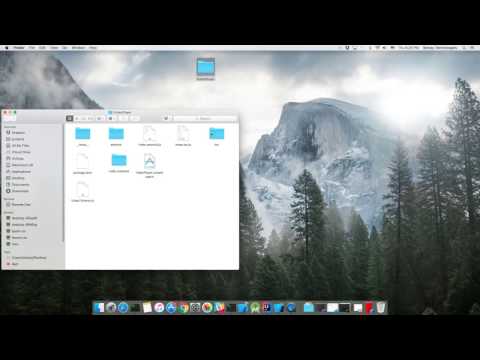
Check the following video for more setup reference.
Update ffmpeg binaries
- Clone mobile-ffmpeg
- Setup project, see Prerequisites in README.
- Modify
build/android-ffmpeg.sh so it generates binaries (more info)
- Delete --disable-programs line
- Change --disable-static line to --enable-static
- Delete --enable-shared line
- Compile binaries:
./android.sh --lts --disable-arm-v7a-neon --enable-x264 --enable-gpl --speed. The command might finish with failed. That's okay because we modified the build script. Make sure every build outputs: ffmpeg: ok.
- Find
ffmpeg binaries in prebuilt/[android-arm|android-arm64|android-x86|android-x86_64]/ffmpeg/bin/ffmpeg
- Copy and rename binaries to
android/src/main/jniLibs/[armeabi-v7a|arm64-v8a|x86|x86_64]/libffmpeg.so. Make sure you rename the binaries from ffmpeg to libffmpeg.so!
Example Usage
import React, { Component } from 'react';
import { View } from 'react-native';
import { VideoPlayer, Trimmer } from 'react-native-video-processing';
class App extends Component {
trimVideo() {
const options = {
startTime: 0,
endTime: 15,
quality: VideoPlayer.Constants.quality.QUALITY_1280x720,
saveToCameraRoll: true,
saveWithCurrentDate: true,
};
this.videoPlayerRef.trim(options)
.then((newSource) => console.log(newSource))
.catch(console.warn);
}
compressVideo() {
const options = {
width: 720,
height: 1280,
bitrateMultiplier: 3,
saveToCameraRoll: true,
saveWithCurrentDate: true,
minimumBitrate: 300000,
removeAudio: true,
};
this.videoPlayerRef.compress(options)
.then((newSource) => console.log(newSource))
.catch(console.warn);
}
getPreviewImageForSecond(second) {
const maximumSize = { width: 640, height: 1024 };
this.videoPlayerRef.getPreviewForSecond(second, maximumSize)
.then((base64String) => console.log('This is BASE64 of image', base64String))
.catch(console.warn);
}
getVideoInfo() {
this.videoPlayerRef.getVideoInfo()
.then((info) => console.log(info))
.catch(console.warn);
}
render() {
return (
<View style={{ flex: 1 }}>
<VideoPlayer
ref={ref => this.videoPlayerRef = ref}
startTime={30} // seconds
endTime={120} // seconds
play={true} // default false
replay={true} // should player play video again if it's ended
rotate={true} // use this prop to rotate video if it captured in landscape mode iOS only
source={'file:///sdcard/DCIM/....'}
playerWidth={300} // iOS only
playerHeight={500} // iOS only
style={{ backgroundColor: 'black' }}
resizeMode={VideoPlayer.Constants.resizeMode.CONTAIN}
onChange={({ nativeEvent }) => console.log({ nativeEvent })} // get Current time on every second
/>
<Trimmer
source={'file:///sdcard/DCIM/....'}
height={100}
width={300}
onTrackerMove={(e) => console.log(e.currentTime)} // iOS only
currentTime={this.video.currentTime} // use this prop to set tracker position iOS only
themeColor={'white'} // iOS only
thumbWidth={30} // iOS only
trackerColor={'green'} // iOS only
onChange={(e) => console.log(e.startTime, e.endTime)}
/>
</View>
);
}
}
Or you can use ProcessingManager without mounting VideoPlayer component:
import React, { Component } from 'react';
import { View } from 'react-native';
import { ProcessingManager } from 'react-native-video-processing';
export class App extends Component {
componentWillMount() {
const { source } = this.props;
ProcessingManager.getVideoInfo(source)
.then(({ duration, size, frameRate, bitrate }) => console.log(duration, size, frameRate, bitrate));
ProcessingManager.trim(source, options)
.then((data) => console.log(data));
ProcessingManager.compress(source, options)
.then((data) => console.log(data));
ProcessingManager.reverse(source)
.then((data) => console.log(data));
ProcessingManager.boomerang(source)
.then((data) => console.log(data));
const maximumSize = { width: 100, height: 200 };
ProcessingManager.getPreviewForSecond(source, forSecond, maximumSize)
.then((data) => console.log(data))
}
render() {
return <View />;
}
}
If this project was helpful to you, please

Contributing
- Please follow the eslint style guide.
- Please commit with
$ npm run commit
Roadmap