


Security News
Deno 2.6 + Socket: Supply Chain Defense In Your CLI
Deno 2.6 introduces deno audit with a new --socket flag that plugs directly into Socket to bring supply chain security checks into the Deno CLI.
By Sarah Gooding - Dec 12, 2025
@nativescript-community/ui-collectionview
Advanced tools
Allows you to easily add a collection view (grid list view) to your projects. Supports vertical and horizontal modes, templating, and more.



A NativeScript CollectionView widget. The CollectionView displays data in separate cells, each cell representing one data item. For iOS wraps up UICollectionView and for Android wraps up RecyclerView. This can be used as an Open Source alternative to RadListView.
 |  |
|---|---|
| iOS Demo | Android Demo |
Run the following command from the root of your project:
ns plugin add @nativescript-community/ui-collectionview
This command automatically installs the necessary files, as well as stores @nativescript-community/ui-collectionview as a dependency in your project's package.json file.
There is no additional configuration needed!
| Property | Description |
|---|---|
| itemLoading | Triggered when generating an item in the CollectionView. |
| itemTap | Triggered when the user taps on an item in the CollectionView. |
| loadMoreItems | Triggered when the generated items reached the end of the items property. |
| Property | Type | Description |
|---|---|---|
| ios | UICollectionView | Gets the native iOS view that represents the user interface for this component. Valid only when running on iOS. |
| android | android.support.v7.widget.RecyclerView | Gets the native android widget that represents the user interface for this component. Valid only when running on Android OS. |
| items | array or ItemsSource | Gets or sets the items collection of the CollectionView. The items property can be set to an array or an object defining length and getItem(index) method. |
| itemTemplate | string | Gets or sets the item template of the CollectionView. |
| rowHeight | PercentLength | Gets or sets the height for every row in the CollectionView. |
| colWidth | PercentLength | Gets or sets the width for every column in the CollectionView. |
| Name | Return | Description |
|---|---|---|
| refresh() | void | Forces the CollectionView to reload all its items. |
| scrollToIndex(index: number, animated: boolean = true) | void | Scrolls the CollectionView to the item with the given index. This can be either animated or not. Defaults to animated. |
You need to add xmlns:gv="@nativescript-community/ui-collectionview" to your page tag, and then simply use <gv:CollectionView/> in order to add the widget to your page. Use <gv:Gridview.itemTemplate/> to specify the template for each cell:
Create a simple array of objects in your JS/TS file.
const items = [
    { index: 0, name: 'TURQUOISE', color: '#1abc9c' },
    { index: 1, name: 'EMERALD', color: '#2ecc71' },
    { index: 2, name: 'PETER RIVER', color: '#3498db' },
    { index: 3, name: 'AMETHYST', color: '#9b59b6' },
    { index: 4, name: 'WET ASPHALT', color: '#34495e' },
    { index: 5, name: 'GREEN SEA', color: '#16a085' },
    { index: 6, name: 'NEPHRITIS', color: '#27ae60' },
    { index: 7, name: 'BELIZE HOLE', color: '#2980b9' },
    { index: 8, name: 'WISTERIA', color: '#8e44ad' },
    { index: 9, name: 'MIDNIGHT BLUE', color: '#2c3e50' }
];
<!-- test-page.xml -->
<Page xmlns="http://schemas.nativescript.org/tns.xsd" xmlns:gv="@nativescript-community/ui-collectionview" loaded="pageLoaded">
    <GridLayout>
        <gv:CollectionView items="{{ items }}" colWidth="50%" rowHeight="100">
            <gv:CollectionView.itemTemplate>
                <Label text="{{ value }}" verticalAlignment="center"/>
            </gv:CollectionView.itemTemplate>
        </gv:CollectionView>
    </GridLayout>
</Page>
You can also have multiple templates the same way you add them in the builtin ListView control:
<gv:CollectionView id="gv" row="0" class="{{ cssClass }}" items="{{ items }}"
                colWidth="{{ colWidth }}" rowHeight="{{ rowHeight }}" itemTemplateSelector="templateSelector"
                itemTap="gridViewItemTap" itemLoading="gridViewItemLoading" loadMoreItems="gridViewLoadMoreItems">
    <gv:CollectionView.itemTemplates>
        <template key="odd">
            <GridLayout backgroundColor="#33ffff" style="margin: 10 10 0 0">
                <Label text="{{ value }}" verticalAlignment="center"/>
            </GridLayout>
        </template>

        <template key="even">
            <GridLayout backgroundColor="#33ffff" rows="auto, auto" style="margin: 10 10 0 0">
                <Label row="0" text="{{ value }}" verticalAlignment="center"/>
                <Label row="1" text="{{ value }}" verticalAlignment="center"/>
            </GridLayout>
        </template>
    </gv:CollectionView.itemTemplates>
</gv:CollectionView>
export function templateSelector(item: any, index: number, items: any) {
    return index % 2 === 0 ? "even" : "odd";
}
Import the module into your project.
import { CollectionViewModule } from '@nativescript-community/ui-collectionview/angular';

@NgModule({
    imports: [
        CollectionViewModule,
    ],
})
Create a simple array of objects in your Typescript file.
items = [
    { index: 0, name: 'TURQUOISE', color: '#1abc9c' },
    { index: 1, name: 'EMERALD', color: '#2ecc71' },
    { index: 2, name: 'PETER RIVER', color: '#3498db' },
    { index: 3, name: 'AMETHYST', color: '#9b59b6' },
    { index: 4, name: 'WET ASPHALT', color: '#34495e' },
    { index: 5, name: 'GREEN SEA', color: '#16a085' },
    { index: 6, name: 'NEPHRITIS', color: '#27ae60' },
    { index: 7, name: 'BELIZE HOLE', color: '#2980b9' },
    { index: 8, name: 'WISTERIA', color: '#8e44ad' },
    { index: 9, name: 'MIDNIGHT BLUE', color: '#2c3e50' }
];
Add the following to your component HTML.
<CollectionView [items]="items" colWidth="50%" rowHeight="100">
    <ng-template let-item="item">
        <Label [text]="item.name"></Label>
    </ng-template>
</CollectionView>
If you want to use multiple item templates, you can do that very similarly to how you do it for the builtin ListView control. The only difference is that due to current limitations instead of using the nsTemplateKey directive you need to use the cvTemplateKey directive that comes from the CollectionView. (In a future version, once the framework allows it this will be changed and you will be able to use the same directive for the CollectionView as well)
<CollectionView row="1" [items]="items" colWidth="33%" rowHeight="100" [itemTemplateSelector]="templateSelector">
    <ng-template cvTemplateKey="Defender" let-item="item" let-odd="odd">
        <StackLayout [nsRouterLink]="['/item', item.id]" borderColor="blue" borderWidth="2" borderRadius="5" verticalAlignment="stretch" class="list-group-item" [class.odd]="odd">
        <Label verticalAlignment="center" [text]="item.name" class="list-group-item-text" textWrap="true"></Label>
        </StackLayout>
    </ng-template>

    <ng-template cvTemplateKey="Goalkeeper" let-item="item" let-odd="odd">
        <StackLayout [nsRouterLink]="['/item', item.id]" borderColor="black" borderWidth="2" borderRadius="5" verticalAlignment="stretch" class="list-group-item" [class.odd]="odd">
        <Label verticalAlignment="center" [text]="item.name" class="list-group-item-text" textWrap="true"></Label>
        </StackLayout>
    </ng-template>

    <ng-template cvTemplateKey="Midfielder" let-item="item" let-odd="odd">
        <StackLayout [nsRouterLink]="['/item', item.id]" borderColor="yellow" borderWidth="2" borderRadius="5" verticalAlignment="stretch" class="list-group-item" [class.odd]="odd">
        <Label verticalAlignment="center" [text]="item.name" class="list-group-item-text" textWrap="true"></Label>
        </StackLayout>
    </ng-template>

    <ng-template cvTemplateKey="Forward" let-item="item" let-odd="odd">
        <StackLayout [nsRouterLink]="['/item', item.id]" borderColor="red" borderWidth="2" borderRadius="5" verticalAlignment="stretch" class="list-group-item" [class.odd]="odd">
        <Label verticalAlignment="center" [text]="item.name" class="list-group-item-text" textWrap="true"></Label>
        </StackLayout>
    </ng-template>
</CollectionView>
For a more complete example, look in the demo-ng directory.
Register the plugin in your app.ts.
import CollectionView from '@nativescript-community/ui-collectionview/vue';
Vue.use(CollectionView);
In your component, add the following to make a simple array of objects.
export default {
    // ...
    data() {
        const items = [
            { index: 0, name: 'TURQUOISE', color: '#1abc9c' },
            { index: 1, name: 'EMERALD', color: '#2ecc71' },
            { index: 2, name: 'PETER RIVER', color: '#3498db' },
            { index: 3, name: 'AMETHYST', color: '#9b59b6' },
            { index: 4, name: 'WET ASPHALT', color: '#34495e' },
            { index: 5, name: 'GREEN SEA', color: '#16a085' },
            { index: 6, name: 'NEPHRITIS', color: '#27ae60' },
            { index: 7, name: 'BELIZE HOLE', color: '#2980b9' },
            { index: 8, name: 'WISTERIA', color: '#8e44ad' },
            { index: 9, name: 'MIDNIGHT BLUE', color: '#2c3e50' }
        ];
        return {
            itemList: items
        };
    },
    // ...
};
Then add the following XML to your component.
<CollectionView
    :items="itemList"
    colWidth="50%"
    rowHeight="100"
>
    <v-template>
        <Label :text="item.name"></Label>
    </v-template>
</CollectionView>
For a more complete example, look in the demo-vue directory.
Register the plugin in your app.ts.
import CollectionViewElement from '@nativescript-community/ui-collectionview/svelte';
CollectionViewElement.register();
In you component, add the following to import Svelte Templates and to create a simple array of objects.
import { Template } from 'svelte-native/components';

const items = [
    { index: 0, name: 'TURQUOISE', color: '#1abc9c' },
    { index: 1, name: 'EMERALD', color: '#2ecc71' },
    { index: 2, name: 'PETER RIVER', color: '#3498db' },
    { index: 3, name: 'AMETHYST', color: '#9b59b6' },
    { index: 4, name: 'WET ASPHALT', color: '#34495e' },
    { index: 5, name: 'GREEN SEA', color: '#16a085' },
    { index: 6, name: 'NEPHRITIS', color: '#27ae60' },
    { index: 7, name: 'BELIZE HOLE', color: '#2980b9' },
    { index: 8, name: 'WISTERIA', color: '#8e44ad' },
    { index: 9, name: 'MIDNIGHT BLUE', color: '#2c3e50' }
];
Then add the following XML to your component:
<collectionView
    {items}
    colWidth="50%"
    rowHeight="100"
>
    <Template let:item>
        <label text="{item.name}" />
    </Template>
</collectionView>
For a more complete example, look in the demo-svelte directory.
Register the plugin in your app.ts.
import { registerCollectionView } from '@nativescript-community/ui-collectionview/react';
registerCollectionView();
In your component, add the following code to create a simple list.
import { CollectionView } from '@nativescript-community/ui-collectionview/react';

const items = [
    { index: 0, name: 'TURQUOISE', color: '#1abc9c' },
    { index: 1, name: 'EMERALD', color: '#2ecc71' },
    { index: 2, name: 'PETER RIVER', color: '#3498db' },
    { index: 3, name: 'AMETHYST', color: '#9b59b6' },
    { index: 4, name: 'WET ASPHALT', color: '#34495e' },
    { index: 5, name: 'GREEN SEA', color: '#16a085' },
    { index: 6, name: 'NEPHRITIS', color: '#27ae60' },
    { index: 7, name: 'BELIZE HOLE', color: '#2980b9' },
    { index: 8, name: 'WISTERIA', color: '#8e44ad' },
    { index: 9, name: 'MIDNIGHT BLUE', color: '#2c3e50' }
];

interface Item {
    index: number;
    name: string;
    color: string;
}

const cellFactory = (item: Item) => (
    <label text={item.name} />
);

export function First() {
    return (
        <CollectionView items={items} colWidth="50%" rowHeight="100" cellFactory={cellFactory} width="100%" height="100%" />
    );
}
For a more complete example, look in the demo-react directory.
This repository includes Angular, Vue.js, and Svelte demos. In order to run these execute the following in your shell:
$ git clone https://github.com/@nativescript-community/ui-collectionview
$ cd ui-collectionview
$ npm i
$ npm run setup
$ npm run build # && npm run build.angular
$ cd demo-ng # or demo-vue or demo-svelte
$ ns run ios|android
FAQs
Allows you to easily add a collection view (grid list view) to your projects. Supports vertical and horizontal modes, templating, and more.
The npm package @nativescript-community/ui-collectionview receives a total of 249 weekly downloads. As such, @nativescript-community/ui-collectionview popularity was classified as not popular.
We found that @nativescript-community/ui-collectionview demonstrated a healthy version release cadence and project activity because the last version was released less than a year ago. It has 19 open source maintainers collaborating on the project.
Did you know?

Socket for GitHub automatically highlights issues in each pull request and monitors the health of all your open source dependencies. Discover the contents of your packages and block harmful activity before you install or update your dependencies.
Security News
Deno 2.6 introduces deno audit with a new --socket flag that plugs directly into Socket to bring supply chain security checks into the Deno CLI.
Security News
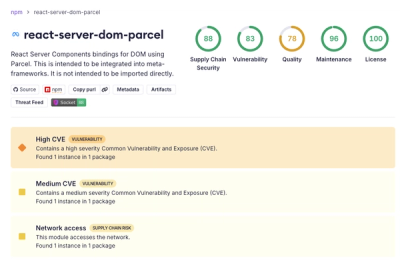
New DoS and source code exposure bugs in React Server Components and Next.js: what’s affected and how to update safely.

Security News
Socket CEO Feross Aboukhadijeh joins Software Engineering Daily to discuss modern software supply chain attacks and rising AI-driven security risks.