

Product
Socket for Jira Is Now Available
Socket for Jira lets teams turn alerts into Jira tickets with manual creation, automated ticketing rules, and two-way sync.
By Jeppe Hasseriis - Apr 20, 2026
check-outdated
Advanced tools
Light-weight CLI tool to ensure that your dependencies are up to date, otherwise the process is terminated with status code 1.






Light-weight CLI tool to ensure that your dependencies are up-to-date, otherwise the process is terminated with status code 1.
This is an improved version of npm outdated, which can be used in build-pipelines, pre-publish scripts (npm) or pre-commit hook (Git) to make sure all the used dependencies are up-to-date.
"alias-name": "npm:actual-package@1.0.0")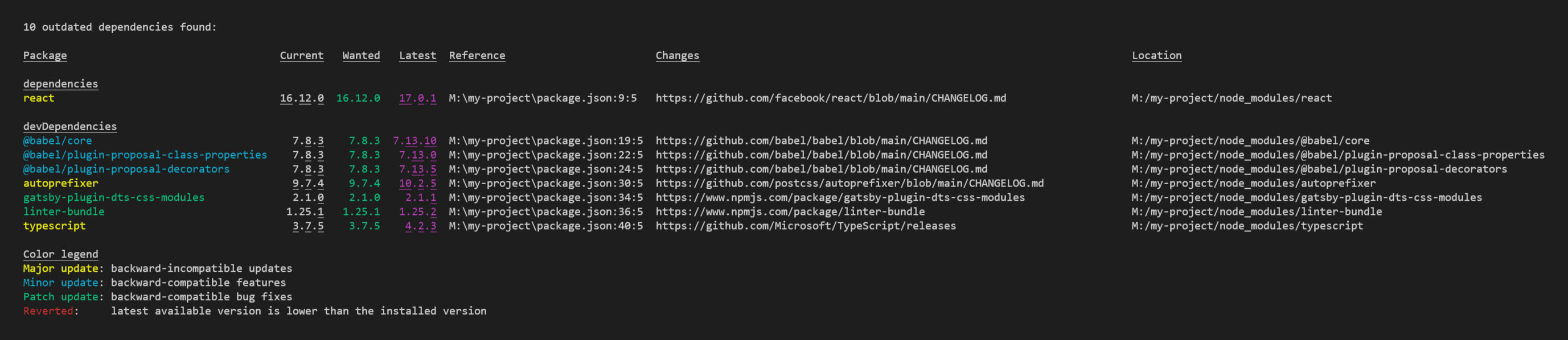
The benefit of using npx is, that it ensures that always the latest version of check-outdated is used. In addition, a download is only necessary in environments where it is needed - e.g. if check-outdated is not needed on the build server, it does not have to be downloaded there, which may
speeds up the dependency installation slightly.
On command-line you can run the command like this:
npx check-outdated
All arguments are optional. Here is a more advanced example:
npx check-outdated --ignore-pre-releases --ignore-dev-dependencies --ignore-packages package1,package2 --columns name,type,current,latest,changes --min-age 14 --min-age-patch 3
Or put it into your package.json:
{
  "scripts": {
    "check-outdated": "npx --yes -- check-outdated --ignore-pre-releases --ignore-dev-dependencies --ignore-packages package1,package2 --columns name,type,current,latest,changes --types major,minor,patch,reverted --min-age 14 --min-age-patch 3",
    "preversion": "npm run lint && npm run test && npm run check-outdated"
  }
}
npm install check-outdated --save-dev
# or
yarn add check-outdated -D
After you've installed check-outdated you can run the command like this:
node_modules/.bin/check-outdated --ignore-pre-releases --ignore-dev-dependencies --ignore-packages package1,package2 --columns name,type,current,latest,changes --types major,minor,patch,reverted --min-age 14 --min-age-patch 3
Or put it into your package.json:
{
  "scripts": {
    "check-outdated": "check-outdated --ignore-pre-releases --ignore-dev-dependencies --ignore-packages package1,package2 --columns name,type,current,latest,changes --types major,minor,patch,reverted --min-age 14 --min-age-patch 3",
    "preversion": "npm run lint && npm run test && npm run check-outdated"
  }
}
| Argument | Description | Example |
|---|---|---|
| --help, -h | Show the help | --help |
| --ignore-pre-releases | Don't recommend to update to versions which contain a hyphen (e.g. "2.1.0-alpha", "2.1.0-beta", "2.1.0-rc.1") | --ignore-pre-releases |
| --ignore-dev-dependencies | Do not warn if devDependencies are outdated. | --ignore-dev-dependencies |
| --ignore-packages <comma-separated-list-of-package-names> | Ignore the listed packages, even if they are outdated. Using the @ syntax (<package>@<version>) you can also, only ignore a specific version, or a semver range (like ^2, ~2.3.4, 2.*, 2.3.x) of a package (e.g. if it's broken).For aliased dependencies ( "alias": "npm:package@version"), use the alias name. | --ignore-packages typescript,terser-webpack-plugin@3.0.0,got@^12 |
| --prefer-wanted | Compare the Current version to the Wanted version, instead of the Latest version. | --prefer-wanted |
| --columns <comma-separated-list-of-columns> | Defines which columns should be shown in which order. (See Available Columns below) | --columns name,current,latest,changes |
| --types <comma-separated-list-of-update-types> | Restrict the update type (e.g. only show minor updates, or reverted versions) (See Available Types below) | --types minor,reverted |
| --global | Check packages in the global install prefix instead of in the current project (equal to the npm outdated-option) | --global |
| --depth <number> | Max depth for checking dependency tree (equal to the npm outdated-option) | --depth 3 |
| --min-age <days> | Only recommend release lines (Major.Minor) where at least one version was published at least <days> days ago. Within that line, the newest patch is recommended (controlled by --min-age-patch). This helps avoid unstable or compromised releases. If time data cannot be retrieved (e.g., private registry), the package is shown without the age filter along with a warning. See Version Age Filtering below. | --min-age 14 |
| --min-age-patch <days> | Minimum age in days for patch versions within the release line determined by --min-age (default: 0). See Version Age Filtering below. | --min-age 14 --min-age-patch 3 |
By default, the following columns are shown:
package, current, wanted, latest, reference, changes, location
You are able to overwrite the default by using the --columns argument.
| Caption | --columns value | Description | Example |
|---|---|---|---|
| Package | package | The name of the package. Red means there's a newer version matching your semver requirements, so you should update now. Yellow indicates that there's a newer version above your semver requirements (usually new major, or new 0.x minor) so proceed with caution. | typescript |
| Current | current | The currently installed version of the package. | 3.7.2 |
| Wanted | wanted | The maximum version of the package that satisfies the semver range specified in package.json. If there's no available semver range (i.e. you're using the --global argument, or the package isn't included in package.json), then wanted shows the currently-installed version.This column is always colored in green. | 3.7.2 |
| Latest | latest | The version of the package tagged as latest in the npm registry. This column is always colored in magenta. | 3.8.3 |
| Reference | reference | Contains a link to the line and column of the dependency in the package.json. By using a terminal which supports clicking on such links, you can navigate directly the the item. | P:\my-project\package.json:47:3 |
| Changes | changes | check-outdated tries to find a direct link to changelog of the package. The following places are considered in the given order:
| https://github.com/Microsoft/TypeScript/releases |
| Changes | changesPreferLocal | Same as changes, but first check for a CHANGELOG.md in the package folder.Keep in mind, you'll only see the changelog of the currently installed version, not of the version which is recommended. | node_modules/fs-extra/CHANGELOG.md |
| Type | type | Shows if the difference between Current and Latest is a major, minor, patch, prerelease, build or reverted update, in Semantic Versioning. For more details see Available Types below. | minor |
| Location | location | Shows where in the dependency tree the package is located. Note that check-outdated defaults to a depth of 0, so unless you override that, you'll always be seeing only top-level dependencies that are outdated. | node_modules/typescript |
| Package Type | packageType | Tells you whether this package is a dependency or a devDependency. Packages not included in package.json are always marked dependencies. If this column is not activated, the packages are grouped by their type, otherwise they are ordered by their name. | devDependencies |
| Homepage | homepage | An URL with additional information to the package. The following places are considered in the given order:
| https://www.typescriptlang.org/ |
| npmjs.com | npmjs | A link to the package on the npmjs.com website. | https://www.npmjs.com/package/typescript |
The type describes the difference between the Current version and Latest version, in Semantic Versioning. By default, all types are shown.
You are able to overwrite the default by using the --types argument.
| --types value | Description | Example |
|---|---|---|
major | Backward-incompatible updates | 1.2.3 -> 2.0.0 |
minor | Backward-compatible features | 1.2.3 -> 1.3.0 |
patch | Backward-compatible bug fixes | 1.2.3 -> 1.2.4 |
reverted | Latest available version is lower than the installed version | 1.2.3 -> 1.1.5 |
prerelease | Only the pre-release version has been amended or added | 1.2.3 -> 1.2.3-beta.1 |
build | Only build metadata has been amended or added | 1.2.3 -> 1.2.3+build.2 |
The --min-age option prevents recommending versions that were published very recently, which helps avoid unstable releases or supply-chain attacks.
Two-step version selection: When --min-age is used, the version recommendation works in two steps:
--min-age.--min-age-patch (default: 0).Why? If only --min-age were applied uniformly, a qualifying version like 1.1.0 might be recommended even though newer patches 1.1.1 and 1.1.2 exist that fix known bugs.
Since patch releases are backward-compatible bug fixes with low risk, they should generally be included. The default --min-age-patch 0 ensures all patches within the qualifying release line are available.
If you want to also require a minimum age for patches, you can set --min-age-patch explicitly (e.g. --min-age-patch 3).
Example: Given versions 1.0.0 (50 days old), 1.0.1 (19 days), 1.1.0 (12 days), 1.1.1 (5 days), 1.1.2 (2 days), current version 1.0.0:
| Arguments | Qualifying line | Recommended version | Explanation |
|---|---|---|---|
--min-age 10 | 1.1.x | 1.1.2 | 1.1.0 qualifies (12 days), newest patch in 1.1.x with default --min-age-patch 0 is 1.1.2 |
--min-age 10 --min-age-patch 3 | 1.1.x | 1.1.1 | 1.1.2 (2 days) is too new for --min-age-patch 3, so 1.1.1 (5 days) is picked |
--min-age 10 --min-age-patch 10 | 1.1.x | 1.1.0 | Only 1.1.0 (12 days) in 1.1.x satisfies --min-age-patch 10 |
--min-age 30 | 1.0.x | 1.0.1 | 1.0.0 qualifies (50 days), newest patch in 1.0.x is 1.0.1 |
--min-age 30 --min-age-patch 30 | 1.0.x | (up-to-date) | Only 1.0.0 (50 days) in 1.0.x satisfies 30 days, but it equals the current version |
FAQs
Light-weight CLI tool to ensure that your dependencies are up to date, otherwise the process is terminated with status code 1.
The npm package check-outdated receives a total of 6,666 weekly downloads. As such, check-outdated popularity was classified as popular.
We found that check-outdated demonstrated a healthy version release cadence and project activity because the last version was released less than a year ago. It has 1 open source maintainer collaborating on the project.
Did you know?

Socket for GitHub automatically highlights issues in each pull request and monitors the health of all your open source dependencies. Discover the contents of your packages and block harmful activity before you install or update your dependencies.
Product
Socket for Jira lets teams turn alerts into Jira tickets with manual creation, automated ticketing rules, and two-way sync.

Company News
Socket won two 2026 Reppy Awards from RepVue, ranking in the top 5% of all sales orgs. AE Alexandra Lister shares what it's like to grow a sales career here.

Security News
NIST will stop enriching most CVEs under a new risk-based model, narrowing the NVD's scope as vulnerability submissions continue to surge.