
Docfork MCP - Up-to-date Docs for AI Agents







Lock your agent's context to your stack.
Define a Docfork Cabinet — Next.js 16 + Drizzle ORM + Better Auth — and every query returns only docs from your stack. No more bloated results. No more hallucinations.
⚡ Built for Precision
Documentation context as precise as your dependency lockfile:
-
Cabinets — Lock your agent to a verified stack. Only your libraries. Fully isolated.
-
10,000+ libraries — Pre-chunked docs and code examples. ~200ms edge retrieval.
-
Team-ready — Share Cabinets and API keys across your org. Same context, every engineer.
Set a Cabinet: Next.js 16 + Drizzle ORM + Better Auth.
Your agent only sees docs for your stack. No stray Express docs. No Prisma confusion.
🚀 Quick Start
1. Get your Free API Key
Sign up at docfork.com — free: 1,000 requests/month, 5 team seats.
2. Install MCP
Install in Claude Code
Run this command. See Claude Code MCP docs for more info.
Claude Code Local Server Connection
claude mcp add docfork -- npx -y docfork --api-key YOUR_API_KEY
Claude Code Remote Server Connection
claude mcp add --header "DOCFORK_API_KEY: YOUR_API_KEY" --transport http docfork https://mcp.docfork.com/mcp
Install in OpenCode
Add this to your OpenCode configuration file. See OpenCode MCP docs for more info.
OpenCode Remote Server Connection
{
  "$schema": "https://opencode.ai/config.json",
  "mcp": {
    "docfork": {
      "type": "remote",
      "url": "https://mcp.docfork.com/mcp",
      "headers": {
        "DOCFORK_API_KEY": "YOUR_API_KEY",
      },
      "enabled": true,
    },
  },
}
OpenCode Local Server Connection
{
  "$schema": "https://opencode.ai/config.json",
  "mcp": {
    "docfork": {
      "type": "local",
      "command": ["npx", "-y", "docfork", "--api-key", "YOUR_API_KEY"],
      "enabled": true,
    },
  },
}
Install in Cursor
Go to: Settings -> Cursor Settings -> MCP -> Add new global MCP server
Paste this into ~/.cursor/mcp.json. For project-scoped config, create .cursor/mcp.json in your project folder. See Cursor MCP docs for more info.
Since Cursor 1.0, click the buttons below to install instantly.
Cursor Remote Server Connection
{
  "mcpServers": {
    "docfork": {
      "url": "https://mcp.docfork.com/mcp",
      "headers": {
        "DOCFORK_API_KEY": "YOUR_API_KEY"
      }
    }
  }
}
Cursor Local Server Connection
{
  "mcpServers": {
    "docfork": {
      "command": "npx",
      "args": ["-y", "docfork", "--api-key", "YOUR_API_KEY"]
    }
  }
}
Install in OpenAI Codex
See OpenAI Codex for more information.
Local Server Connection
[mcp_servers.docfork]
args = ["-y", "docfork", "--api-key", "YOUR_API_KEY"]
command = "npx"
startup_timeout_ms = 20_000
Remote Server Connection
[mcp_servers.docfork]
url = "https://mcp.docfork.com/mcp"
http_headers = { "DOCFORK_API_KEY" = "YOUR_API_KEY" }
If you see startup timeout errors, try increasing startup_timeout_ms to 40_000.
Install in Google Antigravity
Add this to your Antigravity MCP config file. See Antigravity MCP docs for more info.
Google Antigravity Remote Server Connection
{
  "mcpServers": {
    "docfork": {
      "serverUrl": "https://mcp.docfork.com/mcp",
      "headers": {
        "DOCFORK_API_KEY": "YOUR_API_KEY"
      }
    }
  }
}
Google Antigravity Local Server Connection
{
  "mcpServers": {
    "docfork": {
      "command": "npx",
      "args": ["-y", "docfork", "--api-key", "YOUR_API_KEY"]
    }
  }
}
Install in VS Code


Add this to your VS Code MCP config file. See VS Code MCP docs for more info.
VS Code Remote Server Connection
"mcp": {
  "servers": {
    "docfork": {
      "type": "http",
      "url": "https://mcp.docfork.com/mcp",
      "headers": {
        "DOCFORK_API_KEY": "YOUR_API_KEY"
      }
    }
  }
}
VS Code Local Server Connection
"mcp": {
  "servers": {
    "docfork": {
      "type": "stdio",
      "command": "npx",
      "args": ["-y", "docfork", "--api-key", "YOUR_API_KEY"]
    }
  }
}
Install in Kilo Code
You can configure the Docfork MCP server in Kilo Code using either the UI or by editing your project's MCP configuration file. Kilo Code supports two configuration levels: Global (mcp_settings.json) and Project-level (.kilocode/mcp.json).
Configure via Kilo Code UI
- Open Kilo Code.
- Click the Settings icon in the top-right corner.
- Navigate to Settings → MCP Servers.
- Click Add Server.
- Choose HTTP Server (Streamable HTTP Transport).
- Enter URL:
https://mcp.docfork.com/mcp
- Add Header: Key:
Authorization, Value: Bearer YOUR_API_KEY
- Click Save.
Manual Configuration
Create .kilocode/mcp.json:
{
  "mcpServers": {
    "docfork": {
      "type": "streamable-http",
      "url": "https://mcp.docfork.com/mcp",
      "headers": {
        "Authorization": "Bearer YOUR_API_KEY"
      },
      "alwaysAllow": [],
      "disabled": false
    }
  }
}
Install in Kiro
See Kiro Model Context Protocol Documentation for details.
- Navigate
Kiro > MCP Servers
- Add a new MCP server by clicking the
+ Add button.
- Paste the configuration:
{
  "mcpServers": {
    "Docfork": {
      "command": "npx",
      "args": ["-y", "docfork", "--api-key", "YOUR_API_KEY"],
      "env": {},
      "disabled": false,
      "autoApprove": []
    }
  }
}
Install in Windsurf
Add this to your Windsurf MCP config file. See Windsurf MCP docs for more info.
Windsurf Remote Server Connection
{
  "mcpServers": {
    "docfork": {
      "serverUrl": "https://mcp.docfork.com/mcp",
      "headers": {
        "DOCFORK_API_KEY": "YOUR_API_KEY"
      }
    }
  }
}
Windsurf Local Server Connection
{
  "mcpServers": {
    "docfork": {
      "command": "npx",
      "args": ["-y", "docfork", "--api-key", "YOUR_API_KEY"]
    }
  }
}
Install in Roo Code
Add this to your Roo Code MCP configuration file. See Roo Code MCP docs for more info.
Roo Code Remote Server Connection
{
  "mcpServers": {
    "docfork": {
      "type": "streamable-http",
      "url": "https://mcp.docfork.com/mcp",
      "headers": {
        "DOCFORK_API_KEY": "YOUR_API_KEY"
      }
    }
  }
}
Roo Code Local Server Connection
{
  "mcpServers": {
    "docfork": {
      "command": "npx",
      "args": ["-y", "docfork", "--api-key", "YOUR_API_KEY"]
    }
  }
}
Install in Trae
Use the Add manually feature and fill in the JSON configuration. See Trae documentation for more details.
Trae Remote Server Connection
{
  "mcpServers": {
    "docfork": {
      "url": "https://mcp.docfork.com/mcp"
    }
  }
}
Trae Local Server Connection
{
  "mcpServers": {
    "docfork": {
      "command": "npx",
      "args": ["-y", "docfork", "--api-key", "YOUR_API_KEY"]
    }
  }
}
Install in Claude Desktop
Remote Server Connection
Open Claude Desktop and navigate to Settings > Connectors > Add Custom Connector. Enter the name as Docfork and the remote MCP server URL as https://mcp.docfork.com/mcp.
Local Server Connection
Open Claude Desktop developer settings and edit your claude_desktop_config.json file. See Claude Desktop MCP docs for more info.
{
  "mcpServers": {
    "docfork": {
      "command": "npx",
      "args": ["-y", "docfork", "--api-key", "YOUR_API_KEY"]
    }
  }
}
Install in Cline
You can install Docfork through the Cline MCP Server Marketplace by searching for Docfork and clicking Install, or add it manually:
- Click the MCP Servers icon in the top navigation bar → Configure tab → Configure MCP Servers. See Cline MCP docs for more info.
- Choose Remote Servers tab → Edit Configuration.
- Add docfork to
mcpServers:
Cline Remote Server Connection
{
  "mcpServers": {
    "docfork": {
      "url": "https://mcp.docfork.com/mcp",
      "type": "streamableHttp",
      "headers": {
        "Authorization": "Bearer YOUR_API_KEY"
      },
      "alwaysAllow": ["search_docs", "fetch_doc"],
      "disabled": false
    }
  }
}
Cline Local Server Connection
{
  "mcpServers": {
    "docfork": {
      "command": "npx",
      "args": ["-y", "docfork", "--api-key", "YOUR_API_KEY"],
      "alwaysAllow": ["search_docs", "fetch_doc"],
      "disabled": false
    }
  }
}
Install in Zed
It can be installed via Zed Extensions or you can add this to your Zed settings.json. See Zed Context Server docs for more info.
{
  "context_servers": {
    "Docfork": {
      "source": "custom",
      "command": "npx",
      "args": ["-y", "docfork", "--api-key", "YOUR_API_KEY"]
    }
  }
}
Install in Augment Code
To configure Docfork MCP in Augment Code, you can use either the graphical interface or manual configuration.
Using the Augment Code UI
- Click the hamburger menu.
- Select Settings.
- Navigate to the Tools section.
- Click the + Add MCP button.
- Enter the following command:
npx -y docfork@latest
- Name the MCP: Docfork.
- Click the Add button.
Manual Configuration
- Press Cmd/Ctrl Shift P or go to the hamburger menu in the Augment panel
- Select Edit Settings
- Under Advanced, click Edit in settings.json
- Add the server configuration to the
mcpServers array in the augment.advanced object
"augment.advanced": {
  "mcpServers": [
    {
      "name": "docfork",
      "command": "npx",
      "args": ["-y", "docfork", "--api-key", "YOUR_API_KEY"]
    }
  ]
}
Install in Gemini CLI
See Gemini CLI Configuration for details.
- Open the Gemini CLI settings file at
~/.gemini/settings.json
- Add the following to the
mcpServers object:
{
  "mcpServers": {
    "docfork": {
      "httpUrl": "https://mcp.docfork.com/mcp",
      "headers": {
        "DOCFORK_API_KEY": "YOUR_API_KEY",
        "Accept": "application/json, text/event-stream"
      }
    }
  }
}
Or, for a local server:
{
  "mcpServers": {
    "docfork": {
      "command": "npx",
      "args": ["-y", "docfork", "--api-key", "YOUR_API_KEY"]
    }
  }
}
Install in Amp
Run this command in your terminal. See Amp MCP docs for more info.
Without API Key (Basic Usage)
amp mcp add docfork https://mcp.docfork.com/mcp
With API Key (Higher Rate Limits)
amp mcp add docfork --header "DOCFORK_API_KEY=YOUR_API_KEY" https://mcp.docfork.com/mcp
Install in Qwen Coder
See Qwen Coder MCP Configuration for details.
- Open the Qwen Coder settings file at
~/.qwen/settings.json
- Add the following to the
mcpServers object:
{
  "mcpServers": {
    "docfork": {
      "httpUrl": "https://mcp.docfork.com/mcp",
      "headers": {
        "DOCFORK_API_KEY": "YOUR_API_KEY",
        "Accept": "application/json, text/event-stream"
      }
    }
  }
}
Or, for a local server:
{
  "mcpServers": {
    "docfork": {
      "command": "npx",
      "args": ["-y", "docfork", "--api-key", "YOUR_API_KEY"]
    }
  }
}
Install in JetBrains AI Assistant
See JetBrains AI Assistant Documentation for more details.
- In JetBrains IDEs, go to
Settings -> Tools -> AI Assistant -> Model Context Protocol (MCP)
- Click
+ Add.
- Click on
Command in the top-left corner and select the As JSON option
- Add this configuration:
{
  "mcpServers": {
    "docfork": {
      "command": "npx",
      "args": ["-y", "docfork", "--api-key", "YOUR_API_KEY"]
    }
  }
}
- Click
Apply to save changes.
Using Bun or Deno
Use these alternatives to run the local Docfork MCP server with other runtimes.
Bun
{
  "mcpServers": {
    "docfork": {
      "command": "bunx",
      "args": ["-y", "docfork", "--api-key", "YOUR_API_KEY"]
    }
  }
}
Deno
{
  "mcpServers": {
    "docfork": {
      "command": "deno",
      "args": ["run", "--allow-env=NO_DEPRECATION,TRACE_DEPRECATION", "--allow-net", "npm:docfork"]
    }
  }
}
Using Docker
FROM node:18-alpine
WORKDIR /app
RUN npm install -g docfork
CMD ["docfork"]
docker build -t docfork .
- Configure your MCP client:
{
  "mcpServers": {
    "docfork": {
      "command": "docker",
      "args": ["run", "-i", "--rm", "docfork"],
      "transportType": "stdio"
    }
  }
}
Install Using the Desktop Extension
Install the docfork.mcpb file and add it to your client. See MCP bundles docs for more info.
Install in Windows
The configuration on Windows is slightly different. Use cmd to run npx:
{
  "mcpServers": {
    "docfork": {
      "command": "cmd",
      "args": ["/c", "npx", "-y", "docfork", "--api-key", "YOUR_API_KEY"],
      "disabled": false,
      "autoApprove": []
    }
  }
}
Install in Amazon Q Developer CLI
Add this to your Amazon Q Developer CLI configuration file. See Amazon Q Developer CLI docs for more details.
{
  "mcpServers": {
    "docfork": {
      "command": "npx",
      "args": ["-y", "docfork", "--api-key", "YOUR_API_KEY"]
    }
  }
}
Install in Warp
See Warp Model Context Protocol Documentation for details.
- Navigate
Settings > AI > Manage MCP servers.
- Add a new MCP server by clicking the
+ Add button.
- Paste the configuration:
{
  "Docfork": {
    "command": "npx",
    "args": ["-y", "docfork", "--api-key", "YOUR_API_KEY"],
    "env": {},
    "working_directory": null,
    "start_on_launch": true
  }
}
Install in Copilot Coding Agent
Add the following configuration to Repository->Settings->Copilot->Coding agent->MCP configuration:
{
  "mcpServers": {
    "docfork": {
      "type": "http",
      "url": "https://mcp.docfork.com/mcp",
      "headers": {
        "DOCFORK_API_KEY": "YOUR_API_KEY"
      },
      "tools": ["search_docs", "fetch_doc"]
    }
  }
}
See the official GitHub documentation for more info.
Install in Copilot CLI
Open ~/.copilot/mcp-config.json and add:
{
  "mcpServers": {
    "docfork": {
      "type": "http",
      "url": "https://mcp.docfork.com/mcp",
      "headers": {
        "DOCFORK_API_KEY": "YOUR_API_KEY"
      },
      "tools": ["search_docs", "fetch_doc"]
    }
  }
}
Or, for a local server:
{
  "mcpServers": {
    "docfork": {
      "type": "local",
      "command": "npx",
      "tools": ["search_docs", "fetch_doc"],
      "args": ["-y", "docfork", "--api-key", "YOUR_API_KEY"]
    }
  }
}
Install in LM Studio
See LM Studio MCP Support for more information.
One-click install:

Manual set-up:
- Navigate to
Program (right side) > Install > Edit mcp.json.
- Paste the configuration:
{
  "mcpServers": {
    "Docfork": {
      "command": "npx",
      "args": ["-y", "docfork", "--api-key", "YOUR_API_KEY"]
    }
  }
}
Install in Visual Studio 2022
See Visual Studio MCP Servers documentation for details.
{
  "inputs": [],
  "servers": {
    "docfork": {
      "type": "http",
      "url": "https://mcp.docfork.com/mcp",
      "headers": {
        "DOCFORK_API_KEY": "YOUR_API_KEY"
      }
    }
  }
}
Or, for a local server:
{
  "mcp": {
    "servers": {
      "docfork": {
        "type": "stdio",
        "command": "npx",
        "args": ["-y", "docfork", "--api-key", "YOUR_API_KEY"]
      }
    }
  }
}
Install in Crush
Add this to your Crush configuration file. See Crush MCP docs for more info.
Crush Remote Server Connection (HTTP)
{
  "$schema": "https://charm.land/crush.json",
  "mcp": {
    "docfork": {
      "type": "http",
      "url": "https://mcp.docfork.com/mcp",
      "headers": {
        "DOCFORK_API_KEY": "YOUR_API_KEY"
      }
    }
  }
}
Crush Local Server Connection
{
  "$schema": "https://charm.land/crush.json",
  "mcp": {
    "docfork": {
      "type": "stdio",
      "command": "npx",
      "args": ["-y", "docfork", "--api-key", "YOUR_API_KEY"]
    }
  }
}
Install in BoltAI
Open the "Settings" page, navigate to "Plugins," and enter:
{
  "mcpServers": {
    "docfork": {
      "command": "npx",
      "args": ["-y", "docfork", "--api-key", "YOUR_API_KEY"]
    }
  }
}
See BoltAI's Documentation for more info.
Install in Rovo Dev CLI
Edit your Rovo Dev CLI MCP config by running: acli rovodev mcp
Remote Server Connection
{
  "mcpServers": {
    "docfork": {
      "url": "https://mcp.docfork.com/mcp"
    }
  }
}
Local Server Connection
{
  "mcpServers": {
    "docfork": {
      "command": "npx",
      "args": ["-y", "docfork", "--api-key", "YOUR_API_KEY"]
    }
  }
}
Install in Zencoder
- Go to the Zencoder menu (...)
- Select Agent tools
- Click on Add custom MCP
- Add the name and configuration:
{
  "command": "npx",
  "args": ["-y", "docfork", "--api-key", "YOUR_API_KEY"]
}
Install in Qodo Gen
See Qodo Gen docs for more details.
- Open Qodo Gen chat panel in VSCode or IntelliJ.
- Click Connect more tools.
- Click + Add new MCP.
- Add the configuration:
Local Server Connection
{
  "mcpServers": {
    "docfork": {
      "command": "npx",
      "args": ["-y", "docfork", "--api-key", "YOUR_API_KEY"]
    }
  }
}
Remote Server Connection
{
  "mcpServers": {
    "docfork": {
      "url": "https://mcp.docfork.com/mcp"
    }
  }
}
Install in Perplexity Desktop
See Local and Remote MCPs for Perplexity for more information.
- Navigate
Perplexity > Settings
- Select
Connectors.
- Click
Add Connector.
- Select
Advanced.
- Enter Server Name:
Docfork
- Paste:
{
  "args": ["-y", "docfork", "--api-key", "YOUR_API_KEY"],
  "command": "npx",
  "env": {}
}
Install in Factory
Factory's droid supports MCP servers through its CLI. See Factory MCP docs for more info.
Remote Server Connection
droid mcp add docfork https://mcp.docfork.com/mcp --type http --header "DOCFORK_API_KEY: YOUR_API_KEY"
Local Server Connection
droid mcp add docfork "npx -y docfork" --env DOCFORK_API_KEY=YOUR_API_KEY
Install in Emdash
Emdash is an orchestration layer for running multiple coding agents in parallel.
What Emdash provides: Global toggle: Settings → MCP → "Enable Docfork MCP". Per-workspace enable: The Docfork button in the ProviderBar.
What you still need to do: Configure your coding agent (Codex, Claude Code, Cursor, etc.) to connect to Docfork MCP. Emdash does not modify your agent's config.
See the Emdash repository for more information.
More installation guides →
OAuth Authentication
Docfork supports MCP OAuth specs. Change your endpoint to use OAuth:
- "url": "https://mcp.docfork.com/mcp"
+ "url": "https://mcp.docfork.com/mcp/oauth"
Note: OAuth is for remote HTTP connections only. View OAuth Guide →
3. Just say use docfork
Add use docfork to any prompt:
Implement a secure authentication flow using Better Auth and Supabase. use docfork
4. Make it automatic
Add a rule so Docfork stays active — skip the prompt suffix.
[!NOTE]
Add Rule to Cursor (One-Click)
Copy rule:
When writing or debugging code that involves third-party libraries, frameworks, or APIs, use Docfork MCP `search_docs` and `fetch_doc` tools rather than relying on training data.

**Two defaults to follow every time:**

- Start `library` with a short name or keyword (e.g., `nextjs`, `zod`). Use the `owner/repo` from the result URL for follow-up calls, never guess it upfront.
- After finding a relevant result, call `fetch_doc` to get the full content. Search results are summaries only.

Skip Docfork when:

- Language built-ins, general algorithms, syntax stable across versions
- Code or docs the user has already provided in context

When uncertain, default to using Docfork.
Now your AI fetches the latest docs automatically:
Add a Prisma schema for a multi-tenant SaaS and generate the client.
🔨 Tools
search_docs
Search documentation with context isolation. Set a Cabinet to restrict results to your approved stack.
query | Yes | What you're building or debugging. Be specific. |
library | Yes | Library name (react) or exact owner/repo (facebook/react). |
tokens | No | Token budget for response size. "dynamic" or 100–10000. |
fetch_doc
Fetch full Markdown content from a documentation URL when search chunks aren't enough.
url | Yes | URL from search_docs results. Anchors and deep paths supported. |
📖 Docs
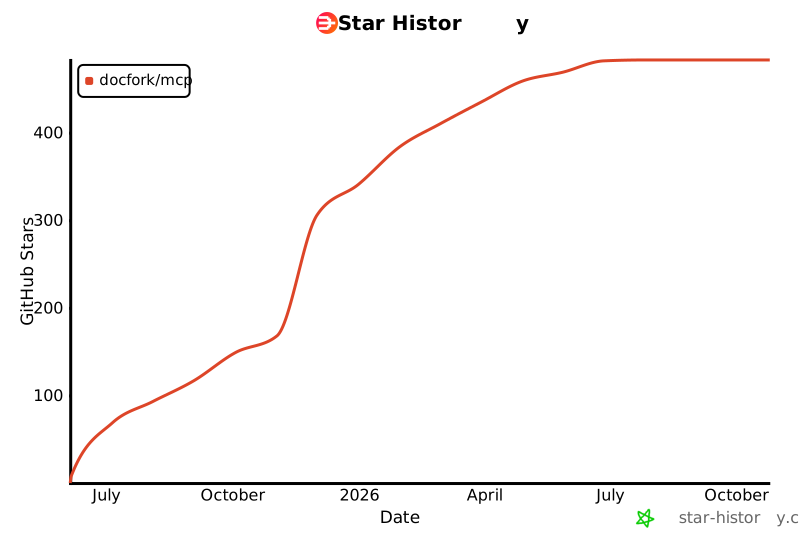
Star History
Disclaimer
Docfork is an open, community-driven catalogue. We review submissions but can't guarantee accuracy for every project. Spot an issue? Raise a GitHub issue or contact support.
License
MIT





