NERDTree VSCode


This extension is NERDTree keybinding like for Visual Studio Code.
🗄 Table of Contents (click to expand)
Installation
Vim User
There are conflicts between NERDTree VSCode keybindings and other extension.
To use NERDTree, we have to disable some keybinding from other extension first ⚠️.
If you use any below extension, you can setup following the guide below.
If you find any conflict with other extension please let us know here.
VSCodeVim
- Add this setting to your VSCode setting
setting.js.
This setting will disable Ctrl + N from VSCodeVim extension.
{
	...
	"vim.handleKeys": {
		"<C-n>": false,
	}
}
Usage
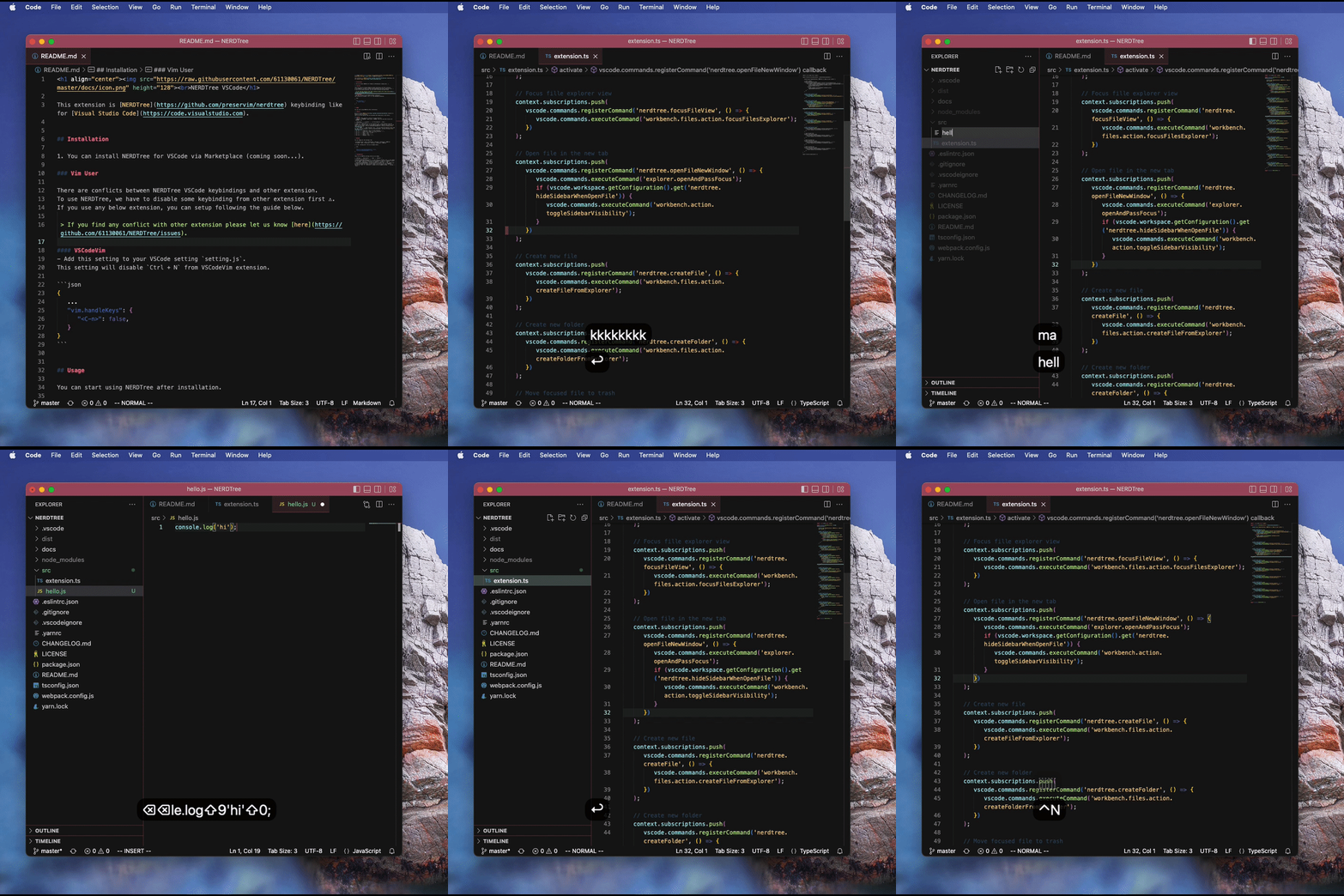
You can start using NERDTree after installation.
Feature
We try to bring NERDTree Vim features to VSCode as much as possible.
You can read our roadmap here.
This is all the features that are available and coming soon in the future.
Guide
CTRL + N means shortcut (similar to normal shortcut).<LEADER> -> <COMMAND> means press <LEADER> key first and then follow with <COMMAND> key
CTRL + N | Open and focus on file explorer view. (vim NORMAL mode only) | Close explorer view and change focus to editor view. | If you want to keep file explorer view open all the time, you can change nerdtree.hideSidebarWhenOpenFile setting following here. |
J, K, H and L | - | Moving around with VIM keybinding | J = DOWN, K = UP, H = LEFT, L = RIGHT |
Enter | - | Open selected file in current active editor or Expand folder tree | You can hide File Explorer every time you open a file by changing nerdtree.alwaysShowSidebar setting following here. |
T | - | Open selected file in a new tab | You can hide File Explorer every time you open a file by changing nerdtree.alwaysShowSidebar setting following here. |
M -> A | - | Create new file at cursor position. | - |
M -> F | - | Create new folder at cursor position. | - |
M -> D | - | Move a file to trash. | - |
M -> C | - | Copy a file. | - |
M -> V | - | Paste a file. | - |
M -> R | - | Rename a file. | - |
Setting
You can change all the settings from
- On Windows/Linux - File > Preferences > Settings > Extensions > NERDTree
- On macOS - Code > Preferences > Settings > Extensions > NERDTree
or in the setting.json file as an example below.
{
	...
	"nerdtree.hideSidebarWhenOpenFile": false,
	"nerdtree.alwaysShowSidebar": true,
}
Configuration
These are all NERDTree settings that you can change.
| nerdtree.hideSidebarWhenOpenFile | If this option is checked true ✅, the sidebar will be hidden, after you open a file from the Explorer view with NERDTree key ⌨️ t or Enter. Otherwise ❌, nothing will happend. | boolean | true |
| nerdtree.alwaysShowSidebar | If this option is checked true ✅, the sidebar will be shown everytime you switch between editor and file explorer with NERDTree shortcut ⌨️ CTRL + N. Otherwise ❌, sidebar will be toggled instead. | boolean | false |





