


Product
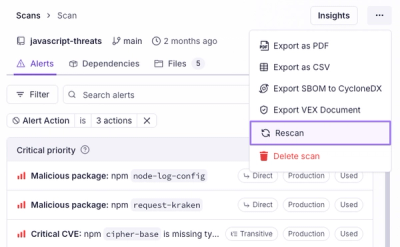
Introducing Immutable Scans
Scan results now load faster and remain consistent over time, with stable URLs and on-demand rescans for fresh security data.
By Nolan Lawson - Jan 23, 2026
react-native-passkey
Advanced tools


Native Passkeys on iOS 15.0+ and Android API 28+ using React Native.
You can find an example backend for testing here.
For the javascript part of the installation you need to run
npm install react-native-passkey
or
yarn add react-native-passkey
For the native part of the installation you need to run
cd ios && pod install
in the root of your React Native project.
There are iOS specific steps you need to go through in order to configure Passkey support. If you have already set up an associated domain for your application you can skip this step.
You need to associate a domain with your application. On your webserver set up this route:
GET https://<yourdomain>/.well-known/apple-app-site-association
This route should serve a static JSON object containing your team id and bundle identifier. Example (replace XXXXXXXXXX with your team identifier and the rest with your bundle id, e.g. "H123456789.com.mtrx0.passkeyExample"):
{
  "applinks": {},
  "webcredentials": {
    "apps": ["XXXXXXXXXX.YYY.YYYYY.YYYYYYYYYYYYYY"]
  },
  "appclips": {}
}
In XCode under Signing & Capabilities add a new Capability of type Associated Domains.
Now add this and replace XXXXXX with your domain (e.g. apple.com)
webcredentials:XXXXXX
The Android specific configuration is similar to iOS. If you have already set up Digital Asset Links for your application you can skip this step.
You need to associate a domain with your application. On your webserver set up this route:
GET https://<yourdomain>/.well-known/assetlinks.json
This route should serve a static JSON object containing the following information. Example (replace with your data, replace SHA_HEX_VALUE with the SHA256 fingerprints of your Android signing certificate)
[{
  "relation": ["delegate_permission/common.get_login_creds"],
  "target": {
    "namespace": "android_app",
    "package_name": "com.example",
    "sha256_cert_fingerprints": [
      SHA_HEX_VALUE
    ]
  }
}]
If you are having issues with your backend setup you can look at an example here.
import { Passkey } from 'react-native-passkey';

// Use this method to check if passkeys are supported on the device

const isSupported: boolean = Passkey.isSupported();
import { Passkey, PasskeyRegistrationResult } from 'react-native-passkey';

// Retrieve a valid FIDO2 attestation request from your server
// The challenge inside the request needs to be a base64URL encoded string
// There are plenty of libraries which can be used for this (e.g. fido2-lib)

try {
  // Call the `create` method with the retrieved request in JSON format
  // A native overlay will be displayed
  const result: PasskeyRegistrationResult = await Passkey.create(requestJson);

  // The `create` method returns a FIDO2 attestation result
  // Pass it to your server for verification
} catch (error) {
  // Handle Error...
}
import { Passkey, PasskeyAuthenticationResult } from 'react-native-passkey';

// Retrieve a valid FIDO2 assertion request from your server
// The challenge inside the request needs to be a base64URL encoded string
// There are plenty of libraries which can be used for this (e.g. fido2-lib)

try {
  // Call the `get` method with the retrieved request in JSON format
  // A native overlay will be displayed
  const result: PasskeyAuthResult = await Passkey.get(requestJson);

  // The `get` method returns a FIDO2 assertion result
  // Pass it to your server for verification
} catch (error) {
  // Handle Error...
}
You can force users to register and authenticate using either a platform key, a security key (like Yubikey) or allow both using the following methods. This only works on iOS, Android will ignore these instructions.
Passkey.create() - Allow the user to choose between platform and security passkeyPasskey.createPlatformKey() - Force the user to create a platform passkeyPasskey.createSecurityKey() - Force the user to create a security passkeyPasskey.get() - Allow the user to choose between platform and security passkeyPasskey.getPlatformKey() - Force the user to authenticate using a platform passkeyPasskey.getSecurityKey() - Force the user to authenticate using a security passkeyAs of version 3.0 the largeBlob extension will work on iOS 17+ only.
You can use the largeBlob extension to store a small amount of opaque data associated with the stored passkey.
During registration you can check for largeBlob extension support on the selected authenticator.
// Request
{
  ...
  extensions: {
    largeBlob: {
      support: true
    }
  }
}

// Response
{
  ...
  clientExtensionResults: {
      supported: boolean
  }
}
If the largeBlob extension is supported you can write data to it during the assertion process (this does NOT work during registration).
// Request
{
  ...
  extensions: {
    largeBlob: {
      write: Uint8Array<ArrayBuffer>
    }
  }
}

// Response
{
  ...
  clientExtensionResults: {
    largeBlob: {
      written: true
    }
  }
}
After writing you can read the data on any following assertion.
// Request
{
  ...
  extensions: {
    largeBlob: {
      read: true
    }
  }
}

// Response
{
  ...
  clientExtensionResults: { l
    largeBlob: {
      blob: Uint8Array<ArrayBuffer>
    }
  }
}
You can find information on the largeBlob extension in the WebAuthn specification here.
As of version 3.3 the PRF extension will work for Android and iOS 18+.
You can use the PRF extension to retrieve a secret which allows for various use cases like encryption of user data.
During registration you can either pass in an empty object (this will check for PRF support) or a salt (with an optional second) to retrieve the secret.
// Request
{
  ...
  extensions: {
    prf: {}
  }
}

// Response
{
  ...
  clientExtensionResults: {
    prf: {
      enabled: boolean
      results: {}
    }
  }
}
You can do this either when creating or when asserting the passkey.
// Request
{
  ...
  extensions: {
    prf: {
      eval: {
        first: Uint8Array<ArrayBuffer>
        second: Uint8Array<ArrayBuffer> // optional
      }
    }
  }
}

// Response
{
  ...
  clientExtensionResults: {
    prf: {
      enabled: true
      results: {
          first: 'Be3rf7AK8fwisd9vO13uqaP92XA24jKMSUaEaMclWIk=',
          second: 'jbVCsIGJvtSWv6LRG3fHpUaG/BvT75b8ZLRAuLBNUpk='
      },
    }
  }
}
You can also use evalByCredential to retrieve secrets for specific credentials. You can read more in the WebAuthn specification here.
See the contributing guide to learn how to contribute to the repository and the development workflow.
MIT
FAQs
Passkey implementation for React Native
The npm package react-native-passkey receives a total of 25,424 weekly downloads. As such, react-native-passkey popularity was classified as popular.
We found that react-native-passkey demonstrated a healthy version release cadence and project activity because the last version was released less than a year ago. It has 1 open source maintainer collaborating on the project.
Did you know?

Socket for GitHub automatically highlights issues in each pull request and monitors the health of all your open source dependencies. Discover the contents of your packages and block harmful activity before you install or update your dependencies.
Product
Scan results now load faster and remain consistent over time, with stable URLs and on-demand rescans for fresh security data.
Product
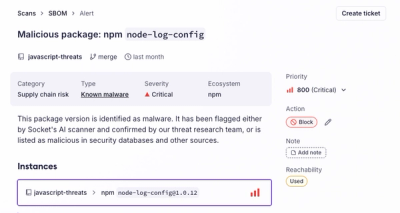
Socket's new Alert Details page is designed to surface more context, with a clearer layout, reachability dependency chains, and structured review.
Product
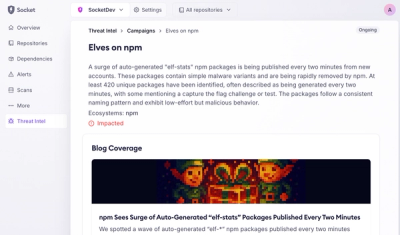
Campaign-level threat intelligence in Socket now shows when active supply chain attacks affect your repositories and packages.