



Company News
Socket Has Acquired Secure Annex
Socket has acquired Secure Annex to expand extension security across browsers, IDEs, and AI tools.
By Feross Aboukhadijeh - Apr 28, 2026
rn-nex-ui is a sophisticated UI library crafted to enhance your React Native development workflow. Designed for simplicity and elegance, nex-ui provides a rich collection of components and utilities to effortlessly create polished mobile applications. Whe
RN NEX Ui
A sophisticated UI library crafted to enhance your React Native development workflow. Designed for simplicity and elegance, nex-ui provides a rich collection of components and utilities to effortlessly create polished mobile applications.
onPress event across the entire List item component.showOutline, outlineWidth, and outlineColor enable full control over List item borders.showDefaultBg prop added to toggle background color support.softRadius prop for rounded corners on List items.color prop allows dynamic text color changes.square prop to control border radius.hideLabel prop for optional label visibility.square and round props for customizable shapes.createTheme function for easy theme setup.The Dropdown component provides a customizable dropdown menu that supports single and multiple item selection, optional search functionality, light and dark mode, and adornments for both the input and dropdown items.
The Dropdown component accepts all props from the React Native View component, in addition to the following custom props:
DropDownDataDefines the structure of data to be displayed in the dropdown.
id: string - Unique identifier for the dropdown item.title: string - Display title for the dropdown item.DropDownListContainerProps<T extends DropDownData>Props for the container that renders the list of dropdown items, extending from ViewProps and FlatListProps.
open?: boolean - Indicates whether the dropdown is open.maxHeight?: number - Maximum height of the dropdown container when open.onClose?: () => void - Callback triggered when the dropdown closes.inputLayoutRectangle: LayoutRectangle - Layout rectangle for the input element.dropDownContainerRect: MeasureElementRect - Measured dimensions of the dropdown container element.onItemClicked?: (item: DropDownData) => void - Callback triggered when an item is clicked.selectedListItems?: Array<DropDownData> | null - Currently selected dropdown items.showSelectedItem?: boolean - Whether to display the selected item in the dropdown list.listItemEndAdornment?: React.ReactNode - React node displayed at the end of each list item.listItemStartAdornment?: React.ReactNode - React node displayed at the start of each list item.activeItemColor?: ColorValue - Color applied to the active or selected dropdown item.listItemTextProps?: Pick<ListItemTextProps, 'disablePadding' | 'alignItems'> - Props for styling the text inside list items.listItemMinHeight?: number - Minimum height for each list item in the dropdown.displaySelectedAdornment?: boolean - Whether to show an adornment for the selected item.disableTextPadding?: boolean - Removes padding from the list item text component.multiselect?: boolean - Allows multiple items to be selected.search?: boolean - Enables or disables the search functionality.searchPlaceholder?: string - Placeholder text inside the search input when it is empty.searchProps?: IconInputProps - Customizes the search input, allowing styling, events, or icons.searchContainerProps?: Omit<BoxProps, 'children'> - Props for customizing the search container.DropDownProps<T extends DropDownData>The primary props interface for the dropdown component, extending from View and omitting some properties from DropDownListContainerProps.
inputStartAdornment?: React.ReactNode - React node displayed at the start of the input field (e.g., an icon).inputEndAdornment?: React.ReactNode - React node displayed at the end of the input field (e.g., an icon).placeholder?: string - Placeholder text for the input field when no value is selected.listContainerProps?: Omit<DropDownListContainerProps<T>, 'open' | 'onClose' | 'inputLayoutRectangle' | 'dropDownContainerRect'> - Props for customizing the dropdown list container.variation?: TextFiledVariation | 'icon' - Allows different styles or icons for the input field.onDropDownClicked?: (event: GestureResponderEvent) => void - Callback triggered when the dropdown input field is clicked.onListItemClicked?: (event: GestureResponderEvent, item: DropDownData) => void - Callback triggered when a dropdown item is clicked.multiselectMessage?: string - Message displayed when multiple items are selected.onItemClicked?: (item: Array<DropDownData>) => void - Callback triggered when selected items are confirmed.import React from 'react';
import { SafeAreaView, ScrollView } from 'react-native';
import { Avatar, Container, DropDown, ThemeProvider } from 'rn-nex-ui/src';
const DATA = [
{ id: 'bd7acbea-c1b1-46c2-aed5-3ad53abb28ba', title: 'First Item' },
{ id: '3ac68afc-c605-48d3-a4f8-fbd91aa97f63', title: 'Second Item' },
{ id: '58694a0f-3da1-471f-bd96-145571e29d72', title: 'Third Item' },
{ id: '58694a0f-3da1-471f-bd96-145571e29d12', title: 'Four Item' },
{ id: '58694a0f-3da1-471f-bd96-145571e29415', title: 'Five Item' },
{ id: '58694a0f-3da1-471f-bd96-145571e29419', title: 'Six Item' },
{ id: '58694a0f-3da1-471f-bd96-145571e29412', title: 'Seven Item' },
];
function App(): React.JSX.Element {
return (
<SafeAreaView>
<ScrollView>
<Container>
<ThemeProvider>
<DropDown
onItemClicked={item => console.log(item)}
listItemEndAdornment={
<Avatar
source={{
uri: 'https://images.unsplash.com/photo-1568409938619-12e139227838?ixlib=rb-1.2.1&ixid=eyJhcHBfaWQiOjEyMDd9&auto=format&fit=facearea&facepad=2&w=256&h=256&q=80',
}}
size={20}
variation="rounded"
/>
}
displaySelectedAdornment
inputStartAdornment={
<Avatar
source={{
uri: 'https://images.unsplash.com/photo-1472099645785-5658abf4ff4e?ixlib=rb-1.2.1&ixid=eyJhcHBfaWQiOjEyMDd9&auto=format&fit=facearea&facepad=2&w=256&h=256&q=80',
}}
size={30}
variation="rounded"
/>
}
variation="outlined"
data={DATA}
/>
</ThemeProvider>
</Container>
</ScrollView>
</SafeAreaView>
);
}
export default App;
The Stack component is a layout utility that arranges its children in a row or column with optional spacing.
The Stack component accepts all props from the Box component, in addition to the following custom props:
spacing?: number - Defines the spacing between children in the stack (default: 0).direction?: 'column' | 'row' - Defines the direction of the stack layout, either vertically (column) or horizontally (row) (default: row).display?: FlexStyle['display'] - Controls the display style, typically flex.justifyContent?: FlexStyle['justifyContent'] - Adjusts how children are aligned along the main axis (e.g., flex-start, center).alignItems?: FlexStyle['alignItems'] - Controls how children are aligned along the cross axis (e.g., stretch, center).flex?: FlexStyle['flex'] - Allows the stack to grow and shrink based on the available space.flexWrap?: FlexStyle['flexWrap'] - Controls whether the stack's children should wrap onto multiple lines.padding?: ViewStyle['padding'] - Sets the padding for the stack component.margin?: ViewStyle['margin'] - Sets the margin for the stack component.The ActivityIndicator component displays a loading indicator in your React Native application.
The ActivityIndicator component accepts all props from the React Native ActivityIndicator component, in addition to the following props:
size?: 'small' | 'large' - Size of the indicator (default: 'small').color?: string - Color of the indicator (default: system default).import React from 'react';
import { Box, ActivityIndicator } from 'rn-nex-ui/src';
export const Ex1: React.FC = () => {
return (
<Box sx={{ flex: 1, display: 'flex', alignItems: 'center', justifyContent: 'center' }}>
<ActivityIndicator size="small" />
</Box>
);
};
The ImageList component is designed to display a list of images with customizable styling options. It extends the properties of the React Native ScrollView component. Additional subcomponents, ImageListItem and ImageListItemBar, provide further customization options for individual items within the list.
Interface for properties that can be passed to the ImageList component, extending the React Native ScrollView component.
... - (Inherits all props from ScrollView)Interface for properties that can be passed to an individual item (ImageListItem) within the ImageList.
| Property | Description | Usage |
|---|---|---|
| sx? | Custom styles for the image list item. | Specifies custom styles using BaseStyles. |
| items? | Number of items to display. | Specifies the number of items to display. |
Interface for properties that can be passed to the ImageListItemBar component, which provides additional information for an ImageListItem.
| Property | Description | Usage |
|---|---|---|
listContentWrapperStyles? | Custom styles for the list content wrapper. | Specifies custom styles using ViewStyle. |
title? | Title text to display. | Specifies the title text as a string. |
titleProps? | Props for the title text component. | Specifies properties for the title text component, omitting children. |
subtitle? | Subtitle text to display. | Specifies the subtitle text as a string. |
subtitleProps? | Props for the subtitle text component. | Specifies properties for the subtitle text component, omitting children. |
endAdornment? | Node to display at the end of the list item bar. | Specifies a React node (e.g., an icon or button) for the end of the list item bar. |
endAdornmentContainerStyles? | Styles for the container of the end adornment. | Specifies styles for the end adornment container using Pick<BoxProps, 'style' 'sx'>. |
import React from 'react';
import { Avatar, Box, Image, ImageList, ImageListItem, ImageListItemBar } from 'rn-nex-ui/src';

export const App: React.FC = () => {
  return (
    <Box>
      <ImageList
        style={{
          width: '100%',
          marginTop: 100,
          height: '80%',
        }}>
        {itemData.map(item => (
          <ImageListItem items={2} key={item.img}>
            <Image
              source={{
                uri: `${item.img}?w=248&fit=crop&auto=format&dpr=2 2x`,
              }}
              sx={{ w: '100%' }}
              height={140}
            />
            <ImageListItemBar
              subtitle={item.author}
              title={item.title}
              endAdornment={
                <Avatar
                  source={{
                    uri: 'https://imgs.search.brave.com/IA-a4lUg47kM0FW6vtr7Lz_eIaEWKTc1EHlAv1FFPVg/rs:fit:860:0:0/g:ce/aHR0cHM6Ly9idXJz/dC5zaG9waWZ5Y2Ru/LmNvbS9waG90b3Mv/YS1kcm9wLW9mLXBp/bmstYW5kLXllbGxv/dy1wYWludC1pbi13/YXRlci5qcGc_d2lk/dGg9MTAwMCZmb3Jt/YXQ9cGpwZyZleGlm/PTAmaXB0Yz0w',
                  }}
                  size={30}
                  variation="rounded"
                />
              }
            />
          </ImageListItem>
        ))}
      </ImageList>
    </Box>
  );
};

const itemData = [
  {
    img: 'https://images.unsplash.com/photo-1551963831-b3b1ca40c98e',
    title: 'Breakfast',
    author: '@bkristastucchio',
  },
  {
    img: 'https://images.unsplash.com/photo-1551782450-a2132b4ba21d',
    title: 'Burger',
    author: '@rollelflex_graphy726',
  },
];
These components provide various transition animations to apply to child elements. All specific animation components extend from BaseTransitionProps, which defines common properties.
| Property | Type | Description |
|---|---|---|
duration | number | Duration of the animation in milliseconds. Defines how long the animation should run. |
delay | number | Delay before the animation starts in milliseconds. This allows you to postpone the start of the animation. |
repeatCount | number | Number of times the animation should repeat. Sets how many times the animation should loop before stopping. |
style | StyleProp<ViewStyle> | Additional styles for the container. Allows you to apply custom styles to the container view. |
children | React.ReactNode | Children components to apply the animation effect. The elements that will undergo the animation. |
applyTransition | boolean | State for the animation effect. Determines whether the transition animation should be applied or not. |
The WobbleProps interface inherits from BaseTransitionProps and uses default wobble animation parameters.
The BounceProps interface inherits from BaseTransitionProps with an additional height property.
| Property | Type | Description |
|---|---|---|
height | number | Sets the bounce effect's height. |
The FadeProps interface inherits from BaseTransitionProps and applies fading animation parameters. It excludes repeatCount.
The FlashProps interface inherits from BaseTransitionProps and applies flash animation parameters.
The PulseProps interface inherits from BaseTransitionProps with an additional scale property.
| Property | Type | Description |
|---|---|---|
scale | number | Adjusts the size scaling for the pulse effect. |
The ShakeProps interface inherits from BaseTransitionProps with an additional type property.
| Property | Type | Description |
|---|---|---|
type | 'x' 'y' | Defines the axis of shaking: horizontal ('x') or vertical ('y'). |
The TadaProps interface inherits from BaseTransitionProps and applies tada animation parameters.
The HeartBeatProps interface inherits from BaseTransitionProps and applies heartbeat animation parameters.
The BackInProps interface inherits from BaseTransitionProps with additional type and initialValue properties. It excludes repeatCount.
| Property | Type | Description |
|---|---|---|
type | 'down' 'left' 'right' 'up' | Specifies the direction of the backIn animation. |
initialValue | number | Sets the starting value for the animation. |
The FadingProps interface excludes repeatCount from BaseTransitionProps and adds a type property.
| Property | Type | Description |
|---|---|---|
type | 'fadeIn' 'fadeInDown' 'fadeInDownBig' 'fadeInLeft' 'fadeInLeftBig' 'fadeInRight' 'fadeInRightBig' 'fadeInUp' 'fadeInUpBig' 'fadeInTopLeft' 'fadeInTopRight' 'fadeOut' 'fadeOutDown' 'fadeOutUp' | Specifies the exact type of fade animation to be applied. |
The FlipProps interface inherits from BaseTransitionProps with an additional type property.
| Property | Type | Description |
|---|---|---|
type | 'flip' 'flipInX' 'flipInY' 'flipOutX' 'flipOutY' | Specifies the type of flip animation. |
The SlideProps interface inherits from BaseTransitionProps with additional type, fromValue, and toValue properties.
| Property | Type | Description |
|---|---|---|
type | 'slideInDown' 'slideInLeft' 'slideInRight' 'slideInUp' | Specifies the type of slide animation. |
fromValue | number | Sets the starting value for the animation. |
toValue | number | Sets the ending value for the animation. |
The CheckBox component is a customizable checkbox for React Native applications. It allows users to create checkboxes with various states, including checked, unchecked, and indeterminate, along with customizable styles and adornments.
| Property | Description | Usage |
|---|---|---|
checkedImage | Image to display when the checkbox is checked. | Can be any React node, such as an icon or an image. |
unCheckedImage | Image to display when the checkbox is unchecked. | Can be any React node, such as an icon or an image. |
isChecked | Boolean value indicating whether the checkbox is checked. | This is a required prop. |
isIndeterminate | Boolean value indicating whether the checkbox is in an indeterminate state. | Represents a mixed selection, often used in hierarchical checkboxes. |
checkBoxColor | Color of the checkbox border when it is not checked. | Accepts any valid color string. |
disabled | Boolean value indicating whether the checkbox is disabled. | When true, the checkbox is not interactive and visually appears disabled. |
indeterminateImage | Image to display when the checkbox is in an indeterminate state. | Can be any React node, such as an icon or an image. |
checkBoxWrapperStyles | Style object to apply to the wrapper view of the checkbox. | Accepts any valid ViewStyle properties. |
startAdornment | React node to display at the start (left side) of the checkbox. | Commonly used for adding icons or labels. |
startAdornmentContainerProps | Props to apply to the container of the startAdornment. | Omits the 'children' prop from BoxProps to avoid conflicts. |
endAdornment | React node to display at the end (right side) of the checkbox. | Commonly used for adding icons or labels. |
endAdornmentContainerProps | Props to apply to the container of the endAdornment. | Omits the 'children' prop from BoxProps to avoid conflicts. |
The QuantityStepper component is a customizable stepper for React Native applications. It allows users to increment or decrement a numeric value with configurable styles, callbacks, and constraints.
| Property | Description | Usage |
|---|---|---|
value | The current value of the quantity stepper. | Should represent the number that is being incremented or decremented. |
labelProps | Props to be passed to the label text component, excluding the 'children' prop. | Used to style and configure the label that displays the current value. |
labelWrapperProps | Props to be passed to the label wrapper view component, excluding the 'children' prop. | Used to style and configure the container of the label. |
onIncrement | Callback function that is called when the increment button is pressed. | Receives the gesture event as a parameter. |
onDecrement | Callback function that is called when the decrement button is pressed. | Receives the gesture event as a parameter. |
incrementButtonStyle | Style to be applied to the increment button view. | Used to customize the appearance of the increment button. |
decrementButtonStyle | Style to be applied to the decrement button view. | Used to customize the appearance of the decrement button. |
disabledIncrement | Determines whether the increment button is disabled. | If true, the increment button will be non-interactive. |
disabledDecrement | Determines whether the decrement button is disabled. | If true, the decrement button will be non-interactive. |
maxIncrement | Specifies the maximum limit for the value when incrementing. | If provided, the value cannot exceed this limit when the increment button is pressed. |
minDecrement | Specifies the minimum limit for the value when decrementing. | If provided, the value cannot go below this limit when the decrement button is pressed. |
buttonType | Different options for button styles. | Options are 'square' or 'round'. |
The AccordionSummary component is a customizable component for displaying collapsible content in a React Native application. It offers various properties to control the appearance and behavior of the accordion.
The AccordionSummary component accepts all props from the React Native TouchableWithoutFeedback component, in addition to the following props:
| Property | Description | Usage |
|---|---|---|
expandIcon | Icon displayed to indicate expansion state. | Can be any React node, such as an icon or image. |
summaryChildWrapperStyles | Styles for the wrapper around summary child elements. | Use to customize the appearance of the summary child elements. |
expandIconWrapperStyles | Styles for the wrapper around the expand icon. | Use to customize the appearance of the expand icon wrapper. |
rotateAnimationDuration | Duration of the rotation animation for the expand icon. | Specifies the time for the expand icon rotation animation. |
heightValueAnimationDuration | Duration of the height value animation. | Specifies the time for the height value animation. |
accordionDetailsOpacityDuration | Duration of the accordion summary animated view. | Specifies the time for the opacity transition in the accordion details. |
rotateAnimationRange | Range of rotation animation values. | Specifies the start and end values for the rotation animation. |
accordionDetails | Content to display in the expanded accordion details. | Can be any React node, such as text or images, shown when expanded. |
accordionWrapperStyles | Styles for the wrapper around the entire accordion component. | Use to customize the appearance of the accordion wrapper. |
defaultExpanded | Determines if the accordion is expanded or collapsed. | If true, the accordion starts in the expanded state. |
topBorder | Show the accordion top border. | If true, a border is shown at the top of the accordion. |
bottomBorder | Show the accordion bottom border. | If true, a border is shown at the bottom of the accordion. |
onExpand | Callback function when the accordion is collapsed or expanded. | Function to handle expand/collapse events. |
startAdornment | A React node to be displayed at the start of the accordion. | Commonly used for icons or labels at the start of the accordion. |
startAdornmentContainerStyle | Style for the start adornment container. | Use to customize the appearance of the start adornment container. |
contentKey | Prop to identify when the content of accordionDetails changes. | Helps manage the state of accordion details when content changes. |
square | Determines if the accordion has square corners. | If true, the accordion corners will be square. |
disable | Disables the accordion. | If true, the accordion will be non-interactive. |
The AccordionDetails component accepts all props from the React Native View component, in addition to the following props:
disable?: boolean - Disables the accordion details.<Accordion square>
<AccordionSummary
bottomBorder
expandIcon={<Text>d</Text>}
accordionDetails={
<AccordionDetails>
<Text variation="h5">
Lorem ipsum dolor sit amet consectetur adipisicing elit. Quam expedita, aut aspernatur odio fugiat harum temporibus
inventore asperiores eaque sunt.
</Text>
</AccordionDetails>
}>
<Text>Accordion 1</Text>
</AccordionSummary>
<AccordionSummary
topBorder
expandIcon={<Text>d</Text>}
accordionDetails={
<AccordionDetails>
<Text variation="h5">
Lorem ipsum dolor sit amet consectetur adipisicing elit. Quam expedita, aut aspernatur odio fugiat harum temporibus
inventore asperiores eaque sunt.
</Text>
</AccordionDetails>
}>
<Text>Accordion 2</Text>
</AccordionSummary>
</Accordion>
The Avatar component is a versatile component that displays an image with various styling options. It extends the properties of the React Native Image component and includes additional styling options for variations and size.
The Avatar component accepts all props from the React Native Image component, in addition to the following props:
| Property | Description | Usage |
|---|---|---|
variation | Defines the shape of the image (default: 'square'). | Options include 'square', 'rounded', 'rounded-sm', 'rounded-md', 'rounded-lg', 'rounded-xl'. |
size | Size of the image. | Specifies the dimensions of the image. |
sx | Custom styles for the image. | Allows for additional styling of the image. |
import React from 'react';
import { Avatar, Box } from 'rn-nex-ui/src';

export const Ex1: React.FC = () => {
  return (
    <Box sx={{ f: 1, d: 'flex', items: 'center', content: 'center' }}>
      <Avatar source={{ uri: 'your-image-source' }} sx={{ w: 100, h: 100, o: 0.9, bg: 'red', d: 'flex' }} />
    </Box>
  );
};
The Switch component is a customizable toggle switch for React Native applications. It allows users to toggle between "on" and "off" states with smooth animations and customizable styles.
| Property | Description | Default | Usage |
|---|---|---|---|
initialToggleState | Indicates the initial toggle state of the switch. If true, the switch will be in the "on" position initially. | false | Determines whether the switch starts in the "on" position. |
onToggle | Callback function that is called when the switch is toggled. The function receives the new toggle state as a boolean. | - | Used to handle changes in the switch state. |
toggleDuration | Duration of the toggle animation in milliseconds. Controls how long the animation takes to transition from one state to another. | 200 | Adjusts the duration of the switch's toggle animation. |
thumbStyles | Custom styles for the thumb (the movable part) of the switch. Accepts a style object to customize the appearance of the thumb. | - | Allows for styling the movable part of the switch. |
style | Custom styles for the switch container. Accepts a style object to customize the appearance of the switch container. | - | Customizes the appearance of the switch container. |
sx | Additional styles that can be applied to the switch component. This property allows for the inclusion of any base styles, making the component more flexible. | - | Provides flexibility for additional styling. |
import React, { useState } from 'react';
import { Switch } from './Switch';
import { View, Text, StyleSheet } from 'react-native';

const Example = () => {
  const [isOn, setIsOn] = useState(false);

  const handleToggle = newState => {
    setIsOn(newState);
  };

  return (
    <View style={styles.container}>
      <Text>{`Switch is ${isOn ? 'On' : 'Off'}`}</Text>
      <Switch
        initialToggleState={isOn}
        onToggle={handleToggle}
        toggleDuration={300}
        thumbStyles={styles.thumb}
        style={styles.switch}
        sx={styles.additionalStyles}
      />
    </View>
  );
};

const styles = StyleSheet.create({
  container: {
    flex: 1,
    justifyContent: 'center',
    alignItems: 'center',
  },
  switch: {
    marginTop: 20,
  },
  thumb: {
    backgroundColor: 'blue',
  },
  additionalStyles: {
    borderColor: 'gray',
    borderWidth: 1,
  },
});
The Badge component is a flexible component for displaying badges with various styles, variants, and positioning options. It extends the properties of the React Native View component and includes additional options for customization.
The Badge component accepts all props from the React Native View component, in addition to the following props:
| Property | Description | Default | Usage |
|---|---|---|---|
badgeContent | Content to be displayed inside the badge. Can be a string or a number. | - | Sets the text or number shown inside the badge. |
max | Maximum value for the badge content. | - | Limits the number displayed in the badge if it exceeds the maximum. |
variation | Style variation of the badge. Options include 'primary', 'secondary', 'error', 'info', 'success', or 'warning'. | - | Determines the color and style of the badge. |
variant | Style variant of the badge. Currently supports 'dot'. | - | Defines the badge style; 'dot' creates a small dot badge. |
invisible | Indicates whether the badge should be invisible. | - | Controls the visibility of the badge. |
badgeAnimationDuration | Duration of badge animation in milliseconds. | - | Specifies how long the badge animation takes. |
badgeContentProps | Props for customizing the content displayed inside the badge, excluding 'children'. | - | Allows customization of the badge content component. |
anchorOrigin | Anchor origin configuration to position the badge. Includes vertical and horizontal options ('top' | 'bottom' | 'left' 'right'). - Positions the badge relative to its container. |
badgeContainerProps | Badge container props for customizing the badge wrapper element. | - | Customizes the wrapper element around the badge. |
overlap | Wrapped shape the badge should overlap. Options include 'circular' or 'rectangular'. | - | Determines the shape of the badge's overlap area. |
import React from 'react';
import { Badge, Box, useTheme } from 'rn-nex-ui/src';

export const Ex1: React.FC = () => {
  const { theme } = useTheme();

  return (
    <Box sx={{ f: 1, d: 'flex', items: 'center', content: 'center' }}>
      <Badge badgeContent={100}>
        <Box sx={{ w: 200, h: 50, bg: theme.colors.grey[400], r: 10 }} />
      </Badge>
    </Box>
  );
};
The BaseStyles interface provides a mapping of style properties used in React Native development. These styles can be accessed and applied to components for consistent styling throughout your application.
| Property | Description | Usage |
|---|---|---|
| p | Padding | Specifies the padding space around an element. |
| px | Horizontal Padding | Specifies the horizontal padding space around an element. |
| py | Vertical Padding | Specifies the vertical padding space around an element. |
| ps | Padding Start | Specifies the padding space at the start of an element. |
| pe | Padding End | Specifies the padding space at the end of an element. |
| pt | Padding Top | Specifies the padding space at the top of an element. |
| pb | Padding Bottom | Specifies the padding space at the bottom of an element. |
| m | Margin | Specifies the margin space around an element. |
| mx | Horizontal Margin | Specifies the horizontal margin space around an element. |
| my | Vertical Margin | Specifies the vertical margin space around an element. |
| ms | Margin Start | Specifies the margin space at the start of an element. |
| me | Margin End | Specifies the margin space at the end of an element. |
| mt | Margin Top | Specifies the margin space at the top of an element. |
| mb | Margin Bottom | Specifies the margin space at the bottom of an element. |
| r | Border Radius | Specifies the radius of the element's corners. |
| ret | Border Top End Radius | Specifies the radius of the top end corner of the element. |
| rlt | Border Top Left Radius | Specifies the radius of the top left corner of the element. |
| ree | Border End End Radius | Specifies the radius of the end end corner of the element. |
| rrt | Border Top Right Radius | Specifies the radius of the top right corner of the element. |
| rse | Border Start End Radius | Specifies the radius of the start end corner of the element. |
| res | Border Start End Radius | Specifies the radius of the start end corner of the element. |
| rst | Border Top Start Radius | Specifies the radius of the top start corner of the element. |
| reb | Border Bottom End Radius | Specifies the radius of the bottom end corner of the element. |
| rlb | Border Bottom Left Radius | Specifies the radius of the bottom left corner of the element. |
| rss | Border Start Start Radius | Specifies the radius of the start start corner of the element. |
| rrb | Border Bottom Right Radius | Specifies the radius of the bottom right corner of the element. |
| rsb | Border Bottom Start Radius | Specifies the radius of the bottom start corner of the element. |
| pos | Position | Specifies the positioning method of an element. |
| posB | Position Bottom | Specifies the bottom position of an element. |
| posL | Position Left | Specifies the left position of an element. |
| posR | Position Right | Specifies the right position of an element. |
| posT | Position Top | Specifies the top position of an element. |
| index | Z-Index | Specifies the stack order of an element. |
| w | Width | Specifies the width of an element. |
| h | Height | Specifies the height of an element. |
| minW | Minimum Width | Specifies the minimum width of an element. |
| minH | Minimum Height | Specifies the minimum height of an element. |
| maxW | Maximum Width | Specifies the maximum width of an element. |
| maxH | Maximum Height | Specifies the maximum height of an element. |
| color | Color | Specifies the text color of an element. |
| family | Font Family | Specifies the font family of an element's text. |
| size | Font Size | Specifies the font size of an element's text. |
| style | Font Style | Specifies the font style of an element's text. |
| weight | Font Weight | Specifies the font weight of an element's text. |
| lSpacing | Letter Spacing | Specifies the spacing between characters in an element's text. |
| lHeight | Line Height | Specifies the height of each line of text in an element. |
| dLine | Text Decoration Line | Specifies the decoration line type for text in an element. |
| dStyle | Text Decoration Style | Specifies the decoration style for text in an element. |
| dColor | Text Decoration Color | Specifies the decoration color for text in an element. |
| sColor | Shadow Color | Specifies the color of the shadow for an element. |
| sOpacity | Shadow Opacity | Specifies the opacity of the shadow for an element. |
| sOffset | Shadow Offset | Specifies the offset of the shadow for an element. |
| sRadius | Shadow Radius | Specifies the radius of the shadow for an element. |
| transform | Text Transform | Specifies the text transformation for an element. |
| select | User Select | Specifies the user selection behavior for an element. |
| align | Align Content | Specifies the alignment of content within a flex container. |
| content | Justify Content | Specifies the alignment of content along the main axis of a flex container. |
| items | Align Items | Specifies the alignment of items within a flex container. |
| self | Align Self | Specifies the alignment of an individual flex item within a flex container. |
| ratio | Aspect Ratio | Specifies the aspect ratio of an element. |
| d | Display | Specifies the display behavior of an element. |
| end | End | Specifies the end position of an element. |
| f | Flex | Specifies the flexibility of an element within a flex container. |
| fBasis | Flex Basis | Specifies the initial size of a flex item in a flex container. |
| fDirection | Flex Direction | Specifies the direction of the main axis in a flex container. |
| rGap | Row Gap | Specifies the gap between rows in a grid container. |
| gap | Gap | Specifies the gap between grid items in a grid container. |
| cGap | Column Gap | Specifies the gap between columns in a grid container. |
| fGrow | Flex Grow | Specifies the ability of a flex item to grow to fill available space. |
| fShrink | Flex Shrink | Specifies the ability of a flex item to shrink if necessary. |
| wrap | Flex Wrap | Specifies whether flex items should wrap if they exceed the container's width. |
| bVisibility | Backface Visibility | Specifies the visibility of the backface of an element. |
| bg | Background Color | Specifies the background color of an element. |
| o | Opacity | Specifies the opacity level of an element. |
| e | Elevation | Specifies the elevation level of an element. |
| pEvents | Pointer Events | Specifies whether an element can be the target of pointer events. |
| c | Cursor | Specifies the type of cursor to display when hovering over an element. |
| bColor | Border Color | Specifies the border color of an element. |
| bWidth | Border Width | Specifies the width of the border of an element. |
| overflow | Overflow | Specifies how content that overflows the element's box is handled. |
The Box component is a versatile container element that allows for easy layout and styling in React Native applications.
sx' - Object containing style properties for the Box (uses BaseStyles from styleTypes).children - React node(s) to be rendered inside the Box..import React from 'react';
import { Box, Text, useTheme } from 'rn-nex-ui/src';
export const Ex1: React.FC = () => {
return (
<Box sx={{ f: 1, d: 'flex', items: 'center', content: 'center' }}>
<Box
sx={{
w: 50,
h: 50,
bg: 'white',
r: 10,
sColor: 'red',
sOffset: { width: 0, height: 1 },
sOpacity: 0.8,
sRadius: 1,
}}
/>
</Box>
);
};
Props interface for generating styles for the Container component.
maxWidth?: ContainerMaxWidth - The maximum width of the Container to generate styles for.disableGutters?: boolean - Whether to disable gutters when generating styles for the Container.The Button component provides an interactive element that users can tap to trigger an action in your React Native application.
| Property | Type | Default | Description |
|---|---|---|---|
disabled | boolean | false | Determines whether the button is disabled. When true, the button becomes non-interactive. |
children | ReactNode | - | The content to be displayed inside the button, such as text, icons, or other components. |
disableRipple | boolean | false | Determines whether the ripple effect is disabled. If true, the button will not display a ripple effect on press. |
rippleProps | RippleProps | - | Props for configuring the ripple effect, such as ripple color, duration, and radius. |
rippleEdge | RipplePosition | center | Determines the position of the ripple effect relative to the button. Options include 'center', 'topLeft', 'topRight', 'bottomLeft', and 'bottomRight'. |
sx | BaseStyles | - | Additional styles for the button container using the BaseStyles type from styleTypes. |
variation | ButtonVariations | contained | Specifies the visual style variation of the button. Can be 'contained', 'outlined', or 'text'. |
fullWidth | boolean | false | Specifies whether the button should take up the full width available. |
disableElevation | boolean | false | Specifies whether to disable elevation for the button. Elevation adds a shadow effect to the button. |
buttonColor | ButtonColorTypes | - | Specifies the color variation of the button. Can be 'primary', 'secondary', 'success', 'error', 'info', or 'warning'. |
square and round | boolean | round | props for flexible shape styling. |
<Button onPress={() => console.log('pressed')}>
  <Text>Click here</Text>
</Button>
The Card component is used to display content in a visually appealing card format in your React Native application.
CardPropsThe CardProps interface defines the properties that can be passed to a card component.
sx?: BaseStyles: Additional styles for the card container.children?: React.ReactNode: Children elements to be rendered within the card.variation?: CardVariations: Variation of the card, such as 'outlined' or undefined.CardMediaPropsThe CardMediaProps interface extends from ImageProps and defines the properties for the card media component.
CardHeaderPropsThe CardHeaderProps interface defines the properties for the card header component.
sx?: BaseStyles: Additional styles for the card header.children?: React.ReactNode: Children elements to be rendered within the card header.CardContentPropsThe CardContentProps interface extends from CardHeaderProps and defines the properties for the card content component.
CardActionPropsThe CardActionProps interface extends from BaseButtonProps and defines the properties for the card action component.
import React from 'react';
import { Avatar, Box, Card, CardHeader, CardMedia, CardContent, Text, useTheme } from 'rn-nex-ui/src';

export const Ex1: React.FC = () => {
  const { theme } = useTheme();

  return (
    <Box sx={{ f: 1, d: 'flex', items: 'center', content: 'center', px: 10, fDirection: 'column', gap: 10 }}>
      <Card sx={{ maxW: 350, bg: theme.colors.grey[500], r: 10, overflow: 'hidden' }}>
        <CardHeader sx={{ p: 10, d: 'flex', items: 'center', fDirection: 'row', gap: 10 }}>
          <Avatar source={{ uri: 'your-image-source' }} size={40} variation="rounded" />
          <Box>
            <Text>Shrimp and Chorizo Paella</Text>
            <Text variation="h5">September 14, 2016</Text>
          </Box>
        </CardHeader>
        <CardMedia src="card-media-image" sx={{ w: 'auto', h: 200 }} />
        <CardContent sx={{ px: 10, py: 10 }}>
          <Text variation="h5">
            This impressive paella is a perfect party dish and a fun meal to cook together with your guests. Add 1 cup of frozen
            peas along with the mussels, if you like.
          </Text>
        </CardContent>
        <Box sx={{ py: 10, px: 10, d: 'flex', items: 'center', content: 'flex-end' }}></Box>
      </Card>
    </Box>
  );
};
The Chip component is used to represent small blocks of information or actions in a compact manner.
ChipPropsThe ChipProps interface defines the properties that can be passed to a chip component.
label?: string: The label text to display inside the chip.labelContainerProps?: Omit<TextProps, 'children'>: Props to be passed to the label text component.variant?: ChipVariant: The variant of the chip, either 'outlined' or 'filled'.endAdornment?: React.ReactNode: A React node to be displayed at the end of the chip.endAdornmentContainerStyle?: StyleProp<ViewStyle>: Style for the end adornment container.endAdornmentTouchableProps?: Omit<TouchableWithoutFeedbackProps, 'children' | 'style'>: Props to be passed to the touchable component wrapping the end adornment.startAdornment?: React.ReactNode: A React node to be displayed at the start of the chip.startAdornmentContainerStyle?: StyleProp<ViewStyle>: Style for the start adornment container.startAdornmentTouchableProps?: Omit<TouchableWithoutFeedbackProps, 'children' | 'style'>: Props to be passed to the touchable component wrapping the start adornment.color?: ChipVariations: The color variation of the chip.GenerateChipStylesPropsThe GenerateChipStylesProps interface extends from ChipProps and defines additional properties for generating chip styles.
Below are examples demonstrating the usage of the Chip component:
import React from 'react';
import { Box, Chip } from 'rn-nex-ui/src';

const ChipExamples: React.FC = () => {
  return (
    <Box
      sx={{
        f: 1,
        d: 'flex',
        items: 'center',
        content: 'center',
        px: 10,
        fDirection: 'column',
        gap: 10,
      }}>
      <Chip label="Chip" />
      <Chip label="Outlined chip" variant="outlined" />
      <Chip label="Custom chip" variant="outlined" labelContainerProps={{ style: { color: 'green' } }} />
      <Chip label="Disabled chip" variant="outlined" disabled />
      <Chip
        label="Chip with start adornment chip"
        variant="outlined"
        startAdornment={<Avatar source={{ uri: 'your-image-source' }} size={25} variation="rounded" />}
      />
      <Chip
        label="Chip with start adornment chip"
        variant="outlined"
        startAdornment={
          <IconButton onPress={() => console.log('pressed')}>
            <Avatar source={{ uri: 'your-image-source' }} size={25} variation="rounded" />
          </IconButton>
        }
      />
    </Box>
  );
};
The Dialog component is used to display a popup dialog with customizable content and actions.

DialogTitlePropsThe DialogTitleProps interface defines the properties that can be passed to a dialog title component.
variation?: string: The variation of the dialog title.DialogPropsThe DialogProps interface extends PortalProps and defines additional properties for the dialog component.
dialogContainerProps?: Omit<BoxProps, 'children'>: Props to be passed to the dialog container.DialogActionsPropsThe DialogActionsProps interface extends BoxProps and defines additional properties for the dialog actions component.
dialogActionsContainerProps?: Omit<BoxProps, 'children'>: Props to be passed to the dialog actions container.Below are examples demonstrating the usage of the Dialog component:
export const Ex1: React.FC = () => {
  const [showDialog, setShowDialog] = useState(false);

  return (
    <PortalProvider key="un">
      <View
        style={{
          flex: 1,
          justifyContent: 'center',
          alignItems: 'center',
          paddingHorizontal: 10,
        }}>
        <Dialog visible={showDialog} portalKey="modal_key" onClose={() => setShowDialog(false)}>
          <DialogTitle>Subscribe</DialogTitle>
          <DialogContent>
            <DialogContentText gutterBottom>
              To subscribe to this website, please enter your email address here. We will send updates occasionally.
            </DialogContentText>
          </DialogContent>
          <DialogActions>
            <Button
              style={{
                paddingHorizontal: 30,
                paddingVertical: 8,
                borderRadius: 0,
              }}
              variation="text"
              onPress={() => setShowDialog(false)}>
              <Text>Close</Text>
            </Button>
          </DialogActions>
        </Dialog>
        <Button fullWidth onPress={() => setShowDialog(!showDialog)}>
          <Text>Open</Text>
        </Button>
      </View>
    </PortalProvider>
  );
};
The Divider component is used to create a visual divider between sections of content.
DividerVariantsVariants for the divider, specifying its appearance.
'fullWidth': The divider spans the full width or height of its container.'middle': The divider is centered within its container, with additional spacing considerations.DividerOrientationOrientation of the divider.
'horizontal': The divider is oriented horizontally.'vertical': The divider is oriented vertically.DividerChildAlignmentAlignment options for a child component within the divider.
'left': The child component is aligned to the left.'right': The child component is aligned to the right.'center': The child component is centered.DividerPropsProps for the Divider component, extending the base View component props.
variant?: DividerVariants: Specifies the variant of the divider.textAlign?: DividerChildAlignment: Specifies the alignment of a child component within the divider.orientation?: DividerOrientation: Specifies the orientation of the divider.dividerBorderStyles?: StyleProp<ViewStyle>: Custom style for the divider border elements.leftDividerBorderStyle?: StyleProp<ViewStyle>: Specifies styles for the left divider border element.rightDividerBorderStyle?: StyleProp<ViewStyle>: Specifies styles for the right divider border element.DividerRootContainerPropsProps for the root container of the Divider, extending base View props and including relevant divider props.
variant?: DividerVariants: Specifies the variant of the divider.orientation?: DividerOrientation: Specifies the orientation of the divider.GenerateDividerStylesPropsProps for generating the styles of the Divider.
variant?: DividerVariants: Specifies the variant of the divider.textAlign?: DividerChildAlignment: Specifies the alignment of a child component within the divider.orientation?: DividerOrientation: Specifies the orientation of the divider.theme: ThemeType: Theme object for styling.dividerType: 'left' | 'right': Specifies the type of the divider, either 'left' or 'right'.childWrapperLayoutRect?: LayoutRectangle: Layout rectangle of the child wrapper, if it exists.hasChild?: boolean: Indicates whether the divider has a child component.dividerRootLayoutRect?: LayoutRectangle: Layout rectangle of the root divider.You can use these interfaces and types as props and options when using the Divider component in your React Native application.
export const Ex1: React.FC = () => {
  const { theme } = useTheme();

  return (
    <Box sx={{ f: 1, d: 'flex', items: 'center', content: 'center', px: 10 }}>
      <Box sx={{ w: 350, bg: theme.colors.grey[800], r: 2, pb: 20 }}>
        <Box sx={{ p: 10 }}>
          <Text>This is first line</Text>
        </Box>
        <Divider />
        <Box sx={{ p: 10 }}>
          <Text>This is second line</Text>
        </Box>
        <Divider variant="middle" />
        <Box sx={{ p: 10 }}>
          <Text>Other line</Text>
        </Box>
        <Divider variant="fullWidth" />
        <Box sx={{ p: 10 }}>
          <Text>Other line</Text>
        </Box>
        <Divider>
          <Text>Center</Text>
        </Divider>
        <Box sx={{ p: 10 }}>
          <Text>Other line</Text>
        </Box>
        <Divider textAlign="right">
          <Text>Right</Text>
        </Divider>
        <Box sx={{ p: 10 }}>
          <Text>Other line</Text>
        </Box>
        <Divider textAlign="left">
          <Text>Left</Text>
        </Divider>
        <Box sx={{ p: 10 }}>
          <Text>Other line</Text>
        </Box>
        <Divider>
          <Chip label="Chip" />
        </Divider>
        <Box sx={{ p: 10 }}>
          <Text>Other line</Text>
        </Box>
        <Divider>
          <Chip label="Outlined chip" variant="outlined" />
        </Divider>
        <Box sx={{ p: 10 }}>
          <Text>Other line</Text>
        </Box>
        <Divider>
          <Chip label="Custom chip" variant="outlined" labelContainerProps={{ style: { color: 'green' } }} />
        </Divider>
        <Box sx={{ p: 10 }}>
          <Text>Other line</Text>
        </Box>
        <Divider>
          <Chip
            label="Chip with start adornment chip"
            variant="outlined"
            startAdornment={<Avatar source={{ uri: 'your-image-url' }} size={25} variation="rounded" />}
          />
        </Divider>
        <Box sx={{ p: 10 }}>
          <Text>Other line</Text>
        </Box>
        <Divider textAlign="right" dividerBorderStyles={{ backgroundColor: 'red' }}>
          <Text>Right</Text>
        </Divider>
        <Box sx={{ p: 10 }}>
          <Text>Other line</Text>
        </Box>
        <Divider textAlign="right" leftDividerBorderStyle={{ backgroundColor: 'red' }}>
          <Text>Right</Text>
        </Divider>
        <Box sx={{ p: 10 }}>
          <Text>Other line</Text>
        </Box>
        <Divider textAlign="right" rightDividerBorderStyle={{ backgroundColor: 'red' }}>
          <Text>Right</Text>
        </Divider>
      </Box>
    </Box>
  );
};
The List component is used to display a list of items, often used in navigation or content organization.
ListPropsInterface for the List component properties, extending the properties of a View component.
sx?: BaseStyles: Optional custom styles for the List component.subheader?: string | number: The content of the subheader, normally ListSubheader.subheaderContainerStyles?: Pick<BoxProps, 'style' | 'sx'>: Styles for the container of the subheader.subheaderProps?: Omit<TextProps, 'children'>: Properties for the subheader text component.disablePadding?: boolean: If true, vertical padding is removed from the list.ListItemPropsInterface for the ListItem component properties, extending from BaseButtonProps.
listContainerStyles?: Pick<BoxProps, 'style' | 'sx'>: Optional styles for the container of the ListItem.endAdornment?: React.ReactNode: Optional element to be displayed at the end of the ListItem.endAdornmentContainerStyles?: Pick<BoxProps, 'style' | 'sx'>: Optional styles for the container of the endAdornment.selected?: boolean: Use to apply selected styling.ListItemIconPropsInterface for ListItemIcon component properties, extending the properties of ListProps.
ListItemTextPropsInterface for ListItemText component properties, extending ListProps but omitting the 'children' property.
primary?: string: Optional primary text for the ListItemText component.primaryLabelProps?: Omit<TextProps, 'children'>: Optional properties for the primary text label.secondary?: string: Optional secondary text for the ListItemText component.secondaryLabelProps?: Omit<TextProps, 'children'>: Optional properties for the secondary text label.disablePadding?: boolean: Optional flag to disable padding for the ListItemText component.alignItems?: 'start' | 'middle' | 'end': Alignment of the items within the ListItemText component.ListItemTextStylesPropsInterface for styles related to ListItemText component, focusing on the disablePadding property.
ListItemStylesPropsInterface for styles related to ListItem component, focusing on the endAdornment property.
ListItemContainerStylesPropsInterface for styles related to the ListItem container, focusing on the selected property.
ListStylesPropsInterface for styles related to the List component, focusing on the disablePadding property.
These interfaces and types provide flexibility and customization options when using the List component in your React Native applications.
export const Ex1 = () => {
  return (
    <List>
      <ListItem onPress={() => console.log('done')}>
        <ListItemIcon>
          <Avatar source={{ uri: 'your-image-url' }} size={30} variation="rounded" />
        </ListItemIcon>
        <ListItemText primary="Brunch this weekend?" secondary="Ali Connors — I'll be in your neighborhood doing errands this…" />
      </ListItem>
      <Divider>
        <Chip label="CENTER" />
      </Divider>
      <ListItem onPress={() => console.log('done')}>
        <ListItemIcon>
          <Avatar source={{ uri: 'your-image-url' }} size={30} variation="rounded" />
        </ListItemIcon>
        <ListItemText primary="Summer BBQ" secondary="to Scott, Alex, Jennifer — Wish I could come, but I'm out of town this…" />
      </ListItem>
    </List>
  );
};
The Menu component is used to display a menu of options or actions, often triggered by user interaction.
MenuItemPropsProps for the individual menu item component, extending BaseButtonProps to include button-related properties.
listContainerStyles?: Pick<BoxProps, 'style' | 'sx'>: Styles for the container of the list item.endAdornment?: React.ReactNode: Element to be displayed at the end of the menu item.endAdornmentContainerStyles?: Pick<BoxProps, 'style' | 'sx'>: Styles for the container of the end adornment.selected?: boolean: Indicates if the menu item is selected.MenuItemStylesPropsProps for styles related to the menu item.
endAdornment?: React.ReactNode: Element to be displayed at the end of the menu item.MenuItemContainerStylesPropsProps for the container styles of the menu item.
selected?: boolean: Indicates if the menu item is selected.theme: ThemeType: The theme object, which contains theme-related properties and methods.disabled?: boolean: Indicates if the menu item is disabled.MenuListStylesPropsProps for styles related to the menu list.
theme: ThemeType: The theme object, which contains theme-related properties and methods.MenuListPropsProps for the menu list component, extending BoxProps to include box-related properties.
MenuPropsProps for the main menu component, extending PortalProps to include portal-related properties.
focused?: boolean: Indicates if the menu is currently focused.rootElementRect?: MeasureElementRect | null: Rect object that contains the dimensions and position of the root element.menuContainerStyles?: StyleProp<ViewStyle>: Styles for the container of the menu.fadeAnimationDuration?: number: Duration of the fade animation in milliseconds.scaleAnimationDuration?: number: Duration of the scale animation in milliseconds.DialogContainerStylesPropsProps for the dialog container styles.
rootElementRect?: MeasureElementRect | null: Rect object that contains the dimensions and position of the root element.wrapperComponentRect?: LayoutRectangle: Rect object that contains the dimensions and position of the wrapper component.These interfaces and types provide flexibility and customization options when using the Menu component in your React Native applications.
import React, { useRef, useState } from 'react';
import { ScrollView, StyleSheet, UIManager, View, findNodeHandle } from 'react-native';
import { Avatar, Button, ListItemIcon, ListItemText, Menu, MenuItem, MenuList, PortalProvider, Text } from 'rn-nex-ui/src';

export const App: React.FC = () => {
  const [showMenu, setShowMenu] = useState(false);
  const buttonRef = useRef(null);
  const [r, setR] = useState<MeasureElementRect | null>(null);

  const handlePress = () => {
    setShowMenu(true);
    if (buttonRef.current) {
      const handle = findNodeHandle(buttonRef.current);
      if (handle) {
        UIManager.measure(handle, (x, y, width, height, pageX, pageY) => {
          setR({
            x,
            y,
            width,
            height,
            pageX,
            pageY,
          });
        });
      }
    }
  };

  return (
    <PortalProvider>
      <ScrollView style={{ flex: 1, paddingVertical: 30 }}>
        <View style={{ height: 1000 }}></View>
        <View style={styles.container}>
          <Button ref={buttonRef} fullWidth onPress={handlePress}>
            <Text>Click to show menu</Text>
          </Button>
          <Menu
            rootElementRect={r}
            visible={showMenu}
            portalKey="menu_item_key"
            animationType="fade"
            onClose={() => setShowMenu(false)}>
            <MenuList>
              <MenuItem onPress={() => console.log('done')}>
                <ListItemIcon>
                  <Avatar source={{ uri: 'your-image-url' }} size={30} variation="rounded" />
                </ListItemIcon>
                <ListItemText secondary="Ali Connors — I'll be in your neighborhood doing errands this…" />
              </MenuItem>
              <MenuItem onPress={() => console.log('done')}>
                <ListItemIcon>
                  <Avatar source={{ uri: 'your-image-url' }} size={30} variation="rounded" />
                </ListItemIcon>
                <ListItemText secondary="Ali Connors — I'll be in your neighborhood doing errands this…" />
              </MenuItem>
            </MenuList>
          </Menu>
        </View>
        <View style={{ height: 1000 }}></View>
      </ScrollView>
    </PortalProvider>
  );
};

const styles = StyleSheet.create({
  container: {
    flex: 1,
    justifyContent: 'center',
    alignItems: 'center',
    marginHorizontal: 10,
  },
});
The Pagination component is used to display a set of pagination items for navigating through a list of items or pages.
PaginationItemPropsProps for a single pagination item.
page?: number | string: The page number or a special string value like 'start-dots' or 'end-dots'.active?: boolean: Indicates if the pagination item is the currently active page.rippleBackgroundColor?: ColorValue: Background color for the ripple effect when the pagination item is pressed.color?: PaginationItemColor: The active color of the pagination item.shape?: PaginationShape: The shape of the pagination item (circular or rounded).variant?: PaginationVariant: The variation style of the pagination item (outlined or text).disabled?: boolean: If true, the component is disabled.PaginationItemStylesPropsStyles props for a single pagination item, extending from PaginationItemProps to reuse its properties for styling purposes.
color?: PaginationItemColor: The active color of the pagination item.shape?: PaginationShape: The shape of the pagination item (circular or rounded).variant?: PaginationVariant: The variation style of the pagination item (outlined or text).disabled?: boolean: If true, the component is disabled.isActive: Animated.Value: Animation value for the active state.theme: ThemeType: The theme object, which contains theme-related properties and methods.PaginationPropsProps for the Pagination component.
count: number: The total number of pages.onPageChange?: (event: GestureResponderEvent, page: number) => void: Callback function called when a pagination item is clicked.dotContainerProps?: Omit<BoxProps, 'children'>: Additional props to be passed to the dot container.dotStylesProps?: StyleProp<TextStyle>: Additional styles to be applied to the dot elements.paginationItemProps?: PaginationItemProps: Additional props to be passed to each pagination item.disabled?: boolean: If true, the component is disabled.activeCount?: number: The active state of the component.renderItem?: React.ReactNode: Custom pagination item.These interfaces and types provide the necessary props and styling options for implementing pagination functionality in your React Native applications.
export const Ex1: React.FC = () => {
  return (
    <Box sx={{ f: 1, d: 'flex', content: 'center', items: 'center', gap: 10 }}>
      <Pagination count={10} />
      <Pagination count={10} onPageChange={(_, page) => console.log(page)} />
      <Pagination count={10} activeCount={6} />
      <Pagination count={10} disabled />
      <Pagination count={10} dotStylesProps={{ backgroundColor: 'red' }} />
      <Pagination count={10} renderItem={<Avatar source={{ uri: 'your-image-url' }} size={30} variation="rounded" />} />
      <Pagination count={10} style={{ backgroundColor: 'red', borderRadius: 10 }} />
      <Pagination count={10} paginationItemProps={{ shape: 'rounded' }} />
      <Pagination count={10} paginationItemProps={{ shape: 'circular' }} />
      <Pagination count={10} paginationItemProps={{ color: 'error' }} />
      <Pagination count={10} paginationItemProps={{ color: 'primary' }} />
      <Pagination count={10} paginationItemProps={{ color: 'secondary' }} />
      <Pagination count={10} paginationItemProps={{ color: 'standard' }} />
      <Pagination count={10} paginationItemProps={{ variant: 'outlined' }} />
      <Pagination count={10} paginationItemProps={{ rippleBackgroundColor: 'red' }} />
      <Pagination count={10} paginationItemProps={{ disableRipple: true }} />
    </Box>
  );
};
The Text component is used to display text content with various typographic styles and options.
TextPropsInterface for the properties that can be passed to a text component.
children: React.ReactNode: The content to be displayed within the text component.sx?: BaseStyles & ElementTextStyleProps: Custom styles to be applied to the text.variation?: TextVariation: Variation of the text, such as 'body1', 'caption', 'h1', etc.gutterBottom?: boolean: Specifies whether to add a bottom margin to the text component.maxLength?: number: Maximum length of the text content. Used for truncating or limiting text length.error?: boolean: Specifies if the text component is in an error state.errorColor?: ColorValue: Color value for the text when in an error state.isActive?: boolean: Specifies if the text component is in an active state.activeColor?: ColorValue: Color value for the text when in an active state.disabled?: boolean: Specifies if the text component is disabled.mode?: 'light' | 'dark': Mode used for text light and dark variation color.color prop allows dynamic text color changesTextGutterInterface representing gutter styles for text.
margin?: number: Margin around the text component.marginTop?: number: Top margin for the text component.marginBottom?: number: Bottom margin for the text component.marginLeft?: number: Left margin for the text component.marginRight?: number: Right margin for the text component.padding?: number: Padding around the text component.paddingTop?: number: Top padding for the text component.paddingBottom?: number: Bottom padding for the text component.paddingLeft?: number: Left padding for the text component.paddingRight?: number: Right padding for the text component.export const App: React.FC = () => {
return (
<View style={styles.container}>
<Text>Lorem ipsum dolor sit.</Text>
<Text variation="body1">Lorem ipsum dolor sit</Text>
<Text variation="body2">Lorem ipsum dolor sit</Text>
<Text variation="caption">Lorem ipsum dolor sit</Text>
<Text variation="h1">Lorem ipsum dolor sit</Text>
<Text variation="h2">Lorem ipsum dolor sit</Text>
<Text variation="h3">Lorem ipsum dolor sit</Text>
<Text variation="h4">Lorem ipsum dolor sit</Text>
<Text variation="h5">Lorem ipsum dolor sit</Text>
<Text variation="h6">Lorem ipsum dolor sit</Text>
<Text maxLength={20}>Lorem ipsum dolor sit amet consectetur adipisicing elit. Libero, modi.</Text>
<Text gutterBottom>Lorem ipsum dolor sit amet consectetur adipisicing elit. Libero, modi.</Text>
<Text>Lorem ipsum dolor sit.</Text>
<Text error>Lorem ipsum dolor sit.</Text>
<Text isActive activeColor="blue">
Lorem ipsum dolor sit.
</Text>
<Text style={{ fontSize: 30, fontWeight: 400 }}>Lorem ipsum dolor sit.</Text>
<Text sx={{ size: 30, weight: 400 }}>Lorem ipsum dolor sit.</Text>
<Text disabled>Lorem ipsum dolor sit.</Text>
</View>
);
};
const styles = StyleSheet.create({
container: {
flex: 1,
justifyContent: 'center',
alignItems: 'center',
marginHorizontal: 10,
},
});
The TextInput component is used to create customizable text input fields with various features and styles.
BaseInputPropsDefines common properties for a base input component.
error: Indicates if there's an error in the input.activeColor: The color to use when the input is active or focused.isFocused: Indicates if the input is focused.errorColor: Color to use when there is an error.variant: The variation type of the text field (outlined or filled).square prop allows control over border radius.hideLabel prop for scenarios where the label is unnecessary.InputLabelPropsDefines properties for an input label component.
placeholderactiveColorerrorColorvarianteditablelabelContainerStyles: Animated view container styles.labeled: Animated value for controlling label animation.translateYAnimatedPosition: Animated position for label translation.placeholderLeftPosition: Position of the placeholder when the label is active.textInputLayoutRect: The layout rectangle of the text input.TextFieldPropsDefines properties for an outlined text field component.
outlineStyles: Styles for the outline container.inputLabelProps: Props for the input label component.animatedDuration: Duration of animation.endAdornment: React node for the end adornment.endAdornmentContainerProps: Props for the end adornment container.startAdornment: React node for the start adornment.startAdornmentContainerProps: Props for the start adornment container.inputStyles: Styles for the text input.sx: Additional styles for the component.OutlinePropsDefines properties for an outline component.
LabelTransformStylePropsRepresents properties required to get label transformation styles.
theme and textHeight.OutlineStylesRepresents properties required to generate outline styles.
theme.TextInputStylesPropsRepresents properties required to get text input styles.
variant: The variation type of the text field.endAdornment: Indicates if there's an end adornment present.startAdornment: Indicates if there's a start adornment present.LabelTextStylesPropsRepresents properties required to get label text styles.
theme.BaseInputStylesPropsRepresents properties required to get base input styles.
theme.export const App: React.FC = () => {
return (
<Box
sx={{
f: 1,
d: 'flex',
items: 'center',
content: 'center',
px: 10,
fDirection: 'column',
gap: 10,
}}>
<TextField variant="outlined" placeholder="Outlined" />
<TextField variant="filled" placeholder="Filled" />
<TextField variant="outlined" placeholder="Outlined" outlineStyles={{ borderColor: 'red', borderRadius: 20 }} />
</Box>
);
};
The ThemeProvider is used to provide theming capabilities to your application, allowing you to switch between light and dark themes and customize various style properties.
ThemeProviderProps<T>Defines the properties for the ThemeProvider component.
children: The React node to be rendered within the ThemeProvider.lightTheme: The light theme object, extending ThemeType.darkTheme: The dark theme object, extending ThemeType.mode: The initial mode of the theme, either 'dark' or 'light'.ColorShadesRepresents shades of a color.
50: string;100: string;200: string;300: string;400: string;500: string;600: string;700: string;800: string;900: string;ThemeType representing the theme object, based on initialLightTheme.
ThemModeType representing the theme mode, either 'dark' or 'light'.
ThemeTypeType representing the structure of the theme object.
colors: Theme - Colors used in the theme.font: Object with font sizes.spacing: Object with spacing values.latterSpacing: Object with letter spacing values.lineHeight: Object with line height values.fontWeight: Object with font weight values.ThemeInterface<T>Interface representing the theme and a function to change the theme mode.
theme: ThemeType & T - The current theme.changeTheme: Function to change the theme mode, accepting a ThemMode.ThemeContextTypeInterface representing the theme context.
theme: ThemeInterface - The current theme interface.This documentation provides an overview of the theme configuration used in your application, including the initial light and dark themes. The themes define color palettes for various UI elements to maintain a consistent design.
The initialLightTheme object defines the color palette for the light mode of the application. Each color category (e.g., primary, secondary) contains a range of shades from light (50) to dark (900).
import React from 'react';
import { SafeAreaView, ScrollView } from 'react-native';
import { Button, Container, ThemeProvider, createColorShades, createTheme, createThemeDimensions } from 'rn-nex-ui/src';

const lightTheme = createTheme('light', {
  colors: {
    green: createColorShades({
      shades: {
        400: '#000000',
      },
      themePropertyName: 'green',
    }),
  },
});

const darkTheme = createTheme('light', {
  colors: {
    green: createColorShades({
      shades: {
        400: '#d54d4d',
      },
      themePropertyName: 'green',
    }),
  },
});

const themeDimensions = createThemeDimensions({
  spacing: {
    xs: 10,
  },
});

function App(): React.JSX.Element {
  return (
    <ThemeProvider lightTheme={lightTheme} darkTheme={darkTheme} dimensions={themeDimensions}>
      <SafeAreaView>
        <ScrollView>
          <Container>
            <Button label="Theme" buttonColor="success" />
          </Container>
        </ScrollView>
      </SafeAreaView>
    </ThemeProvider>
  );
}

export default App;
The Portal component provides a way to render content that appears above other components, typically used for modals, dialogs, or tooltips.
Represents a portal item with a unique key and the component to render.
key (string): Unique identifier for the portal.component (React.ReactNode): The content or component to render as a portal.Props for the PortalContext, allowing adding and removing portals.
addPortal (function): Function to add a portal to the context.
portal (Portal): The portal to add.removePortal (function): Function to remove a portal from the context.
key (string): The unique key of the portal to remove.Props for the container that wraps the modal content. Extends BoxProps for styling flexibility.
onClose (function, optional): Function which is used to hide the modal.Props for the Portal component that manages portal creation and visibility. Extends ModalProps from react-native.
children (React.ReactNode): The content to render inside the portal.portalKey (string): Unique identifier for the portal.modalContainerProps (ModalContainerProps, optional): Props for the container around the modal content.onClose (function, optional): Function which is used to hide the modal.Props for the PortalProvider component that manages portal state.
children (React.ReactNode): Child components to be wrapped by the PortalProvider.import React, { useState } from 'react';
import { View, TouchableOpacity, Text, StyleSheet } from 'react-native';
import { Portal } from 'rn-nex-ui/src';
const PortalExample1: React.FC = () => {
const [portalVisible, setPortalVisible] = useState(false);
const togglePortal = () => {
setPortalVisible(prev => !prev);
};
return (
<View style={styles.container}>
<TouchableOpacity onPress={togglePortal}>
<Text>Show Portal</Text>
</TouchableOpacity>
<Portal
portalKey="PortalExample1"
visible={portalVisible}
onDismiss={togglePortal}
modalContainerProps={{
style: {
display: 'flex',
alignItems: 'center',
justifyContent: 'center',
},
}}>
<View style={styles.portalContent}>
<Text>This is Portal Example 1!</Text>
<TouchableOpacity onPress={togglePortal}>
<Text>Close Portal</Text>
</TouchableOpacity>
</View>
</Portal>
</View>
);
};
const styles = StyleSheet.create({
container: {
flex: 1,
justifyContent: 'center',
alignItems: 'center',
},
portalContent: {
backgroundColor: 'white',
padding: 20,
borderRadius: 10,
alignItems: 'center',
},
});
export default PortalExample1;
We sincerely appreciate you taking the time to read through our documentation. Your attention to detail and commitment to understanding the intricacies of our library is truly valued.
Your feedback and contributions are what make our project better. If you have any questions, suggestions, or run into any issues, please don't hesitate to reach out. Together, we can build something amazing.
We welcome contributions and feedback from the community. If you have any suggestions, questions, or would like to contribute to the project, please feel free to reach out.
git checkout -b feature-branch)git commit -am 'Add new feature')git push origin feature-branch)For contributions, feedback, or any inquiries, you can reach us at: dheerajsingh1429@gmail.com
We look forward to your contributions and thank you for your support!
Happy coding!
Thank you for being a part of our community!
Happy coding!
FAQs
React native nex ui is a sophisticated UI library crafted to enhance your React Native development workflow. Designed for simplicity and elegance, nex-ui provides a rich collection of components and utilities to effortlessly create polished mobile applica
The npm package rn-nex-ui receives a total of 0 weekly downloads. As such, rn-nex-ui popularity was classified as not popular.
We found that rn-nex-ui demonstrated a not healthy version release cadence and project activity because the last version was released a year ago. It has 0 open source maintainers collaborating on the project.
Did you know?

Socket for GitHub automatically highlights issues in each pull request and monitors the health of all your open source dependencies. Discover the contents of your packages and block harmful activity before you install or update your dependencies.
Company News
Socket has acquired Secure Annex to expand extension security across browsers, IDEs, and AI tools.

Research
/Security News
Socket is tracking cloned Open VSX extensions tied to GlassWorm, with several updated from benign-looking sleepers into malware delivery vehicles.
Product
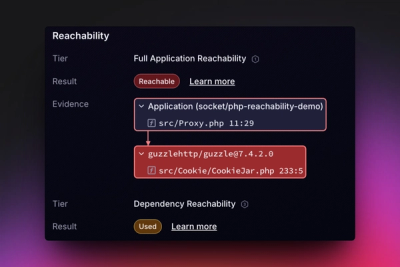
Reachability analysis for PHP is now available in experimental, helping teams identify which vulnerabilities are actually exploitable.