Remember The Milk Command Line Interface
node module: rtm-cli
GitHub repo: dwaring87/rtm-cli
This Node module provides a command line interface, written in JavaScript,
for the popular Remember the Milk task list
manager.
Installation
NPM
If you already have Node installed, this program can be
installed via npm:
npm install -g rtm-cli
which will install the executable rtm into your $PATH.
Executable Releases
Standalone executables, that do not require a pre-existing installation of Node,
are available in the Releases
page.
Usage
The main usage of the program:
  Usage: rtm [options] <command> [command arguments]


  Options:

      -V, --version            output the version number
      --plain                  do not use styled/colored text (overrides --styled)
      --styled                 use styled/colored text
      -c, --completed [value]  set display of completed tasks (true/false/number of days)
      --config [file]          specify configuration file
      -h, --help               output usage information


    Commands:

      add|a [task...]                     Add a new Task
      addList|al [name] [filter...]       Add a new List or Smart List
      addTags|at [index] [tags...]        Add one or more tags to a Task
      comp|x [indices...]                 Complete one or more Tasks
      decPri|- [indices...]               Decrease the Priority of one or more Tasks
      due [index] [due...]                Set the Due Date of a Task
      edit [index] [name...]              Change the name of a Task
      incPri|+ [indices...]               Increase the Priority of one or more Tasks
      lists|l                             Display all lists
      login                               Add RTM User information
      logout                              Remove RTM User information
      ls [filter...]                      List all tasks sorted first by list then by priority
      lsd [filter...]                     List all tasks sorted first by due date then by priority
      lsp [filter...]                     List all tasks sorted first by priority then due date
      move|mv [index] [list...]           Move Task to a different List
      postpone|pp [indices...]            Postpone one or more Tasks
      pri|p [index] [priority]            Change Task Priority
      remove|rm [indices...]              Remove one or more Tasks
      removeList|rml [name...]            Remove a List
      removeTags|rmt [index] [tags...]    Remove one or more tags from a Task
      renameList|mvl [oldName] [newName]  Rename a List
      reset                               Reset cached task indices
      tags|t                              Display all tags
      uncomp|unc [indices...]             Mark one or more Tasks as not complete
      whoami                              Display RTM user information
      today                               Display prioritized tasks and tasks due or completed today
Interactive Mode
An interactive mode is started when no commands are given to rtm, which
allows commands to be given sequentially.
Use the quit command to leave the interactive mode.
Options
Plain Output: --plain
Display output text without any styling and/or colors. This option overrides
the default in the configuration files.
Note: This option overrides --styled, if provided.
Default: Display styled/colored output.
Styled Output: --styled
Display output text using special styling and/or colors. This option overrides
the default in the configuration files.
Default: Display styled/colored output.
Completed Tasks: --completed [value], -c [value]
Specify how completed tasks should be displayed. This option overrides the
default in the configuration files. Valid values include:
| true | Display all completed tasks |
| false | Don't display any completed tasks |
| n > 0 | Display tasks completed within n days |
Default: 7
Configuration File: --config [file]
Specify a configuration file to use. Properties in this file will override the
default configuration properties. RTM User information will be stored in this
file.
Default: $HOME/.rtm.json
Version Information: --version, -v
Display RTM CLI version
Help: --help, -h
Display Usage Information
Commands
Add a Task: add, a
add [Task Name]
The Task Name can use RTM's Smart Add Syntax.
Additionally, to minimize the need to escape special characters at the command line,
the following properties can be specified:
- priority as
p:{priority}
- list as
l:{list}
- tags as
t:tag1 t:tag2
- due date as
due:{due date}
If Task Name is not provided, a prompt allowing multiple new task entries
will be displayed. Enter a blank line to finish adding new tasks.
Examples:
> add Buy Milk ^tomorrow !2 #Shopping
> add Feed The Cat today p:1 l:Chores t:pets *daily
Add a List: addList, al
addList [List Name] [Smart List Filter]
This command will add a new empty List to the User's account or if a
Smart List Filer is provided, a Smart List using the provided
advanced search criteria
will be created.
If no arguments are provided, a prompt allowing multiple new list names
will be displayed. Enter a blank line to finish add new lists.
Examples:
> addList Bills
> addList Important priority:1 OR priority:2
Add Tags to a Task: addTags, at
addTags [index] [tags...]
This command will add one or more tags to a Task. Tasks are referenced by index
number, which are displayed when listing tasks. Multiple tags can be provided
as arguments to this command.
If no arguments are provided, a prompt allowing multiple task indices and tags
to be entered will be displayed. Enter a blank line to finish adding tasks and
tags.
Examples:
> addTags 1 rent
> addTags 5 rent bills
Complete a Task: comp, x
comp [indices...]
This command will mark the Tasks as complete. Tasks are referenced by index
number, which are displayed when listing tasks. Multiple task indices can be
provided as arguments to this command.
If no arguments are provided, a prompt allowing multiple task indices to be
entered will be displayed. Enter a blank line to finish adding task indices.
Examples:
> comp 15
> comp 1 9 8
Decrease Task Priority: decPri, -
decPri [indices...]
This command will decrease the priority of the Tasks by 1. Tasks are referenced
by index number, which are displayed when listing tasks. Multiple task indices
can be provided as arguments to this command.
If no arguments are provided, a prompt allowing multiple task indices to be
entered will be displayed. Enter a blank line to finish adding task indices.
Examples:
> decPri 15
> decPri 1 9 8
Set Task Due Date: due
due [index] [due date]
This command will set the Due Date of a Task. Tasks are referenced by index
number, which are displayed when listing tasks. Due Dates can be entered in any
format that RTM can parse.
If no arguments are provided, a prompt allowing multiple task and due dates to be
entered will be displayed. Enter a blank line to finish adding tasks and due dates.
Examples:
> due 1 tomorrow
> due 15 May 12
> due 3 days
Edit Task Name: edit
edit [new task name]
This command will change the name of a Task. Tasks are referenced by index
number, which are displayed when listing tasks.
If no arguments are provided, a prompt allowing multiple task indices and names
to be entered will be displayed. Enter a blank line to finish adding indices
and names.
Example:
> edit 1 Buy More Milk
Increase Task Priority: incPri, +
incPri [indices...]
This command will increase the priority of the Tasks by 1. Tasks are referenced
by index number, which are displayed when listing tasks. Multiple task indices
can be provided as arguments to this command.
If no arguments are provided, a prompt allowing multiple task indices to be
entered will be displayed. Enter a blank line to finish adding task indices.
Examples:
> incPri 15
> incPri 1 9 8
Display all Lists: lists, l
This command will display the names of all Lists. If the List is a 'Smart List',
the search criteria will be displayed alongside the list name.
Login: login
This command will remove any saved RTM user information and start the
login procedure. An Auth URL will be displayed and opened in the User's
browser. This URL will ask the User to grant RTM CLI access to their
account. Once authorized, the user's information (id, username, full name
and an Auth Token provided by RTM) will be saved locally ($HOME/.rtm.json
by default).
Logout: logout
This command will remove any saved RTM user information. Any future requests
to the RTM API Server will require the User to login again.
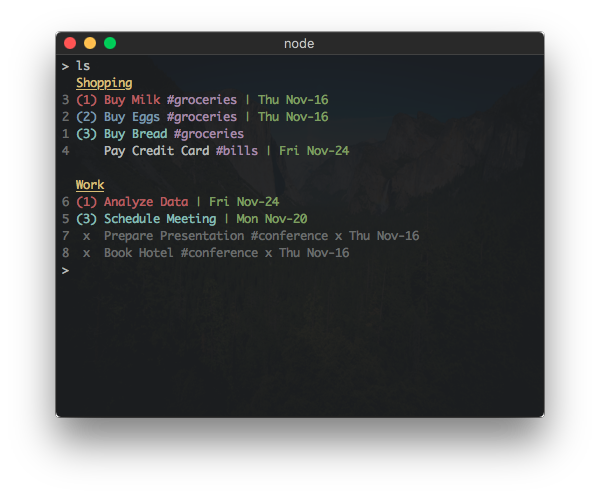
List Tasks By List, Priority: ls
ls [filter]
This command will display the User's tasks sorted first by List then by
priority. A filter, using RTM's Advanced Search Syntax
can be used to filter the tasks displayed.
Examples:
> ls
> ls priority:1 AND list:Work
List Tasks By Due Date, Priority: lsd
lsd [filter]
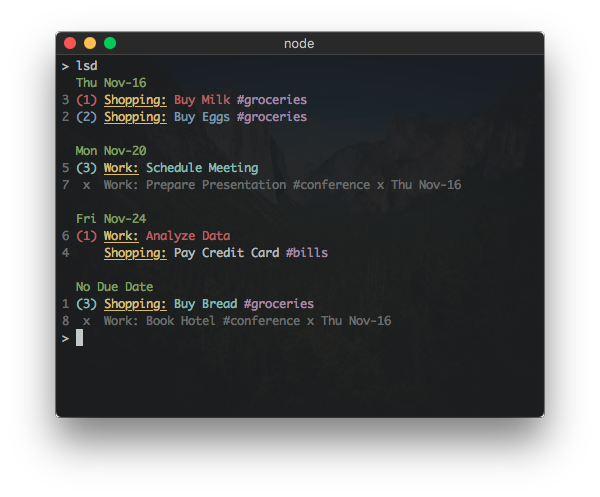
This command will display the User's tasks sorted first by Due Date (with
tasks without a due date shown first) then by priority. A filter, using RTM's
Advanced Search Syntax
can be used to filter the tasks displayed.
Examples:
> lsd
> lsd priority:1 AND list:Work
List Tasks By Priority, Due Date: lsp
lsp [filter]
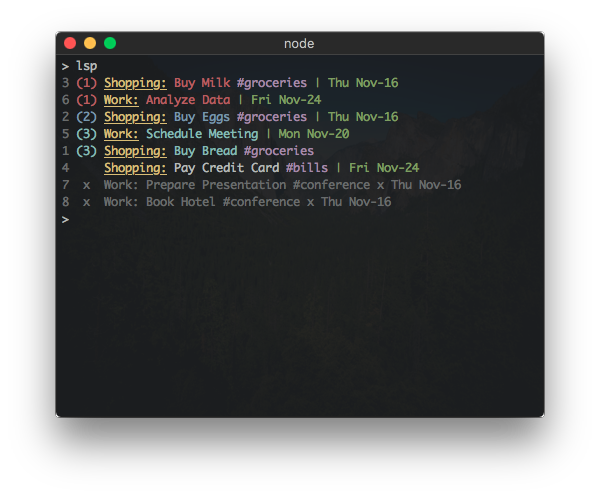
This command will display the User's tasks sorted first by priority then by
due date. A filter, using RTM's Advanced Search Syntax
can be used to filter the tasks displayed.
Examples:
> lsp
> lsp priority:1 AND list:Work
Move Task to List: move, mv
move [index] [list name]
This command will move a Task to a different List. Tasks are referenced by index
number, which are displayed when listing tasks. The list name must be the
name of an existing List.
Note: This command will fail if there is more than 1 List matching the
new List name.
Example:
> move 1 Work
Postpone a Task: postpone, pp
postpone [indices...]
This command will postpone the due date of a Task by one day. Tasks are referenced
by index number, which are displayed when listing tasks. Multiple task indices
can be provided as arguments to this command.
Examples:
> postpone 1
> postpone 1 15 8
Set Task Priority: pri, p
pri [index] [priority]
This command will set the priority of the tasks. Tasks are referenced by index
number, which are displayed when listing tasks. Acceptable priority values
include 1, 2, and 3 - any other value removes the priority from the task.
If no arguments are provided, a prompt allowing for multiple task and priority
inputs is displayed. Enter a blank line to finish adding tasks/priorities.
Examples:
> pri 15 1
> pri 14 0
Remove a Task: remove, rm
remove [indices...]
This command will remove the Tasks from the User's account. Tasks are referenced
by index number, which are displayed when listing tasks. Multiple task indices
can be provided as arguments to this command.
Examples:
> remove 1
> remove 1 15 8
Remove a List: removeList, rml
removeList [name]
This command will remove the List matching the provided name from the User's
account. Any tasks remaining in the List will be moved to the User's Inbox.
Note: This command will fail if there is more than one List matching the
provided list name.
If no list name is provided, a prompt allowing for multiple list names to be
entered will be displayed. Enter a blank line to finish adding list names.
Example:
> removeList Bills
Remove Tags From a Task: removeTags, rmt
removeTags [index] [tags...]
This command will remove one or more tags from the Task. Tasks are referenced
by index number, which are displayed when listing tasks. Multiple tags can be
provided as arguments to this command.
Examples:
> removeTags 1 bills
> removeTags 15 bills rent
Rename a List: renameList, mvl
renameList [old name] [new name]
This command will change the name of the List from old name to new name.
Note: This command will fail if there is more than one List matching the
provided old name.
Note: This command is unable to rename a 'Smart List' (the RTM API
considers a 'Smart List' to be read-only).
Example:
> renameList Food Groceries
Reset Task Index Cache: reset
This command will regenerate the cached lookup table used to reference a
specific task to an index number. This is helpful when many tasks have
been deleted and the task indices are getting large.
Display all Tags: tags, t
This command will display all tag names associated with the User's tasks. Next
to each tag will be the number of incomplete and complete Tasks for that tag.
Un-Complete a Task: uncomp, unc
uncomp [indices...]
This command will mark the Task as incomplete. Tasks are referenced by index
number, which are displayed when listing tasks. Multiple task indices can be
provided as arguments to this command.
Examples:
> uncomp 1
> uncomp 15 8
Configuration
RTM CLI has a number of properties that can be configured using a separate
JSON file. The default configuration file is located at $HOME/.rtm.json but
can be changed using the --config option.
RTM CLI will take any configuration properties found in the User's configuration
file and override the default values.
Default
The default configuration file is as follows:
{
  "dateformat": "ddd mmm-dd",
  "completed": 7,
  "plain": false,
  "styles": {
    "list": "yellow.underline",
    "index": "dim",
    "priority": {
      "0": "reset",
      "1": "red",
      "2": "blue",
      "3": "cyan"
    },
    "completed": "dim",
    "notes": "reset",
    "tags": "magenta",
    "due": "green"
  },
  "filters": [
    {
      "name": "today",
      "description": "Display prioritized tasks and tasks due or completed today",
      "command": "lsp",
      "filter": "(not priority:none and status:incomplete) or completed:today or (due:today and status:incomplete)"
    }
  ]
}
Properties
The following is a list of all configuration properties, their descriptions, and default values.
| Property | Type | Description | Default |
|---|
client | object |
RTM API Client Information
| Property | Type | Description | Default |
|---|
key | string | RTM API Key | RTM CLI API Key | secret | string | RTM API Secret | RTM CLI API Secret | perms | string |
RTM API Permissions
| delete |
RTM CLI includes an RTM API client key/secret but
you can override these with your own, if you prefer.
|
dateformat | string |
Date Display Format
The format is parsed by the
dateformat node module. Mask options are described in
that project's README.
| ddd mmm-dd |
completed | boolean or integer |
Display Completed Tasks
The display of completed tasks can be changed to include all, none
or some of the completed tasks with the following values:
true: display all completed tasksfalse: don't display any completed tasksn > 0: display tasks completed within the last n days
This can be overridden using the --completed [value] flag at the command line.
| 7 |
plain | boolean |
Display Plain Text
When set to true, output text will not be styled and/or colored.
This can be overridden using the --plain or --styled flags at the command line.
| false |
styles | object |
Task Attribute Styles
Different attributes of tasks can have different styles applied to them when displayed.
Styles are applied using the chalk npm module and can include the styles listed on
that project's README and can be combined
using a .:
| Property | Type | Description | Default |
|---|
list | string | List Name | yellow.underline | index | string | Index Number | dim | priority | object |
Task Priorities
| Property | Type | Description | Default |
|---|
0 | string | No Priority | reset | 1 | string | Priority 1 | red | 2 | string | Priority 2 | blue | 3 | string | Priority 3 | cyan |
| completed | string | Completed Tasks | dim | notes | string | Notes Indicator | reset | tags | string | Tags | magenta | due | string | Due Dates | green |
|
filters | object[] |
Pre-Defined Filters
This configuration property allows you to define your own commands
that will display tasks using either the ls, lsd,
or lsp commands and a pre-set filter using RTM's advanced
search syntax. The today command is already included in the
default configuration and can be used as an example.
| Property | Type | Description | Default |
|---|
name | string | Command Name | today | description | string | Command Description - will be used in the help output | Display prioritized tasks and tasks due or completed today | command | string | Command - the command used to display the tasks. Must be ls, lsd, or lsp. | lsp | filter | string | Filter - the RTM Advanced Search Syntax used to filter the tasks. | (not priority:none and status:incomplete) or completed:today or (due:today and status:incomplete) |
|





