Verifalia widget - Real-Time Email Verification for Your Web Pages
Verifalia provides a lightning-fast, powerful service for real-time email address validation and
deliverability checks; drop this JavaScript widget into any web page, and it automatically binds to every input
field of type email (or to fields with "email" in their name or ID - or any other fields matched by a configured
XPath selector), preventing form submission unless the field contains a valid email address
that points to an active, deliverable mailbox. The widget ships as a single, lightweight JavaScript file (9 KB gzipped),
has no external dependencies, and offers a wide range of customization options.
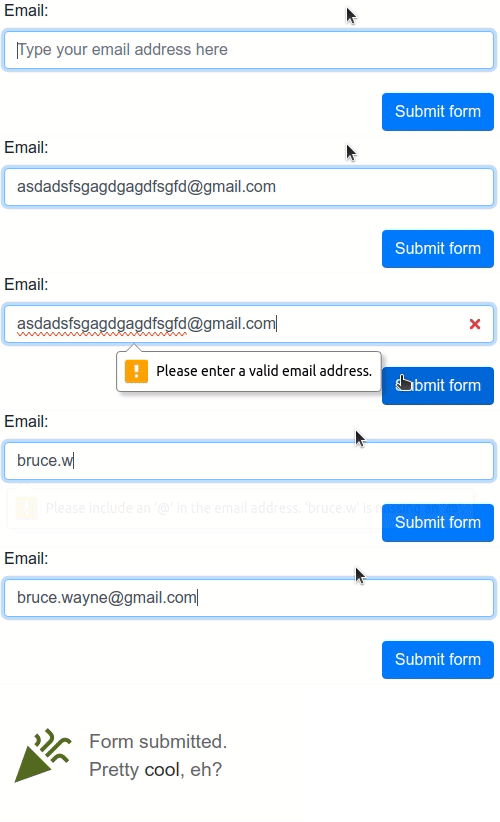
By default, the widget blocks form submission for invalid, unreachable, disposable, and throw-away email addresses.
You can easily change this to allow or exclude different address types - for example, addresses from free providers like
Gmail or Yahoo. The widget works out of the box with all HTML5 forms, including mobile ones: just add it to a page, and
it starts validating every email address in real time.
The widget also integrates with several CAPTCHA services - including Cloudflare Turnstile,
hCaptcha, Google reCAPTCHA v2, and Google reCAPTCHA v3 - to make sure only real humans trigger email verifications.
If it detects any of the following validation libraries or form-building services on your page, the widget integrates with
them automatically: Adobe Marketo Engage, FormSite, FormStack,
FormValidation, Google Tag Manager (GTM), HubSpot,
Instapage, jQuery Validation Plugin,
Kendo UI for jQuery, KickoffLabs, Leadpages, Pardot,
Parsley, SamCart, Unbounce, Validate.js, and
Zoho Sites. Other form validation libraries may also work with the widget, but they aren't officially
supported.
This widget is a great fit for many integration scenarios, but it only runs in the browser and has a limited set of
extension points: for a more powerful, Node.js-compatible solution with a much richer feature set, check out the
Verifalia SDK for JavaScript.
Table of contents
Installing the widget on your page
Using the Verifalia email verification service requires a Verifalia account - if you don't have one,
sign up for free. You'll also need a browser app key (a short
alphanumeric string). To create one, go to Team → Users & Browser Apps in the
Verifalia client area and click Create: select Browser app as the user type
and click Create to save.
Once you have a browser app, head to its Embeddable widget tab to generate the embedding code - it'll
include the HTML snippet with your browser app key already filled in. Paste it into your page or form
and you're good to go! For instructions specific to the validation libraries and form-building services
we support, see the relevant sections below.
Manual installation
Instead of using the dashboard's code generator, you can manually copy the HTML block below and place it just before
the closing </body> tag. Set the data-verifalia-appkey attribute to your browser app key (available in the
Verifalia dashboard), or set it via JavaScript as described in the next section.
  ...

  <script defer
    src="https://unpkg.com/verifalia-widget@1.14.1/dist/verifalia-widget.js"
    data-verifalia-appkey="YOUR BROWSER APP KEY HERE"
    integrity="sha512-FmYZDXdfPJA66WfnM8PYo+T/epRUdbVzigcc9bpVD8xLvI2V2VRx4S6lWGdVHjfUpaIr4YrNhv6EZmc3wWsBDg=="
    crossorigin="anonymous"></script>

</body>
</html>
or
  ...

  <script defer
    src="https://cdn.jsdelivr.net/npm/verifalia-widget@1.14.1/dist/verifalia-widget.js"
    data-verifalia-appkey="YOUR BROWSER APP KEY HERE"
    integrity="sha512-FmYZDXdfPJA66WfnM8PYo+T/epRUdbVzigcc9bpVD8xLvI2V2VRx4S6lWGdVHjfUpaIr4YrNhv6EZmc3wWsBDg=="
    crossorigin="anonymous"></script>

</body>
</html>
CDNs courtesy of unpkg and jsDelivr.
Alternatively, you can also self-host the JavaScript file. Use npm to download it:
$ npm install verifalia-widget
After installation, the file is available at ./node_modules/verifalia-widget/dist/verifalia-widget.js.
How it works
The widget has no external dependencies. It works out of the box with standard HTML5 forms - including mobile ones -
and integrates automatically with popular form validation libraries and form-building services, including
Adobe Marketo Engage,
FormSite, FormStack,
FormValidation, HubSpot,
Google Tag Manager (GTM), Instapage,
jQuery Validation Plugin, Kendo UI for jQuery,
KickoffLabs, Leadpages, Pardot,
Parsley, SamCart, Unbounce,
Validate.js, and Zoho Sites.
When one of these libraries or services is detected on the page, the widget adjusts its behavior to work alongside the
existing validation logic and styles. You can further customize this behavior using the settings described below.
HTML5 forms
On load, if no supported validation libraries are detected, the widget uses plain HTML5 form methods. It automatically
binds to every input field of type email, as well as to every input field whose name or id contains the word
"email" (see autoWireup to disable this behavior, and selector to
control which fields are bound). When the containing form is submitted - or while the user is typing - the widget verifies
the email address and blocks submission if the address is invalid, points to an inactive mailbox, or is disposable or
throw-away (see emailValidations to change the validation logic, and
events to change which events trigger verification).
The widget automatically appends hidden fields to the form to store the Verifalia verification results, including the
job ID, classification, and status. Each hidden field is named after the original field's name attribute, with one of
these suffixes:
-verifalia-id - the Verifalia job ID (a unique identifier for the verification job);-verifalia-classification - the result classification: Deliverable, Undeliverable, Risky, or Unknown;-verifalia-status - the result status: Success, MailboxDoesNotExist, MailboxHasInsufficientStorage, etc. (see the complete list).
Security note: Don't rely solely on client-side data. Always double-check the submitted values on your back end:
use the job ID to retrieve the full verification result via the Verifalia API, and confirm the email address,
classification, and status match what was submitted. Check out the developer documentation
for details on the API and the available open-source SDKs.
Visual feedback
When the widget binds to an input field, it adds the CSS class verifalia-field to it. During validation, it adds
verifalia-field-processing, and once validation completes, it adds either verifalia-field-valid or
verifalia-field-invalid. If the request is throttled, it adds verifalia-field-throttled. You can change any of
these class names using the classNames setting.
The widget also shows these user-facing messages during the standard
HTML5 form validation process:
Please hold on for a second, until we verify this email address... - while validation is in progress;Please enter a valid email address. - if the address is invalid;Too many attempts, please try again later. - if the request is throttled.
To customize these messages, use the messages setting.
For a better user experience, the widget also shows error squiggles after validation completes, to highlight typos or
other issues:

You can turn off squiggles using the squiggles setting. Note the limitations
around squiggles on <input type="email" /> fields with non-ASCII characters.
Directionality
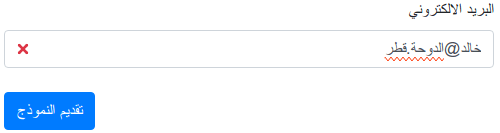
The widget automatically detects the directionality of each bound input element and adapts its
visual feedback accordingly. Its default CSS classes show a validity indicator on the right for
left-to-right languages (Latin, Cyrillic, Greek, Indic, etc.) and on the left for right-to-left languages (Arabic,
Hebrew, Persian, Urdu, Sindhi, etc.). Error squiggles follow the same directionality logic.
Because the widget reads the computed dir value, it automatically inherits the closest dir set on any ancestor
element. The most common case is setting dir once on the root html element:
<html dir="rtl">
  ...
  <div>
    ...
    <input type="email" ...>
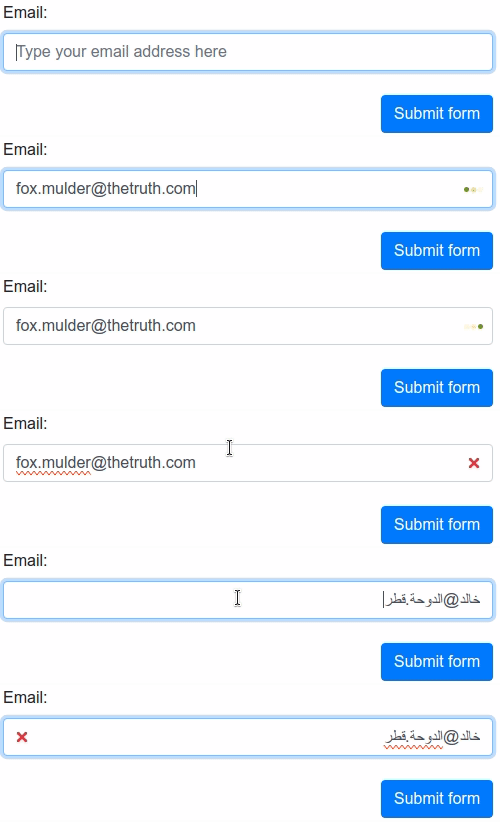
If a field needs to accept both left-to-right and right-to-left addresses - for example, when the direction isn't known
in advance - set dir="auto" directly on the input field:
<html>
  ...
  <div>
    ...
    <input type="email" dir="auto" ...>
In this case, the widget adjusts the directionality of its visual feedback dynamically as the user
types:
For advanced customization, the widget also sets a verifalia-field-dir attribute on each bound input element,
reflecting its computed directionality (ltr or rtl). You can use this to write directionality-specific CSS rules:
.verifalia-field-invalid[verifalia-field-dir=rtl] {
  background-color: #f00;
}
Bot detection / CAPTCHA
The widget integrates with CAPTCHA services to ensure only real humans trigger email verifications, protecting your
Verifalia credits and preventing throttling; you can run multiple widget instances on the same page, each with a
different CAPTCHA service or different CAPTCHA settings.
The supported CAPTCHA services are:
Cloudflare Turnstile
To enable bot detection with Cloudflare Turnstile:
Here's what the resulting code looks like:
<script defer src=”...”
    data-verifalia-appkey=”...”
    data-verifalia-captcha-provider="turnstile"
    data-verifalia-captcha-siteKey="0x4AAEM1L3BICKA">
</script>
The widget automatically loads the Cloudflare Turnstile script. For more details, see
https://www.cloudflare.com/products/turnstile/
hCaptcha
To enable bot detection with hCaptcha:
- In the Verifalia client area, find the browser app running the widget from the Team → Users & Browser apps menu and enter the hCaptcha secret key in the
Bot detection section. This lets the Verifalia servers communicate with hCaptcha.
- Optionally, also enter the hCaptcha sitekey there - this prevents tokens issued for one sitekey from being used
elsewhere, per the hCaptcha docs.
- Set captcha.provider to
hCaptcha.
- Set captcha.siteKey to your hCaptcha sitekey.
- Optionally, configure captcha.language and captcha.containerSelector.
Here's what the resulting code looks like:
<script defer src=”...”
        data-verifalia-appkey=”...”
        data-verifalia-captcha-provider="hCaptcha"
        data-verifalia-captcha-siteKey="347e3460-7fcb-43c0-bb23-5431f81d3854">
</script>
The widget automatically loads the hCaptcha script. For more details, see https://www.hcaptcha.com/
Google reCAPTCHA v2
To enable bot detection with Google reCAPTCHA v2:
Here's what the resulting code looks like:
<script defer src=”...”
        data-verifalia-appkey=”...”
        data-verifalia-captcha-provider="reCaptcha_v2"
        data-verifalia-captcha-siteKey="809DKSJHDsad7987ad9shKAHLKASL">
</script>
Invisible reCAPTCHA
For invisible reCAPTCHA, follow the same steps as above, plus:
Here's what the resulting code looks like:
<script defer src=”...”
    data-verifalia-appkey=”...”
    data-verifalia-captcha-provider="reCaptcha_v2"
    data-verifalia-captcha-siteKey="612ASG239909asdajKHDSDSAD3877823"
    data-verifalia-captcha-containerSelector="//*[@id='captcha-container']">
</script>

<div id="captcha-container" data-size="invisible"></div>
The widget automatically loads the Google reCAPTCHA v2 script. For more details, see
https://www.google.com/recaptcha/about/
Google reCAPTCHA v3
To enable bot detection with Google reCAPTCHA v3:
- In the Verifalia client area, find the browser app running the widget from the Team → Users & Browser apps menu and enter the reCAPTCHA v3 secret key in the
Bot detection section.
- In that same section, adjust the Score threshold if needed. reCAPTCHA v3 assigns a score from 0 to 1 per
submission - 0 means likely a bot, 1 means likely a real user. Submissions scoring below your threshold will be
treated as bot-generated and rejected.
- Set captcha.provider to
reCaptcha_v3.
- Set captcha.siteKey to your reCAPTCHA v3 sitekey.
- Optionally, configure captcha.language and captcha.containerSelector.
Here's what the resulting code looks like:
<script defer src=”...”
    data-verifalia-appkey=”...”
    data-verifalia-captcha-provider="reCaptcha_v3"
    data-verifalia-captcha-siteKey="12ASHGD1230980SDAJSDPO2109388123">
</script>
The widget automatically loads the Google reCAPTCHA v3 script. For more details, see
https://www.google.com/recaptcha/about/
Integration with existing validation libraries and form building services
The widget detects widely used form validation libraries and form-building services and plugs its email verification
logic into them automatically - no extra wiring needed. We currently support:
Adobe Marketo Engage, FormSite, FormStack,
FormValidation, Google Tag Manager (GTM), HubSpot,
Instapage, jQuery Validation Plugin,
Kendo UI for jQuery, KickoffLabs, Leadpages,
Pardot, Parsley, SamCart, Unbounce, Validate.js,
and Zoho Sites.
Adobe Marketo Engage
The widget supports Adobe Marketo Engage (formerly
Marketo) out of the box. When it detects a Marketo Engage page, it automatically adds email validation to the form.
To add the widget to a Marketo Engage form, open the page in the Marketo UI, drag in the HTML element, paste the
code snippet from the Verifalia dashboard into the custom HTML editor, and click Save.
FormSite
The widget works with FormSite automatically. When it detects a FormSite page, it adds
email validation to the form.
To add the widget to a FormSite form, paste the code snippet from the Verifalia dashboard into a Custom Code item,
found under the Formatting Items tab in the FormSite Form Editor.
FormStack
The widget also works with FormStack. When it detects a FormStack page, it adds email
validation to the form.
To add the widget to a FormStack form, paste the code snippet from the Verifalia dashboard into the Footer HTML
editor in the Advanced Code Editor.
FormValidation
The widget integrates with the FormValidation library out of the box. When it detects
FormValidation on the page, it automatically replaces the default FormValidation.validators.emailAddress logic. In
this mode, the widget doesn't add its own bindings to input fields, deferring to the existing library behavior.
Google Tag Manager (GTM)
The widget is available as a
community template in the Google Tag Manager gallery.
To embed it in a GTM workspace:
- In the Tags section, click New.
- Click Tag Configuration, choose a tag type, then select Discover more tag types in the Community Template Gallery.
- From the list, select Verifalia Email Verification Widget and click Add to workspace.
Once added, enter your Verifalia browser app key in the App key field. Adjust any options in Widget Settings as
needed, give the tag a meaningful name, and save it.
For a step-by-step walkthrough, see: how to block invalid emails and typos using Google Tag Manager
HubSpot
The widget supports HubSpot landing pages. When it detects a HubSpot page, it automatically
adds email verification to every email field on the page.
To add the widget to a HubSpot landing page, edit the page in HubSpot and click the Settings button in the header.
Scroll down to Advanced settings, paste the code snippet from the Verifalia dashboard into the Footer HTML text
area, and close the Settings dialog (HubSpot auto-saves changes). Click Publish to go live.
For a step-by-step walkthrough, see: how to block invalid emails in a HubSpot website page or landing page
Instapage
The widget supports Instapage. When it detects an Instapage page, it automatically adds
email verification to the form.
To add the widget to an Instapage landing page, edit the page in Instapage and click HTML/CSS in the sidebar. Click
BODY, paste the code snippet from the Verifalia dashboard into the HTML editor, and click Save. Then click
UPDATE to publish.
For a step-by-step walkthrough, see: how to block invalid emails in Instapage landing pages
jQuery Validation Plugin
The widget supports the jQuery Validation Plugin out of the box. When it detects the
plugin on the page, it automatically overrides the default email validation logic. No additional field bindings are
added, so the existing plugin configuration is respected.
In this mode, the widget doesn't add CSS classes to fields, so it plays nicely with the plugin's own visual feedback.
To override this, set the styling property as described below.
Kendo UI for jQuery
The widget supports Kendo UI for jQuery's Validator out of the box,
automatically replacing its default email validation logic. No additional field bindings are added.
Note: Kendo UI for jQuery gives precedence to any validation error message set via data-<rulekey>-msg or
validationMessage field attributes. When these attributes are present, they may interfere with the message the
widget displays during async email verification, which could be confusing for users.
For more, read: improving email verification with Kendo UI and Verifalia
KickoffLabs
The widget supports KickoffLabs pages out of the box and automatically adds email
verification to every email field.
To add the widget to a KickoffLabs page, click the Edit dropdown in the KickoffLabs UI, select Tracking Codes,
paste the code snippet from the Verifalia dashboard into the Footer Scripts area, and click Save Script Changes.
For a step-by-step walkthrough, see: how to block invalid emails in KickoffLabs landing pages
Leadpages
The widget supports Leadpages out of the box and automatically adds email verification to
every email field on the page.
To add the widget to a Leadpages landing page, click Edit in the Leadpages UI, click the Settings button in the
sidebar, go to the Analytics tab, paste the code snippet from the Verifalia dashboard into the
Immediately before the closing </body> tag area, and click Save.
If your page has a pop-up form, click Edit pop-up (visible when hovering the activation button), then click
Settings in the sidebar and paste the code snippet into the same area. In both cases, click Update in the header
to publish.
For a step-by-step walkthrough, see: how to block invalid emails in Leadpages landing pages and pop-up forms
Pardot
The widget integrates with Pardot automatically. When added to a Pardot landing page, it adds
email verification to every email field.
To add the widget to a Pardot landing page form, click Look and Feel in the classic editor, go to the Below Form
tab, click the HTML button in the WYSIWYG editor, and paste the code snippet from the Verifalia dashboard.
Parsley
The widget supports the Parsley form validation library out of the box. When it detects
Parsley on the page, it joins the Parsley validation process and binds to input fields using the same logic described
in HTML5 forms.
In this mode, the widget doesn't add CSS classes to fields, deferring to Parsley's own visual feedback. To override
this, set the styling property as described below.
SamCart
The widget supports SamCart checkout pages out of the box and automatically adds email
verification to every email field.
To add the widget to a SamCart checkout page, open the product editor in SamCart, click the Advanced tab, paste the
code snippet from the Verifalia dashboard into the Embed HTML/Scripts in Header area, and click Save Changes.
In this mode, the widget doesn't add CSS classes to fields, deferring to SamCart's own visual feedback. To override
this, set the styling property as described below.
For a step-by-step walkthrough, see: how to block invalid emails in SamCart checkout pages
Unbounce
The widget supports Unbounce landing pages and automatically adds email verification to every
email field.
To add the widget to an Unbounce page, edit the page in Unbounce and click Javascripts at the bottom. Click
Add New Javascript, set the placement to Before Body End Tag, paste the code snippet from the Verifalia dashboard
into the code area, and click Done. Click Save in the header, then Republish to go live.
For a step-by-step walkthrough, see: how to block invalid emails in Unbounce landing pages
Validate.js
The widget supports Validate.js out of the box. When it detects Validate.js on the page, it
automatically overrides the default email validation logic. No additional field bindings or CSS classes are added, so
existing Validate.js configuration is left intact.
Zoho Sites
The widget integrates with Zoho Sites automatically. When added to a Zoho Sites page,
it adds email verification to every email field.
To add the widget to a Zoho Sites website, click Settings in the Builder UI, go to Header and Footer Code under
General, paste the code snippet from the Verifalia dashboard into the Header Code area, and click Save. To
publish, click Back to Builder and then Publish.
Configuring the widget
The widget ships with sensible defaults that cover most use cases. When you need more control, you can configure it
using either JavaScript or data-verifalia-* HTML attributes.
For the full list of available settings, see Advanced settings below.
Using JavaScript
Add a small configuration script before the verifalia-widget.js script tag. The widget reads the VerifaliaWidgetConfig
property on the window object when it loads - changes made after that point have no effect.
Here's an example of setting your browser app key via VerifaliaWidgetConfig:
<script>
  window.VerifaliaWidgetConfig = {
    appKey: 'YOUR-APPKEY-HERE'
  };
</script>
Using data-verifalia-* attributes
Alternatively, configure the widget using data-verifalia-* attributes on a specific input field or any of its
ancestor elements (including the parent form and the body). As a fallback, the widget also looks for
data-verifalia-* attributes on the script element that loaded it.
Here's an example of setting your browser app key at the body level:
<body data-verifalia-appkey="YOUR-APPKEY-HERE">
  ...
Advanced settings
This section is a complete reference for all available configuration settings.
captcha
Configure CAPTCHA integration using the captcha object or the corresponding data-verifalia-captcha-* attributes
(see Using data-verifalia-* attributes).
Here's the full type definition:
captcha: {
  provider: string;
  siteKey: string;
  language: string;
  containerSelector: string;
}
Here's a full example for a widget using Cloudflare Turnstile, with a custom container that includes a Turnstile
data-theme attribute:
<label>
  Enter your email, please:
  <input type="text" data-verifalia-captcha-provider="Turnstile"
         data-verifalia-captcha-siteKey="YOUR TURNSTILE SITE KEY HERE"
         data-verifalia-captcha-containerSelector="//*[@id='challengeContainer']" />
</label>

<div id="challengeContainer" data-theme="light" />
captcha.provider
The CAPTCHA service to integrate with. Supported values:
You can also set this via the data-verifalia-captcha-provider attribute (see Using data-verifalia-* attributes).
captcha.siteKey
The public site key ("sitekey") from your selected CAPTCHA provider.
You can also set this via the data-verifalia-captcha-siteKey attribute (see Using data-verifalia-* attributes).
captcha.language
The language code to use when rendering the CAPTCHA. If not set, the CAPTCHA service auto-detects the user's locale.
Check your CAPTCHA provider's docs for supported language codes:
You can also set this via the data-verifalia-captcha-language attribute (see Using data-verifalia-* attributes).
captcha.containerSelector
An XPath selector for the element that will contain the CAPTCHA challenge. If not set, the widget creates a div
element next to the bound input field.
You can also set this via the data-verifalia-captcha-containerSelector attribute (see Using data-verifalia-* attributes).
inputBindings
Configure how the widget binds to input fields using the inputBindings property. All properties are optional and
have defaults as described below.
inputBindings: {
  appendHiddenFields: boolean;
  autoWireup: boolean;
  classNames: {
    base: string;
    exception: string;
    invalid: string;
    valid: string;
    throttled: string;
    processing: string;
    insufficientBalance: string;
  }
  debounceTime: number;
  events: string;
  preventSubmission: string;
  selector: string;
  squiggles: boolean;
  styling: boolean;
}
inputBindings.appendHiddenFields
When true, the widget appends hidden input fields to the form with the validation result after each verification.
Defaults to true. These fields are useful for verifying results server-side via the
Verifalia API and guarding against front-end data tampering.
You can also set this via the data-verifalia-inputBindings-appendHiddenFields attribute.
inputBindings.autoWireup
When true, the widget automatically binds to input fields as described above. Defaults to true.
You can also set this via the data-verifalia-inputBindings-autoWireup attribute (see Using data-verifalia-* attributes).
inputBindings.classNames
The CSS class names the widget applies to bound fields:
base - applied when the widget attaches to a field. Defaults to verifalia-field.processing - applied while validation is in progress. Defaults to verifalia-field-processing.valid - applied for a valid email address. Defaults to verifalia-field-valid.invalid - applied for an invalid email address. Defaults to verifalia-field-invalid.throttled - applied when the validation request is throttled. Defaults to verifalia-field-throttled.exception - applied when a network or code error occurs. Defaults to verifalia-field-exception.insufficientBalance - applied when the account is out of credits. Defaults to verifalia-field-insufficient-balance.
You can also set each class name via the corresponding data-verifalia-inputBindings-classNames-* attribute (e.g.,
data-verifalia-inputBindings-classNames-base, data-verifalia-inputBindings-classNames-valid, etc.), see Using data-verifalia-* attributes.
inputBindings.debounceTime
How long the widget waits between keystrokes before triggering email verification, in milliseconds; defaults to 500.
You can also set this via the data-verifalia-inputBindings-debounceTime attribute (see Using data-verifalia-* attributes).
inputBindings.events
One or more input field events that trigger email verification, separated by commas. Defaults to input, meaning
verification starts on any change to the field's content. When this is set to an empty string, verification only
triggers on form submit.
Tip: Set this to blur to verify the email when the field loses focus.
You can also set this via the data-verifalia-inputBindings-events attribute (see Using data-verifalia-* attributes).
inputBindings.preventSubmission
A comma-separated list of conditions that should block form submission:
invalid - block submission if the email address is invalid;throttled - block submission if the verification request was throttled;exception - block submission if an error occurred (e.g., no network connection);insufficientBalance - block submission if the account is out of credits or the browser app has hit its daily quota.
Defaults to invalid, throttled.
You can also set this via the data-verifalia-inputBindings-preventSubmission attribute (see Using data-verifalia-* attributes).
inputBindings.selector
An XPath selector for the input fields the widget binds to.
Defaults to:
//input[@type="email" or ((not(@type) or @type="text") and contains(@name, "email")) or @*[starts-with(name(), "data-verifalia")]]
This matches any input that:
- has
type="email", or
- has
type="text" or no type, and includes "email" in its name attribute, or
- has a
data-verifalia-* attribute.
You can also set this via the data-verifalia-inputBindings-selector attribute (see Using data-verifalia-* attributes).
inputBindings.squiggles
When true, the widget shows error squiggles in the input field after verification, highlighting likely typos or
other issues. Defaults to true. Note the limitations around squiggles on
<input type="email" /> fields with non-ASCII characters. Squiggles will never appear if
styling is false.
You can also set this via the data-verifalia-inputBindings-squiggles attribute (see Using data-verifalia-* attributes).
inputBindings.styling
Controls whether the widget applies its predefined styles and CSS classes to bound fields:
true - always apply styles and classes;false - never apply styles and classes;undefined (default) - let the widget decide based on the host environment (some hosts have their own styling, and the widget defers to them in those cases).
You can also set this via the data-verifalia-inputBindings-styling attribute (see Using data-verifalia-* attributes).
emailValidations
Defines the email validation logic and preferences; all properties are optional and have defaults as described below.
emailValidations: {
  allow: string;
  block: string;
  memoize: boolean | number;
  messages: {
    invalid: string;
    processing: string;
    throttled: string;
    insufficientBalance: string;
  }
};
An email address passes validation if it matches the allow rule and does not match the block rule.
emailValidations.allow
A comma-separated string of classifications, status codes, or attributes that the widget should allow. Classifications
use their plain names; status codes use the status: prefix; attributes use the @ prefix with the values free,
role, or disposable. The string is case-insensitive.
For example, to allow Deliverable and Unknown classifications, plus role accounts and catch-all mailboxes:
allow: 'deliverable, unknown, @role, status:ServerIsCatchAll'
Defaults to deliverable, risky, unknown.
You can also set this via the data-verifalia-emailValidations-allow attribute (see Using data-verifalia-* attributes).
emailValidations.block
A comma-separated string using the same format as allow, specifying what the widget should block.
For example, to block free email providers like Gmail and Yahoo:
block: '@free'
Defaults to @disposable.
You can also set this via the data-verifalia-emailValidations-block attribute (see Using data-verifalia-* attributes).
emailValidations.memoize
Controls memoization of validation results to speed up repeat
verifications:
true - cache results for 60 seconds (default);false - disable caching;- a number - cache results for that many seconds.
You can also set this via the data-verifalia-emailValidations-memoize attribute (see Using data-verifalia-* attributes).
emailValidations.messages
The user-facing messages displayed during the form validation process:
invalid - defaults to Please enter a valid email address.processing - defaults to Please hold on for a second, until we verify this email address...throttled - defaults to Too many attempts, please try again later.insufficientBalance - defaults to The verification failed because of insufficient balance: please notify the website owner about this issue.
You can also set each message via the corresponding data-verifalia-emailValidations-messages-* attribute (see Using data-verifalia-* attributes).
Widget methods
After loading, the widget exposes a VerifaliaWidget object on window for advanced use cases.
wireup()
Use wireup() to manually attach the widget to a portion of the DOM. This is useful when
autoWireup is set to false. The method signature (TypeScript):
wireup(rootNode: Node, live: boolean): void
rootNode - the DOM node the widget will scan for child (or self) input fields to bind to;live - when true, the widget continuously monitors the DOM for newly added fields.
The default autoWireup behavior of true is equivalent to calling:
window.VerifaliaWidget.wireup(document, true);
Widget events
The widget fires synthetic events throughout its lifecycle, all prefixed with verifalia-widget: for easy filtering.
verifalia-widget:initializing event
Fired once when the widget script begins initializing, from the document object. This event is cancelable - call
preventDefault() to abort initialization.
<script>
document.addEventListener('verifalia-widget:initializing', (event) => {
console.log('The Verifalia widget is initializing...');
});
</script>
verifalia-widget:initialized event
Fired once when the widget finishes initializing, from the document object; bubbles up the DOM.
<script>
  document.addEventListener('verifalia-widget:initialized', (event) => {
    console.log('The Verifalia widget is ready!');
  });
</script>
verifalia-widget:field-validation-started event
Fired whenever the widget starts verifying a field, from that field's element; bubbles up the DOM.
<script>
  document.addEventListener('verifalia-widget:field-validation-started', (event) => {
    console.log('Email verification started for field', event.target);
  });
</script>
verifalia-widget:field-validation-completed event
Fired when verification finishes for a field, from that field's element. Bubbles up the DOM. The detail property
contains:
status - the outcome of the verification. One of:
Allowed - the email passed the allow/block rules;Canceled - the verification was canceled (e.g., the field value changed mid-verification);Exception - an unexpected error occurred;InsufficientBalance - the account is out of credits or the browser app hit its daily quota;NotAllowed - the email did not pass the allow/block rules;Throttled - the request exceeded the configured rate limit.
validation - present only when status is Allowed or NotAllowed. Contains the full
job snapshot from the Verifalia API.
<script>
  document.addEventListener('verifalia-widget:field-validation-completed', (event) => {
    console.log('Email verification completed for field', event.target);
    console.log('Status', event.detail.status);
    console.log('Validation', event.detail.validation);
  });
</script>
verifalia-widget:captcha-requested event
Fired early in the email verification process, when the widget needs a CAPTCHA response token: use this event to
prepare your UI for a CAPTCHA challenge. Fires from the target field's element and bubbles up the DOM.
<script>
  document.addEventListener('verifalia-widget:captcha-requested', (event) => {
    console.log('Optional CAPTCHA response token requested for field', event.target);
  });
</script>
Displaying potential corrections for mistyped email addresses
When Verifalia detects a potential typo, it includes suggested corrections in the verification result. You can display
these however you like by listening for the
verifalia-widget:field-validation-completed event.
Here's an example that shows the first suggestion in a <div>:
<div id="didYouMean"></div>

<script>
  document.addEventListener('verifalia-widget:field-validation-completed', event => {
    const didYouMean = document.getElementById('didYouMean');
    const entries = event?.detail?.validation?.entries;

    didYouMean.innerHTML = (entries && entries[0].suggestions)
        ? `Did you mean <strong>${entries[0].suggestions[0]}?</strong>`
        : '';
  });
</script>
Known limitations
Error squiggles
<input type="email" /> fields have poor support for non-ASCII email addresses,
which can cause squiggles to appear in the wrong position. If your users might enter internationalized email addresses,
use type="text" instead - it handles these correctly in all browsers.
Also, the widget applies styling to the background CSS property of bound fields when squiggles are enabled, and
resets it on load. This can cause visual conflicts if you've applied CSS transition rules to background on those
fields. We recommend avoiding background and transition: background declarations on email input fields when
squiggles are enabled.
Google Sites
Google Sites sandboxes every embedded code block in its own iframe, which prevents
scripts from accessing other parts of the page. As a result, the widget can't reach email fields defined in a different
iframe. That said, the widget does support Google Tag Manager (GTM) - see that section
for an alternative approach.
Microsoft Power Apps
Microsoft Power Apps uses a proprietary form validation technology called Power Fx, which is incompatible with the HTML
standard. Unfortunately, this means the widget (and other standards-compliant validation scripts) can't work with Power
Apps forms.
Changelog / What's new
v1.14.1
Released on March 4, 2026
- Improved email verification performance using speculative preconnections to Verifalia API endpoints.
- Updated the default XPath selector to avoid binding to fields unlikely to contain email addresses.
- Improved README.
v1.13
Released on January 15, 2025
v1.12
Released on May 2, 2024
- Added support for Verifalia API v2.6, including configurable max entries per job,
MFA (TOTP) support, bot detection / CAPTCHA integration, and RFC 9457
problem+json error responses.
- Added CAPTCHA integration with Cloudflare Turnstile,
Google reCAPTCHA v2 (checkbox and invisible),
Google reCAPTCHA v3, and hCaptcha.
- Added the
verifalia-widget:captcha-requested event.
- Fixed a regression that occurred on insecure HTTP connections.
- Improved README.
v1.11
Released on March 21, 2024
- Added support for Pardot.
- Added configurable styling and validation message for insufficient balance conditions.
- Added
insufficientBalance to inputBindings.preventSubmission.
- Improved error squiggle display when existing styles are applied to bound fields.
- Fixed an issue where
inputBindings.preventSubmission was not respected on exceptions.
- Improved README.
v1.10
Released on February 1, 2024
v1.9
Released on September 14, 2023
v1.8
Released on August 10, 2023
- Added support for Verifalia API v2.4 with improved email verification speed.
- Added the
selector configuration field for custom XPath field binding.
- Added the
styling configuration field to force or disable CSS class application.
- Added support for Adobe Marketo Engage.
- Improved handling of disabled and read-only fields (per the HTML5 W3C Working Draft 12).
- Improved visual feedback in dark color scheme and on high-resolution displays.
- Improved handling of canceled
fetch() requests.
- Fixed a bug where CSS classes were sometimes lost on fields added after the widget loaded.
- Fixed an issue where some
data-verifalia-* attributes were not read correctly.
- Improved README.
v1.7
Released on March 26, 2021
- Added live binding of input fields - the widget now binds to fields added after page load, not just those present at
load time. This is now the default behavior for autoWireup.
- Added the
wireup() method for manual field binding.
- Added support for FormValidation.
- Added support for FormSite.
- Added support for FormStack.
- Improved README.
v1.6
Released on November 12, 2020
- Added support for Validate.js.
- Added support for configuring the widget via
data-verifalia-* attributes on the importing script element.
- Added configurable result memoization.
- Updated to Verifalia API v2.2.
- Improved overall performance - the script now weighs only 9 KB (gzipped).
- Fixed a compatibility bug with the jQuery Validation Plugin.
- Fixed a memory leak in the internal events manager.
- Improved README.
v1.5
Released on May 21, 2020
- Added support for right-to-left (RTL) directionality, including Arabic, Hebrew, Persian, Urdu,
Sindhi, and other RTL languages.
- Improved README.
v1.4.3
Released on May 7, 2020
- Added support for squiggles.
- Fixed an issue that caused the widget to auto-focus an invalid field on blur.
- Improved README.
v1.3.1
Released on April 11, 2020
- Improved README with additional documentation.
v1.3
Released on April 9, 2020
v1.2
Released on February 27, 2020
- Updated to Verifalia API v2.1.
- Improved README with more complete documentation.
v1.1
Released on October 3, 2019
- Added support for IE11 and Edge.
- Added support for ES5.
- Added a console message when the widget configuration contains errors.
- Improved README.
v1.0.1
Released on September 27, 2019
- Fixed the default export of the script for better compatibility.
- Updated README with ready-to-use CDN snippets.
v1.0
Released on September 26, 2019
- First public release of the Verifalia widget, built on Verifalia API v2.0.