wdc-toolkit
A collection of bundled scripts for development.
Introduction
wdc-toolkit is an asset bundling tool based on Webpack 5. It comes with support for many things commonly:
- JavaScript transpilation through babel
- core-js@3 automatic polyfill injection (project mode)
- PostCSS, SASS and CSS Modules
- ESLint, Prettier, and Stylelint
- Jest
With wdc-toolkit, engineers can quickly and easily bundle assets for both production and development without having
to worry about config files. wdc-toolkit is also easy to extend to project's specifics needs.
wdc-toolkit is inspired in tools like react-scripts, kcd-scripts and wp-scripts.
Installation
To install wdc-toolkit simply run
npm install --save-dev wdc-toolkit
⚠️ peerDependency warning
If you're using a version of NPM lower than 7 and wdc-toolkit from version 4.0.0 you'll also need to install the following dependencies manually:
npm install --save-dev stylelint @wdcthemes/stylelint-config @wdcthemes/eslint-config @wdcthemes/babel-preset-default
Setting it up
In order to get wdc-toolkit up and running simply define the source and main properties in your package.json file.
You can also specify a style property to tell wdc-toolkit where to output your compiled css.
{
	"name": "your-package-name",
	"version": "1.0.0",
	"main": "./dist/index.js",
	"source": "./src/index.js",
	"style": "./dist/index.css",
	"scripts": {
		"build": "wdc-toolkit build",
		"dev": "wdc-toolkit build --watch"
	}
}
Then, the following code:
import "./styles.css";
export default () => {
};
will generate a index.js and a index.css file in the dist folder after running npm run build.
wdc-toolkit can run in two different modes: package mode and project mode:
- Project Mode: Allows bundling multiple entry points and automatically includes core-js polyfills.
- Package Mode: Does not include core-js polyfills automatically, assumes one entry point and doesn't include dependencies in the bundle.
By default, it will run in package mode (like in the example above) and it works
well when you're building a package for distribution.
Authoring Projects
When running in project mode wdc-toolkit will automatically inject core-js polyfills and also allow for multiple entry points.
Here's how a package.json would look like for using wdc-toolkit this way:
{
	"name": "wdc-theme",
	"version": "1.0.0",
	"scripts": {
		"start": "wdc-toolkit build --watch",
		"build": "wdc-toolkit build",
		"format-js": "wdc-toolkit format-js",
		"lint-js": "wdc-toolkit lint-js",
		"lint-style": "wdc-toolkit lint-style",
		"test": "wdc-toolkit test-unit-jest"
	},
	"devDependencies": {
		"wdc-toolkit": "^1.0.0"
	},
	"dependencies": {
		"normalize.css": "^8.0.1",
		"prop-types": "^15.7.2"
	},
	"wdc-toolkit": {
		"devURL": "https://my-project.test",
		"entry": {
			"admin": "./assets/js/admin/admin.js",
			"blocks": "./includes/blocks/blocks.js",
			"frontend": "./assets/js/frontend/frontend.js",
			"shared": "./assets/js/shared/shared.js",
			"styleguide": "./assets/js/styleguide/styleguide.js",
			"admin-style": "./assets/css/admin/admin-style.css",
			"editor-style": "./assets/css/frontend/editor-style.css",
			"shared-style": "./assets/css/shared/shared-style.css",
			"style": "./assets/css/frontend/style.css",
			"styleguide-style": "./assets/css/styleguide/styleguide.css",
			"core-block-overrides": "./includes/core-block-overrides.js",
			"example-block": "./includes/blocks/example-block/index.js"
		}
	}
}
Note the wdc-toolkit object in package.json. It exposes a few options to configure wdc-toolkit behavior.
The most important is the entry option. It's an object where you can specify all the entry points you need in your project. You can specify both JavaScript/TypeScript files or CSS/PostCSS/SASS files.
When you run wdc-toolkit build with this configuration, wdc-toolkit will generate compiled assets for every entry point in the dist folder.
By default, the compiled assets will be generated on the following directories:
dist/css - for all CSS filesdist/js - for all JS files.dist/blocks - for all WordPress Gutenberg blocks.dist/[images,fonts,svg] - all assets under assets/images, asset/fonts and assets/svg with the following extensions jpg,jpeg,png,gif,ico,svg,eot,ttf,woff,woff2,otf are copied, even those not referenced in code (this behavior is specific to building in project mode).
See the Customizing build paths section for changing the structure of the dist folder.
BrowserSync [DEPRECATED]
Starting with wdc-toolkit@2.2.0 browser-sync has been deprecated. If you wish to continue using it you must install the following packages manually: npm install --save-dev browser-sync browser-sync-webpack-plugin
It's strongly recommended to use the --hot option instead
wdc-toolkit has BrowserSync support and can be enabled by adding a devURL property.
"wdc-toolkit": {
"devURL": "https://my-project.test",
"entry": {
}
}
In the example above, running wdc-toolkit start or wdc-toolkit build --watch will start wdc-toolkit in watch mode and start a browser sync session, proxying the https://my-project.test url.
Customizing build paths
To change where assets are generated in the dist folder, you can create a filenames.config.js at the root of your project.
module.exports = {
js: "js/[name].js",
jsChunk: "js/[name].[contenthash].chunk.js",
css: "css/[name].css",
block: "js/blocks/[name]/editor.js",
blockCSS: "css/blocks/[name]/editor.css",
};
Alternatively you can specify the paths in package.json
"wdc-toolkit": {
"devURL": "https://my-project.test",
"entry": {
},
"filenames": {
"block": "js/blocks/[name]/editor.js",
"blockCSS": "css/blocks/[name]/editor.css",
}
}
Note that when overriding via the filenames.config.js you must export the filenames for all file types.
Customizing public path
When using toolkit in a React application, you might want to customize the public path so lazy loaded components know where the assets are.
This can be tweaked in the options within package.json:
"wdc-toolkit": {
	"publicPath": "/my/custom/path"
}
Alternatively, you can set up process.env.ASSET_PATH to whatever path (or CDN) you want it to be.
Warning
Please note that using process.env.ASSET_PATH will override the publicPath
WordPress Block Asset Handling
NOTE: Since wdc-toolkit@6 this useBlockAssets is on by default
If your project includes blocks there are quite a few assets that need to be added to the list of entry points for Webpack to transpile. This can get quite cumbersome and repetitive. To make this easier toolkit has a special mode where it scans the source path for any block.json files and automatically adds any assets that are defined in there via the script, editorScript, viewScript, style, editorStyle keys with webpack.
It also automatically moves all files including the block.json and PHP files to the dist/blocks/ folder.
Since wdc-toolkit@6 this mode is on by default. To opt out of this mode you need to set the useBlockAssets option to your toolkit configuration to false:
"wdc-toolkit": {
    "devURL": "https://my-project.test",
    "useBlockAssets": false
}
By default, the source directory for blocks is ./includes/blocks/. This can be customized via the blocksDir key in the paths' config.
WordPress Editor Styles
By default, wdc-toolkit will scope any css file named editor-style.css files with the
.editor-styles-wrapper class. Take a look at the default postcss config for more information.
HMR and Fast Refresh
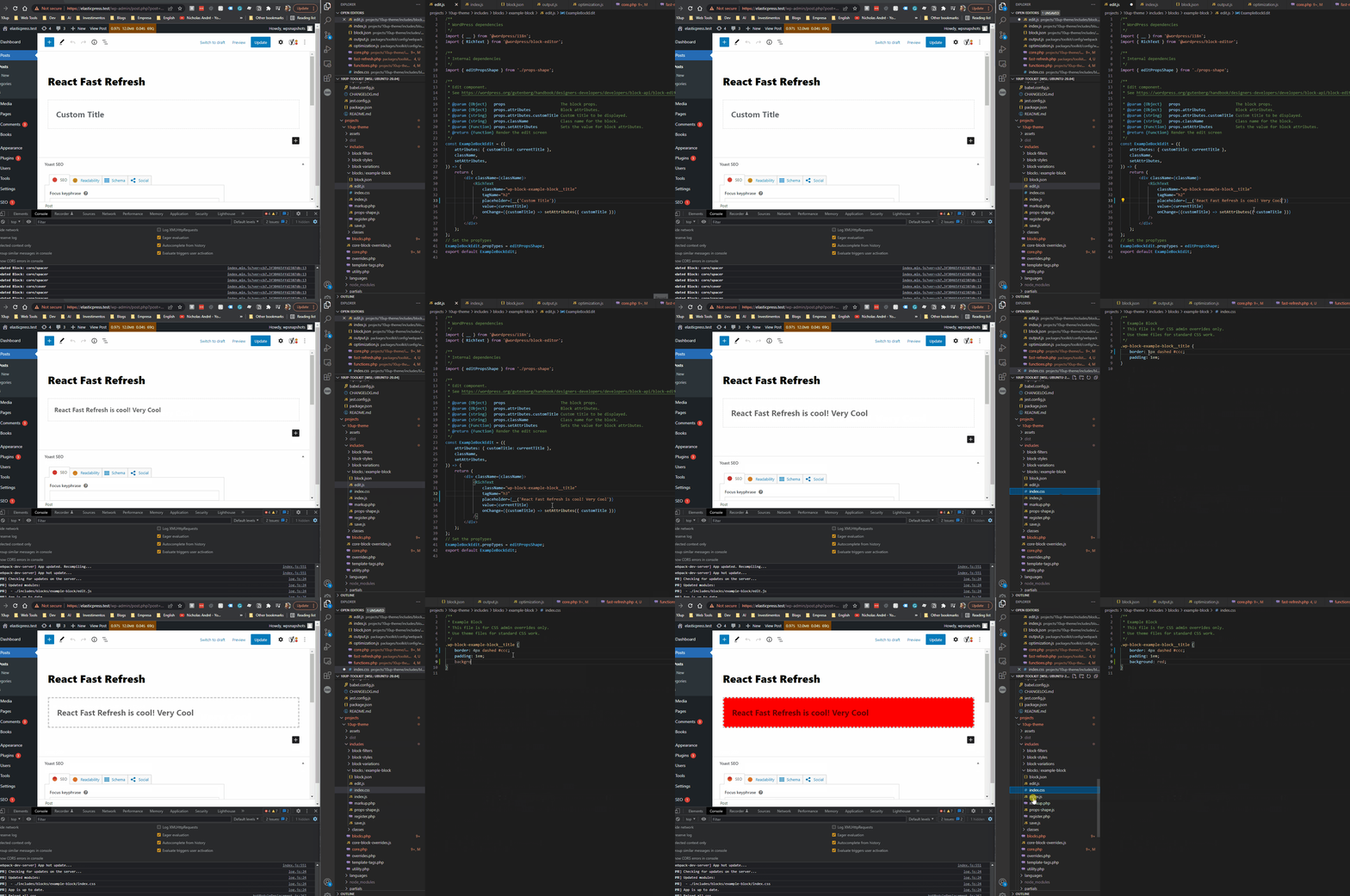
wdc-toolkit provides native support for HMR and Fast Refresh with the --hot option. Fast Refresh works for general react development (including block development) and front-end CSS. Front-end vanilla JS will likely cause full-page refresh currently.
wdc-toolkit watch --hot
You can also pass the --hot flag through npm:
npm run start -- --hot
Basic Setup
In order to get support for HMR/Fast Refresh follow these steps:
- If you're not using a
.test domain for your WP instance, make sure to set devURL under wdc-toolkit namespace in package.json.
- Set
SCRIPT_DEBUG to true in wp-config.php
define( 'SCRIPT_DEBUG', true )
- In your theme's
functions.php or your plugin's entry point, load the fast-refresh.php file generated by toolkit.
- In the example bellow, that file will only load on local environments
- We check for
.test and .local urls for convenience, we recommend setting the appropriate env var for wp_get_environment_type.
$is_local_env = in_array( wp_get_environment_type(), [ 'local', 'development' ], true );
$is_local_url = strpos( home_url(), '.test' ) || strpos( home_url(), '.local' );
$is_local     = $is_local_env || $is_local_url;

if ( $is_local && file_exists( __DIR__ . '/dist/fast-refresh.php' ) ) {
	require_once __DIR__ . '/dist/fast-refresh.php';
	WDCToolkit\set_dist_url_path( basename( __DIR__ ), WDC_THEME_DIST_URL, WDC_THEME_DIST_PATH );
}
Replace WDC_THEME_DIST_URL and WDC_THEME_DIST_PATH with the path to the url and the path to the dist folder.
- Then run
wdc-toolkit watch --hot
Make sure to reload the page after running wdc-toolkit as the dist/fast-refresh.php file is generated by wdc-toolkit
HTTPS and Certificates
In some setups (such as Laravel Valet), Websocket SSL connections will fail unless you explicitly tell webpack what cert files to use.
If you aren't already customizing webpack in your project, create a new webpack.config.js file in the root of your project/theme. You need to specify the cert, key, and ca properties for the config.devServer.https object.
const config = require('wdc-toolkit/config/webpack.config.js');
const fs = require('fs')

// Customize this to the appropriate path to your certificate folder
const certPath = '/Users/youruser/.config/valet'

// Check if devServer is in use and if so, modify the cert files used
if( typeof config.devServer === 'object ) {
  config.devServer.https = {
    key: fs.readFileSync(`${certPath}/Certificates/yoursite.test.key`),
    cert: fs.readFileSync(`${certPath}/Certificates/yoursite.test.crt`),
    ca: fs.readFileSync(`${certPath}/CA/LaravelValetCASelfSigned.pem`),
  }
}

module.exports = config;
Troubleshooting
If HMR/Fast Refresh is not working for you these steps can help you debug the problem:
- Run a regular build (without
--hot) does your code work properly?
- Check if
wdc-toolkit-react-refresh-runtime and wdc-toolkit-hmr-runtime are being enqueued on the block editor screen. If they aren't, ensure you're properly including dist/fast-refresh.php and setting up the constants properly.
- Some code changes might cause a full-page refresh (e.g: changing arguments of
registerBlockType). This is a known limitation.
- If your CSS is not hot reloading, ensure you're including your block css file (
import './style.css) from your block's entry point.
- If you're extending the webpack config, does it work with the original webpack config? If so your changes might be breaking fast refresh.
- Are you using a
.test domain? if not make sure to set devURL under wdc-toolkit namespace in package.json.
- If your front-end css is not hot reloading, make sure the CSS is not an entry point on its own (i.e. isn't listed in the entry section in package.json) but instead is imported by a JS file. Both the JS file and the CSS file should be enqueued on the front-end.
- Additionally, check if both
wdc-toolkit-hmr-runtime and wdc-toolkit-react-refresh-runtime are enqueued the front-end.
- If you're overriding
babel.config.js you will need to make sure it is including react-refresh/babel plugin.
module.exports = (api) => {
api.cache.using(() => process.env.NODE_ENV);
return {
presets: ["@wdcthemes/babel-preset-default"],
...(!api.env("production") && { plugins: ["react-refresh/babel"] }),
};
};
- If your're getting SSL errors for the Websocket connection, you may need to explicitly tell webpack what certificate files to use. See the above section "HTTPS and Certificates"
Linting
wdc-toolkit comes with eslint, prettier and stylelint set up out of the box. It uses WDC eslint config and WDC stylelint config and exposes the following commands:
wdc-toolkit lint-js, wdc-toolkit format-js and wdc-toolkit lint-style.
wdc-toolkit can lint JavaScript, TypeScript and JSX without any additional configuration. It's recommended to add a npm script to your package.json.
{
    ...
    "scripts": {
        "build": "wdc-toolkit build",
        "lint-js": "wdc-toolkit lint-js",
        "format-js": "wdc-toolkit format-js",
        "lint-style": "wdc-toolkit lint-style"
    }
    ...
}
Then you can run npm run lint-js and npm run format-js to lint and format your codebase respectively.
IDE Integration
It's not required, but you might want to create a .eslintrc.js and stylelint.config.js file at the root of your project to better integrate eslint with your code editor or to extend the linting config.
module.exports = {
extends: ["@wdcthemes/eslint-config/wordpress"],
};
You can extend any of the available configs and enable/disable rules based on your project needs.
const config = {
extends: ["@wdcthemes/stylelint-config"],
};
module.exports = config;
Choosing what to lint
wdc-toolkit will lint/format any JavaScript or TypeScript file in your source code directory, you can customize this behavior in two ways:
- Specify the directory manually
wdc-toolkit lint-js src/
- Create a
.eslintignore
# Don't forget to exclude node_module and dist/build dirs
node_modules
build
dist

path-to-code-to-be-ignored/*
Setting up Husky and Lint-Staged
We also strongly recommend that you set up lint-staged and husky to automate linting your code on every commit.
First, create a .lintstagedrc.json file
{
"*.css": ["wdc-toolkit lint-style"],
"*.[tj]s": ["wdc-toolkit lint-js"],
"*.[tj]sx": ["wdc-toolkit lint-js"],
"*.php": ["./vendor/bin/phpcs --extensions=php --warning-severity=8 -s"]
}
This will instruct lint-staged to run wdc-toolkit to link css, js and jsx files for the staged files in your commit.
To set up git hooks with husky, create a .husky dir and a bash script for the git hooks you want, for example to run lint-staged
on pre-commit, create a pre-commit bash script with the following contents:
#!/bin/sh
. "$(dirname "$0")/_/husky.sh"

npx lint-staged
Under the .husky dir, also add a .gitgnore file with the following contents:
_
Then, finally add the husky and lint-staged deps to your project
npm install --save-dev husky lint-staged
Whenever you commit your code, husky will run lint-staged which will trigger the appropriate commands to lint the staged files and if any of the commands fails, your commit will be aborted.
VSCode Integration
It's strongly recommended to enable VSCode settings to format your JavaScript code on save. To do so, make sure you have the vscode-eslint extension and add the following settings to your vscode config:
    "editor.codeActionsOnSave": {
        "source.fixAll.eslint": true,
    },
    "[javascript]": {
        "editor.defaultFormatter": "dbaeumer.vscode-eslint"
    },
    "[typescript]": {
        "editor.defaultFormatter": "dbaeumer.vscode-eslint"
    },
WDC eslint config integrated with prettier through an ESLint plugin so having the vscode prettier extension is not needed and in fact, it must be disabled to avoid conflicts when saving and formatting the code.
Authoring Libraries/Packages
wdc-toolkit leverages standard package.json fields when running in package mode. Below is a list of all fields wdc-toolkit supports and how it's used.
- name: It's used to generate a valid library name to expose the library via a global variable (for UMD builds).
We recommend always specifying
libraryName manually when creating UMD builds via --name=your-library-name or wdc-toolkit.libraryName config.
- source: It's used to define your package entry point.
- main: Where the bundled JavaScript should go. Note that this field is used by NPM to specify your package entry point for consumption.
- style: If set, will define where the CSS will be generated.
- umd:main or unpkg: wdc-toolkit generates a separate umd build by default. This field is used by wdc-toolkit to specify where the UMD bundle should go. The benefit of generating a separate UMD bundle is to avoid including boilerplate code.
{
	"name": "your-package-name",
	"version": "1.0.0",
	"main": "./dist/index.js",
	"source": "./src/index.js",
	"style": "./dist/index.css",
	"umd:main": "./dist/index.umd.js",
	"scripts": {
		"build": "wdc-toolkit build",
		"dev": "wdc-toolkit build --watch"
	},
	"wdc-toolkit": {
		"libraryName": "MyLibraryName"
	}
}
Then, the following code:
import "./styles.css";
export default () => {
};
will generate a index.js, index.umd.js and a index.css file in the dist folder after running npm run build.
Since version 4.0.0 you can specify multiple entry points in package mode with the entry field.
  "wdc-toolkit": {
    "libraryName": "WDCAccordion",
    "entry": {
      "index": "./src/index.ts",
      "config": "./src/config/inde.ts",
      "util": "./src/util/index.ts"
    }
  }
Note that you still need to declare main and source to enable package mode.
Understanding Package Mode
It's important to understand how wdc-toolkit behaves when running in package mode. First and foremost, core-js polyfills will not be added automatically.
If your package should support older browsers, and you want to include core-js polyfills you will need to declare core-js as a dependency, and manually include the polyfills you need, e.g:
import "core-js/es/array/from";
import "core-js/web/dom-collections";
The second difference is that wdc-toolkit wil not include the dependencies (or peer dependencies) in the final bundle.
The reason for this is that, it's responsibility of the consumer bundle to resolve and include dependencies in the final bundle. Doing otherwise could lead to duplication of packages in the application final bundle.
This behavior is inspired in how microbundle handle bundling packages.
Customizations
wdc-toolkit is very extensible and pretty much all config files can be overridden by simply creating a config file at the root of your project.
Customizing the Webpack config
In general, we don't recommend customizing the webpack config, the default webpack config and the wdc-toolkits options should provide all that's needed
for most projects. However, in case you need to modify the webpack config you can to so by creating a webpack.config.js file at the root of your project.
The example below will update the webpack config so that wdc-toolkit processes and transpiles @vendor/your-custom-package. This would be required you publishing an untranspiled package.
const config = require("wdc-toolkit/config/webpack.config.js");
config.module.rules[0].exclude =
/node_modules\/(?!(@wdcthemes\/block-components)|(@vendor\/your-custom-package)\/).*/;
module.exports = config;
The example below will extend the base webpack plugin config to include a custom project specific plugin.
const config = require("wdc-toolkit/config/webpack.config.js");
const ProjectSpecificPlugin = require("project-specific-plugin");
config.plugins.push(
new ProjectSpecificPlugin()
);
module.exports = config;
Customizing eslint and styling
To customize eslint, create a supported eslint config file at the root of your project. Make sure to extend the @wdcthemes/eslint-config package.
If you're writing tests with Jest for example, you will need to include the rules for jest.
module.exports = {
extends: ["@wdcthemes/eslint-config/wordpress", "@wdcthemes/eslint-config/jest"],
rules: {
},
};
Similarly, for customizing stylelint, create a stylelint.config.js file.
const config = {
extends: ["@wdcthemes/stylelint-config"],
rules: {
},
};
module.exports = config;
Refer to linting docs for more information.
Customizing PostCSS
To customize the PostCSS config, create a postcss.config.js at the root of your project. When overriding the PostCSS config, keep in mind
that the default config is exported as a function.
The example below modifies the ignored list of the editor-styles plugin when processing the editor-style.css file.
const baseConfig = require("wdc-toolkit/config/postcss.config.js");
const path = require("path");

module.exports = (props) => {
	const config = baseConfig(props);
	const { file } = props;

	if (path.basename(file) === "editor-style.css") {
		config.plugins["postcss-editor-styles"].ignore = [
			...config.plugins["postcss-editor-styles"].ignore,
			".mh-personalization-segment-picker",
		];
	}
	return config;
};
Adding a new PostCSS plugin
By default, wdc-toolkit includes the following PostCSS plugins:
However, there might be times in which you need to add a new plugin. To do so, follow the steps below:
- Install the plugin you need, e.g:
npm install @csstools/postcss-design-tokens --save-dev
- Once the plugin is installed, tweak the configuration as follows:
const baseConfig = require("wdc-toolkit/config/postcss.config.js");
const additionalPlugins = { "@csstools/postcss-design-tokens": {} };

module.exports = (props) => {
	const config = baseConfig(props);

	config.plugins = { ...config.plugins, ...additionalPlugins };

	return config;
};
Please note that the order of the plugins is important, so make sure to add the new plugin in the correct position. You
might want to tweak the order and/or write a different config.plugins object with the plugins in the order you need.
Customizing svgo
Added in 3.0.4
SVGO options can be customized by creating a svgo.config.js file at the root of your project.
module.exports = {
plugins: [
{
name: "preset-default",
params: {
overrides: {
inlineStyles: {
onlyMatchedOnce: false,
},
removeDoctype: false,
removeViewBox: false,
},
},
},
],
};
See SVGO Configuration for more info about this file.
CLI Options
wdc-toolkit supports several CLI options that can be used to override settings.
Bundle Analyzer
wdc-toolkit ships with webpack-bundle-analyzer out of the box, and you can enable it by simple passing the --analyze option.
wdc-toolkit build --analyze
It only works with the build command, after finishing the build a new window will be automatically opened with the report.
Source and Output
To set the source and main/output path via the CLI you can use the -i and -o (or --input and --output options)
wdc-toolkit build -i=src/index.js -o=dist/index.js
This can be useful if you have multiple entry points if you want to create a test application for your package.
import { Accordion } from "./index";
new Accordion(".accordion");
Then you can instruct wdc-toolkit to use your app.js file and spin up a dev server in a separate npm script.
"start": "wdc-toolkit start -i=src/app.js --dev-server",
Target
Released in 3.1.0
The --target option can be used to override the default webpack target option.
For instance:
wdc-toolkit build --target=node
will target node.js instead of browsers. See Webpack Target for possible values.
Dev Server
This option was added in wdc-toolkit 1.0.8
The --dev-server allows you to quickly spin up a development server. The default port is 8000 and can be changed via --port.
If you need to override the default html template, create a index.html file under a public dir.
<!DOCTYPE html>
<html>
<head>
<meta charset="utf-8" />
<title>Library Test</title>
</head>
<body>
</body>
</html>
Note: You don't need to manually include the css and js in the html template, webpack will handle that for you.
WP Mode
wdc-toolkit is optimized for WordPress development and by default will include several WordPress specific settings. To disable this behavior
you can pass --wp=false.
Format
The format option controls how webpack will generate your bundle. The supported options are:
- all (default)
- commonjs
- umd
- none
The default value will generate both a CommonJS bundle and a UMD bundle (if the umd entry in package.json is defined).
"none" disables bundling for distribution making the bundled code to be added to a page without being imported through a bundler.
To override, use the -f or --format option
wdc-toolkit build -f=commonjs
Externals
This option is only useful in package mode and is used to override the webpack externals definitions. In package mode, the
default externals will be set based on your dependencies and peer dependencies.
wdc-toolkit build --external=react,react-dom
An interesting use case for this is when you want to generate a UMD bundle that ships with all dependencies so that it
can be used by simply loading the JavaScript in the browser.
include
The --include option is useful if you want to instruct wdc-toolkit to transpile a npm package (which are excluded by default) as part of your build process.
This can be useful in situations where you're maintaining an internal package, and you don't want to bother about setting up a build pipeline for the package.
wdc-toolkit build --include=package-name,other-package
TypeScript Support
wdc-toolkit provides support for TypeScript out of the box. Simply create files with .ts or .tsx (for react components) and wdc-toolkit will
compile them just fine as well as lint and format them.
To enable better support for linting with VSCode and other IDE's we recommend the following .eslintrc.js file
module.exports = {
parser: "@typescript-eslint/parser",
extends: ["@wdcthemes/eslint-config/react"],
plugins: ["@typescript-eslint"],
};
React & WordPress
There are two ways you can work with React in wdc-toolkit. When "WordPress" mode is turned on (the default behavior) wdc-toolkit will assume React is coming from WordPress and therefore will use @wordpress/element.
This is the default and expected behavior for writing custom gutenberg blocks for instance.
If you're writing React code on the front-end of your theme you can still use the bundled React that comes with WordPress. wdc-toolkit will automatically add react, react-dom and wp-element as dependencies of your front-end script that contains react code.
For instance, given the following React code
import ReactDOM from "react-dom";
import { useState } from "react";

const App = () => {
	const [state] = useState(1);

	return <p>This is a react app {state}</p>;
};

ReactDOM.render(<App />, document.getElementById("root"));
The following asset.php file will be generated
<?php
return array('dependencies' =>
  array('react-dom', 'wp-element'), 'version' =>    'a285714cd60121ad20a470c3b859c6b0'
);
If you're not supporting IE 11, it is strongly recommend to remove wp-polyfill from the front-end. Additionally, lodash is also not require if you're just sticking to standard react apis.
add_action( 'wp_default_scripts', 'remove_deps' );

function remove_deps( $scripts ) {
	if ( is_admin() ) {
		return;
	}

	$deps_to_remove = [ 'wp-polyfill', 'lodash' ];

	$wp_element = $scripts->query( 'wp-element' );
	if ( $wp_element ) {
		$wp_element->deps = array_diff( $wp_element->deps, $deps_to_remove );
	}

	$wp_escape_html = $scripts->query( 'wp-escape-html' );
	if ( $wp_escape_html ) {
		$wp_escape_html->deps = array_diff( $wp_escape_html->deps, $deps_to_remove );
	}

	$react = $scripts->query( 'react' );
	if ( $react ) {
		$react->deps = array_diff( $react->deps, $deps_to_remove );
	}
}
By disabling "WordPress" mode, you will need to install both react and react-dom yourself and include in your final bundle.
Linaria (CSS-in-JS)
Support for Linaria was added in wdc-toolkit 5.1.0.
wdc-toolkit supports Linaria without any additional configuration. The main usecase for supporting linaria is to easily compile React components authored using Linaria. This can be useful if you're building a headless site and want to share React components between your front-end and Gutenberg.
If you want wdc-toolkit to compile Linaria first install the following packages:
npm install --save-dev @linaria/babel-preset @linaria/webpack-loader
npm install --save @linaria/core @linaria/react
Once those packages are installed, wdc-toolkit will now look for any Linaria usage in JavaScript files and compile the CSS. The compiled CSS will have the name of the JS entry point (but with a .css extension).
For instance, if you have a block with the following block.json
"editorScript": "file:./index.js",
"editorStyle": "file:./index.css"
wdc-toolkit will compile any Linaria code from the index.js entry point to index.css. Note that CSS imported by JS entry points always gets generated with the name of the entry point e.g: index.js => index.css. So make sure editorStyle points to the right CSS file which should be based on editorScript.
IMPORTANT: We do not currently recommend using Linaria for standard WordPress builds. In a headless build the block rendering and front-end styles are handled outside of WordPress, hence why the block.json above only cares about the editor script and style.





