Expected (and Optional) Special Variables & Functions
Certain fields, with certain names, hold special meaning, and are called/used by Alteza. One such variable is layout (and layoutRaw), which points to the layout/template to be used to render the page (as explained in earlier points above). It can be overriden by descendant directories or pages.
Built-in Functions and Fields
| Built-in | Description |
|---|
page |
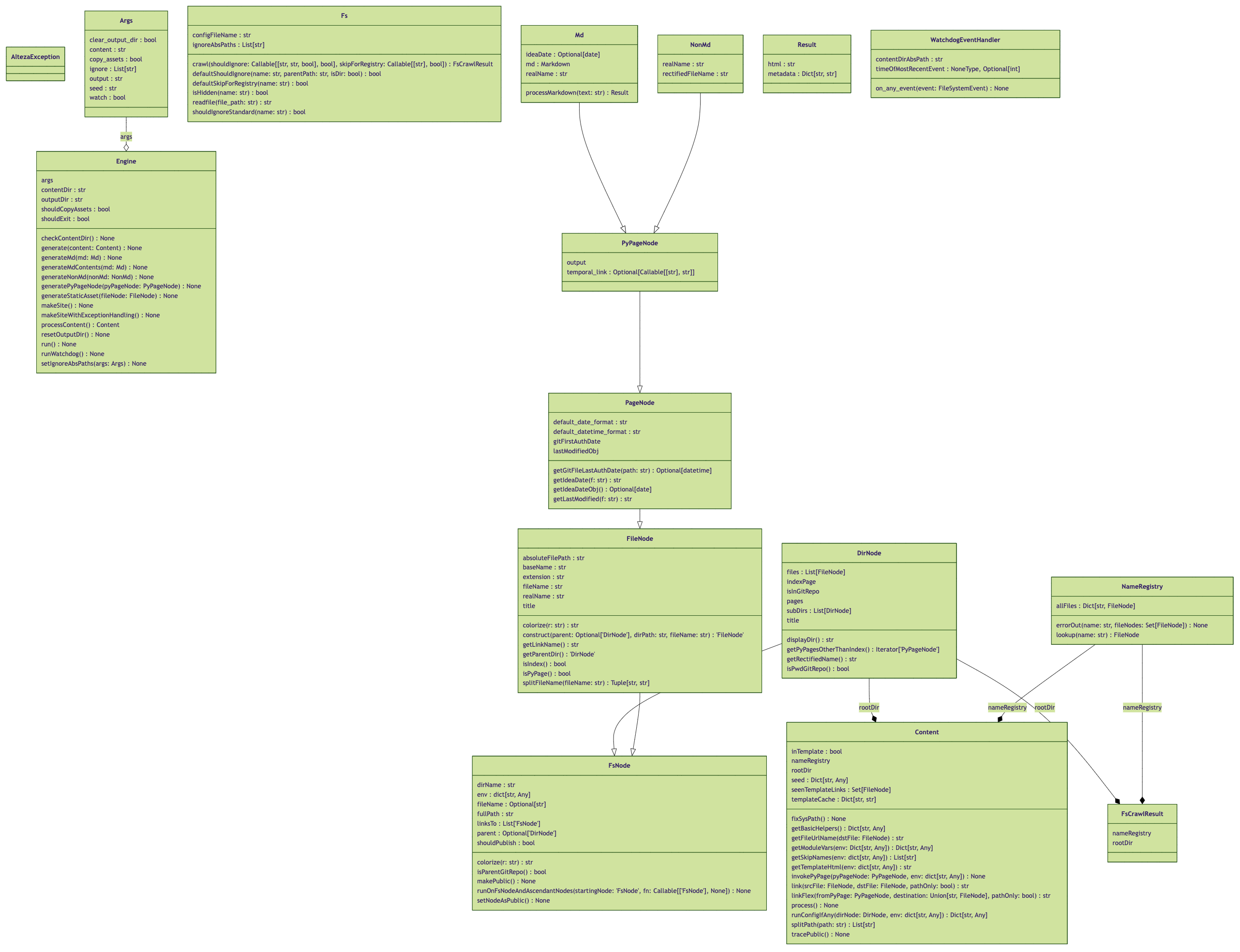
The page object represents a PyPage file. It is an instance of PyPageNode (which inherits from PageNode, which in turn inherits from FileNode, which inherits from FsNode). Refer to the UML diagram at the end of this documentation for the methods provided by these classes (the method names should hint their functionality). Or take a look at the code in fs.py to know what these classes provide.
The page.crumbs() function in particular can return an HTML string representing navigation breadcrumbs.
Availability:
| Page | Template | Config | Index | | ✅ | ✅ | ❌ | ✅ |
|
link |
The link function takes a name or an object, and returns a relative link to it. If a name is provided, it looks for that name in the NameRegistry (and throws an exception if the name wasn't found).
The link function has the side effect of making the linked-to page publicly accessible, if the page that is creating the link is reachable from another publicly-accessible page. The root / index page is always public.
Note: for Markdown pages, an extra ../ is added at the beginning of the returned path to accommodate the fact that Markdown pages get turned into directories with the page rendered into an index.html inside the directory.
Availability:
| Page | Template | Config | Index | | ✅ | ✅ | ❌ | ✅ |
|
path, file |
The path function is similar to the path function above, except that:
- it does not have the side effect of impacting the reachability graph, and making the linked-to page publicly accessible, and
- it also does not add an extra
../ at the beginning of the returned path for Markdown pages.
This function is good for use inside templates, to reference parent/ancestor templates for injection. For example, writing something like {{ inject(path('skeleton')) }}.
The file function is similar to the path function, but it returns the actual FileNode object of that file. This is useful if you want to do things like look up some attribute (e.g., the last modified date) of some specific file.
Available everywhere.
|
warn |
Log a warning which will be printed at the end of site build. (Available everywhere.)
|
dir |
The dir variables points to a DirNode object representing the directory that the relevant file is in.
This object has a fields like dir.pages, which is a list of all the pages (a list of PageNode objects) representing all the pages in that directory. Pages means Markdown files and HTML files. Some of the fields in dir are:
dir.subDirs: List of FileNode objects of files in this directory.dir.files: List of FileNode objects of files in this directory.dir.pages: List of PageNode objects of Markdown files, non-Markdown PyPage files, and HTML files.dir.indexPage: A PageNode object of the index page, i.e. a index.md or a index.html file. If there is no index page, this is None.dir.title: A string title object of the index page, if the index page specifies a title, or if dir.configTitle is set (more on that below). If there is no index page or no title specified by it nor no dir.configTitle, then this is None.
`dir.configTitle` is used for the title shown in breadcrumbs (e.g. by calling `page.crumbs()`). Since breadcrumbs are rendered before a parent directory index page has been processed, we don't have access to the index page title. Therefore, this value can be set — it can be set in `__config__.py` either by just writing `title = '...'` or `dir.tite = '...'` (both have the same effect; both set `dir.configTitle`).
In templates, the dir points to the directory that the file being processed is in.
Sorting:
You can sort files and directories inside a directory by specifying either sortKey (for both), or sortFilesKey, or sortDirsKey.
These fields can be specified in a directory's __config__.py (which would then be inherited), or directly or the DirNode object
itself (which can be accessed inside the __config__.py for a directory via the dir variable) to avoid inheritance.
Available everywhere.
|
| Title | The title is accessed with page.title. It is picked up either from PyPage code in the page or a title YAML field in the file. If `title` is not defined by the page, then page.realName of the file is used, which is the adjusted name of the file without its extension and idea date prefix (if present) removed. The title isn't properly available to Python inside the page itself, or from __config__.py, since the page has not been processed when these are executed. If page.title is accessed from these (the page or config), or if a title was never defined in the page, then the .realName of the file would be returned.
Note: the title can directly be accessed as title (without pageObj.title) in the template (and inherited templates) for the page, since all environment variables from the page are passed on to the template, during template processing.
Availability:
| Page | Template | Config | Index | | ❌ | ✅ | ❌ | ✅ |
|
| YAML fields & other vars |
YAML fields (and other variables defined in PyPage code) of a page are:
- Available directly to template(s) that the page uses/invokes.
- Stored in
pageObj.env, for future access. The index page, for example, can use page.env to access these fields & variables.
- Stored as attributes in the
PyPageNode page object, as long as the env var does not conflict with an existing attribute of PyPageNode.
- This enables referring to a field or variable with just
page.fieldName (instead of having to write page.env[fieldName], which is also valid).
Availability (same as title):
| Page | Template | Config | Index | | ❌ | ✅ | ❌ | ✅ |
|
| Last Modified & Git Creation Date + Time |
This is only available on FileNode objects.
The last modified date & time for a given file is taken from:
a. The date & time of the last commit that modified that file, in git history, if the file is inside a git repo.
b. The last modified date & time as provided by the file system.
There's a lastModifiedObj() function which returns a Python datetime object. There's also a lastModified(f: str = default_datetime_format) functon which returns a str with the date & time formatted.
There are similar firstCommitDateObj() and firstCommitDate(f: str = default_datetime_format) functions which tell you when the file was created in git history. (Note however: This date gets updated when a file is moved or renamed.) If the file is not in a git repo, then firstCommitDateObj will return None and firstCommitDate will return an empty string.
The default_datetime_format is %Y %b %-d at %-H:%M %p.
Available everywhere.
|
| Idea Date |
This is only available on FileNode objects.
The "idea date" for a given file is either:
a. For a Markdown file, a date prefix before the markdown file's name, in the form YYYY-MM-DD.
b. If not a Markdown file or there's no date prefix, and the file is in a git repo, then the idea date is the date of the first commit that introduced the file into git history. (Note: this breaks if the file was renamed or moved.)
c. If there is neither a date prefix and the file is not in a git repo, there is no idea date for that file (i.e. it's None or "").
There's an ideaDateObj() function which returns a Python date object, if an idea date has been specified. If there is no idea date, it return the date of the first git commit that introduced this file (note: this changes if the file is renamed or moved), or None if the file is not in a git repo.
There's also an ideaDate(f: str = default_date_format) functon which returns a str with the date return by ideaDateObj() formatted, or emptry string "" if it returned None.
The default_date_format is %Y %b %-d.
Note: This function checks git history, if the file is not a Markdown file or if there is no date prefix in the Markdown file's name.
Available everywhere.
|
readfile | This is just a simple built-in function that reads the contents of a file (assuming utf-8 encoding) into a string, and returns it.
Available everywhere.
|
sh | This exposes the entire sh library. The current working directory (CWD) would be wherever the file being executed is located (regardless of whether the file is a regular page or index page or __config__.py or template). If the file is a template, the CWD would be that of the page being processed.
See sh's documentation here: https://sh.readthedocs.io/en/latest/
Available everywhere.
|
markdown |
This will rarely ever be needed, but the function markdown(text) is available in any PyPage file. It simply processes the argument text as Markdown, and returns the ouput HTML as the result (with any front matter discarded).
Availability:
| Page | Template | Config | Index | | ✅ | ✅ | ❌ | ❌ |
|
skip | This environment variable, if specified, is a list of names of files or directories to be skipped. (It must be of type List[str], if defined.)
|
GitHub Action, Installation & Command-Line Usage
GitHub Action
Alteza is available as a GitHub action, for use with GitHub Pages. This is the simplest way to use Alteza, if you intend to use it with GitHub Pages. Using the GitHub action will avoid needing to install or configure Alteza. You can easily create & deply an Alteza website onto GitHub Pages using this action.
To use the GitHub action, create a workflow file called something like .github/workflows/alteza.yml, and paste the following in it:
name: Alteza

on:
  workflow_dispatch:
  push:
    branches: [ "main" ]

jobs:
  build:
    name: Build Website
    runs-on: ubuntu-latest

    permissions:
      contents: read
      pages: write
      id-token: write

    environment:
      name: github-pages
      url: ${{ steps.generate.outputs.page_url }}

    steps:
      - name: Generate Alteza Website
        id: generate
        uses: arjun-menon/alteza@master
        with:
          path: .
The last parameter path should specify which directory in your GitHub repo should be rendered into a website. Also, note: make sure to set the branches for workflow_dispatch correctly (to your branch) so that this action is triggered on each push.
For an example of this GitHub workflow above in action, see alteza-test (yaml, runs).
Installation
You can install Alteza easily with pip:
pip install alteza
Try running alteza -h to see the command-line options available.
Running
If you've installed Alteza with pip, you can just run alteza, e.g.:
alteza -h
If you're working on Alteza itself, then run the alteza module itself, from the project directory directly, e.g. python3 -m alteza -h.
Command-line Arguments
The -h argument above will print the list of available arguments:
usage: alteza --content CONTENT --output OUTPUT [--clear_output_dir] [--copy_assets] [--seed SEED] [--watch]
                   [--ignore [IGNORE ...]] [-h]

options:
  --content CONTENT     (str, required) Directory to read the input content from.
  --output OUTPUT       (str, required) Directory to write the generated site to.
  --clear_output_dir    (bool, default=False) Delete the output directory, if it already exists.
  --copy_assets         (bool, default=False) Copy static assets instead of symlinking to them.
  --seed SEED           (str, default={}) Seed JSON data to add to the initial root env.
  --watch               (bool, default=False) Watch for content changes, and rebuild.
  --ignore [IGNORE ...]
                        (List[str], default=[]) Paths to completely ignore.
  --config CONFIG       (str, default=__config__.py)
  -h, --help            show this help message and exit
As might be obvious above, you set the --content field to your content directory.
The output directory for the generated site is specified with --output. You can have Alteza automatically delete it entirely before being written to (including in --watch mode) by setting the --clear_output_dir flag.
Normally, Alteza performs a single build and exits. With the --watch flag, Alteza monitors the file system for changes, and rebuilds the site automatically.
The --ignore flag is a list of paths to files or directories to ignore. This is useful for ignoring directories like .gitignore, or other non-pertinent files and directories.
Normal Alteza behavior for static assets is to create symlinks from your generate site to static files in your content directory. You can turn off this behavior with --copy_assets.
The --seed flag is a JSON string representing seed data for PyPage processing. This seed is injected into every PyPage document. The seed is not global, and so cannot be modified between files; it is copied into each PyPage execution environment.
To test against test_content (and generate output to test_output), run it like this:
python -m alteza --content test_content --output test_output --clear_output_dir
Development & Testing
Feel free to send me PRs for this project.
Dependencies
To install dependencies for development, run:
python3 -m pip install -r requirements.txt
python3 -m pip install -r requirements-dev.txt
To use a virtual environment (after creating one with python3 -m venv venv):
source venv/bin/activate
deactive
A bit of history
The first commit to this repo was from Dec 19, 2014, and that initial commit implements some of the Markdown YAML front matter extraction that is still used today (early commits list). Back then, this project was called pypage-site. The ideas.md file (for writing down & tracking ideas) was introduced in that original initial commit from 2014 as well.
Code Style
I'm using ruff. To re-format the code, just run: ruff format.
Fwiw, I've configured my IDE (PyCharm) to always auto-format with ruff.
Note: ruff has been configured to use single quotes, tab characters, and a 120-character line length.
Type Checking and Linting
To ensure better code quality, Alteza is type-checked with 3 different type checking systems: Mypy, Microsoft's Pyright, and Pyflakes, as well as linted with Pylint.
To run all the type checks, and test whether lints are passing, simply run:
mypy alteza
pyright alteza
pyflakes alteza
pylint -j 0 alteza
To run it along with all together, just run: mypy alteza ; pyright alteza ; pyflakes alteza ; pylint -j 0 alteza. Or you can run the check-types-and-lint.sh script, which does the same thing. I run this often.
Linting policy is very strict. Pylint must issue a perfect 10/10 score, otherwise the Pylint CI check will fail. On a side note, you can see a UML diagram of the Alteza code if you click on any one of the completed workflow runs for the Pylint CI check.
Meta's Pyre and Google's Pytype are currently disabled (for reasons noted above).
Of course, when it makes sense, lints should be suppressed next to the relevant line, in code. Also, unlike typical Python code, the naming convention generally-followed in this codebase is camelCase. Pylint checks for names have mostly been disabled.
Here's the Pylint-generated UML diagram of Alteza's code (that's current as of v0.9.4):
License
This project is licensed under the AGPL v3, but I'm reserving the right to re-license it under a license with fewer restrictions, e.g. the Apache License 2.0, and any PRs constitute consent to re-license as such.