

Company News
AWS Security Hub Adds Socket for Supply Chain Security
Socket is now in the AWS Security Hub Extended plan. Adopt it through AWS, apply committed spend, and block malicious open source packages.
By Feross Aboukhadijeh - Aug 04, 2026
@biocross/displaybuddy-mcp
Advanced tools
MCP server for controlling Mac monitors via DisplayBuddy — adjust brightness, contrast, volume, input source, presets, sync, and more.
An MCP (Model Context Protocol) server that lets AI agents control Mac monitors via DisplayBuddy — adjust brightness, contrast, volume, input source, apply presets, sync displays, and more.
Works with Claude Desktop, Cursor, Windsurf, Cline, and any MCP-compatible client.
Add to your claude_desktop_config.json:
{
  "mcpServers": {
    "displaybuddy": {
      "command": "npx",
      "args": ["-y", "displaybuddy-mcp"]
    }
  }
}
Add to your MCP settings:
{
  "mcpServers": {
    "displaybuddy": {
      "command": "npx",
      "args": ["-y", "displaybuddy-mcp"]
    }
  }
}
npx -y @smithery/cli install displaybuddy-mcp --client claude
| Tool | Description |
|---|---|
displaybuddy_status | Quick overview of all displays (call this first) |
displaybuddy_list | Full display details including UUID, type, capabilities |
displaybuddy_get | Get properties of a specific display |
displaybuddy_set | Set brightness, contrast, volume, input, rotation |
displaybuddy_preset_list | List saved presets |
displaybuddy_preset_activate | Activate a preset (with optional delay) |
displaybuddy_schedule_list | List automation schedules |
displaybuddy_schedule_toggle | Enable or disable a schedule |
displaybuddy_sync | Check/enable/disable multi-display sync |
Once connected, you can ask your AI assistant things like:
The MCP server wraps the displaybuddy CLI, which communicates with the running DisplayBuddy app via URL scheme. All operations are local — no data leaves your machine.
AI Agent → MCP Server → displaybuddy CLI → DisplayBuddy App → Your Monitors
npm install
npm run build

# Test with MCP Inspector
npx -y @modelcontextprotocol/inspector node ./build/index.js
MIT
FAQs
MCP server for controlling Mac monitors via DisplayBuddy — adjust brightness, contrast, volume, input source, presets, sync, and more.
We found that @biocross/displaybuddy-mcp demonstrated a healthy version release cadence and project activity because the last version was released less than a year ago. It has 1 open source maintainer collaborating on the project.
Did you know?

Socket for GitHub automatically highlights issues in each pull request and monitors the health of all your open source dependencies. Discover the contents of your packages and block harmful activity before you install or update your dependencies.
Company News
Socket is now in the AWS Security Hub Extended plan. Adopt it through AWS, apply committed spend, and block malicious open source packages.
Research
/Security News
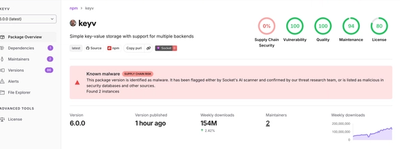
Popular npm packages keyv and cacheable compromised.

Security News
A misconfiguration gave three Anthropic models internet access, and one, believing it was in a simulation, shipped a credential-stealing package to PyPI.