

Company News
AWS Security Hub Adds Socket for Supply Chain Security
Socket is now in the AWS Security Hub Extended plan. Adopt it through AWS, apply committed spend, and block malicious open source packages.
By Feross Aboukhadijeh - Aug 04, 2026
@cocaxcode/xray
Advanced tools
Stop babysitting your Claude Code sessions. Start commanding them.
Every time Claude Code asks for permission, you're pulled out of flow — jumping between terminals, scrolling logs, searching for the session that's waiting on you. xray ends that. It's a real-time dashboard that sees every agent across every project, approves permissions from one place, and — because static dashboards are boring — lets you watch the whole thing as a pixel-art battlefield where each session is a warrior fighting goblins.

One command. Zero setup after install. Works on your laptop. Works on your phone. Works on anything with a browser.
Claude Code is powerful — but when you're running multiple sessions across several projects, you lose track fast:
xray fixes all of that — in three views, from one dashboard, updated live.
npm install -g @cocaxcode/xray
cxc-xray setup && cxc-xray
That's it.
Every PermissionRequest from Claude Code arrives in the dashboard with a clear amber bubble — showing the tool name, the command or file path, and two buttons: Approve and Deny. The bubble lives on top of the session card in Panel view, and floats over the warrior's head in the Warriors view, following the character as the camera moves.
Too many permissions? Flip the Auto-approve toggle in the top bar. xray will instantly accept every incoming permission request — no prompt in the terminal, no click in the dashboard — and log each auto-approval in the event history so you know what happened. Turn it off whenever you want manual control back. It's the fastest way to let Claude run wild while still seeing everything.
The same dashboard also catches waiting_input — the moments when Claude is waiting for you to answer a question. The question itself appears above the warrior's head in purple, and as a banner on the session card. As soon as the model continues, it disappears.
Panel view. Responsive card grid. Each session card shows:
PreToolUse, green check on success, red cross on failure — with a command preview for shell callsClick any card and a split detail panel opens with two tabs:
Same data. Completely different experience.
| What you see | What it means |
|---|---|
| A warrior | One Claude Code session |
| The warrior's color | A deterministic hue for that session (8 preset offsets, cycled) |
| Companions next to the warrior | Sub-agents currently running |
| Crystals orbiting the warrior | MCPs that session is using (blue/red/green/purple per MCP) |
| A weapon or scroll overlay | The skill currently active (sdd-apply → big sword, sdd-explore → telescope, copywriting → bow, and so on) |
| A camp of goblins to the side | Token pressure — 3 goblins at 0 tokens, up to 18 at 1 million |
| A dirt patch and tent behind the goblins | Organic campground with noise-perturbed edges, drawn under the characters |
| An amber bubble over the warrior's head | A permission request. Click Approve to approve. The bubble follows the warrior as you pan. |
| A purple bubble with text | Claude is waiting for your input. The text is the question itself. |
Explore companions fight from behind with idle sway. Strategists and melee types charge toward the goblin camp with the warrior. Ranged sub-agents stay back. Every character has a translucent name label that turns opaque on mouse hover. The camera auto-fits the entire map on load. Pan with drag, zoom with scroll or pinch, double-click to focus on a character.
Yes — it's also responsive. Mobile gestures work out of the box.
Where your tokens actually go — and what you saved.
The Optimization view connects to token-optimizer MCP and turns its data into a live dashboard. Every tool call across all your sessions is categorized and measured:
| Category | What it covers |
|---|---|
| Native | Read, Write, Edit, Bash, Grep, Glob — raw output, no filtering |
| Serena | Symbolic reads (find_symbol, get_symbols_overview) — reads only the symbol you ask for |
| RTK | Filtered Bash commands (rtk git status, rtk vitest run…) — strips noise before it reaches Claude |
| MCPs | External MCP server tools — variable cost depending on the server |
| Optimizer | token-optimizer's own observability tools — not counted as external cost |
What the view shows:
No token-optimizer installed? The view still loads but shows no data — you can install it later without any xray changes.
Claude forgets. Engram — by Gentleman Programming — fixes that: a persistent memory layer that saves decisions, bug fixes, architecture notes and learnings across every session, searchable from any Claude Code conversation.
xray plugs straight into it. If you have engram installed, the Engram view reads its SQLite store directly (read-only, zero risk) and turns it into a full memory browser:
decision, bugfix, architecture, pattern, discovery, config, learning, session_summary…), and scope (project or personal). Counts update live.topic_key-grouped view showing how many times each topic has been revised and when it was last touched.:7437, its version, and the size of ~/.engram/engram.db.No engram installed? The view shows a zero-state with the exact commands to install it. No xray changes needed once you do:
go install github.com/Gentleman-Programming/engram/cmd/engram@latest
engram setup claude-code
Then open xray and click Engram in the top bar. Every memory Claude has saved — instantly searchable.
Every context percentage and token counter is read directly from Claude Code's transcript JSONL files — incrementally, tracking the byte offset per session so we never re-read the same line twice. No estimation. No approximation. You see exactly what Claude saw.
Start xray with --expose and it binds to your LAN. The terminal prints a QR code. Scan it with your phone. Type the 6-digit PIN that shows in the terminal. You're in.
cxc-xray pin — rate-limited, 5-minute expiry, never invalidates existing sessions.cxc-xray --expose --domain https://xray.example.com.127.0.0.1. Remote access is read + approve only.Click the Auto-approve button in the top bar. It pulses green. From that moment on:
PermissionRequest from any session is accepted instantly.{ behavior: "allow" } before it can even show you a prompt.permission:auto-approved so you always know what was approved.This is the mode for when you've already reviewed the task, you trust Claude to execute it, and you just want it to go. It's the closest thing to --dangerously-skip-permissions without giving up visibility — you still see every tool call in the feed, you still get the history, you still get the token counters. You just skip the clicks.
Heads-up: Auto-approve is a global switch. It resets to OFF on server restart. Treat it like you would any trust boundary: on when you're watching, off when you're not.
# Install globally
npm install -g @cocaxcode/xray

# Inside any project where you want to track Claude Code
cxc-xray setup

# Start the dashboard (auto-opens browser at http://localhost:3333)
cxc-xray
cxc-xray setup registers 10 hooks in ~/.claude/settings.json: SessionStart, SessionEnd, PreToolUse, PostToolUse, PostToolUseFailure, PermissionRequest, Notification, SubagentStart, SubagentStop, Stop. Hooks are registered as type: "command" pointing to a tiny Node wrapper (cxc-xray-hook) that forwards the payload to the server and silently exits if xray isn't running — so nothing shows up in your terminal when the server is down. The install is non-destructive, appends to existing hook arrays, creates a .backup of your settings before touching anything, and auto-migrates the older type: "http" format if it finds it.
To remove it cleanly:
cxc-xray uninstall
| Command | What it does |
|---|---|
cxc-xray | Start the dashboard on port 3333 (auto-opens browser) |
cxc-xray setup | Register hooks in Claude Code (idempotent, safe to re-run) |
cxc-xray uninstall | Remove xray hooks from settings.json |
cxc-xray status | Check if xray is running on a port, show session count and uptime |
cxc-xray pin | Generate a new 6-digit PIN for remote access |
cxc-xray --expose | Bind to 0.0.0.0 and show QR + PIN for LAN access |
cxc-xray --domain <url> | Public domain for QR (for reverse-proxied deployments) |
cxc-xray --port <n> | Custom port (default 3333) |
cxc-xray --auth-token <token> | Supply a pre-known auth token |
cxc-xray --no-open | Don't auto-open the browser |
Click the gear icon in any view to open the Settings drawer. Everything persists to SQLite and syncs instantly across all open browser tabs.
| Setting | What it does |
|---|---|
| Public domain | Domain used to generate the remote-access QR code |
| Theme | Dark / Light / Auto (follows system preference) |
| Compact mode | Tighter card layout for smaller screens |
| Inactivity timeout | Minutes before a session is considered stale (5–120) |
| Auto-cleanup | Hours before stopped sessions are removed from the DB (1–72) |
| Permissions mode | intercept holds the hook open for your click; observe lets all permissions through and just logs them |
| Display toggles | Show/hide context bar, tokens, MCPs, skills, and agents on session cards |
| Avatar name | The name that appears above your warrior in the animated views |
The Warriors view is just one template. The entire scene engine is 100% driven by a single template.json file plus PNG sprite assets. No engine code needs to change to create a new theme.
A template defines:
work, rest, spawn, exitworkZoneGen, or define them manually[x, y] offsetsactive, idle, waiting_input…) to animation namesExplore → archer sprite)sdd-explore → telescope, sdd-apply → sword-big)Drop a folder into ~/.xray/templates/<name>/ and it appears in the view switcher — no restart, no rebuild. Community templates override built-in templates by name.
Claude Code hooks ──▶ cxc-xray-hook (wrapper) ──HTTP POST──▶ Fastify server ──WS──▶ Vue dashboard
                                                               │
                                                               ├─▶ SQLite (WAL, FTS5, incremental migrations)
                                                               └─▶ In-memory (active tools, pending permissions)
Key design decisions:
PermissionRequest hook holds the connection open (up to 9 minutes) until you click a button. The cxc-xray-hook wrapper awaits the long-polling fetch and streams the server's response back to Claude Code over stdout, so the harness blocks on the approval without ever hitting the network itself.type: "http" entries from older versions to the type: "command" wrapper.cxc-xray-hook wrapper always exits 0. If the server isn't running, hooks fire, fail to connect, and return cleanly. No HTTP undefined from localhost:3333 noise in your terminal when xray is off.| Layer | Stack |
|---|---|
| Runtime | Node.js 18+, ESM |
| Server | Fastify 5, @fastify/websocket, better-sqlite3, commander, qrcode-terminal |
| Dashboard | Vue 3 (Composition API, <script setup>), Vite 6, TailwindCSS 4 |
| Scene engine | Canvas 2D, A* pathfinding, per-animation sprite sheets, hue-shifted palette swaps |
| Language | TypeScript strict mode everywhere |
| Testing | Vitest (server unit + integration tests) |
| Package manager | pnpm workspaces |
pnpm install
pnpm build           # Build dashboard + server
pnpm dev:dashboard   # Vite dev server with HMR on localhost:5173
pnpm dev:server      # tsx watch mode
pnpm test            # Run the test suite
The Vite dev server proxies API and WebSocket to localhost:3333, so run the real xray server in another terminal with pnpm start or node packages/server/bin/cxc-xray.js.
Pixel art sprites from Tiny Swords by Pixel Frog. Used under the Tiny Swords license for the built-in Warriors template.
MIT © cocaxcode
FAQs
Real-time dashboard for all your Claude Code sessions across projects
We found that @cocaxcode/xray demonstrated a healthy version release cadence and project activity because the last version was released less than a year ago. It has 1 open source maintainer collaborating on the project.
Did you know?

Socket for GitHub automatically highlights issues in each pull request and monitors the health of all your open source dependencies. Discover the contents of your packages and block harmful activity before you install or update your dependencies.
Company News
Socket is now in the AWS Security Hub Extended plan. Adopt it through AWS, apply committed spend, and block malicious open source packages.
Research
/Security News
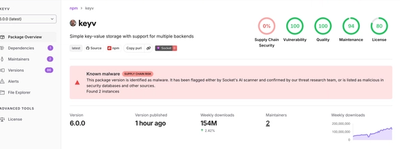
Popular npm packages keyv and cacheable compromised.

Security News
A misconfiguration gave three Anthropic models internet access, and one, believing it was in a simulation, shipped a credential-stealing package to PyPI.