Github Workflows Plugin
The GithubWorkflows plugin provides an alternative for manually triggering GitHub workflows from within your Backstage component.
The plugin offers two distinct approaches to integrate with your component:
- On-demand workflows, which are configured via annotations in your project's
catalog-info.yaml.
- A complete listing of the workflows available in your project.
💬 Join Us
Join our community to resolve questions about our Plugins. We look forward to welcoming you!
Check our Community 🚀
Getting Started
Before installing the plugin, there are some prerequisites to ensure its functionality:
Installation
This plugin is compatible with both static linking (the usual Backstage way) and dynamic linking (currently supported by VeeCode DevPortal and Red Hat Developer Hub).
Static Installation
If you wish to statically load the plugin (the usual Backstage way), just add the plugin import to the frontend app:
yarn workspace app add @veecode-platform/backstage-plugin-github-workflows
TODO: describe how the new FE system loads it
Dynamic Installation (VeeCode DevPortal)
This plugin is already bundled in VeeCode DevPortal with a sensible default configuration, so you don't need to install it, just enabled it in the dynamic-plugins.yaml file:
plugins:
  - package: ./dynamic-plugins/dist/veecode-platform-backstage-plugin-github-workflows-dynamic
    disabled: false
Dynamic Installation (RHDH)
This plugin can be downloaded by RHDH during start time, just add the plugin to the dynamic-plugins.yaml file (check versions available):
plugins:
- package: @veecode-platform/backstage-plugin-github-workflows@x.y.z
disabled: false
integrity: sha512-xxxxxx
pluginConfig:
dynamicPlugins:
frontend:
veecode-platform.backstage-plugin-github-workflows:
Configuration
This plugin relies on the common Github integration and auth provider configrations.
GitHub Token
When using GitHub Tokens configure it correctly in app-config.yaml under integrations, as below:
integrations:
github:
- host: github.com
token: ${GITHUB_TOKEN}
This is the simplest way to configure the plugin, but it is subject to GitHub rate limits. Please refer to GitHub Access Configuration on VeeCode DevPortal on how to properly create and authorize a GitHub Access token.
Github App
Make sure you have an github auth provider in your devportal. See how Add Github Auth Provider 📃
auth:
  environment: development
  providers:
    github:
      development:
        clientId: ${AUTH_GITHUB_CLIENT_ID}
        clientSecret: ${AUTH_GITHUB_CLIENT_SECRET}
3- To trigger workflows directly from our component, it's important to add the workflow_dispatch: step in our GitHub workflow, like this:
# Workflow Example

name: Deploy Next.js site to Pages

on:
  push:
    branches: ["master"]
+ workflow_dispatch:

 ....
Even if no parameters are passed to this key, it must be present in the file to enable event triggering through the Backstage component.
Parameters
:information_source: It's possible to set parameters in the workflow as well, and the plugin understands them. Actions will only be triggered if the required parameters are sent.
4- We need a primary annotation, commonly used by all Backstage components,github.com/project-slug, where the project name is set.
As a main prerequisite, this annotation must be declared in the catalog-info.yamlof the component that will receive this functionality.
apiVersion: backstage.io/v1alpha1
kind: Component
metadata:
  name: "Example Component"
  description: "An example Backstage Components"
  links:
    - title: Website
      url: http://backstage.io
    - title: Documentation
      url: https://backstage.io/docs
    - title: Storybook
      url: https://backstage.io/storybook
    - title: Discord Chat
      url: https://discord.com/invite/EBHEGzX
  annotations:
+    github.com/project-slug: owner/repo
    backstage.io/techdocs-ref: dir:.

spec:
  type: website
  lifecycle: experimental
  owner: default
Workflows Table View
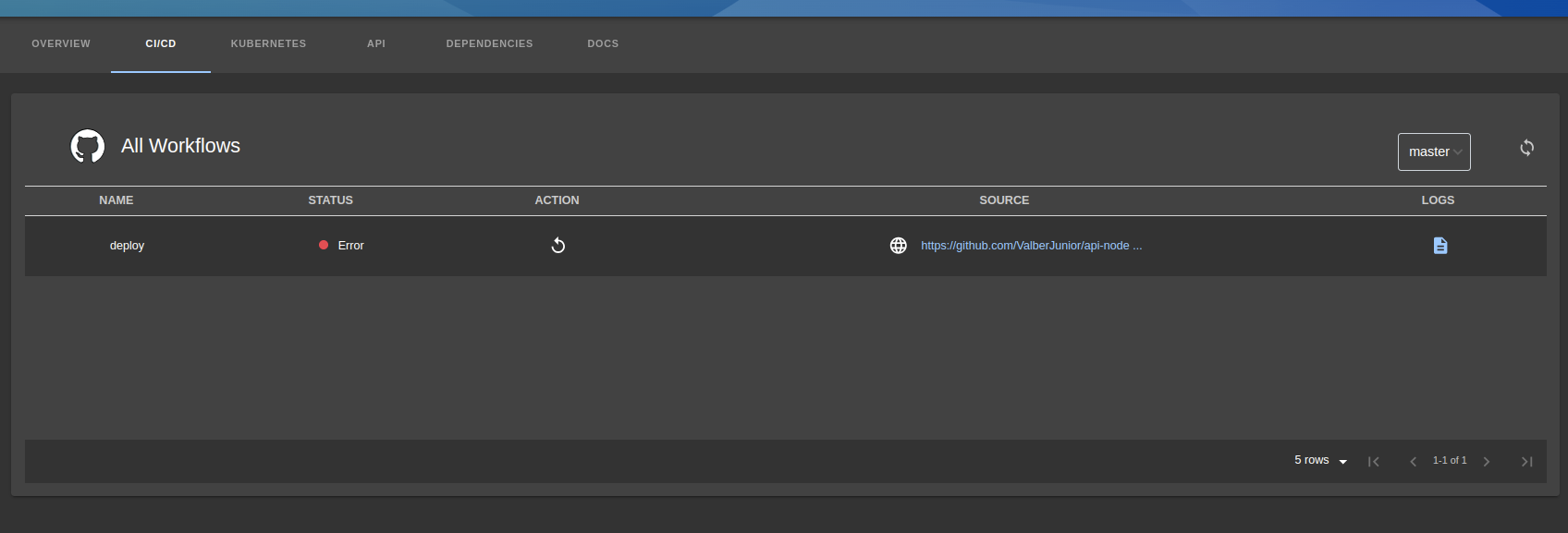
The component essentially lists all the workflows available in the repository.
In its header, we highlight the select that filters all available branches in the project and the refresh button to update the workflow states.
The table is divided by workflow name, status, action, and link to the repository.
In some cases, to trigger an action, it may require parameters, as configured in your workflow. Instead of an action button, a modal is displayed to set the requested parameters:

When an event is triggered in the workflow, the status is updated, and the conclusion is returned after refreshing the table.

Example of adding the new tab to a serviceEntityPage
packages/app/src/components/catalog/EntityPage.tsx
+ import { GithubWorkflowsContent, isGithubAvailable } from '@veecode-platform/backstage-plugin-github-workflows'
...

+ const cicdContent = (
+  <EntitySwitch>
+    <EntitySwitch.Case if={isGithubActionsAvailable}>
+      <GithubWorkflowsContent/>
+    </EntitySwitch.Case>
+
+    <EntitySwitch.Case>
+      <EmptyState
+        title="No CI/CD available for this entity"
+        missing="info"
+        description="You need to add an annotation to your component if you want to enable CI/CD for it. You can read more
+        about annotations in Backstage by clicking the button below."
+        action={
+          <Button
+            variant="contained"
+            color="primary"
+            href="https://backstage.io/docs/features/software-catalog/well-known-annotations"
+          >
+            Read more
+          </Button>
+        }
+      />
+    </EntitySwitch.Case>
+  </EntitySwitch>
+ );

...
Workflow Cards View
For this component, we need to add a special annotation, github.com/workflows, like this:
apiVersion: backstage.io/v1alpha1
kind: Component
metadata:
  name: "Example Component"
  description: "An example Backstage Components"
  links:
    - title: Website
      url: http://backstage.io
    - title: Documentation
      url: https://backstage.io/docs
    - title: Storybook
      url: https://backstage.io/storybook
    - title: Discord Chat
      url: https://discord.com/invite/EBHEGzX
  annotations:
    github.com/project-slug: owner/repo
    backstage.io/techdocs-ref: dir:.
+   github.com/workflows: fileName.yml

spec:
  type: website
  lifecycle: experimental
  owner: default
The composition of the annotation works like this:

:information_source: It's important to note that you can add multiple workflow paths, separated by commas, like this:
github.com/workflows: filePath.yml,filePath2.yml,filePath3.yml,
The functionality is identical to the workflow listing component, with the main difference being that only the workflows passed via annotation are listed, instead of all the workflows in the repository.

The above approach guarantees the rendering of a card with a button to trigger the workflow provided in the component overview. There is also the possibility of customizing the card's label and the tooltip message that appears when you hover the mouse over the card, adding it via annotation:
apiVersion: backstage.io/v1alpha1
kind: Component
metadata:
  name: "Example Component"
  description: "An example Backstage Components"
  links:
    - title: Website
      url: http://backstage.io
    - title: Documentation
      url: https://backstage.io/docs
    - title: Storybook
      url: https://backstage.io/storybook
    - title: Discord Chat
      url: https://discord.com/invite/EBHEGzX
  annotations:
    github.com/project-slug: owner/repo
    backstage.io/techdocs-ref: dir:.
-   github.com/workflows: fileName.yml
+   github.com/workflows: |
+      [
+        {
+          "workflow": "fileName.yml",
+          "label": "Start",
+          "tooltip": "click here and start the workflow process"
+        }
+      ]

spec:
  type: website
  lifecycle: experimental
  owner: default
ℹ️ This way we can add a personalized label to the card and also a more detailed message when hovering over the card. Remember that both approaches are valid and if no custom information is added, the default behavior is for the card label to be the name defined in the workflow header and the tooltip will also receive this name from the workflow.
To use the cards view variant, simply add the cards property to our GithubWorkflowsContent component:
packages/app/src/components/catalog/EntityPage.tsx
+ import { isGithubWorkflowsAvailable, GithubWorkflowsContent } from '@veecode-platform/backstage-plugin-github-workflows'

....

const overviewContent = (
  <Grid container spacing={3} alignItems="stretch">
    {entityWarningContent}
    <Grid item md={6}>
      <EntityAboutCard variant="gridItem" />
    </Grid>
    <Grid item md={6} xs={12}>
      <EntityCatalogGraphCard variant="gridItem" height={400} />
    </Grid>

+    <EntitySwitch>
+      <EntitySwitch.Case if={isGithubWorkflowsAvailable}>
+        <Grid item lg={8} xs={12}>
+            <GithubWorkflowsContent cards />
+        </Grid>
+      </EntitySwitch.Case>
+    </EntitySwitch>

    <Grid item md={4} xs={12}>
      <EntityLinksCard />
    </Grid>
    <Grid item md={8} xs={12}>
      <EntityHasSubcomponentsCard variant="gridItem" />
    </Grid>
  </Grid>
);
ℹ️ It is important to note that for the cards variant, we can pass the filter of which workflows we want to view, through the annotation github.com/workflows, but if the annotation is not passed, all the workflows in the repository will be listed, as it will assume the default behavior followed by the default component.
It works like this:

In its header we have the select of the repository branches and a refresh button.
In its body, the workflows that were added via annotation, and each card has its status, workflow name as label and the action button.
As with the Workflow list, there are cases of workflows that trigger parameters before releasing their actions, and the card has the same behavior as the Workflow list, it triggers a modal so that the inputs are set:


The functioning of the actions is also similar, when you click on the action button, it updates the status according to the github response:

Workflow Details & Logs
In the Workflows List component, clicking on the Logs column:

In the Card component, clicking under the component label:
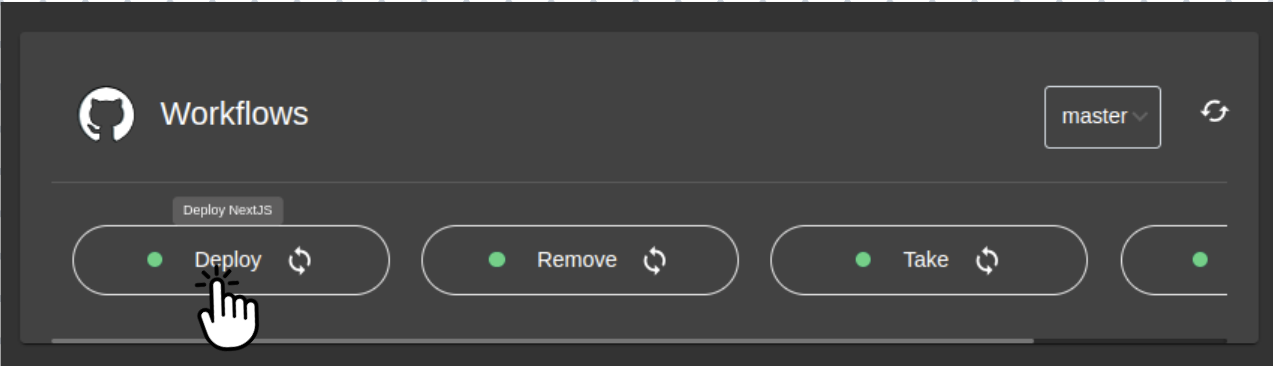
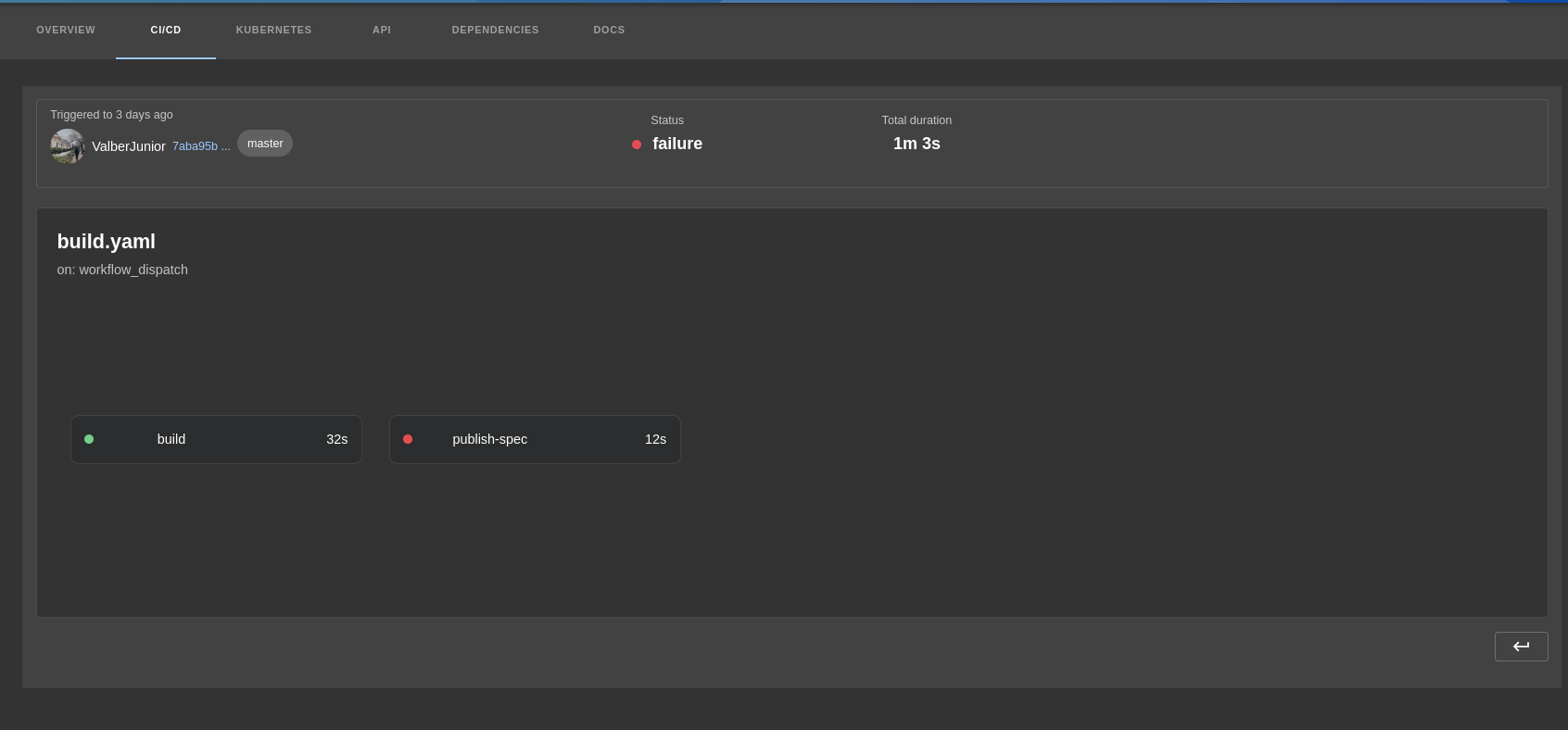
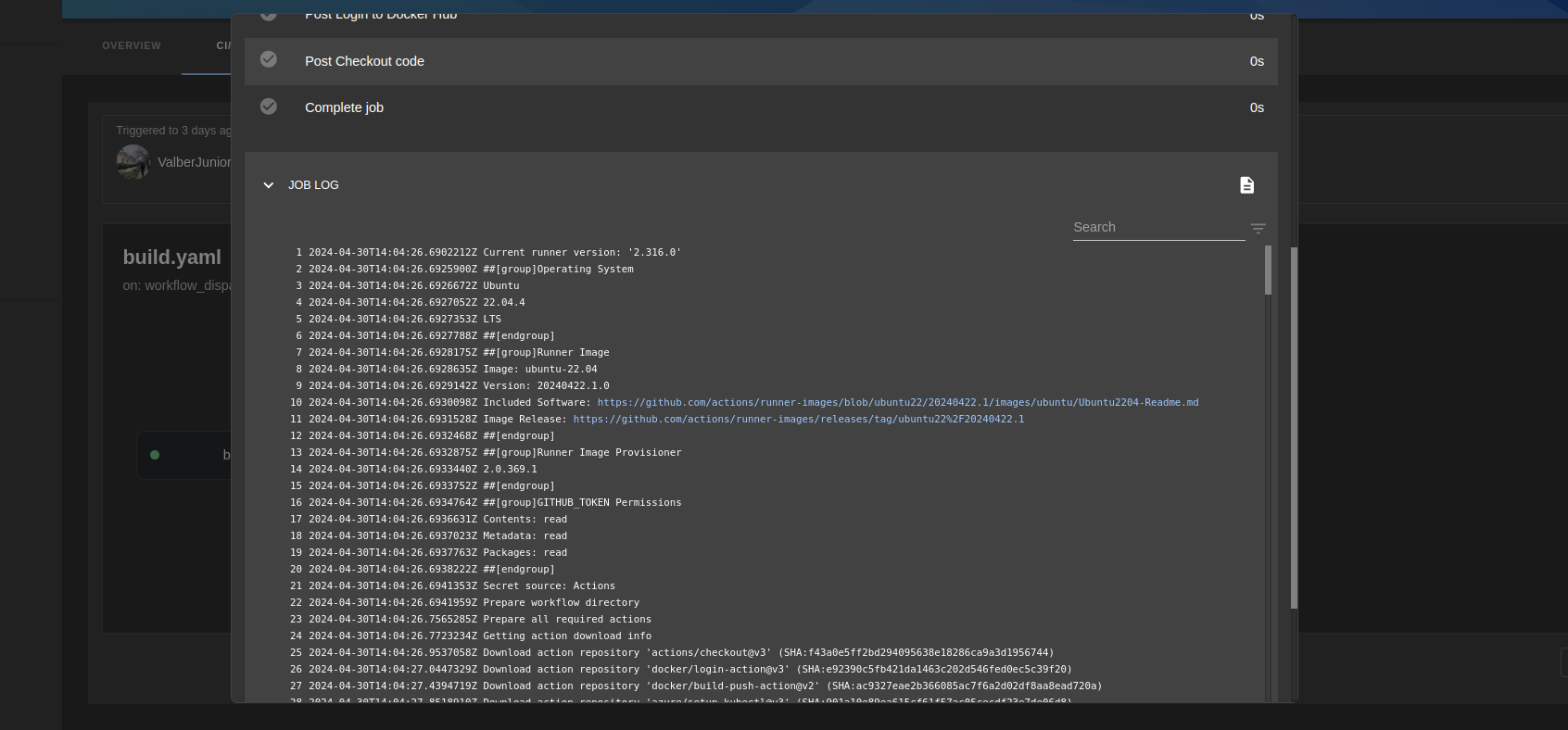
The Details component is then rendered with information about the last time the workflow was run, it stores information about the author of the commit, the commit id with link to github, the status and duration of the workflow in total.
In addition, in the body of the page, it contains the name and filePath of the workflow and how it was executed, followed by the jobs:
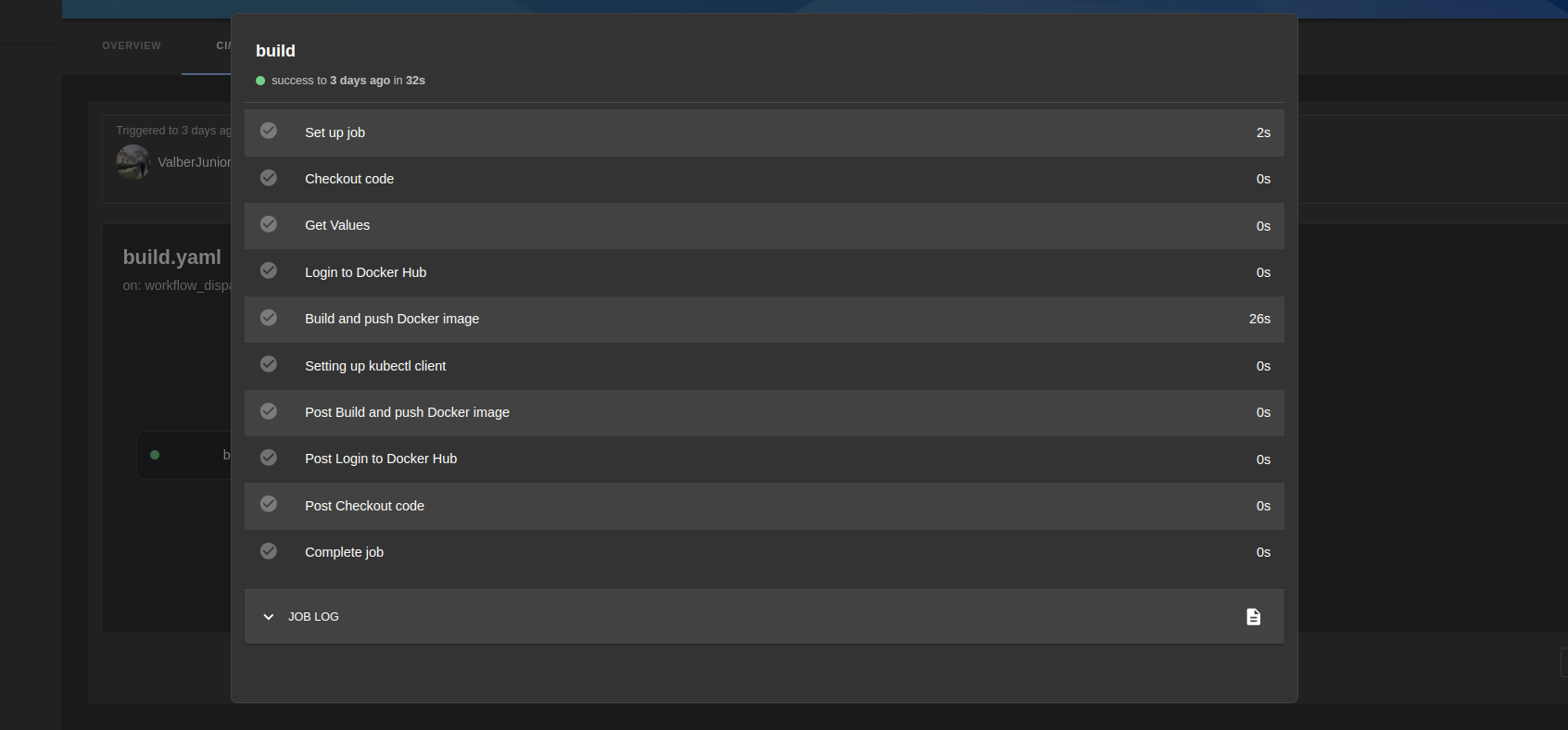
In each Job we have the steps executed and at the end we have the log of that job, which can be rendered in the component itself or expanded to a new modal:

ℹ️ For github profile avatars to render, add this url to be allowed in your app-config.yaml
  csp:
   connect-src: ["'self'", 'http:', 'https:']
   script-src: ["'self'", "'unsafe-eval'"]
+   img-src: ["'self'", 'data:','https://avatars.githubusercontent.com/']