
Company News
AWS Security Hub Adds Socket for Supply Chain Security
Socket is now in the AWS Security Hub Extended plan. Adopt it through AWS, apply committed spend, and block malicious open source packages.
By Feross Aboukhadijeh - Aug 04, 2026
google-chat-mcp
Advanced tools
MCP server for Google Chat — spaces, messages, members, reactions, attachments
MCP server for Google Chat — manage spaces, messages, members, reactions, attachments, and GIFs through the Model Context Protocol.
This step is required — without it, the Chat API won't work.
chat.spaces, chat.messages, chat.memberships, chat.messages.reactions, userinfo.profile, directory.readonlyhttp://localhost:18273/auth/callback as an authorized redirect URI (or any http://localhost:{port}/{path} — the server reads it from your credentials file)credentials.json# Run directly with npx (no install needed)
npx google-chat-mcp --credentials-path ./credentials.json
# Or install globally
npm install -g google-chat-mcp
google-chat-mcp --credentials-path ./credentials.json
# HTTP/SSE transport
npx google-chat-mcp --transport http --port 3000 --credentials-path ./credentials.json
On first run, your browser will open for Google authentication. Approve access and the token is cached automatically.
claude mcp add google-chat -- npx google-chat-mcp --credentials-path /absolute/path/to/credentials.json
Add -s user to make it available across all projects:
claude mcp add google-chat -s user -- npx google-chat-mcp --credentials-path /absolute/path/to/credentials.json
Add to ~/Library/Application Support/Claude/claude_desktop_config.json (macOS) or %APPDATA%\Claude\claude_desktop_config.json (Windows):
{
  "mcpServers": {
    "google-chat": {
      "command": "npx",
      "args": [
        "google-chat-mcp",
        "--credentials-path",
        "/absolute/path/to/credentials.json"
      ]
    }
  }
}
Add to Cursor's MCP settings (Settings > MCP Servers):
{
  "google-chat": {
    "command": "npx",
    "args": [
      "google-chat-mcp",
      "--credentials-path",
      "/absolute/path/to/credentials.json"
    ]
  }
}
Any MCP client that supports stdio transport can connect. Use:
npxgoogle-chat-mcp --credentials-path /absolute/path/to/credentials.jsonFor HTTP/SSE clients, run with --transport http --port 3000 and connect to http://localhost:3000/sse.
| Flag | Default | Description |
|---|---|---|
--transport | stdio | Transport mode: stdio or http |
--port | 3000 | Port for HTTP transport |
--credentials-path | ./credentials.json | Path to OAuth credentials file |
--token-path | ./token.json | Path to stored token |
--disable-token-saving | false | Don't persist tokens to disk |
| Tool | Description |
|---|---|
list_spaces | List all accessible spaces (concise format, configurable pageSize) |
get_space | Get full details of a specific space |
create_space | Create a new space |
update_space | Update space display name or description |
delete_space | Delete a space |
| Tool | Description |
|---|---|
list_messages | List messages newest-first with sender names resolved. Supports date filtering (local timezone) and pageSize |
get_message | Get a specific message with sender name resolved |
send_message | Send a text message to a space |
reply_to_thread | Reply to an existing thread |
update_message | Update a message's text |
delete_message | Delete a message |
| Tool | Description |
|---|---|
list_members | List members with display names resolved |
add_member | Add a user to a space |
remove_member | Remove a member from a space |
get_user_info | Look up a user's display name, email, and photo |
| Tool | Description |
|---|---|
add_reaction | Add an emoji reaction to a message |
remove_reaction | Remove a reaction |
| Tool | Description |
|---|---|
get_attachment | Get attachment metadata and download URL |
upload_attachment | Upload a file and send it as a message |
The server requests these Google OAuth scopes:
chat.spaces — read/write spaceschat.messages — read/write messageschat.memberships — read/write membershipschat.messages.reactions — read/write reactionsuserinfo.profile — authenticated user profiledirectory.readonly — workspace user directory (for name resolution)redirect_uri_mismatch errorYour OAuth credentials have a registered redirect URI that doesn't match. The server reads the redirect URI from your credentials.json automatically. Make sure the URI registered in Google Cloud Console matches what's in the file.
users/123456...The People API may not resolve names depending on your Google Workspace privacy settings. The server caches display names from Chat API responses (members, message senders) as a fallback.
Delete your token.json file and restart — the browser auth flow will re-trigger.
npm install
npm run build
npm test
MIT
FAQs
MCP server for Google Chat — spaces, messages, members, reactions, attachments
We found that google-chat-mcp demonstrated a healthy version release cadence and project activity because the last version was released less than a year ago. It has 1 open source maintainer collaborating on the project.
Did you know?

Socket for GitHub automatically highlights issues in each pull request and monitors the health of all your open source dependencies. Discover the contents of your packages and block harmful activity before you install or update your dependencies.
Company News
Socket is now in the AWS Security Hub Extended plan. Adopt it through AWS, apply committed spend, and block malicious open source packages.
Research
/Security News
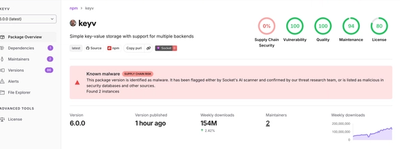
Popular npm packages keyv and cacheable compromised.

Security News
A misconfiguration gave three Anthropic models internet access, and one, believing it was in a simulation, shipped a credential-stealing package to PyPI.