Local Commander Agent
Connect your AI assistant to your computer through Local Commander. The agent lets an authorized MCP client work with local files, run commands and reach localhost services on your paired computer, with Full Access or only the folders you select.
Requires the Local Commander service at https://localcmd.app. This npm package is its computer companion, not a standalone MCP server, an offline AI assistant, or a JavaScript SDK. Installing the package alone is not enough: you need a Local Commander account, an approved device pairing, a running agent, an internet connection, and an authorized MCP connection from your AI client. Local management commands such as status and stop do not require the service to be online.
Website and sign-in ┬╖ Support ┬╖ Privacy
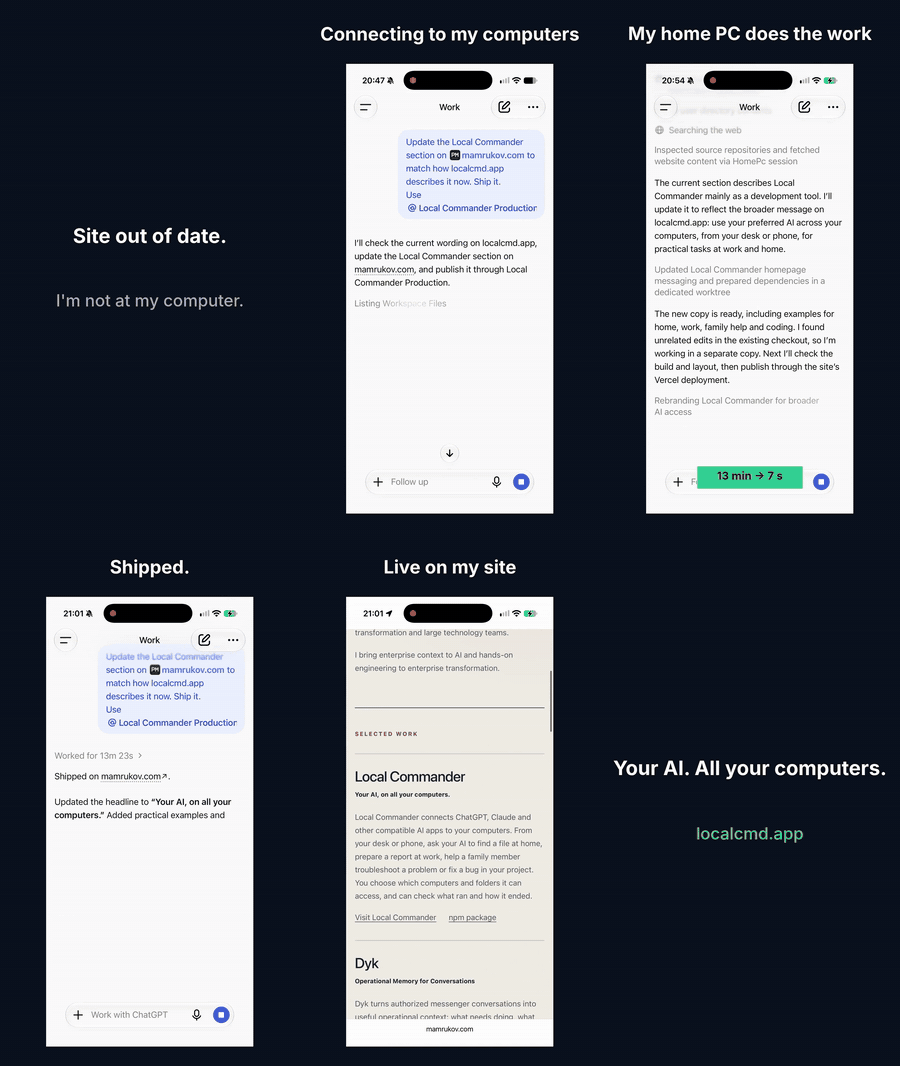
Real recording from a phone: ChatGPT checks unfinished work on a home PC. Waiting sped up x24.
Before you start
Use Windows 11 x64, macOS 14 or later on Apple Silicon, or Linux with a systemd user session (Ubuntu 24.04 x64 or arm64), and a currently supported Node.js LTS version meeting the package's Node.js 20+ minimum. Node.js/npm are needed to launch npx; the installed background agent includes its own Node runtime. You do not need Docker, WSL, a repository checkout, a database, or administrator rights for normal setup. Your AI client must support authenticated remote MCP connections; availability depends on the client and workspace policy.
Install and connect
-
Open a terminal as your normal user (PowerShell or Windows Terminal on Windows, Terminal on macOS or Linux) and run:
npx local-commander-agent@latest
-
The installer opens a browser. Sign in to Local Commander, check the displayed pairing code, and approve this computer. Approve only a pairing you just started yourself.
-
Choose access in the local window (on Windows and macOS; Linux asks one question in the terminal):
- Full access - all connected drives (default): approve the available drive letters, file reads/writes, installed commands and localhost services at once. There is no folder picker or separate approval for Node.
- Selected folders: choose one folder in the folder picker. It starts read/write; more folders and write permission can be added later.
Cancel leaves existing permissions unchanged. On first setup, cancellation stops before enabling autostart or starting the agent. Existing grants are preserved when repeating installation or updating: an update never opts you into all drives.
-
After the terminal reports that Local Commander is installed and running, connect your AI client to the remote MCP endpoint:
https://localcmd.app/mcp
Complete the browser authorization with the same Local Commander account. Device pairing and AI-client authorization are separate steps. For an AI client that runs on this same computer, you can instead use direct local MCP (see "Direct local MCP" below). Do not configure npx local-commander-agent itself as a stdio server.
You can close the installation terminal. The agent runs in the background and starts when you sign in to this computer. The computer must be awake and online for remote AI tasks. As a first test, ask the connected assistant to list the files in a folder you approved.
On Windows, installation and update also add localcommander to your user PATH. Open a new CMD/terminal window, then run localcommander status, localcommander monitor --watch, or localcommander logs --follow from any folder. No global npm installation is needed. The launcher uses your required Node.js installation and an installed copy of the CLI, so clearing npm's cache does not remove the command. Fetch newer releases with npx local-commander-agent@latest update. Uninstall removes Local Commander's PATH entry and launcher while preserving your other entries.
Direct local MCP (AI clients on this computer)
An AI client that runs on the same computer, such as Claude Code, Codex or Cursor, can use your approved workspaces directly through the running agent. No cloud round trip happens per call. It keeps working while the internet or localcmd.app is unavailable, and calls take milliseconds instead of a cloud admission. Hosted assistants such as ChatGPT or claude.ai on the web still use https://localcmd.app/mcp.
-
Turn it on once. This is an owner choice for this user account, and off revokes it immediately:
localcommander mcp on
-
Add Local Commander as a stdio MCP server in the client:
Claude Code:    claude mcp add local-commander -- cmd /c localcommander mcp
Codex:          ~/.codex/config.toml
                [mcp_servers.local-commander]
                command = "cmd"
                args = ["/c", "localcommander", "mcp"]
Other clients:  { "command": "cmd", "args": ["/c", "localcommander", "mcp"] }
The tools are the same as the remote ones: workspace_list, file reads and writes, search, Git, project_snapshot, command_run and localhost_request. Each takes an optional workspace (a grant id, a root such as D:\, or a display name). The same workspace grants, Full Access or scoped mode and owner denials apply, and commands run hidden with your user account's rights.
The agent listens only on 127.0.0.1, and only while direct local MCP is on. Every connection must first prove a key that only this user's protected Local Commander state can derive, so other users and other computers cannot connect. Check the state with localcommander mcp status; turn it off with localcommander mcp off. While an enterprise Guard policy is configured, direct local calls are refused so that Guard evidence cannot be bypassed.
What тАЬall connected drivesтАЭ means
It expands the filesystem scope to the drive letters shown at the moment you consent. It includes available local fixed and removable drives. Mapped network drives and subst letters are not included. New drive letters, unavailable drives and unmounted volumes are not automatically added; run configure-access again after making the desired drive available. Grants are path/drive-letter based, not tied to a particular removable disk's hardware identity: reusing an approved letter gives access under that letter.
Full access allows installed commands resolved from absolute owner PATH entries or an absolute executable path, plus localhost services. Explicit command/port denials and write restrictions still apply. It does not elevate privileges. Protected Local Commander state/runtime and secret-file filters apply to file tools; programs run with your user account's rights, so these controls are not an OS sandbox. ChatGPT/Claude or your workspace may still ask for their own action confirmations. Existing installations keep their current permissions until the owner runs configure-access and selects full access using a release that supports it.
Manage the installation
npx local-commander-agent@latest status
npx local-commander-agent@latest start
npx local-commander-agent@latest stop
npx local-commander-agent@latest restart
npx local-commander-agent@latest update
npx local-commander-agent@latest uninstall
status reports the local installed version, process and pairing state; it is not proof of a healthy cloud relay connection. Installation files and per-user state live under %LOCALAPPDATA%\LocalCommander. Updating preserves enrollment and permissions. Close or finish active AI tasks before restarting or updating.
Normal uninstall preserves protected enrollment state for reinstallation. To also remove this computer's local enrollment and permissions:
npx local-commander-agent@latest uninstall --purge-state
Uninstall never deletes your project folders. For a lost or untrusted computer, also revoke its access through your Local Commander account; removing local files is not a substitute for cloud revocation.
Change access later
Run these commands yourself on the paired computer. Install the release containing these commands with update before using them on an older installation.
npx local-commander-agent@latest configure-access
npx local-commander-agent@latest approve-workspace
npx local-commander-agent@latest workspaces
npx local-commander-agent@latest revoke-workspace <workspaceGrantId>
configure-access reopens the full-access/selected-folder choice. It replaces the current set of grants and their restrictions. Full access enables commands and localhost by default; selected folders start read/write with separate command/port allowlists. Choosing a restricted folder removes old broader grants. approve-workspace adds another read/write folder without replacing the existing set. workspaces shows grant IDs, full/scoped mode and explicit denials. A successful change restarts an already-running agent to synchronize grants; cancellation does not restart it. A revoked drive is not silently re-added in the background.
To enable or remove individual capabilities, replace the placeholders with a grant ID from workspaces and an executable path that actually exists on your PC:
npx local-commander-agent@latest allow-write <workspaceGrantId>
npx local-commander-agent@latest allow-command <workspaceGrantId> node "C:\Program Files\nodejs\node.exe"
npx local-commander-agent@latest allow-localhost <workspaceGrantId> 3000

npx local-commander-agent@latest deny-write <workspaceGrantId>
npx local-commander-agent@latest deny-command <workspaceGrantId> node
npx local-commander-agent@latest deny-localhost <workspaceGrantId> 3000
allow-command associates an exact executable with the name the assistant uses; it does not accept a shell command string. Capability changes are local owner actions, not MCP settings the assistant can silently widen. The all-drives decision always requires the local dialog; there is no --yes or environment flag to approve it.
Scoped access: approve Git from CMD or PowerShell
When giving an owner Windows commands, identify the shell before using shell-specific syntax and label the example. Prefer explicit workspace IDs and quoted absolute executable paths that work in both CMD and PowerShell; do not assume a standard installation path.
Use the example for the shell you are running. A prompt such as C:\project> is normally Command Prompt (CMD); PS C:\project> is normally PowerShell. Windows Terminal can host either shell.
For selected-folders/scoped mode, first run npx local-commander-agent@latest workspaces and copy the intended workspace's grant ID. Full Access does not require this setup for Git.
CMD: run where git.exe. If it lists several paths, choose the Git executable you intend to approve. Replace WORKSPACE_ID and the example path below with those actual values; keep the path in double quotes.
where git.exe
npx local-commander-agent@latest allow-command WORKSPACE_ID git "C:\Path To Git\git.exe"
PowerShell: replace WORKSPACE_ID with the grant ID. This selects the first Git executable found on PATH and passes its path as one argument. Inspect the other matches with Get-Command git.exe -CommandType Application if you intend to approve a different installation. npx.cmd explicitly selects npm's batch launcher.
$gitExe = @(Get-Command git.exe -CommandType Application -ErrorAction Stop)[0].Source
npx.cmd local-commander-agent@latest allow-command WORKSPACE_ID git "$gitExe"
Do not paste (Get-Command git).Source into CMD: CMD passes it literally instead of resolving an executable. Local Commander accepts a path, never evaluates a shell expression, and still requires the local owner confirmation. If lookup finds no Git executable, stop and locate the installed program before approving it.
allow-command --help shows these instructions without requiring an installed agent or opening a permission dialog. Malformed arguments keep the ARGUMENT_INVALID error and nonzero exit status, followed by usage and shell-specific guidance. Diagnostic output does not repeat the supplied arguments. These diagnostics require a release containing this fix; editing the documentation does not update an installed CLI.
Under full access, deny-command and deny-localhost exclude the named command or port while other commands/ports remain available. Native .exe/.com commands receive argument arrays directly. .cmd/.bat launchers use a hidden PowerShell wrapper and reject cmd metacharacters in arguments; use an explicit interpreter for more complex scripts. Allowing a general interpreter is not containment against it launching a denied program.
Under owner-approved Full Access, installed Windows shells, script hosts and administration executables (including PowerShell and CMD) work without per-command registration. They execute under the user account's own rights, not elevated privileges. Owner-defined deny-command exclusions and explicit write/localhost restrictions still apply. A general interpreter can access resources beyond file-tool path checks; Full Access is not an OS sandbox. Existing scoped grants stay scoped until the owner deliberately changes access with configure-access.
For a remote MCP client with an unknown device/workspace, use workspace_list, then execution_session_open, perform the requested work and read results. Reuse valid, already authorized session and target context where supported. diagnostics is for faults, not a mandatory startup roundtrip. Diagnostics reports quota separately from the device's execution slot limit. Its optional repairSafe mode releases only expired reservations from this OAuth connection that never acquired a dispatch lease. It never retries work, changes permissions or clears unknown executions.
Troubleshooting
npx is not recognized | Install supported Node.js LTS, then open a new terminal. |
| Unsupported OS or architecture | Supported: Windows 11 x64, macOS 14 or later on Apple Silicon, Linux x64 or arm64 with systemd. Windows ARM64 and Intel Macs are not supported. |
| Pairing does not complete | Open https://localcmd.app, verify your account and internet access, then rerun the install command to resume. Do not share pairing codes. |
ACCESS_SETUP_CANCELLED | No filesystem grant was saved by that dialog. Rerun setup and choose the intended scope. |
STATE_CHANGED | Local account/policy/permissions changed while the dialog was open. Review current state and reopen the dialog. |
WORKSPACE_INVALID | Choose an existing ordinary folder, not a link or protected state directory. Use the all-drives choice for drive roots. |
LOCAL_PERMISSION_REQUIRED | Inspect workspaces; enable only the exact write/command/localhost capability needed. |
ARGUMENT_INVALID from allow-command | Supply the workspace ID, command name and one quoted absolute executable path. Use where git.exe in CMD or Get-Command git.exe in PowerShell; see the shell-specific examples above and allow-command --help. |
PATH_NOT_ALLOWED | The target is outside the grant, resolves elsewhere through a link, or is protected. Do not bypass the boundary with another tool. |
| Paired and running, but the AI cannot reach the PC | Check that the PC is awake/online and that the AI client's remote MCP connection is authorized to the same account. Check service status/support. |
For help, use Local Commander support or email peter.mamrukov@localcmd.app. Share error codes and the installed version, not keys, tokens, pairing codes, private state files or unredacted logs.
Operator-only: a different control plane
Normal customers should not change the service origin. An operator testing a compatible staging or self-hosted complete Local Commander service may set the origin before first pairing:
$env:LC_CONTROL_PLANE_ORIGIN = "https://your-control-plane.example"
npx local-commander-agent@latest
Enrollment retains the chosen origin. Changing this variable does not move an already paired device or turn the package into a standalone MCP server. Account/device enrollment, OAuth, the control plane and relay are still required.
Monitor the production connection from CMD
After installing an agent release with monitoring support, run these commands from any CMD window:
npx local-commander-agent@latest monitor
npx local-commander-agent@latest monitor --watch
npx local-commander-agent@latest logs --follow
If the CLI is already on PATH, use localcommander monitor --watch or localcommander logs --follow. monitor --json returns a machine-readable snapshot; logs prints recent events once. Ctrl+C exits a live view without stopping the agent. These commands only read local monitoring files; they do not install, pair, restart, dispatch cloud work or consume execution quota.
The live view also reads registered runtime presence from the current project's .local-commander/agents.json and native workers from the configured agent state's .local-commander/fabric/mailbox.json. It observes live local codex, claude and cursor-agent processes through hidden bounded Windows process metadata reads. It shows reporting agents and observed hosts even while they have no active Local Commander command; unused registrations and empty activity rows do not receive named screen rows. Host display IDs are stable eight-character hashes of computer/name/PID/start time; they are process observations, not server-issued AI identities. CPU activity describes measured local CPU use; waiting on a provider or thinking is not inferred.
Reported task activity, confirmed worker model attribution and confirmed execution IDs are used when available. Linked commands appear beneath their agents; only measured savings from those exact linked executions contribute to an agent row. Unlinked host model/savings remain unavailable. A + on an agent savings figure marks partial retained execution coverage. The last finished command remains visible with its completion time, so short commands do not disappear between refreshes. --json includes all bounded agent/host rows, including those omitted for screen size. A missing/denied/corrupt presence source is isolated and reported as unavailable; the monitor never initializes or mutates those registries and never reads capabilities, credentials or private chat histories. Current commands use bounded redacted previews emitted by the tool runtime.
The navy/cyan ASCII view groups requested/prepared/accepted/running processes beneath each computer. Each populated row shows a reported agent/host name or eight-character work ID, actual child PID when available, command summary, declared model and estimated tokens saved. Columns account for Unicode display width; blank rows have no generated names. Connected idle computers show READY. The fixed footer reports Raw/Sent/Saved token estimates and savings percentage from measured output bytes for this run; partial totals are marked when some companions have older snapshots. Completed, rejected, unknown, stale and stopped executions stay out of this screen. Freshness follows authenticated transport activity when the relay advertises monitorHeartbeatV1; three missed negotiated heartbeat intervals mark it stale. Fresh local writes cannot renew transport proof. Older peers/snapshots retain the ten-second rule. Work IDs identify executions; sessions are not AI instance identities. Only computers with snapshots available locally can appear.
In a terminal, monitor --watch uses a fixed screen and rewrites only changed lines every two seconds. Computers and work IDs have stable ordering; the footer stays at the bottom as processes start and finish. It fits the terminal size, repaints on resize and reports omitted active processes. It does not scroll or clear/redraw on each refresh; Ctrl+C restores the terminal, colors and cursor. One-shot monitor prints the same active-work view; redirected watch output and --json are ordinary snapshots. NO_COLOR=1 disables colors; terminal backgrounds use the sample's navy with cyan status highlights.
The first-use MCP greeting asks which model you use when unknown; approved work continues without an answer. The client can classify each batch with optional efficiencyProfile: {model: "your-model"}. Labels are declarations, never verified AI identity or permissions. Repeat the label on each batch; missing metadata stays unknown. No pricing is collected or calculated.
Savings use the existing output-compaction ledger: original/sent bytes are measured, and estimated saved tokens equal saved bytes divided by four. The monitor totals cover this agent run, grouped by declared model, and reset on restart. They are not provider token counts. Older snapshots show unavailable savings rather than a fabricated zero.
The runtime reuses its last 64 shaped terminal results for later completed output reads, so repeated reads match the counted compacted result. The encrypted journal retains the original output. After restart or result-cache eviction, reads fall back to that original output; no historical model attribution or extra savings is invented.
Each instance retains its last 64 observed executions, 100 events, 32 sessions and up to 32 model groups in %LOCALAPPDATA%\LocalCommander\Monitor. Legacy command classes remain compatible; optional previews show actual executable and simple arguments (24 arguments, 240 characters maximum). Inline scripts, credential flags/paths, headers, message bodies and other payload arguments are redacted. Execution result code, timeout, elapsed time and sanitized working directory provide context without retaining tool output. Child PIDs are runtime notifications; the companion PID is identified separately.
logs shows recent events, model/command classifications and measured compaction or passthrough sizes. Its initial review lists the five largest remaining outputs and suggests focused file reads/searches, lower command verbosity or less polling when the observed counts justify it. These are advisory review candidates, not proven avoidable tokens, automatic command changes or caching. logs --follow reports overwritten-history gaps. Last snapshots remain inspectable after a stop, and a new run replaces that state directory's snapshot. monitor --json includes all bounded observations, including finished work omitted from the live screen.
An older installed agent produces no monitoring snapshot even if it is running; the CLI reports that monitoring is unavailable. Publishing/installing the updated agent is required before these views can report its connection. The existing status command remains available for installation and process state.
Monitor measurements and release history
The view shows measured per-agent calls, mean tool-plus-queue duration, stdout bytes, sent response bytes and errors when an identified reporter has those counters. Native measured calls, status/output polls and session records are separate figures; sessions are not execution capacity. Current savings totals exclude stale native snapshots. Missing measurements remain unavailable.
Release changes are listed in CHANGELOG.md, which ships with this package (npm Code tab).