Matryoshka Mind Map MCP Server
English | 日本語
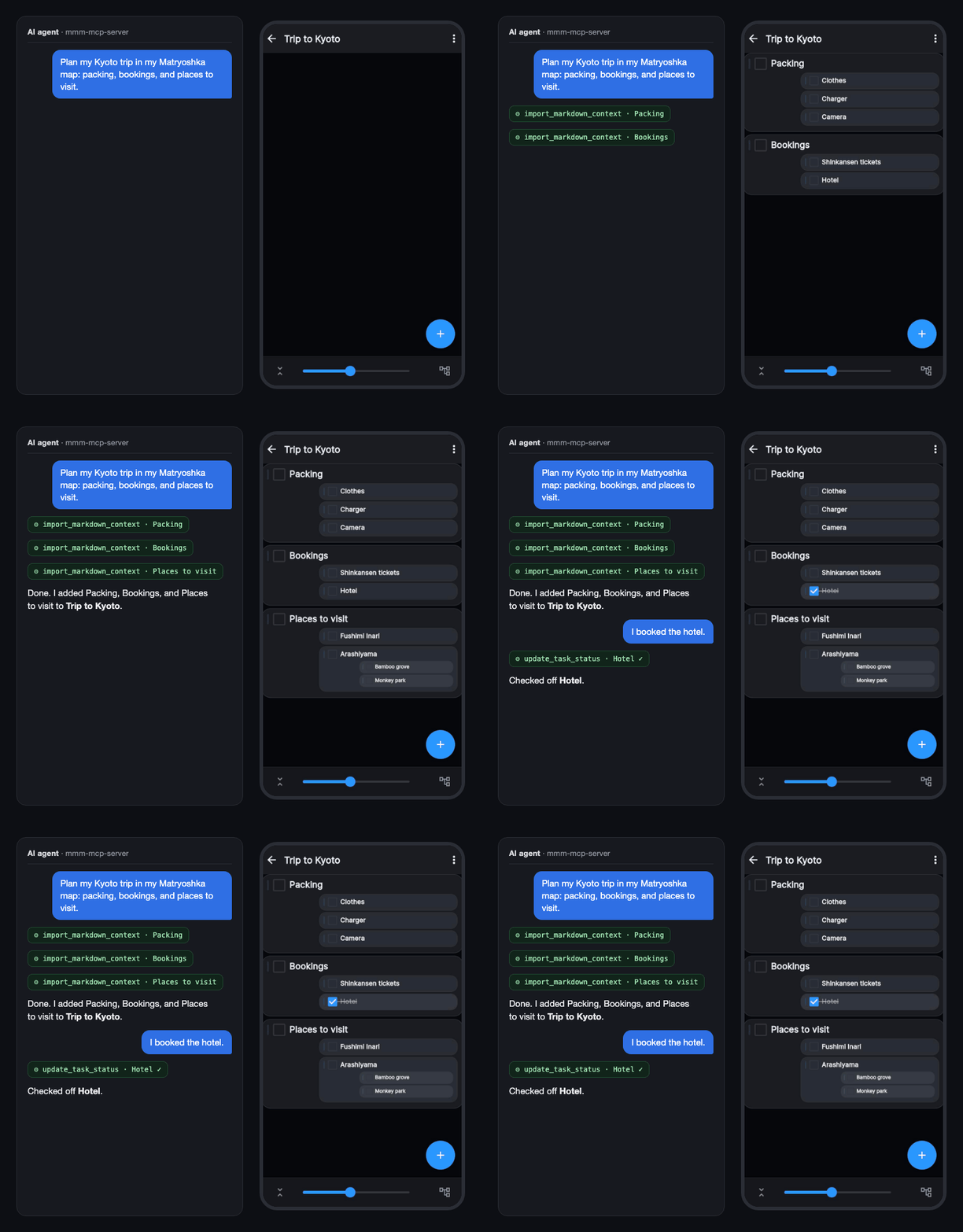
Talk to your AI agent, and it reads and writes your nested mind maps and TODOs in Matryoshka Mind Map.
Get the app (free to start): Web app · App Store · Google Play
What you can do
- "Show me my maps" — lists your maps
- Turn ideas from the conversation into a nested mind map
- "I finished task X" — checks it off your TODO list
- Paste long notes or Markdown and import them into a map
Get started
You need a Matryoshka account linked to Google, Apple, or an email address (anonymous-only accounts cannot be used).
Claude Desktop (no terminal needed)
- Download mmm-mcp-server.mcpb and double-click it, then click Install in Claude Desktop.
- Say "Sign in to Matryoshka". A browser window opens: approve with Google or Apple, or enter your email and password on the sign-in page (it runs only on your computer; your password is never shared with the AI).
- Talk to it:
- "Show me my Matryoshka maps."
- "Add a task called [task] to the [map name] map."
- "Import these notes into the [map name] map."
The first time a map's contents are read, Claude asks for your permission.
Claude Code and other MCP clients
Requires Node.js 18+. New to the terminal? Follow the step-by-step setup guide.
Claude Code:
claude mcp add mmm -- npx -y mmm-mcp-server@latest
Other MCP clients: register npx -y mmm-mcp-server@latest as the server command.
Then ask the agent to sign in to Matryoshka, or sign in from the terminal with the method you use in the app (google, apple, or email):
npx -y -p mmm-mcp-server@latest mmm-login login --method google
Privacy
- Runs only on your computer, only while you talk to your agent. No always-on server.
- Your login is stored only on your computer, and your maps are read and written directly in your own account. The developer cannot see your data.
More
Tips and advanced use — keeping maps tidy, recording tasks per folder, updating, troubleshooting.