
Security News
The Code You Didn't Write Is Still Yours to Defend
AI agents are pulling packages into environments no scanner is watching, creating exposure before security teams can see it.
By Brad Arkin - Jun 23, 2026
mui-tw-components
Advanced tools
# **mui-tw-components - Reusable UI Components**
**mui-tw-components** is a collection of reusable **React UI components** built with **Material-UI (MUI) and Tailwind CSS**. It is designed to accelerate development, improve consistency, and provide a seamless UI/UX experience.
---
## 📦 Installation
Install mui-tw-components using npm:
```sh
npm install mui-tw-components
```
> **Note:** Ensure **Tailwind CSS** is set up in your project before using these components. The library comes with an `index.css` that imports Tailwind's base, components, and utilities. Import it at the root of your project:
>
> ```tsx
> import 'mui-tw-components/dist/index.css';
> ```
---
## 🛠️ Usage
mui-tw-components provides a collection of prebuilt UI components. Import them as needed:
```tsx
import {
AddButton,
Avatar,
Button,
CustomSwitch,
Drawer,
Dropdown,
Input,
Label,
Menu,
Modal,
MultiCheckbox,
MultiPeoplePicker,
MultiSelectDropdown,
OverflowSet,
OverflowSetV2,
PeoplePicker,
RadioButtonGroup,
Select,
TabList,
TinyTab,
Tooltip,
Alerts,
ConfirmAlerts,
} from 'mui-tw-components';
```
Each component follows the **Material-UI** structure and is enhanced with **Tailwind CSS** classes to ensure consistency and flexibility.
---
## 🌟 Components Overview
mui-tw-components includes the following components:
- **Buttons & Actions:**
`AddButton`, `Button`, `Menu`, `OverflowSet`, `OverflowSetV2`
- **Form Inputs:**
`Input`, `Select`, `Dropdown`, `MultiSelectDropdown`, `MultiCheckbox`, `RadioButtonGroup`, `CustomSwitch`, `Label`
- **Pickers:**
`PeoplePicker`, `MultiPeoplePicker`
- **Navigation:**
`TabList`, `TinyTab`
- **Display:**
`Avatar`, `Tooltip`
- **Overlays:**
`Drawer`, `Modal`
- **Feedback:**
`Alerts`, `ConfirmAlerts`
---
## 📚 API Reference & Examples
<details>
<summary><strong>AddButton</strong></summary>
A button component with an icon and text.
**Props:**
| Prop | Type | Default | Description |
| --------- | --------------- | ------------ | ---------------------------------------------- |
| `text` | `string` | — | The button label. |
| `icon` | `ReactNode` | — | Icon displayed before the label. |
| `onClick` | `() => void` | — | Click event handler. |
| Others | MUI ButtonProps | See MUI docs | All other props are forwarded to MUI's Button. |
**Example:**
```tsx
import { AddButton } from 'mui-tw-components';
import { AddRegular } from '@fluentui/react-icons';
<AddButton text="Add User" icon={<AddRegular />} onClick={() => console.log('Button clicked')} />;
```
</details>
<details>
<summary><strong>Avatar</strong></summary>
An avatar component with size and fallback text options.
**Props:**
| Prop | Type | Default | Description |
| -------------- | --------------------- | -------- | ---------------------------------------------------------- | ------------- | --- | ------------------------------------ |
| `imageUrl` | `string` | — | URL of the avatar image. |
| `fallbackText` | `string` | `""` | Fallback initials if image not provided (first 2 letters). |
| `size` | `'small' | 'medium' | 'large' | 'extraLarge'` | — | Determines dimensions of the avatar. |
| `customStyles` | `React.CSSProperties` | — | Additional inline styles. |
**Example:**
```tsx
import { Avatar } from 'mui-tw-components';
<Avatar imageUrl="https://example.com/avatar.jpg" fallbackText="JD" size="medium" />;
```
</details>
<details>
<summary><strong>Button</strong></summary>
A thin wrapper around the MUI Button allowing additional icon support.
**Example:**
```tsx
import { Button } from 'mui-tw-components';
<Button variant="contained" color="primary" onClick={() => alert('Clicked!')}>
Click Me
</Button>;
```
</details>
<details>
<summary><strong>CustomSwitch</strong></summary>
A toggle switch component with custom colors.
**Props:**
| Prop | Type | Default | Description |
| ---------- | -------------------------------- | ------- | --------------------- |
| `id` | `string` | — | Unique identifier. |
| `checked` | `boolean` | — | Current switch state. |
| `onChange` | `(e: React.ChangeEvent) => void` | — | Change event handler. |
**Example:**
```tsx
import { CustomSwitch } from 'mui-tw-components';
<CustomSwitch id="toggle-1" checked={true} onChange={(e) => console.log(e.target.checked)} />;
```
</details>
<details>
<summary><strong>Drawer</strong></summary>
A flexible side-drawer component for overlays and navigation.
**Props:**
| Prop | Type | Default | Description |
| ------------- | ------------ | ------------ | ----------------------------- | ------------- | ------------------------ | --------- | ------------------------- |
| `isOpen` | `boolean` | — | Controls drawer visibility. |
| `onClose` | `() => void` | — | Function to close the drawer. |
| `headerTitle` | `string` | — | Title in the header. |
| `size` | `'small' | 'medium' | 'large' | 'full' | number` | `'small'` | Sets width of the drawer. |
| `type` | `'temporary' | 'persistent' | 'permanent'` | `'temporary'` | Defines drawer behavior. |
| `isSave` | `boolean` | `false` | If true, shows a save button. |
| `onSave` | `() => void` | — | Callback for save action. |
**Example:**
```tsx
import { Drawer } from 'mui-tw-components';
<Drawer
isOpen={true}
onClose={() => console.log('Drawer closed')}
headerTitle="My Drawer"
size="medium"
type="temporary"
>
<div className="p-4">Drawer Content</div>
</Drawer>;
```
</details>
<details>
<summary><strong>Dropdown</strong> (Single-Select)</summary>
A single-select dropdown based on MUI's Autocomplete.
**Props:**
| Prop | Type | Default | Description |
| ------------- | ------------------------ | -------------------- | ------------------------- |
| `options` | `array` | `[]` | Options for selection. |
| `value` | Any | — | Currently selected value. |
| `onChange` | `(event, value) => void` | — | Change event callback. |
| `placeholder` | `string` | `'Select an option'` | Placeholder text. |
**Example:**
```tsx
import { Dropdown } from 'mui-tw-components';
<Dropdown
id="country-dropdown"
label="Country"
options={[
{ label: 'USA', value: 'usa' },
{ label: 'Canada', value: 'canada' },
]}
value="usa"
onChange={(e, v) => console.log(v)}
/>;
```
</details>
<details>
<summary><strong>Input</strong></summary>
A customizable text input with built-in label support.
**Props:**
| Prop | Type | Default | Description |
| ----------------- | --------- | -------- | ------------------------------ |
| `id`, `label` | `string` | — | Input field identifier & label |
| `type` | `string` | `"text"` | HTML input type |
| `placeholder` | `string` | `""` | Placeholder text |
| `isLabelRequired` | `boolean` | `false` | Display label if true |
**Example:**
```tsx
import { Input } from 'mui-tw-components';
<Input id="username" label="Username" isLabelRequired placeholder="Enter your username" />;
```
</details>
<details>
<summary><strong>Label</strong></summary>
A simple, bold `<InputLabel>` wrapper for forms.
**Example:**
```tsx
import { Label } from 'mui-tw-components';
<Label htmlFor="email" label="Email" required />;
```
</details>
<details>
<summary><strong>Menu</strong></summary>
An icon-triggered menu with customizable menu items.
**Props:**
| Prop | Type | Description |
| ----------- | -------------------------------------------------------------------- | ------------------------------------------------- |
| `icon` | `ReactNode` | Icon to trigger the menu. |
| `menuItems` | Array of `{ label: string; icon?: ReactNode; onClick?: () => void }` | Menu items with optional icons and click handler. |
**Example:**
```tsx
import { Menu } from 'mui-tw-components';
import { MoreRegular } from '@fluentui/react-icons';
<Menu
icon={<MoreRegular />}
menuItems={[
{ label: 'Edit', onClick: () => console.log('Edit') },
{ label: 'Delete', onClick: () => console.log('Delete') },
]}
/>;
```
</details>
<details>
<summary><strong>Modal</strong></summary>
A centered modal with customizable title, content, and actions.
**Props:**
| Prop | Type | Default | Description |
| --------- | ------------ | ------- | ------------------------------ |
| `open` | `boolean` | — | Modal visibility state. |
| `onClose` | `() => void` | — | Callback to close modal. |
| `title` | `string` | `""` | Modal title text. |
| `content` | `ReactNode` | `""` | Content for modal body. |
| `actions` | `ReactNode` | `""` | Buttons or additional actions. |
**Example:**
```tsx
import { Modal } from 'mui-tw-components';
<Modal
open={true}
onClose={() => console.log('Modal closed')}
title="Modal Title"
content={<div className="p-4">Hello Modal!</div>}
actions={<button onClick={() => console.log('Confirmed')}>Confirm</button>}
/>;
```
</details>
<details>
<summary><strong>MultiCheckbox</strong></summary>
A multi-select checkbox group with layout options.
**Example:**
```tsx
import { MultiCheckbox } from 'mui-tw-components';
<MultiCheckbox
id="checkbox-group"
label="Select Options"
name="options"
value={['opt1']}
onChange={(e) => console.log(e.target.value)}
options={[
{ value: 'opt1', label: 'Option 1', name: 'opt1' },
{ value: 'opt2', label: 'Option 2', name: 'opt2' },
]}
alignment="row"
/>;
```
</details>
<details>
<summary><strong>MultiPeoplePicker</strong></summary>
A chip-based multi-select people picker with avatar support.
**Example:**
```tsx
import { MultiPeoplePicker } from 'mui-tw-components';
<MultiPeoplePicker
id="multi-people-picker"
options={[
{ id: 1, name: 'John Doe', email: 'john@example.com', avatar: 'https://...' },
{ id: 2, name: 'Jane Smith', email: 'jane@example.com' },
]}
value={[]}
onChange={(e, value) => console.log(value)}
label="Select People"
isLabelRequired
/>;
```
</details>
<details>
<summary><strong>MultiSelectDropdown</strong></summary>
A generic multi-select dropdown.
**Example:**
```tsx
import { MultiSelectDropdown } from 'mui-tw-components';
<MultiSelectDropdown
id="multi-select"
label="Select Tags"
options={[
{ label: 'React', value: 'react' },
{ label: 'MUI', value: 'mui' },
]}
value={[]}
onChange={(e, value) => console.log(value)}
/>;
```
</details>
<details>
<summary><strong>OverflowSet / OverflowSetV2</strong></summary>
Components to display actions which collapse under a menu if necessary.
**Example (OverflowSet):**
```tsx
import { OverflowSet } from 'mui-tw-components';
<OverflowSet maxVisibleItems={3}>
{[
<button key="1">Action 1</button>,
<button key="2">Action 2</button>,
<button key="3">Action 3</button>,
<button key="4">Action 4</button>,
]}
</OverflowSet>;
```
**Example (OverflowSetV2):**
```tsx
import { OverflowSetV2 } from 'mui-tw-components';
<OverflowSetV2
items={[
{ key: 'a', content: 'A', onClick: () => console.log('A') },
{ key: 'b', content: 'B', onClick: () => console.log('B'), hideOnOverflow: true },
{ key: 'c', content: 'C', onClick: () => console.log('C') },
{ key: 'd', content: 'D', onClick: () => console.log('D') },
]}
maxVisibleItems={2}
/>;
```
</details>
<details>
<summary><strong>PeoplePicker</strong></summary>
A single-select people picker.
**Example:**
```tsx
import { PeoplePicker } from 'mui-tw-components';
<PeoplePicker
id="people-picker"
options={[
{ id: 1, name: 'Alice', email: 'alice@example.com', avatar: 'https://...' },
{ id: 2, name: 'Bob', email: 'bob@example.com' },
]}
value={null}
onChange={(e, value) => console.log(value)}
label="Select a Person"
isLabelRequired
/>;
```
</details>
<details>
<summary><strong>RadioButtonGroup</strong></summary>
A group of radio buttons with horizontal or vertical alignment.
**Example:**
```tsx
import { RadioButtonGroup } from 'mui-tw-components';
<RadioButtonGroup
id="radio-group"
name="group1"
label="Choose one"
value="option1"
onChange={(e) => console.log(e.target.value)}
options={[
{ value: 'option1', label: 'Option 1' },
{ value: 'option2', label: 'Option 2' },
]}
alignment="row"
isLabelRequired
/>;
```
</details>
<details>
<summary><strong>Select</strong></summary>
A custom MUI select with placeholder support.
**Example:**
```tsx
import { Select } from 'mui-tw-components';
<Select
id="custom-select"
label="Select an option"
value="1"
onChange={(e, child) => console.log(e.target.value)}
options={[
{ label: 'One', value: '1' },
{ label: 'Two', value: '2' },
]}
/>;
```
</details>
<details>
<summary><strong>TabList / TinyTab</strong></summary>
Tab navigation components.
- **TabList:** Larger tabs with badge count support.
- **TinyTab:** Compact 32px-tall tabs ideal for dense UIs.
**TabList Example:**
```tsx
import { TabList } from 'mui-tw-components';
<TabList
tabs={[
{ key: 'tab1', label: 'Tab One' },
{ key: 'tab2', label: 'Tab Two' },
]}
selectedPivot="tab1"
setSelectedPivot={(key) => console.log(key)}
/>;
```
**TinyTab Example:**
```tsx
import { TinyTab } from 'mui-tw-components';
<TinyTab
tabs={[
{ key: 'tabA', label: 'Tab A' },
{ key: 'tabB', label: 'Tab B' },
]}
selectedPivot="tabA"
setSelectedPivot={(key) => console.log(key)}
/>;
```
</details>
<details>
<summary><strong>Tooltip</strong></summary>
A simple tooltip wrapper for any element.
**Example:**
```tsx
import { Tooltip } from 'mui-tw-components';
import { InfoRegular } from '@fluentui/react-icons';
<Tooltip title="Additional Info" icon={<InfoRegular />} placement="top" />;
```
</details>
<details>
<summary><strong>Alerts & ConfirmAlerts</strong></summary>
Pre-configured alert dialogs based on SweetAlert2.
**Alerts Example:**
```tsx
import { Alerts } from 'mui-tw-components';
<Alerts type="success" text="Operation Successful!" />;
```
**ConfirmAlerts Example:**
```tsx
import { ConfirmAlerts } from 'mui-tw-components';
<ConfirmAlerts
type="warning"
text="Are you sure you want to delete?"
isSuccessAlert
onConfirm={() => console.log('Deleted')}
onCancel={() => console.log('Cancelled')}
/>;
```
</details>
---
## 📚 Contributing
We welcome contributions! Feel free to:
- Submit issues for bugs or enhancements 🐞
- Create pull requests to improve existing components ✨
- Suggest new features that align with the project goals 🚀
**Contributing Steps:**
1. Fork the repository and create a feature branch.
2. Run the storybook with `pnpm dev` (or your preferred package manager) and add stories for new components.
3. Open a pull request—the CI pipeline will run lint, type-check, and visual tests.
---
## 📝 License
mui-tw-components is licensed under the **MIT License**. See [LICENSE](./LICENSE) for details.
---
### 🚀 Get Started with mui-tw-components Today!
Integrate **MUI + Tailwind components** into your React projects and boost your development velocity. Pull requests welcome!
---
FAQs
````markdown # **mui-tw-components - Reusable UI Components**
The npm package mui-tw-components receives a total of 1 weekly downloads. As such, mui-tw-components popularity was classified as not popular.
We found that mui-tw-components demonstrated a not healthy version release cadence and project activity because the last version was released a year ago. It has 1 open source maintainer collaborating on the project.
Did you know?

Socket for GitHub automatically highlights issues in each pull request and monitors the health of all your open source dependencies. Discover the contents of your packages and block harmful activity before you install or update your dependencies.
Security News
AI agents are pulling packages into environments no scanner is watching, creating exposure before security teams can see it.

Security News
GitHub Actions checkout now blocks risky pull_request_target checkouts by default to help prevent pwn request supply chain attacks.
Product
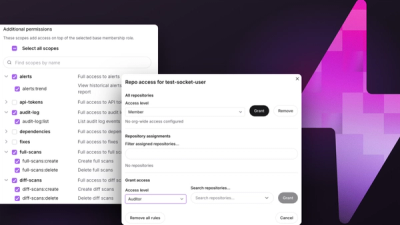
Socket now supports Custom Roles and Repository Access Permissions so organizations can control who can access specific repositories and actions.