pushtodisplay
Command-line interface and MCP server for Push To Display — send real-time updates to display boards from your terminal or AI agents.
Install
Run directly with npx (no install needed):
npx pushtodisplay --help
Or install globally:
npm install -g pushtodisplay
Requires Node.js 18+. See the PushToDisplay documentation for guides, use cases, and API details.
Quick start
pushtodisplay auth login
pushtodisplay send "Hello, Display!"
pushtodisplay send -b <board-id> "Deploy completed"
pushtodisplay boards list
Authentication
Log in with your Push To Display account — the same account you use in the mobile app.
Browser login (default)
pushtodisplay auth login
Opens your browser. Sign in and the CLI receives your credentials automatically.
Device code login (headless)
For machines without a browser — SSH sessions, containers, or remote servers:
pushtodisplay auth login --device-code
The CLI prints a URL and a one-time code. Open the URL on any device, enter the code, and approve the login.
Credentials are stored in your OS keychain (macOS Keychain, Linux libsecret, Windows Credential Manager). Falls back to ~/.config/pushtodisplay/ if the keychain is unavailable.
pushtodisplay auth status
pushtodisplay auth logout
Commands
send
Send a display update to a board.
pushtodisplay send -b my-board-id "Deploy succeeded"
pushtodisplay send -b my-board-id "Status" --size large --weight bold --color "#00FF00"
pushtodisplay send -b my-board-id "Build:" "passing" --color "#22C55E"
pushtodisplay send -b my-board-id --panel 2 "Right panel content"
pushtodisplay send -b my-board-id --panel 1 --full-panel --density compact --align-x center "Alert"
pushtodisplay send -b my-board-id \
--block '{"text": "API Health", "size": "large", "weight": "bold"}' \
--block '{"text": "Uptime: 99.97%", "color": "#22C55E"}'
echo '{"boardId":"my-board-id","blocks":[{"text":"From pipe"}]}' | pushtodisplay send --stdin
If no -b flag is provided, the server uses your default board.
Style flags
-s, --size | small, medium, large | Text size |
-w, --weight | regular, semibold, bold | Font weight |
-c, --color | Hex color (#RRGGBB) | Text color |
--background | Hex color (#RRGGBB) | Background color |
Panel flags
-p, --panel | 1–4 | Target panel number |
--full-panel | — | Fill the entire panel area |
--density | compact, standard, spacious | Content spacing |
--align-x | start, center, end | Horizontal alignment |
--align-y | start, center, end | Vertical alignment |
Other flags
-b, --board | Board ID |
--block <json> | Styled block as JSON (repeatable) |
--stdin | Read full JSON request from stdin |
boards
pushtodisplay boards list
pushtodisplay boards get <id>
pushtodisplay boards create -n "Name"
pushtodisplay boards create -n "Dash" -l 4
pushtodisplay boards delete <id>
Create options:
-n, --name | Board name (required) |
-d, --description | Board description |
-l, --layout | Layout ID |
devices
pushtodisplay devices list
config
pushtodisplay config
pushtodisplay config show
JSON output
Add --json to any command for machine-readable output:
pushtodisplay boards list --json
pushtodisplay send -b my-board "test" --json
Configuration
Configuration is resolved in order: environment variables → config file → defaults.
PTD_API_URL | API endpoint | https://api.pushtodisplay.com |
PTD_SERVICE_URL | Service endpoint | https://services.pushtodisplay.com |
PTD_IDP_URL | Identity provider | https://idp.pushtodisplay.com |
PTD_CONFIG_DIR | Config directory | ~/.config/pushtodisplay |
MCP server
The CLI includes a built-in Model Context Protocol server, giving AI agents (Claude, Cursor, VS Code Copilot, and others) direct access to your display boards.
The MCP server inherits your CLI session — if you've run pushtodisplay auth login, it authenticates automatically.
Setup
Claude Code
claude mcp add pushtodisplay -- npx pushtodisplay mcp
Claude Desktop
Add to ~/Library/Application Support/Claude/claude_desktop_config.json (macOS) or %APPDATA%\Claude\claude_desktop_config.json (Windows):
{
  "mcpServers": {
    "pushtodisplay": {
      "command": "npx",
      "args": ["pushtodisplay", "mcp"]
    }
  }
}
Cursor
Open Settings → MCP Servers → Add Server, or edit .cursor/mcp.json:
{
  "mcpServers": {
    "pushtodisplay": {
      "command": "npx",
      "args": ["pushtodisplay", "mcp"]
    }
  }
}
VS Code (GitHub Copilot)
Add to .vscode/mcp.json:
{
  "servers": {
    "pushtodisplay": {
      "command": "npx",
      "args": ["pushtodisplay", "mcp"]
    }
  }
}
Other MCP clients
Any MCP client that supports stdio transport can use Push To Display. The server command is:
npx pushtodisplay mcp
Available MCP tools
pushtodisplay_send_update | Send content to a board |
pushtodisplay_list_boards | List all boards |
pushtodisplay_get_board | Get details of a board |
pushtodisplay_create_board | Create a new board |
pushtodisplay_update_board | Update a board's name, description, or layout |
pushtodisplay_set_default_board | Set a board as your default |
pushtodisplay_delete_board | Delete a board permanently |
pushtodisplay_list_devices | List active device connections |
Commands at a glance
auth login | Log in (browser or device code) |
auth logout | Remove stored credentials |
auth status | Show current auth status |
send [text...] | Send a display update |
boards list | List your boards |
boards get <id> | Get board details |
boards create | Create a new board |
boards delete <id> | Delete a board |
devices list | List active device connections |
config | Show current configuration |
mcp | Start the MCP server |
API key authentication
For CI/CD pipelines and scripts where interactive login isn't available, you can authenticate with an API key. Create one from the mobile app or the web portal. API keys start with pt_.
export PTD_API_KEY=pt_your_key_here
pushtodisplay send "From CI"
pushtodisplay auth login --api-key pt_your_key_here
Note: API key auth only supports the send command. Use auth login for full access to boards, devices, and config management.
Screenshots
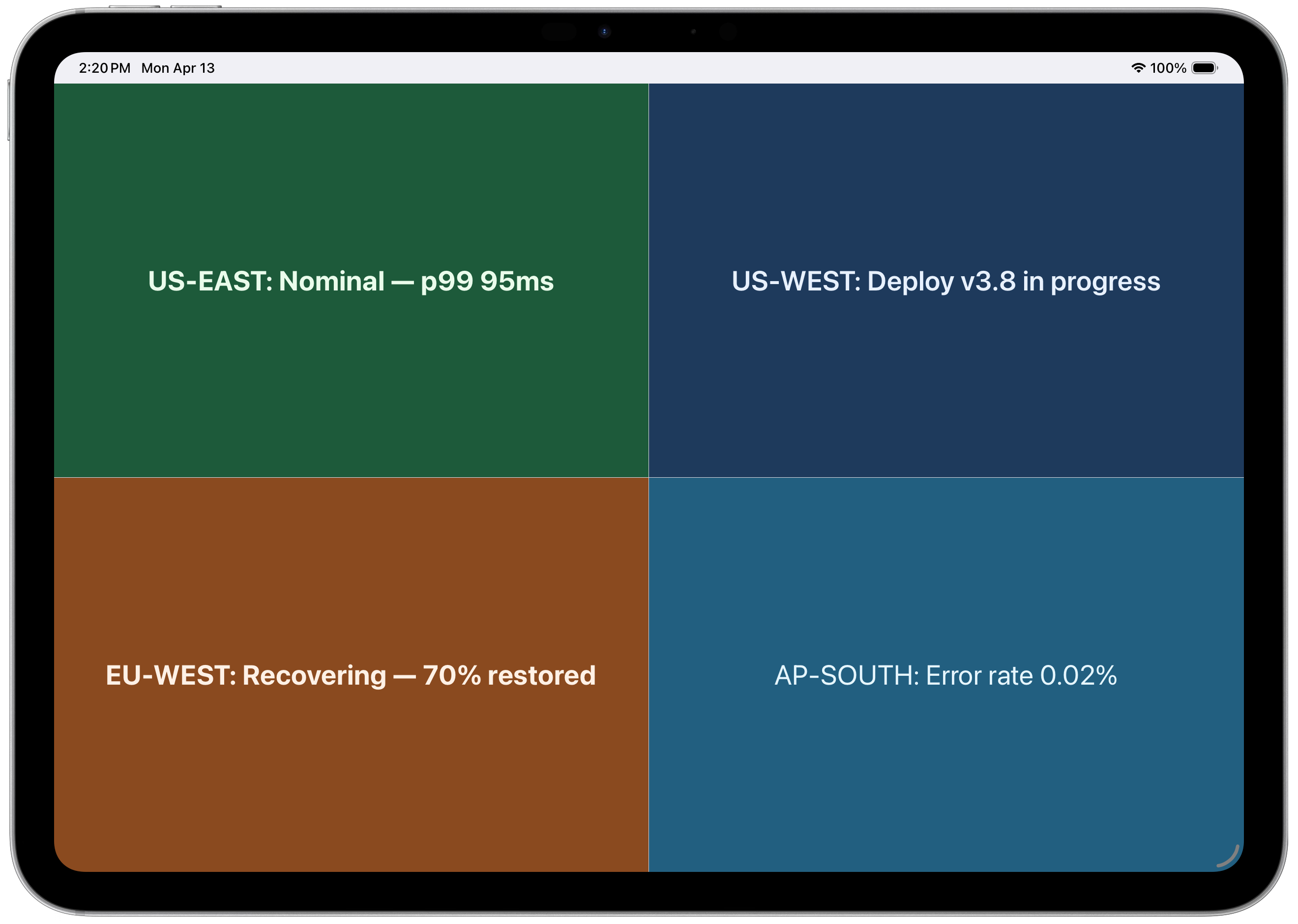
4-panel layout — regional status at a glance
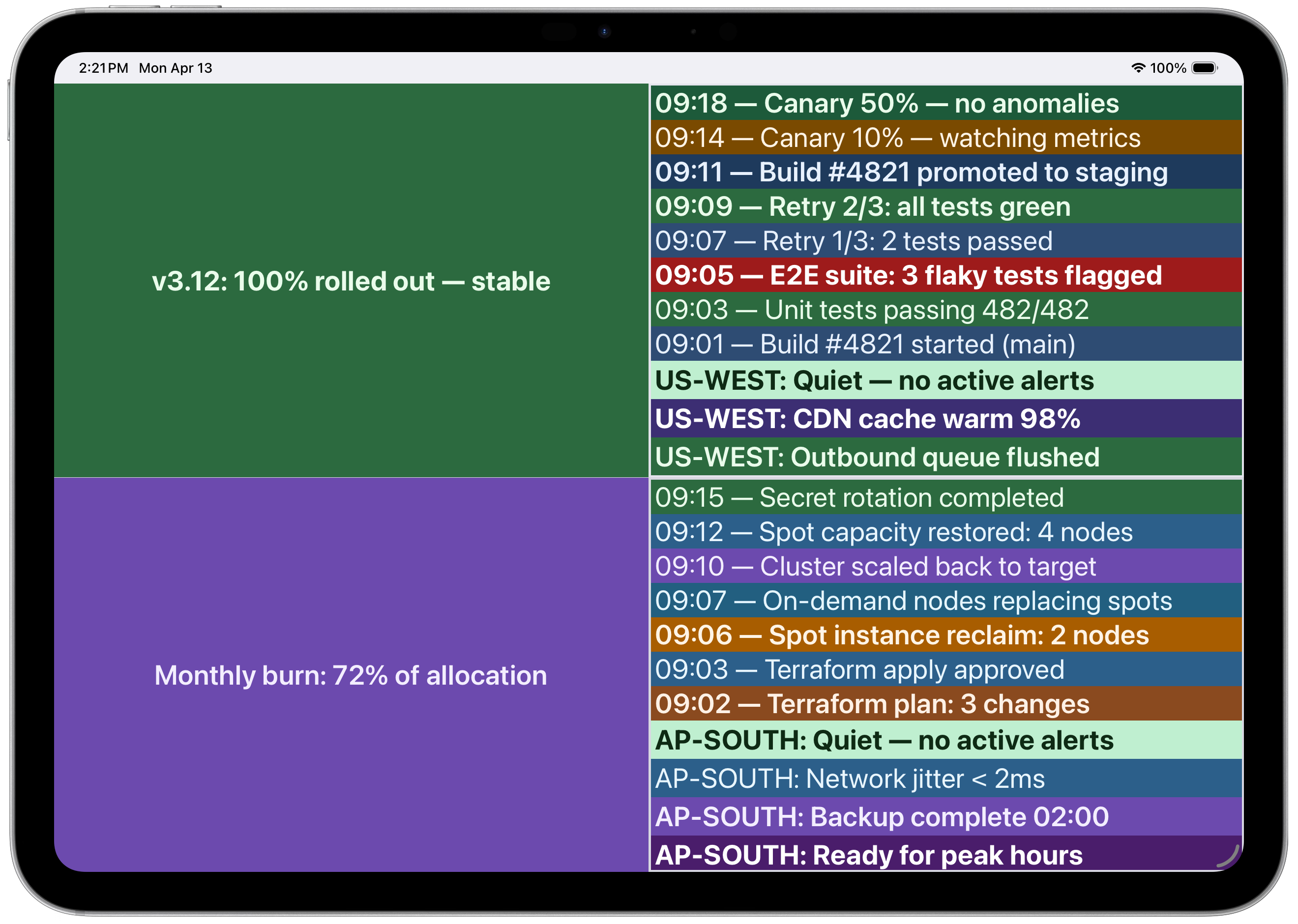 Multi-panel with CI/CD pipeline and infrastructure logs
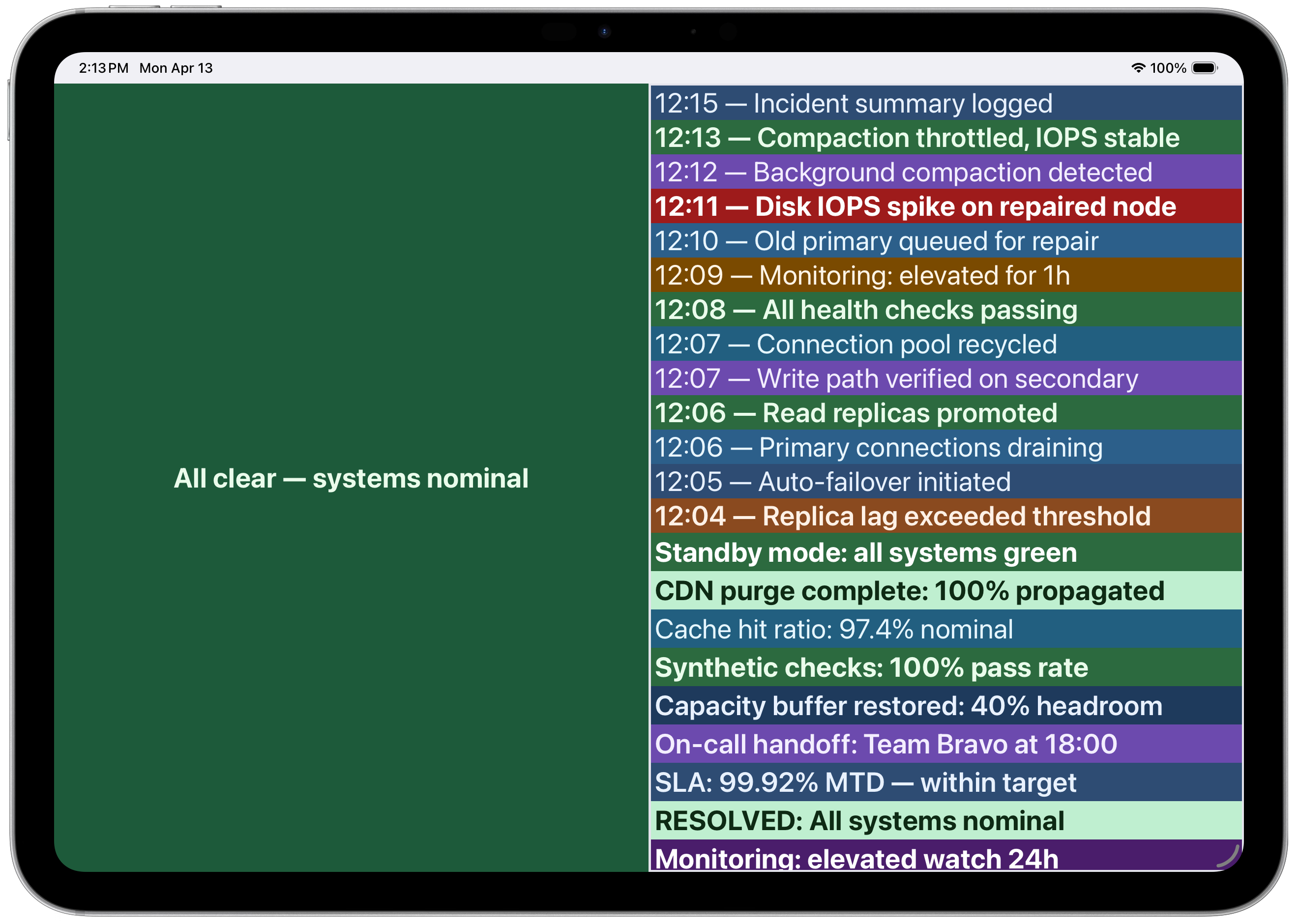 Incident timeline with color-coded severity
License
MIT




