
Security News
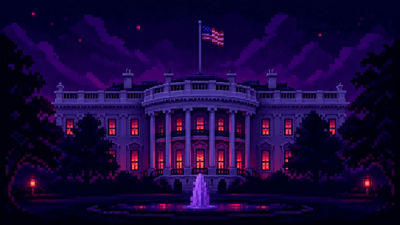
US Government Forces Anthropic to Pull Claude Fable Days After Launch
Anthropic says the directive cited national security concerns over a narrow jailbreak, but offered no specific technical details.
By Sarah Gooding - Jun 13, 2026
react-native-xtabbar
Advanced tools
Mobile bottom tab bar using react-native,support android and ios. Pages won't be rendered when you switch to other tabs,also save the status of invisible pages.
First you need to install react-native-xtabbar:
npm install react-native-xtabbar --save
| prop | value | required/optional | comment |
|---|---|---|---|
| onItemSelected | function | optional | this function will be called when the focus item changing |
| navTextColor | color | optional | nav text normal color |
| navTextColorSelected | color | optional | nav text selected color |
| prop | value | required/optional | comment |
|---|---|---|---|
| icon | image source | required | the icon when item is not focus |
| selectedIcon | image source | required | the icon when item is focus |
| title | string | required | title of item |
| onPress | function | optional | the function will be called when item is selected. you can also use Tabbar's onItemSelected function if you want to control press callback in one place. |
| badge | number/string | optional | badge |
| point (Thanks @WittBulter) | bool | optional | clipChildren performance |
import TabBar from 'react-native-xtabbar';

<TabBar
    style={styles.content}
    onItemSelected={(index) => {console.log(`current item's index is ${index}`);}}
>
    <TabBar.Item
        icon={require('./image/start_normal.png')}
        selectedIcon={require('./image/start_hightlight.png')}
        onPress={() => {
            // do sth
        }}
        badge={7}
        title='首页'>
        <View style={styles.text}>
            <Text style={{fontSize: 18}}>Home</Text>
        </View>
    </TabBar.Item>

    <TabBar.Item
        icon={require('./image/start_normal.png')}
        selectedIcon={require('./image/start_hightlight.png')}
        title='定位'>
        <View style={styles.text}>
            <Text style={{fontSize: 18}}>Location</Text>
        </View>
    </TabBar.Item>

    <TabBar.Item
        icon={require('./image/start_normal.png')}
        selectedIcon={require('./image/start_hightlight.png')}
        title='发现'>
        <View style={styles.text}>
            <Text style={{fontSize: 18}}>Find</Text>
        </View>
    </TabBar.Item>

    <TabBar.Item
        icon={require('./image/start_normal.png')}
        selectedIcon={require('./image/start_hightlight.png')}
        title='我'>
        <View style={styles.text}>
            <Text style={{fontSize: 18}}>Me</Text>
        </View>
    </TabBar.Item>
</TabBar>
TabBar.Item badge


FAQs
mobile bottom tabbar using react-native
We found that react-native-xtabbar demonstrated a not healthy version release cadence and project activity because the last version was released a year ago. It has 1 open source maintainer collaborating on the project.
Did you know?

Socket for GitHub automatically highlights issues in each pull request and monitors the health of all your open source dependencies. Discover the contents of your packages and block harmful activity before you install or update your dependencies.
Security News
Anthropic says the directive cited national security concerns over a narrow jailbreak, but offered no specific technical details.
Security News
A network of 152 Chrome live wallpaper extensions hid ad tracking and made extension-driven traffic look like Google search clicks.
Company News
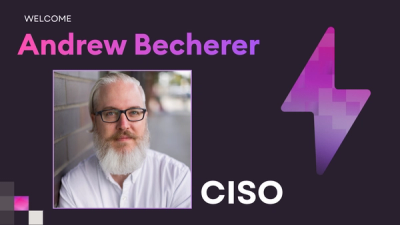
Socket’s first CISO brings deep experience securing high-growth SaaS companies as open source supply chain threats accelerate.