Sidekick CLI
Full-screen terminal dashboard for monitoring AI agent sessions — standalone, no VS Code required.
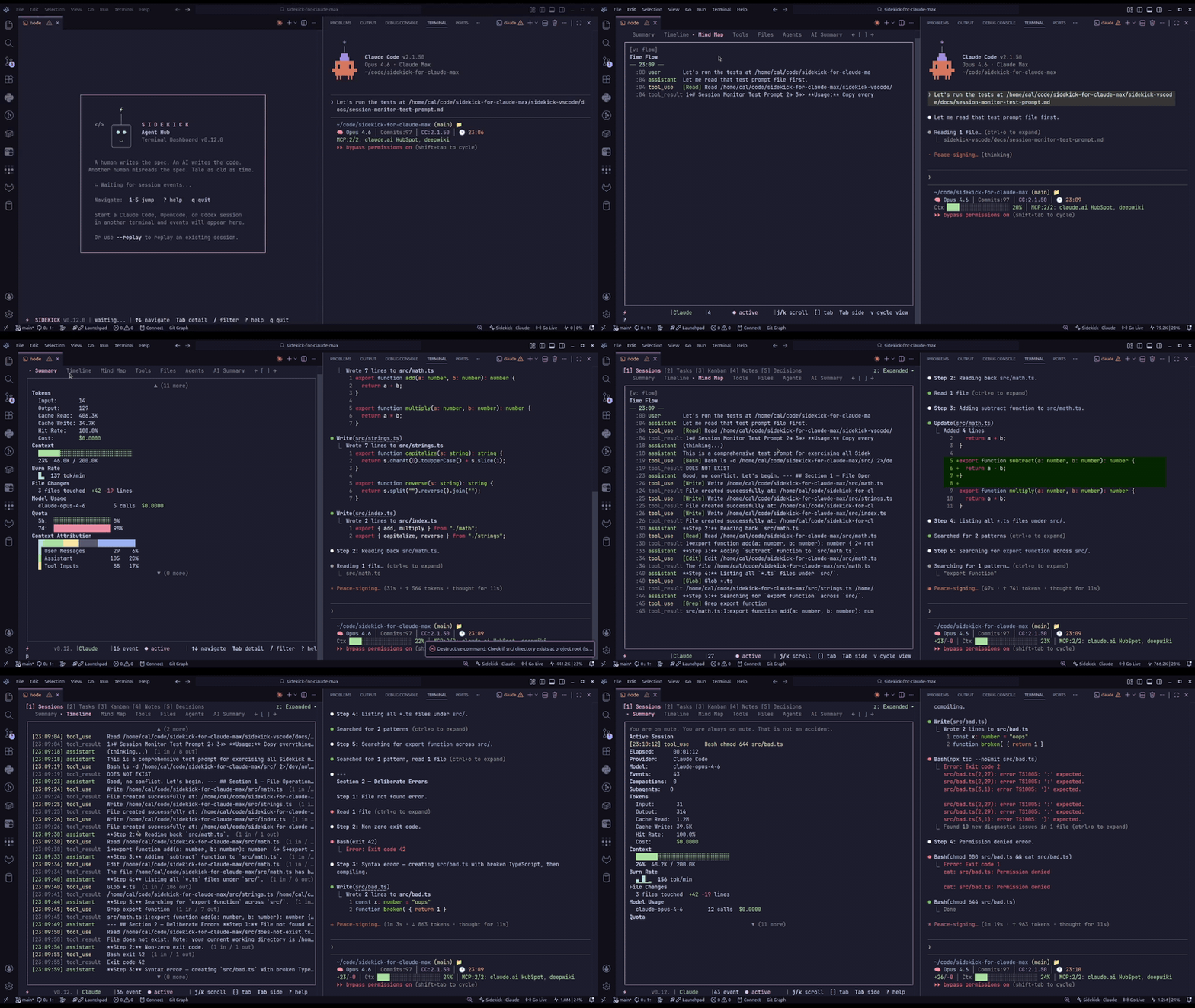
Sidekick CLI reads from ~/.config/sidekick/ — the same data files the VS Code extension writes. Browse sessions, tasks, decisions, knowledge notes, mind maps, and more in an interactive terminal UI.
Installation
Note: The npm package is sidekick-agent-hub, but the binary it installs is called sidekick.
npm install -g sidekick-agent-hub
Requires Node.js 20+.
Quick Start
cd into your project directory- Run
sidekick dashboard
- The dashboard auto-detects your project and session provider
- Press
? to see all keybindings
OpenCode note: OpenCode session monitoring reads opencode.db and currently expects an executable sqlite3 runtime in the host environment.
OpenCode session data lives in OpenCode's platform-specific data directory:
- Linux:
~/.local/share/opencode/
- macOS:
~/Library/Application Support/opencode/
- Windows:
%APPDATA%\\opencode\\
If sqlite3 is missing or not executable in the current shell environment, Sidekick prints an actionable OpenCode-specific notice instead of silently failing session detection.
Usage
sidekick dashboard [options]
sidekick tasks|decisions|notes|stats|quota|status|account|handoff|search|context [options]
The standalone commands open the dashboard directly to a specific panel or run a one-shot query. All accept --project and --provider flags.
--project <path> | Override project path (default: current working directory) |
--provider <id> | Session provider: claude-code, opencode, codex, or auto (default) |
--session <id> | Follow a specific session by ID |
--replay | Replay existing events from the beginning before streaming live |
Session Dump
sidekick dump [options]
Export session data as text, markdown, or JSON.
--format <fmt> | Output format: text (default), json, or markdown |
--width <cols> | Terminal width for text output (default: auto-detect) |
--expand | Show all events including noise |
--session <id> | Target a specific session (default: most recent) |
--list | List available sessions and exit |
Global flags --project and --provider also apply.
HTML Report
sidekick report [options]
Generate a self-contained HTML session report and open it in the default browser. Includes full transcript, token/cost stats, model breakdown, and tool-use summary.
--session <id> | Target a specific session (default: most recent) |
--output <path> | Write to a specific file (default: temp file) |
--theme <theme> | Color theme: dark (default) or light |
--no-open | Write the file without opening the browser |
--no-thinking | Omit thinking blocks from the transcript |
Global flags --project and --provider also apply.
You can also press r in the TUI dashboard to generate a report for the current session.
API Status
sidekick status
Check API health for both Claude (status.claude.com) and OpenAI (status.openai.com). Shows indicators with color coding (green/yellow/red), affected components, and active incident details. Use --json for machine-readable output. In the dashboard, provider-status surfaces are scoped to the monitored provider: Claude for Claude Code sessions, OpenAI for Codex sessions, and hidden for OpenCode.
When the active provider is claude-code, the output also includes a Claude Peak Hours block (see below).
Peak Hours
sidekick peak
Show whether Claude is currently in peak hours (weekdays 13:00–19:00 UTC — when session limits drain faster on Free/Pro/Max/Team subscriptions). Data comes from the public promoclock.co/api/status endpoint (third-party, unaffiliated with Anthropic). Use --json for machine-readable output. The peak-hours summary also appears under the bars in sidekick quota for Claude subscriptions.
Quota & Rate Limits
sidekick quota
Provider-aware quota and rate-limit display. The command auto-detects the active provider:
- Claude Code: Shows Claude Max subscription quota — 5-hour and 7-day windows with color-coded progress bars, projections, and reset countdowns. Includes a peak-hours summary line.
- Codex: Shows rate limits from Codex
token_count.rate_limits events — primary and secondary windows with progress bars and reset countdowns. The default path is local-only: current workspace rollout, recent account-level rollouts, then the active account's cached snapshot. Add --refresh to explicitly refresh from Codex's usage API before falling back to local data.
- OpenCode: Prints an informational message (no rate-limit data available).
Subscription Quota
──────────────────────────────────────────────────
  5-Hour   ████████████░░░░░░░░░░░░░░░░░░ 40%   resets in 2h 15m
  7-Day    ██████████████████████░░░░░░░░ 72%   resets in 4d 6h
When quota data is unavailable, sidekick quota shows structured auth, rate-limit, network, server, or unexpected-failure messaging instead of a generic raw error. The dashboard Sessions panel also keeps a compact inline quota/rate-limit state visible instead of hiding the section entirely.
Use --json for machine-readable output. Use --provider codex to explicitly check Codex rate limits, and --refresh to opt in to a Codex usage API refresh. Claude Code requires active credentials (read from the system Keychain on macOS, or ~/.claude/.credentials.json on Linux/Windows). JSON output includes failureKind, httpStatus, and retryAfterMs on unavailable responses.
When multi-account is enabled, sidekick quota shows the active account email above the quota bars.
Quota History
sidekick quota history
Renders a 13-week, GitHub-contributions-style heatmap of quota utilization for the current workspace. Each cell is one day; brightness encodes the peak utilization observed (· ░ ▒ ▓ █ → ≤0% / <25% / <50% / <75% / ≥75%). Days that hit available: false render as a red ×.
Claude  ·  13 weeks  ·  41 day(s) with samples
Sun ·░▒▒▓█░░░ ·░░·· ·▒▒
Mon ··▒▒▓█▒░· ·░░·· ·▒▓
…
Peak 92%  ·  Avg 38%  ·  Samples 612
Flags: --weeks <n> (1-26, default 13), --provider claude|codex (default both, stacked), --workspace <path> (default cwd). --json emits a { workspaceId, weeks, providers: { claude?, codex? }, generatedAt } payload — the same shape consumed by the VS Code dashboard's Quota History panel.
History is stored at ~/.config/sidekick/quota-history/<workspaceId>/<provider>.jsonl (mode 0600, 60-second debounce, 91-day retention). The workspace id is sha256(realpath)[0..16], so the same folder yields the same store whether sampled from the CLI or VS Code.
Account Management
sidekick account [options]
Manage accounts across providers — save, list, switch, and remove without manual login/logout cycles. Supports Claude Code and Codex profiles. Account data is stored in ~/.config/sidekick/accounts/ with strict file permissions and atomic writes with rollback on failure.
On first CLI startup, Sidekick auto-registers the active system Claude Code and Codex credentials as a "Default" account (when no saved account exists for that provider yet). Existing manually saved accounts are never overwritten — the flags below are only needed to add additional accounts or switch between them.
--provider <id> | Provider: claude-code (default) or codex |
--add | Save the currently signed-in account |
--label <name> | Label for the account (use with --add; required for Codex) |
--switch | Switch to the next saved account |
--switch-to <id> | Switch to a specific account by email, label, or ID |
--remove <id> | Remove a saved account by email, label, or ID |
With no flags, lists all saved accounts and marks the active one. Use --json for machine-readable output.
Dashboard Panels
The dashboard is a two-pane terminal UI. The left side shows a navigable list, the right side shows details for the selected item.
| 1 | Sessions | Browse recent sessions with detail tabs: Summary, Timeline, Mind Map, Tools, Files, Agents, AI Summary |
| 2 | Tasks | View persisted tasks filtered by status |
| 3 | Kanban | Task board with status columns |
| 4 | Notes | Knowledge notes attached to files |
| 5 | Decisions | Architectural decisions from sessions |
| 6 | Plans | Discovered agent plans from ~/.claude/plans/ |
| 7 | Events | Live event stream with type badges, timestamps, and keyword-highlighted summaries |
| 8 | Charts | Tool frequency bars, event distribution, activity heatmap, and pattern analysis |
Layout Modes
Press z to cycle through layout modes:
| Normal | Default two-pane split |
| Expanded | Side list hidden, detail pane fills the screen |
| Wide Side | Wider side list for longer item labels |
Keybindings
Navigation
1–8 | Switch panel |
Tab | Toggle focus between side list and detail pane |
j / ↓ | Next item (side) or scroll down (detail) |
k / ↑ | Previous item (side) or scroll up (detail) |
g | Jump to first item / scroll to top |
G | Jump to last item / scroll to bottom |
h / ← | Return focus to side list (from detail) |
Enter | Move focus to detail pane (from side list) |
Detail Tabs
[ | Previous detail tab |
] | Next detail tab |
Session Management
p | Pin session (prevent auto-switching to newest) |
s | Switch to pending session |
f | Toggle session filter |
Session Panel — Mind Map Tab
v | Cycle mind map view: tree → boxed → flow |
f | Cycle node filter: all → file → tool → task → subagent → command → plan → knowledge-note |
Session Panel — AI Summary Tab
n | Generate / retry AI narrative |
General
z | Cycle layout mode |
/ | Open filter overlay (supports substring, fuzzy, regex, and date modes — Tab cycles modes) |
x | Open context menu for selected item |
? | Show help |
r | Generate HTML report for the current session |
V | Show version / changelog |
q / Ctrl+C | Quit |
Mouse Support
The dashboard supports mouse input in terminals with SGR 1006 extended mouse encoding:
- Click side list items to select them
- Click panel tabs or detail tabs to switch
- Scroll wheel in either pane to navigate
- Click anywhere to dismiss overlays
Multi-Provider Support
Auto-detects the most recently active session provider:
- Claude Code —
~/.claude/projects/
- OpenCode — OpenCode's data directory:
Linux
~/.local/share/opencode/, macOS ~/Library/Application Support/opencode/, Windows %APPDATA%\\opencode\\
- Codex —
~/.codex/
Override with --provider claude-code, --provider opencode, or --provider codex.
See Also
sidekick-shared — the shared data access library used by this CLI. Published as a standalone npm package for building custom tools on Sidekick session data — types, parsers, providers, event aggregation, model pricing, and more. Install with npm install sidekick-shared.
Sidekick Docker — the same TUI dashboard experience for Docker management. Monitor containers, Compose projects, images, and volumes from a keyboard-driven terminal. Install with npm install -g sidekick-docker.
Documentation
Full documentation at cesarandreslopez.github.io/sidekick-agent-hub.
License
MIT