
Research
/Security News
Popular npm Packages in the keyv and Cacheable Namespaces Compromised in Active Supply Chain Attack
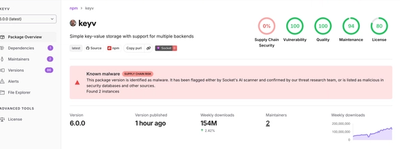
Popular npm packages keyv and cacheable compromised.
By Socket Research Team - Aug 04, 2026
google-sheets-mcp
Advanced tools
Your AI Assistant's Gateway to Google Sheets! 25 powerful tools for seamless Google Sheets automation via MCP
Powerful tools for automating Google Sheets using Model Context Protocol (MCP)
mcp-name: io.github.henilcalagiya/google-sheets-mcp
Google Sheets MCP Server provides seamless integration of Google Sheets with any MCP-compatible client. It enables full spreadsheet automation — including creating, reading, updating, and deleting sheets — through a simple and secure API layer.
uvxuv package manager (for uvx command)Install uv:
# macOS/Linux
curl -LsSf https://astral.sh/uv/install.sh | sh

# Windows PowerShell
irm https://astral.sh/uv/install.ps1 | iex
Step 1: Create a Google Cloud Project
Step 2: Enable Required APIs
Step 3: Create Service Account
Step 4: Generate JSON Key
Step 5: Extract Required Values Open the downloaded JSON file and note these values:
project_id (e.g., "my-sheets-automation-123456")private_key_id (e.g., "a4ae73111b11b2c3b07cc01006e71eb8230dfa29")private_key (the long private key starting with "-----BEGIN PRIVATE KEY-----")client_email (e.g., "sheets-mcp-service@my-sheets-automation-123456.iam.gserviceaccount.com")client_id (e.g., "113227823918217958816")client_x509_cert_url (e.g., "https://www.googleapis.com/robot/v1/metadata/x509/sheets-mcp-service%40my-sheets-automation-123456.iam.gserviceaccount.com")Example Google service account JSON structure:
{
  "type": "service_account",
  "project_id": "your-project-id",
  "private_key_id": "your-private-key-id",
  "private_key": "-----BEGIN PRIVATE KEY-----\n...\n-----END PRIVATE KEY-----\n",
  "client_email": "your-service@your-project.iam.gserviceaccount.com",
  "client_id": "your-client-id",
  "auth_uri": "https://accounts.google.com/o/oauth2/auth",
  "token_uri": "https://oauth2.googleapis.com/token",
  "auth_provider_x509_cert_url": "https://www.googleapis.com/oauth2/v1/certs",
  "client_x509_cert_url": "https://www.googleapis.com/robot/v1/metadata/x509/your-service%40your-project.iam.gserviceaccount.com"
}
{
  "mcpServers": {
    "google-sheets-mcp": {
      "command": "uvx",
      "args": ["google-sheets-mcp@latest"],
      "env": {
        "project_id": "your-project-id",
        "private_key_id": "your-private-key-id",
        "private_key": "-----BEGIN PRIVATE KEY-----\n...\n-----END PRIVATE KEY-----\n",
        "client_email": "your-service@your-project.iam.gserviceaccount.com",
        "client_id": "your-client-id",
        "client_x509_cert_url": "https://www.googleapis.com/robot/v1/metadata/x509/your-service%40your-project.iam.gserviceaccount.com"
      }
    }
  }
}
💡 Pro Tip: You can copy the values directly from your Google service account JSON file. The field names in the JSON file are used exactly as they are - no changes needed!
🔄 Backward Compatibility: The server also supports the old GOOGLE_ prefixed variable names (e.g., GOOGLE_PROJECT_ID) for existing configurations.
your-service@your-project.iam.gserviceaccount.com) and assign Editor access.🎉 You're all set! Your MCP client will automatically install and run the package when needed.
This project is licensed under the MIT License - see the LICENSE file for details.
Henil C Alagiya
Support & Contributions:
FAQs
Your AI Assistant's Gateway to Google Sheets! 25 powerful tools for seamless Google Sheets automation via MCP
The pypi package google-sheets-mcp receives a total of 37 weekly downloads. As such, google-sheets-mcp popularity was classified as not popular.
We found that google-sheets-mcp demonstrated a healthy version release cadence and project activity because the last version was released less than a year ago. It has 1 open source maintainer collaborating on the project.
Did you know?

Socket for GitHub automatically highlights issues in each pull request and monitors the health of all your open source dependencies. Discover the contents of your packages and block harmful activity before you install or update your dependencies.
Research
/Security News
Popular npm packages keyv and cacheable compromised.

Security News
A misconfiguration gave three Anthropic models internet access, and one, believing it was in a simulation, shipped a credential-stealing package to PyPI.

Security News
/Company News
Socket has joined the new Composer and Packagist sponsorship program as a launch sponsor, supporting the team that keeps PHP's package ecosystem secure.