


Security News
Federal Audit Finds NIST Wasted Funds With No Plan to Clear NVD Backlog
Federal audit finds NIST lacked a plan to clear the NVD backlog, wasted funds on duplicate work, and delayed use of CISA data.
By Sarah Gooding - Jun 03, 2026
markitdown-mcp
Advanced tools


The markitdown-mcp package provides a lightweight STDIO, Streamable HTTP, and SSE MCP server for calling MarkItDown.
It exposes one tool: convert_to_markdown(uri), where uri can be any http:, https:, file:, or data: URI.
To install the package, use pip:
pip install markitdown-mcp
To run the MCP server, using STDIO (default) use the following command:
markitdown-mcp
To run the MCP server, using Streamable HTTP and SSE use the following command:
markitdown-mcp --http --host 127.0.0.1 --port 3001
To run markitdown-mcp in Docker, build the Docker image using the provided Dockerfile:
docker build -t markitdown-mcp:latest .
And run it using:
docker run -it --rm markitdown-mcp:latest
This will be sufficient for remote URIs. To access local files, you need to mount the local directory into the container. For example, if you want to access files in /home/user/data, you can run:
docker run -it --rm -v /home/user/data:/workdir markitdown-mcp:latest
Once mounted, all files under data will be accessible under /workdir in the container. For example, if you have a file example.txt in /home/user/data, it will be accessible in the container at /workdir/example.txt.
It is recommended to use the Docker image when running the MCP server for Claude Desktop.
Follow these instrutions to access Claude's claude_desktop_config.json file.
Edit it to include the following JSON entry:
{
  "mcpServers": {
    "markitdown": {
      "command": "docker",
      "args": [
        "run",
        "--rm",
        "-i",
        "markitdown-mcp:latest"
      ]
    }
  }
}
If you want to mount a directory, adjust it accordingly:
{
  "mcpServers": {
    "markitdown": {
      "command": "docker",
      "args": [
	"run",
	"--rm",
	"-i",
	"-v",
	"/home/user/data:/workdir",
	"markitdown-mcp:latest"
      ]
    }
  }
}
To debug the MCP server you can use the mcpinspector tool.
npx @modelcontextprotocol/inspector
You can then connect to the insepctor through the specified host and port (e.g., http://localhost:5173/).
If using STDIO:
STDIO as the transport type,markitdown-mcp as the command, andConnectIf using Streamable HTTP:
Streamable HTTP as the transport type,http://127.0.0.1:3001/mcp as the URL, andConnectIf using SSE:
SSE as the transport type,http://127.0.0.1:3001/sse as the URL, andConnectFinally:
Tools tab,List Tools,convert_to_markdown, andThe server does not support authentication, and runs with the privileges if the user running it. For this reason, when running in SSE or Streamable HTTP mode, it is recommended to run the server bound to localhost (default).
This project may contain trademarks or logos for projects, products, or services. Authorized use of Microsoft trademarks or logos is subject to and must follow Microsoft's Trademark & Brand Guidelines. Use of Microsoft trademarks or logos in modified versions of this project must not cause confusion or imply Microsoft sponsorship. Any use of third-party trademarks or logos are subject to those third-party's policies.
FAQs
An MCP server for the "markitdown" library.
We found that markitdown-mcp demonstrated a healthy version release cadence and project activity because the last version was released less than a year ago. It has 2 open source maintainers collaborating on the project.
Did you know?

Socket for GitHub automatically highlights issues in each pull request and monitors the health of all your open source dependencies. Discover the contents of your packages and block harmful activity before you install or update your dependencies.
Security News
Federal audit finds NIST lacked a plan to clear the NVD backlog, wasted funds on duplicate work, and delayed use of CISA data.
Research
/Security News
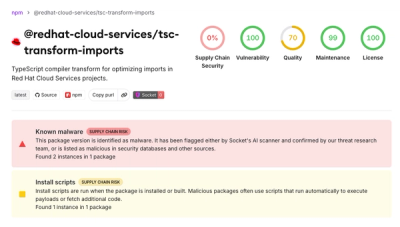
A mini Shai-Hulud campaign compromised Red Hat Cloud Services npm packages to steal developer and CI/CD secrets during installation.

Research
/Security News
The North Korean malware loader hides in a Packagist-listed package and its GitHub branch to fetch and execute remote code in a likely Contagious Interview-style lure.