Native audio

Native Audio
@capgo/native-audio
Capacitor plugin for playing sounds.






Capacitor Native Audio Plugin
Capacitor plugin for native audio engine.
Capacitor V7 - ✅ Support!
Support local file, remote URL, and m3u8 stream
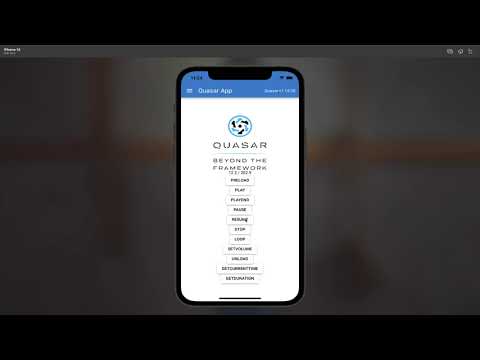
Click on video to see example 💥
Why Native Audio?
The only free, full-featured audio playback plugin for Capacitor:
- HLS/M3U8 streaming - Play live audio streams and adaptive bitrate content
- Remote URLs - Stream from HTTP/HTTPS sources with built-in caching
- Low-latency playback - Optimized native audio engine for sound effects and music
- Full control - Play, pause, resume, loop, seek, volume, playback rate
- Multiple channels - Play multiple audio files simultaneously
- Background playback - Continue playing when app is backgrounded
- Notification center display - Show audio metadata in iOS Control Center and Android notifications
- Position tracking - Real-time currentTime events (100ms intervals)
- Modern package management - Supports both Swift Package Manager (SPM) and CocoaPods (SPM-ready for Capacitor 8)
- Same JavaScript API - Compatible interface with paid alternatives
- Support player notification center - Play, pause, show cover for your user when long playing audio.
Perfect for music players, podcast apps, games, meditation apps, and any audio-heavy application.
Maintainers
Mainteinance Status: Actively Maintained
Preparation
All audio files must be with the rest of your source files.
First make your sound file end up in your built code folder, example in folder BUILDFOLDER/assets/sounds/FILENAME.mp3
Then use it in preload like that assets/sounds/FILENAME.mp3
Documentation
The most complete doc is available here: https://capgo.app/docs/plugins/native-audio/
Installation
To use npm
npm install @capgo/native-audio
To use yarn
yarn add @capgo/native-audio
Sync native files
npx cap sync
On iOS, Android and Web, no further steps are needed.
Swift Package Manager
You can also consume the iOS implementation via Swift Package Manager. In Xcode open File → Add Package…, point it at https://github.com/Cap-go/capacitor-native-audio.git, and select the CapgoNativeAudio library product. The package supports iOS 14 and newer alongside Capacitor 7.
Configuration
Optional HLS/m3u8 Streaming (Android)
By default, HLS streaming support is enabled for backward compatibility. However, it adds approximately 4MB to your Android APK size due to the media3-exoplayer-hls dependency.
If you don't need HLS/m3u8 streaming support, you can disable it to reduce your APK size:
import type { CapacitorConfig } from '@capacitor/cli';
const config: CapacitorConfig = {
appId: 'com.example.app',
appName: 'My App',
plugins: {
NativeAudio: {
hls: false
}
}
};
export default config;
After changing the configuration, run:
npx cap sync
Notes:
- iOS uses native AVPlayer for HLS, so this setting only affects Android
- If HLS is disabled and you try to play an
.m3u8 file, you'll get a clear error message explaining how to enable it
- The default is
hls: true to maintain backward compatibility
Supported methods
| configure | ✅ | ✅ | ❌ |
| preload | ✅ | ✅ | ✅ |
| play | ✅ | ✅ | ✅ |
| pause | ✅ | ✅ | ✅ |
| resume | ✅ | ✅ | ✅ |
| loop | ✅ | ✅ | ✅ |
| stop | ✅ | ✅ | ✅ |
| unload | ✅ | ✅ | ✅ |
| setVolume | ✅ | ✅ | ✅ |
| getDuration | ✅ | ✅ | ✅ |
| getCurrentTime | ✅ | ✅ | ✅ |
| isPlaying | ✅ | ✅ | ✅ |
Usage
Example repository
Notification Center Display (iOS & Android)
You can display audio playback information in the system notification center. This is perfect for music players, podcast apps, and any app that plays audio in the background.
⚠️ Important iOS Behavior
Enabling showNotification: true changes how your app's audio interacts with other apps on iOS:
- With notifications enabled (showNotification: true): Your audio will interrupt other apps' audio (like Spotify, Apple Music, etc.). This is required for Now Playing controls to appear in Control Center and on the lock screen.
- With notifications disabled (showNotification: false): Your audio will mix with other apps' audio, allowing background music to continue playing.
When to use each:
- ✅ Use
showNotification: true for: Music players, podcast apps, audiobook players (primary audio source)
- ❌ Use
showNotification: false for: Sound effects, notification sounds, secondary audio where mixing is preferred
See Issue #202 for technical details.
Step 1: Configure the plugin with notification support
import { NativeAudio } from '@capgo/native-audio'
await NativeAudio.configure({
showNotification: true,
background: true
});
Step 2: Preload audio with metadata
await NativeAudio.preload({
assetId: 'song1',
assetPath: 'https://example.com/song.mp3',
isUrl: true,
notificationMetadata: {
title: 'My Song Title',
artist: 'Artist Name',
album: 'Album Name',
artworkUrl: 'https://example.com/artwork.jpg'
}
});
Step 3: Play the audio
await NativeAudio.play({ assetId: 'song1' });
The notification will:
- Show the title, artist, and album information
- Display the artwork/album art (if provided)
- Include media controls (play/pause/stop buttons)
- Automatically update when audio is paused/resumed
- Automatically clear when audio is stopped
- Work on both iOS and Android
Media Controls:
Users can control playback directly from:
- iOS: Control Center, Lock Screen, CarPlay
- Android: Notification tray, Lock Screen, Android Auto
The media control buttons automatically handle:
- Play - Resumes paused audio
- Pause - Pauses playing audio
- Stop - Stops audio and clears the notification
Notes:
- All metadata fields are optional
- Artwork can be a local file path or remote URL
- The notification only appears when
showNotification: true is set in configure()
- ⚠️ iOS: Enabling notifications will interrupt other apps' audio (see warning above)
- iOS: Uses MPNowPlayingInfoCenter with MPRemoteCommandCenter
- Android: Uses MediaSession with NotificationCompat.MediaStyle
Android Background Playback @since 8.2.0
By default, Android apps pause audio when the app is backgrounded or the screen is locked. To enable continuous audio playback in the background (for meditation apps, music players, podcast players, etc.), use the backgroundPlayback flag.
⚠️ Important Android Requirements
To use background playback on Android, your app must meet these requirements:
- Declare the required permissions in
AndroidManifest.xml
- Start an Android Foreground Service with a media notification
- Configure the plugin with
backgroundPlayback: true
Step 1: Add required permissions to AndroidManifest.xml
<manifest xmlns:android="http://schemas.android.com/apk/res/android">
<uses-permission android:name="android.permission.FOREGROUND_SERVICE" />
<uses-permission android:name="android.permission.FOREGROUND_SERVICE_MEDIA_PLAYBACK" />
<uses-permission android:name="android.permission.WAKE_LOCK" />
<application>
</application>
</manifest>
Step 2: Configure the plugin with background playback enabled
import { NativeAudio } from '@capgo/native-audio';
await NativeAudio.configure({
backgroundPlayback: true,
showNotification: true,
focus: true
});
Step 3: Start a Foreground Service (your responsibility)
The plugin does NOT automatically create or manage the Android Foreground Service. You must create and start your own foreground service using a Capacitor plugin like @capacitor/local-notifications or a custom Android service.
Here's a conceptual example:
await NativeAudio.configure({
backgroundPlayback: true,
showNotification: true
});
await startForegroundService();
await NativeAudio.preload({
assetId: 'meditation',
assetPath: 'audio/meditation.mp3',
notificationMetadata: {
title: 'Meditation Session',
artist: 'Your App Name'
}
});
await NativeAudio.play({ assetId: 'meditation' });
Important timing notes:
- The foreground service should be started before the app enters the background
- Start the service immediately after configuring the audio plugin and before playing audio
- If the foreground service is not running, Android may still kill your audio playback
How it works:
- Without
backgroundPlayback: true: The plugin automatically pauses all audio when the app enters the background
- With
backgroundPlayback: true: The plugin skips automatic pause/resume, allowing continuous playback
Important notes:
- This flag is Android-only (iOS already supports background playback via AVAudioSession)
- You must start an Android Foreground Service separately (plugin does not handle this)
- Combine with
showNotification: true to display playback controls
- Starting Android 14+, foreground services require the
FOREGROUND_SERVICE_MEDIA_PLAYBACK permission type
Alternative approach:
If you need a complete solution including foreground service management, consider using a dedicated media playback plugin or implementing a custom Android service in your app's native code.
Play Once (Fire-and-Forget) @since 7.11.0
For simple one-shot audio playback (sound effects, notifications, etc.), use playOnce() which handles the entire asset lifecycle automatically:
await NativeAudio.playOnce({
assetPath: 'audio/notification.mp3',
});
await NativeAudio.playOnce({
assetPath: 'audio/beep.wav',
volume: 0.8,
});
await NativeAudio.playOnce({
assetPath: 'https://example.com/audio.mp3',
isUrl: true,
autoPlay: true,
notificationMetadata: {
title: 'Song Name',
artist: 'Artist Name',
}
});
await NativeAudio.playOnce({
assetPath: 'file:///path/to/temp-audio.wav',
deleteAfterPlay: true,
volume: 0.5,
});
Advanced: Manual Control
If you need to control playback timing, set autoPlay: false and use the returned assetId:
const { assetId } = await NativeAudio.playOnce({
assetPath: 'audio/sound.wav',
autoPlay: false,
});
await NativeAudio.play({ assetId });
await NativeAudio.stop({ assetId });
Key Features:
- ✅ Automatic asset loading and unloading
- ✅ Cleanup on completion or error
- ✅ Optional file deletion after playback
- ✅ Notification metadata support
- ✅ Works with local files and remote URLs
Notes:
- Assets are automatically cleaned up after playback completes or on error
deleteAfterPlay only works for local file:// URLs, not remote URLs- The returned
assetId can be used with play(), stop(), unload() methods
- Manual cleanup via
stop() or unload() is optional but supported
Example app
This repository now ships with an interactive Capacitor project under example/ that exercises the main APIs on web, iOS, and Android shells.
cd example
npm install
npm run dev
npm run sync
npm run ios
npm run android
The UI demonstrates local asset preloading, remote streaming, playback controls, looping, live position updates, and cache clearing for remote audio.
import {NativeAudio} from '@capgo/native-audio'
NativeAudio.preload({
assetId: "fire",
assetPath: "assets/sounds/fire.mp3",
audioChannelNum: 1,
isUrl: false
});
NativeAudio.play({
assetId: 'fire',
});
NativeAudio.loop({
assetId: 'fire',
});
NativeAudio.stop({
assetId: 'fire',
});
NativeAudio.unload({
assetId: 'fire',
});
NativeAudio.setVolume({
assetId: 'fire',
volume: 0.4,
});
NativeAudio.getDuration({
assetId: 'fire'
})
.then(result => {
console.log(result.duration);
})
NativeAudio.getCurrentTime({
assetId: 'fire'
});
.then(result => {
console.log(result.currentTime);
})
NativeAudio.isPlaying({
assetId: 'fire'
})
.then(result => {
console.log(result.isPlaying);
})
API
configure(...)
configure(options: ConfigureOptions) => Promise<void>
Configure the audio player
Since: 5.0.0
preload(...)
preload(options: PreloadOptions) => Promise<void>
Load an audio file
Since: 5.0.0
playOnce(...)
playOnce(options: PlayOnceOptions) => Promise<PlayOnceResult>
Play an audio file once with automatic cleanup
Method designed for simple, single-shot audio playback,
such as notification sounds, UI feedback, or other short audio clips
that don't require manual state management.
Key Features:
- Fire-and-forget: No need to manually preload, play, stop, or unload
- Auto-cleanup: Asset is automatically unloaded after playback completes
- Optional file deletion: Can delete local files after playback (useful for temp files)
- Returns assetId: Can still control playback if needed (pause, stop, etc.)
Use Cases:
- Notification sounds
- UI sound effects (button clicks, alerts)
- Short audio clips that play once
- Temporary audio files that should be cleaned up
Comparison with regular play():
play(): Requires manual preload, play, and unload stepsplayOnce(): Handles everything automatically with a single call
Returns: Promise<PlayOnceResult>
Since: 7.11.0
isPreloaded(...)
isPreloaded(options: PreloadOptions) => Promise<{ found: boolean; }>
Check if an audio file is preloaded
Returns: Promise<{ found: boolean; }>
Since: 6.1.0
play(...)
play(options: { assetId: string; time?: number; delay?: number; }) => Promise<void>
Play an audio file
options | { assetId: string; time?: number; delay?: number; } |
Since: 5.0.0
pause(...)
pause(options: Assets) => Promise<void>
Pause an audio file
Since: 5.0.0
resume(...)
resume(options: Assets) => Promise<void>
Resume an audio file
Since: 5.0.0
loop(...)
loop(options: Assets) => Promise<void>
Stop an audio file
Since: 5.0.0
stop(...)
stop(options: Assets) => Promise<void>
Stop an audio file
Since: 5.0.0
unload(...)
unload(options: Assets) => Promise<void>
Unload an audio file
Since: 5.0.0
setVolume(...)
setVolume(options: { assetId: string; volume: number; }) => Promise<void>
Set the volume of an audio file
options | { assetId: string; volume: number; } |
Since: 5.0.0
setRate(...)
setRate(options: { assetId: string; rate: number; }) => Promise<void>
Set the rate of an audio file
options | { assetId: string; rate: number; } |
Since: 5.0.0
setCurrentTime(...)
setCurrentTime(options: { assetId: string; time: number; }) => Promise<void>
Set the current time of an audio file
options | { assetId: string; time: number; } |
Since: 6.5.0
getCurrentTime(...)
getCurrentTime(options: { assetId: string; }) => Promise<{ currentTime: number; }>
Get the current time of an audio file
options | { assetId: string; } |
Returns: Promise<{ currentTime: number; }>
Since: 5.0.0
getDuration(...)
getDuration(options: Assets) => Promise<{ duration: number; }>
Get the duration of an audio file
Returns: Promise<{ duration: number; }>
Since: 5.0.0
isPlaying(...)
isPlaying(options: Assets) => Promise<{ isPlaying: boolean; }>
Check if an audio file is playing
Returns: Promise<{ isPlaying: boolean; }>
Since: 5.0.0
addListener('complete', ...)
addListener(eventName: 'complete', listenerFunc: CompletedListener) => Promise<PluginListenerHandle>
Listen for complete event
Returns: Promise<PluginListenerHandle>
Since: 5.0.0
return {@link CompletedEvent}
addListener('currentTime', ...)
addListener(eventName: 'currentTime', listenerFunc: CurrentTimeListener) => Promise<PluginListenerHandle>
Listen for current time updates
Emits every 100ms while audio is playing
Returns: Promise<PluginListenerHandle>
Since: 6.5.0
return {@link CurrentTimeEvent}
clearCache()
clearCache() => Promise<void>
Clear the audio cache for remote audio files
Since: 6.5.0
getPluginVersion()
getPluginVersion() => Promise<{ version: string; }>
Get the native Capacitor plugin version
Returns: Promise<{ version: string; }>
deinitPlugin()
deinitPlugin() => Promise<void>
Deinitialize the plugin and restore original audio session settings
This method stops all playing audio and reverts any audio session changes made by the plugin
Use this when you need to ensure compatibility with other audio plugins
Since: 7.7.0
Interfaces
ConfigureOptions
fade | boolean | Play the audio with Fade effect, only available for IOS | | |
focus | boolean | focus the audio with Audio Focus | | |
background | boolean | Play the audio in the background | | |
ignoreSilent | boolean | Ignore silent mode, works only on iOS setting this will nuke other audio apps | | |
showNotification | boolean | Show audio playback in the notification center (iOS and Android) When enabled, displays audio metadata (title, artist, album, artwork) in the system notification and Control Center (iOS) or lock screen. Important iOS Behavior: Enabling this option changes the audio session category to .playback with .default mode, which means your app's audio will interrupt other apps' audio (like background music from Spotify, Apple Music, etc.) instead of mixing with it. This is required for the Now Playing info to appear in Control Center and on the lock screen. Trade-offs: - showNotification: true → Shows Now Playing controls, but interrupts other audio - showNotification: false → Audio mixes with other apps, but no Now Playing controls Use this when your app is the primary audio source (music players, podcast apps, etc.). Disable this for secondary audio like sound effects or notification sounds where mixing with background music is preferred. | | |
backgroundPlayback | boolean | Enable background audio playback (Android only) When enabled, audio will continue playing when the app is backgrounded or the screen is locked. The plugin will skip the automatic pause/resume logic that normally occurs when the app enters the background or returns to the foreground. Important Android Requirements: To use background playback on Android, your app must: 1. Declare the required permissions in AndroidManifest.xml: - <uses-permission android:name="android.permission.FOREGROUND_SERVICE" /> - <uses-permission android:name="android.permission.FOREGROUND_SERVICE_MEDIA_PLAYBACK" /> - <uses-permission android:name="android.permission.WAKE_LOCK" /> 2. Start a Foreground Service with a media-style notification before backgrounding (the plugin does not automatically create or manage the foreground service) 3. Use showNotification: true to display playback controls in the notification Usage Example: typescript await NativeAudio.configure({ backgroundPlayback: true, showNotification: true }); // Start your foreground service here // Then preload and play audio as normal | false | 8.2.0 |
PreloadOptions
assetPath | string | Path to the audio file, relative path of the file, absolute url (file://) or remote url (https://) Supported formats: - MP3, WAV (all platforms) - M3U8/HLS streams (iOS and Android) | |
assetId | string | Asset Id, unique identifier of the file | |
volume | number | Volume of the audio, between 0.1 and 1.0 | |
audioChannelNum | number | Audio channel number, default is 1 | |
isUrl | boolean | Is the audio file a URL, pass true if assetPath is a file:// url or a streaming URL (m3u8) | |
notificationMetadata | NotificationMetadata | Metadata to display in the notification center when audio is playing. Only used when showNotification: true is set in configure(). See {@link ConfigureOptions.showNotification} for important details about how this affects audio mixing behavior on iOS. | |
headers | Record<string, string> | Custom HTTP headers to include when fetching remote audio files. Only used when isUrl is true and assetPath is a remote URL (http/https). Example: { 'x-api-key': 'abc123', 'Authorization': 'Bearer token' } | 7.10.0 |
NotificationMetadata
Metadata to display in the notification center, Control Center (iOS), and lock screen
when showNotification is enabled in configure().
Note: This metadata will only be displayed if showNotification: true is set in the
configure() method. See {@link ConfigureOptions.showNotification} for important
behavior details about audio mixing on iOS.
title | string | The title to display in the notification center |
artist | string | The artist name to display in the notification center |
album | string | The album name to display in the notification center |
artworkUrl | string | URL or local path to the artwork/album art image |
PlayOnceResult
assetId | string | The internally generated asset ID for this playback Can be used to control playback (pause, stop, etc.) before completion |
PlayOnceOptions
assetPath | string | Path to the audio file, relative path of the file, absolute url (file://) or remote url (https://) Supported formats: - MP3, WAV (all platforms) - M3U8/HLS streams (iOS and Android) | | |
volume | number | Volume of the audio, between 0.1 and 1.0 | 1.0 | |
isUrl | boolean | Is the audio file a URL, pass true if assetPath is a file:// url or a streaming URL (m3u8) | false | |
autoPlay | boolean | Automatically start playback after loading | true | |
deleteAfterPlay | boolean | Delete the audio file from disk after playback completes Only works for local files (file:// URLs), ignored for remote URLs | false | 7.11.0 |
notificationMetadata | NotificationMetadata | Metadata to display in the notification center when audio is playing. Only used when showNotification: true is set in configure(). See {@link ConfigureOptions.showNotification} for important details about how this affects audio mixing behavior on iOS. | | 7.10.0 |
headers | Record<string, string> | Custom HTTP headers to include when fetching remote audio files. Only used when isUrl is true and assetPath is a remote URL (http/https). Example: { 'x-api-key': 'abc123', 'Authorization': 'Bearer token' } | | 7.10.0 |
Assets
assetId | string | Asset Id, unique identifier of the file |
PluginListenerHandle
remove | () => Promise<void> |
CompletedEvent
assetId | string | Emit when a play completes | 5.0.0 |
CurrentTimeEvent
currentTime | number | Current time of the audio in seconds | 6.5.0 |
assetId | string | Asset Id of the audio | 6.5.0 |
Type Aliases
Record
Construct a type with a set of properties K of type T
{
[P in K]: T;
}
CompletedListener
(state: CompletedEvent): void
CurrentTimeListener
(state: CurrentTimeEvent): void
Development and Testing
Building
npm run build
Testing
This plugin includes a comprehensive test suite for iOS:
- Open the iOS project in Xcode:
npx cap open ios
- Navigate to the
PluginTests directory
- Run tests using Product > Test (⌘+U)
The tests cover core functionality including audio asset initialization, playback, volume control, fade effects, and more. See the test documentation for more details.