

Security News
Happy Birthday, Shai-Hulud
It has been one year since Shai-Hulud made its first appearance on npm.
By Sarah Gooding - Sep 18, 2026
@colinarms/easymde
Advanced tools
A simple, beautiful, and embeddable JavaScript Markdown editor that easy to use. Features include autosaving and spell checking.



This repository is a fork of SimpleMDE, made by Sparksuite. Go to the dedicated section for more information.
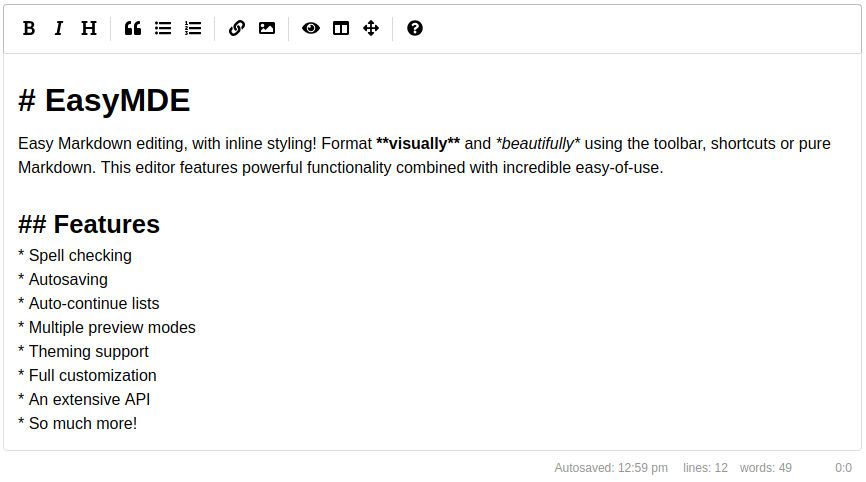
A drop-in JavaScript text area replacement for writing beautiful and understandable Markdown. EasyMDE allows users who may be less experienced with Markdown to use familiar toolbar buttons and shortcuts.
In addition, the syntax is rendered while editing to clearly show the expected result. Headings are larger, emphasized words are italicized, links are underlined, etc.
EasyMDE also features both built-in auto saving and spell checking. The editor is entirely customizable, from theming to toolbar buttons and javascript hooks.
Via npm:
npm install easymde --save
Via the UNPKG CDN:
<link rel="stylesheet" href="https://unpkg.com/easymde/dist/easymde.min.css">
<script src="https://unpkg.com/easymde/dist/easymde.min.js"></script>
After installing and/or importing the module, you can load EasyMDE onto the first TextArea on the web page:
<textarea></textarea>
<script>
var easyMDE = new EasyMDE();
</script>
Alternatively you can select a specific TextArea, via Javascript:
<textarea id="my-text-area"></textarea>
<script>
var easyMDE = new EasyMDE({element: document.getElementById('my-text-area')});
</script>
Or via jQuery:
<textarea id="my-text-area"></textarea>
<script>
var easyMDE = new EasyMDE({element: $('#my-text-area')[0]});
</script>
Use EasyMDE.value() to get the content of the editor:
<script>
easyMDE.value();
</script>
Use EasyMDE.value(val) to set the content of the editor:
<script>
easyMDE.value('New input for **EasyMDE**');
</script>
true, force downloads Font Awesome (used for icons). If set to false, prevents downloading. Defaults to undefined, which will intelligently check whether Font Awesome has already been included, then download accordingly.true, focuses the editor automatically. Defaults to false.true, saves the text automatically. Defaults to false.10000 (10s).** or __. Defaults to **.``` or ~~~. Defaults to ```.* or _. Defaults to *.true, force text changes made in EasyMDE to be immediately stored in original text area. Defaults to false.false, indent using spaces instead of tabs. Defaults to true.["[", "](http://)"].
false, disable line wrapping. Defaults to true."500px". Defaults to "300px".true when the editor is currently going into full screen mode, or false.true, will render headers without a space after the #. Defaults to false.false, will not process GFM strikethrough syntax. Defaults to true.true, let underscores be a delimiter for separating words. Defaults to false."editor-preview".true, a JS alert window appears asking for the link or image URL. Defaults to false.URL of the image:.URL for the link:.true, enables the image upload functionality, which can be triggered by drag&drop, copy-paste and through the browse-file window (opened when the user click on the upload-image icon). Defaults to false.1024*1024*2 (2Mb).image/png, image/jpeg.imageMaxSize, imageAccept, imageUploadEndpoint and imageCSRFToken ineffective.
onSuccess(imageUrl: string) and onError(errorMessage: string){"data": {"filePath": "<filePath>"}} where filePath is the relative path of the image;{"error": "<errorCode>"}, where errorCode can be noFileGiven (HTTP 400), typeNotAllowed (HTTP 415), fileTooLarge (HTTP 413) or importError (see errorMessages below). If errorCode is not one of the errorMessages, it is alerted unchanged to the user. This allows for server side error messages.
No default value.#image_name#, #image_size# and #image_max_size# will replaced by their respective values, that can be used for customization or internationalization:
uploadImage is set to true. Defaults to Attach files by drag and dropping or pasting from clipboard..Drop image to upload it..Uploading images #images_names#.Uploading #file_name#: #progress#%.Uploaded #image_name#.b,Kb,Mb.errorCallback option, where #image_name#, #image_size# and #image_max_size# will replaced by their respective values, that can be used for customization or internationalization:
You must select a file..imageAccept list, or the server returned this error code. Defaults to This image type is not allowed..imageMaxSize, or if the server returned this error code. Defaults to Image #image_name# is too big (#image_size#).\nMaximum file size is #image_max_size#..Something went wrong when uploading the image #image_name#..function(errorMessage) {alert(errorMessage);};.true, will highlight using highlight.js. Defaults to false. To use this feature you must include highlight.js on your page or pass in using the hljs option. For example, include the script and the CSS files like:<script src="https://cdn.jsdelivr.net/highlight.js/latest/highlight.min.js"></script><link rel="stylesheet" href="https://cdn.jsdelivr.net/highlight.js/latest/styles/github.min.css">window.hljs), you can provide an instance here. Defaults to undefined.renderingConfig options will take precedence.false, disable parsing GFM single line breaks. Defaults to true.false, disable the spell checker. Defaults to true.false, hide the status bar. Defaults to the array of built-in status bar items.
false, remove the CodeMirror-selectedtext class from selected lines. Defaults to true.false, disable syncing scroll in side by side mode. Defaults to true.2.easymde.false, hide the toolbar. Defaults to the array of icons.false, disable toolbar button tips. Defaults to true.Most options demonstrate the non-default behavior:
var editor = new EasyMDE({
autofocus: true,
autosave: {
enabled: true,
uniqueId: "MyUniqueID",
delay: 1000,
},
blockStyles: {
bold: "__",
italic: "_",
},
element: document.getElementById("MyID"),
forceSync: true,
hideIcons: ["guide", "heading"],
indentWithTabs: false,
initialValue: "Hello world!",
insertTexts: {
horizontalRule: ["", "\n\n-----\n\n"],
image: [""],
link: ["[", "](http://)"],
table: ["", "\n\n| Column 1 | Column 2 | Column 3 |\n| -------- | -------- | -------- |\n| Text | Text | Text |\n\n"],
},
lineWrapping: false,
minHeight: "500px",
parsingConfig: {
allowAtxHeaderWithoutSpace: true,
strikethrough: false,
underscoresBreakWords: true,
},
placeholder: "Type here...",
previewClass: "my-custom-styling",
previewClass: ["my-custom-styling", "more-custom-styling"],
previewRender: function(plainText) {
return customMarkdownParser(plainText); // Returns HTML from a custom parser
},
previewRender: function(plainText, preview) { // Async method
setTimeout(function(){
preview.innerHTML = customMarkdownParser(plainText);
}, 250);
return "Loading...";
},
promptURLs: true,
promptTexts: {
image: "Custom prompt for URL:",
link: "Custom prompt for URL:",
},
renderingConfig: {
singleLineBreaks: false,
codeSyntaxHighlighting: true,
},
shortcuts: {
drawTable: "Cmd-Alt-T"
},
showIcons: ["code", "table"],
spellChecker: false,
status: false,
status: ["autosave", "lines", "words", "cursor"], // Optional usage
status: ["autosave", "lines", "words", "cursor", {
className: "keystrokes",
defaultValue: function(el) {
this.keystrokes = 0;
el.innerHTML = "0 Keystrokes";
},
onUpdate: function(el) {
el.innerHTML = ++this.keystrokes + " Keystrokes";
},
}], // Another optional usage, with a custom status bar item that counts keystrokes
styleSelectedText: false,
syncSideBySidePreviewScroll: false,
tabSize: 4,
toolbar: false,
toolbarTips: false,
});
Below are the built-in toolbar icons (only some of which are enabled by default), which can be reorganized however you like. "Name" is the name of the icon, referenced in the JS. "Action" is either a function or a URL to open. "Class" is the class given to the icon. "Tooltip" is the small tooltip that appears via the title="" attribute. Note that shortcut hints are added automatically and reflect the specified action if it has a key bind assigned to it (i.e. with the value of action set to bold and that of tooltip set to Bold, the final text the user will see would be "Bold (Ctrl-B)").
Additionally, you can add a separator between any icons by adding "|" to the toolbar array.
| Name | Action | Tooltip Class |
|---|---|---|
| bold | toggleBold | Bold fa fa-bold |
| italic | toggleItalic | Italic fa fa-italic |
| strikethrough | toggleStrikethrough | Strikethrough fa fa-strikethrough |
| heading | toggleHeadingSmaller | Heading fa fa-header |
| heading-smaller | toggleHeadingSmaller | Smaller Heading fa fa-header |
| heading-bigger | toggleHeadingBigger | Bigger Heading fa fa-lg fa-header |
| heading-1 | toggleHeading1 | Big Heading fa fa-header header-1 |
| heading-2 | toggleHeading2 | Medium Heading fa fa-header header-2 |
| heading-3 | toggleHeading3 | Small Heading fa fa-header header-3 |
| code | toggleCodeBlock | Code fa fa-code |
| quote | toggleBlockquote | Quote fa fa-quote-left |
| unordered-list | toggleUnorderedList | Generic List fa fa-list-ul |
| ordered-list | toggleOrderedList | Numbered List fa fa-list-ol |
| clean-block | cleanBlock | Clean block fa fa-eraser |
| link | drawLink | Create Link fa fa-link |
| image | drawImage | Insert Image fa fa-picture-o |
| table | drawTable | Insert Table fa fa-table |
| horizontal-rule | drawHorizontalRule | Insert Horizontal Line fa fa-minus |
| preview | togglePreview | Toggle Preview fa fa-eye no-disable |
| side-by-side | toggleSideBySide | Toggle Side by Side fa fa-columns no-disable no-mobile |
| fullscreen | toggleFullScreen | Toggle Fullscreen fa fa-arrows-alt no-disable no-mobile |
| guide | This link | Markdown Guide fa fa-question-circle |
Customize the toolbar using the toolbar option.
Only the order of existing buttons:
var easyMDE = new EasyMDE({
	toolbar: ["bold", "italic", "heading", "|", "quote"]
});
All information and/or add your own icons
var easyMDE = new EasyMDE({
	toolbar: [{
			name: "bold",
			action: EasyMDE.toggleBold,
			className: "fa fa-bold",
			title: "Bold",
		},
		{
			name: "custom",
			action: function customFunction(editor){
				// Add your own code
			},
			className: "fa fa-star",
			title: "Custom Button",
		},
		"|" // Separator
		// [, ...]
	]
});
EasyMDE comes with an array of predefined keyboard shortcuts, but they can be altered with a configuration option. The list of default ones is as follows:
| Shortcut (Windows / Linux) | Shortcut (macOS) | Action |
|---|---|---|
| Ctrl-' | Cmd-' | "toggleBlockquote" |
| Ctrl-B | Cmd-B | "toggleBold" |
| Ctrl-E | Cmd-E | "cleanBlock" |
| Ctrl-H | Cmd-H | "toggleHeadingSmaller" |
| Ctrl-I | Cmd-I | "toggleItalic" |
| Ctrl-K | Cmd-K | "drawLink" |
| Ctrl-L | Cmd-L | "toggleUnorderedList" |
| Ctrl-P | Cmd-P | "togglePreview" |
| Ctrl-Alt-C | Cmd-Alt-C | "toggleCodeBlock" |
| Ctrl-Alt-I | Cmd-Alt-I | "drawImage" |
| Ctrl-Alt-L | Cmd-Alt-L | "toggleOrderedList" |
| Shift-Ctrl-H | Shift-Cmd-H | "toggleHeadingBigger" |
| F9 | F9 | "toggleSideBySide" |
| F11 | F11 | "toggleFullScreen" |
Here is how you can change a few, while leaving others untouched:
var editor = new EasyMDE({
	shortcuts: {
		"toggleOrderedList": "Ctrl-Alt-K", // alter the shortcut for toggleOrderedList
		"toggleCodeBlock": null, // unbind Ctrl-Alt-C
		"drawTable": "Cmd-Alt-T", // bind Cmd-Alt-T to drawTable action, which doesn't come with a default shortcut
	}
});
Shortcuts are automatically converted between platforms. If you define a shortcut as "Cmd-B", on PC that shortcut will be changed to "Ctrl-B". Conversely, a shortcut defined as "Ctrl-B" will become "Cmd-B" for Mac users.
The list of actions that can be bound is the same as the list of built-in actions available for toolbar buttons.
You can catch the following list of events: https://codemirror.net/doc/manual.html#events
var easyMDE = new EasyMDE();
easyMDE.codemirror.on("change", function(){
	console.log(easyMDE.value());
});
You can revert to the initial text area by calling the toTextArea method. Note that this clears up the autosave (if enabled) associated with it. The text area will retain any text from the destroyed EasyMDE instance.
var easyMDE = new EasyMDE();
// ...
easyMDE.toTextArea();
easyMDE = null;
The following self-explanatory methods may be of use while developing with EasyMDE.
var easyMDE = new EasyMDE();
easyMDE.isPreviewActive(); // returns boolean
easyMDE.isSideBySideActive(); // returns boolean
easyMDE.isFullscreenActive(); // returns boolean
easyMDE.clearAutosavedValue(); // no returned value
EasyMDE is a continuation of SimpleMDE.
SimpleMDE began as an improvement of lepture's Editor project, but has now taken on an identity of its own. It is bundled with CodeMirror and depends on Font Awesome.
CodeMirror is the backbone of the project and parses much of the Markdown syntax as it's being written. This allows us to add styles to the Markdown that's being written. Additionally, a toolbar and status bar have been added to the top and bottom, respectively. Previews are rendered by Marked using GFM.
I originally made this fork to implement FontAwesome 5 compatibility into SimpleMDE. When that was done I submitted a pull request, which has not been accepted yet. This, and the project being inactive since May 2017, triggered me to make more changes and try to put new life into the project.
Changes include:
https:// by defaultMy intention is to continue development on this project, improving it and keeping it alive.
You may want to edit this library to adapt its behavior to your needs. This can be done in some quick steps:
gulp command, which will generate files: dist/easymde.min.css and dist/easymde.min.js;Want to contribute to EasyMDE? Thank you! We have a contribution guide just for you!
This project is released under the MIT License.
FAQs
A simple, beautiful, and embeddable JavaScript Markdown editor that easy to use. Features include autosaving and spell checking.
The npm package @colinarms/easymde receives a total of 1 weekly downloads. As such, @colinarms/easymde popularity was classified as not popular.
We found that @colinarms/easymde demonstrated a not healthy version release cadence and project activity because the last version was released a year ago. It has 1 open source maintainer collaborating on the project.
Security News
It has been one year since Shai-Hulud made its first appearance on npm.
Research
/Security News
Operators behind PolinRider used a compromised GitHub account to plant malware in four development versions of a Packagist package with 700,000+ downloads.
Security News
GitHub Actions now supports cache-mode, a least-privilege control on the Actions cache aimed at the cache poisoning technique behind recent compromises.