

Security News
vlt 1.5.0 Adds Agent Skills Management
vlt 1.5.0 links skills from JavaScript dependencies to coding agents, with lockfile versioning and Socket data to filter out known malicious packages.
By Sarah Gooding - Oct 21, 2026
@getaktar/cli
Advanced tools
Upload files to your own S3, R2 or B2 bucket from the terminal through the Aktar app, and get the link.

Upload files to your own S3, Cloudflare R2 or Backblaze B2 bucket from the terminal, and get the link.


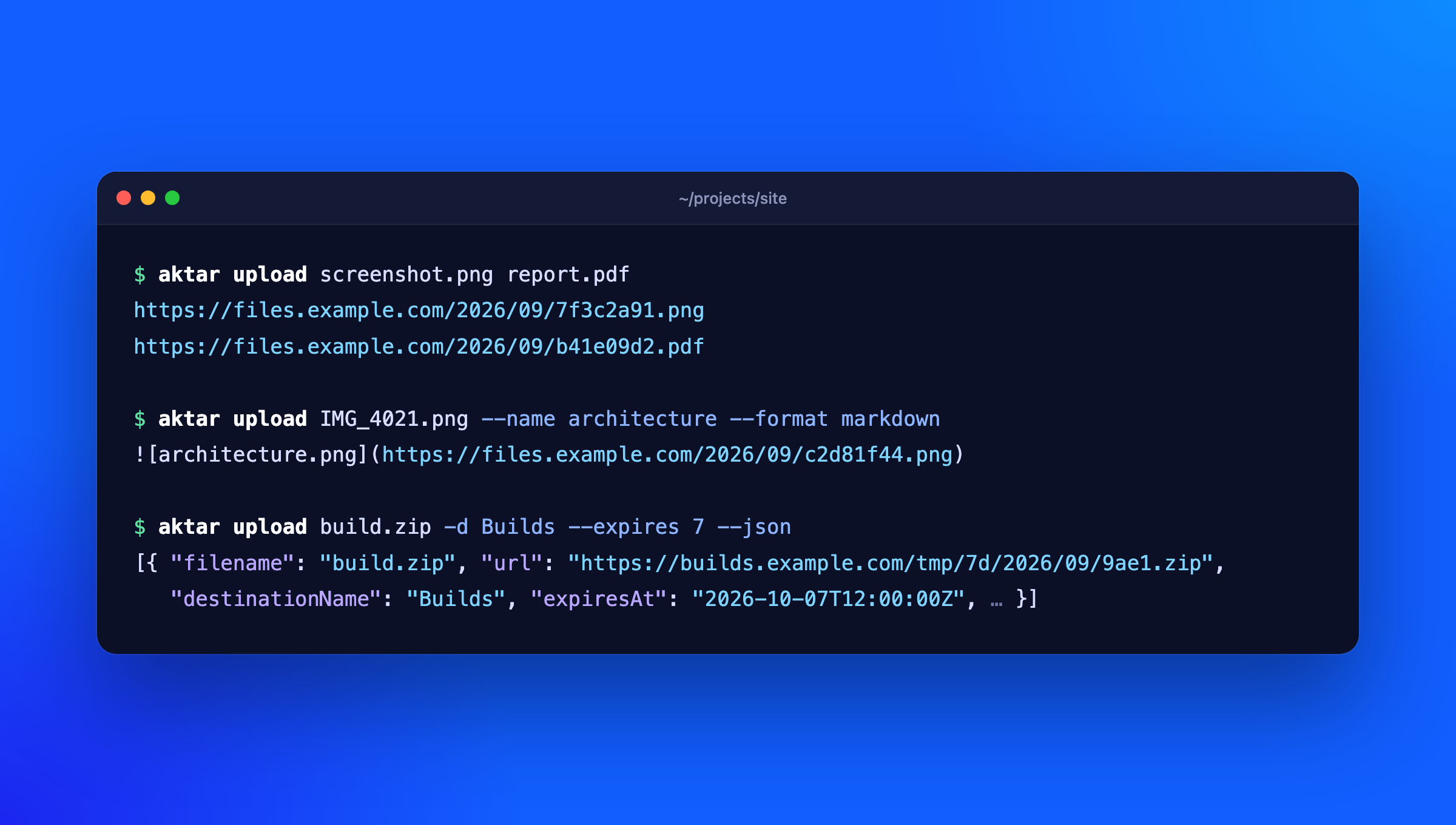
The aktar command talks to the Aktar app on your Mac or Windows PC, so it uses the destinations, keys, path templates and link settings you already set up there. Your storage keys never leave the app.
$ aktar upload screenshot.png
https://files.example.com/2026/09/7f3c2a91.png
npm install -g @getaktar/cli
# or
brew install getaktar/tap/aktar-cli
Or run it without installing: npx @getaktar/cli upload file.png.
Requires Node.js 18 or later and Aktar for Mac 0.4.0 or later, or Aktar for Windows.
aktar login
and paste the token when asked. It's checked against Aktar and saved to ~/.config/aktar/cli.json (%APPDATA%\aktar\cli.json on Windows), readable only by you. You can also pipe it in (pbpaste | aktar login) or set AKTAR_TOKEN (and AKTAR_PORT if you changed the port) instead.
aktar upload report.pdf                     # prints the link
aktar upload *.png -f markdown              # one Markdown image per file
aktar upload build.zip -d Builds            # pick a destination by name or ID
aktar upload notes.txt --folder docs/2026   # keep the name, upload into a folder
aktar upload IMG_4021.jpg --name cover      # upload as cover.jpg
aktar upload log.txt --expires 7            # delete after 7 days
aktar upload --clipboard                    # the file or image on the clipboard
aktar upload demo.mp4 --qr                  # the link and a QR code to open it on your phone
aktar upload photo.jpg --json               # full details as JSON

aktar status                                # which Aktar and destination you're connected to
aktar destinations                          # list destinations (* marks the selected one)
aktar history invoice -n 5                  # search recent uploads
aktar qr https://example.com                # a QR code of any link or text
aktar qr 0B6C2F8E-3D1A-4C55-9E2B-7A41D0C3E9F1  # a QR code of an upload in history
Without -d, files go to the destination selected in Aktar's menu bar. Uploads show up in Aktar's history like any other.
--format chooses what's printed: url (default), markdown, html, or custom (your template from Aktar). --expires takes 1, 7, 14 or 30 days and needs Aktar's auto-delete rules on that destination; without it, files are kept.
--name uploads a single file under another name: it's what {filename} and {ext} in the destination's path template become, and what Aktar's history shows. If the name has no extension, the file's own is added (--name cover uploads IMG_4021.jpg as cover.jpg); if it has one, it's used as given. With --folder, it's the name inside the folder.
If the same file (same contents, destination and expiry) is already in the bucket, Aktar doesn't upload it again and gives you the existing link. aktar prints the link as usual and notes it on stderr (aktar: photo.jpg: already uploaded, reused the existing link), so scripts reading stdout still get one link per file. This needs Aktar for Mac 0.10.0 or Windows 0.3.0.
aktar upload --qr prints a QR code under each link, so you can open it on your phone. The QR code is always of the link itself, whatever --format prints. It's drawn black on white in the terminal, whatever its theme; when the output isn't a terminal, or NO_COLOR is set, it's drawn without colors (light modules as blocks), which phone cameras read on a light or dark background. --qr can't be combined with --json.
aktar qr <text> shows the QR code of any link or text; quote text with spaces. Given an upload ID from aktar history --json, it shows that upload's link and its QR code. --png <file> saves the QR code as a PNG instead:
aktar qr https://files.example.com/2026/09/7f3c2a91.png --png link.png
The app does the work per destination, so the CLI needs nothing extra for it:
{md5} and {sha256} in path templates, to name files by their contentsaktar streams the file to the app, so its size doesn't matterThe link aktar prints is the one for the file as stored, after any conversion.
aktar upload --json prints an array with one entry per uploaded file:
[
  {
    "id": "0B6C…",
    "filename": "photo.jpg",
    "objectKey": "2026/09/7f3c2a91.jpg",
    "url": "https://files.example.com/2026/09/7f3c2a91.jpg",
    "destinationId": "5D1A…",
    "destinationName": "Screenshots",
    "mimeType": "image/jpeg",
    "size": 482113,
    "createdAt": "2026-09-30T12:00:00Z",
    "expiresAt": null,
    "formats": { "url": "…", "markdown": "…", "html": "…", "custom": "…" },
    "reused": false
  }
]
reused is true when nothing was uploaded because the file was already there; older versions of Aktar leave it out.
| Code | Meaning |
|---|---|
| 0 | Everything worked |
| 1 | At least one upload or request failed (the others still went through) |
| 2 | Bad arguments, or a file that doesn't exist (nothing was uploaded) |
| 3 | Not logged in, Aktar isn't running, its local API is off, or the token is wrong |
In Typora, open Settings > Image > Image Upload, choose Custom Command and enter:
aktar upload
Typora passes the image paths and reads one link per line. Click Test Uploader to check it.
brew install getaktar/tap/aktar-cliMIT
FAQs
Upload files to your own S3, R2 or B2 bucket from the terminal or an AI agent (MCP) through the Aktar app, and get the link.
The npm package @getaktar/cli receives a total of 0 weekly downloads. As such, @getaktar/cli popularity was classified as not popular.
We found that @getaktar/cli demonstrated a healthy version release cadence and project activity because the last version was released less than a year ago. It has 1 open source maintainer collaborating on the project.
Security News
vlt 1.5.0 links skills from JavaScript dependencies to coding agents, with lockfile versioning and Socket data to filter out known malicious packages.

Security News
Rust 1.100 will add opt-in dependency cooldowns to Cargo, giving security scanners and maintainers time to catch malicious crate releases.

Security News
Cloudflare is acquiring Deno’s team, which will provide another year of bug fixes and security updates before ending support for the runtime.