
Company News
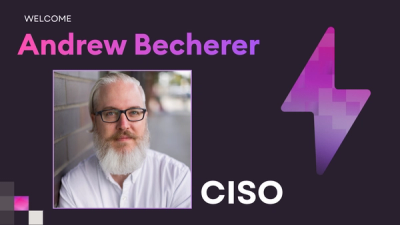
Andrew Becherer Joins Socket as Chief Information Security Officer
Socket’s first CISO brings deep experience securing high-growth SaaS companies as open source supply chain threats accelerate.
By Sarah Gooding - Jun 11, 2026
@lethevimlet/sshift
Advanced tools






A modern, responsive web-based SSH and SFTP terminal client built with Node.js, Express, and xterm.js. Designed for the AI coding workflow — featuring tab flash notifications that alert you when AI tools like OpenCode or Claude are waiting for your input, so you never miss a prompt while multitasking. Also features excellent TUI support, tabbed sessions, bookmarks, and mobile-friendly design.


Linux/macOS:
curl -fsSL https://raw.githubusercontent.com/lethevimlet/sshift/main/sshift-install.sh | bash
Windows PowerShell (Admin):
Invoke-Expression (Invoke-WebRequest -Uri "https://raw.githubusercontent.com/lethevimlet/sshift/main/sshift-install.ps1" -UseBasicParsing).Content
The installer handles Node.js, npm, autostart, and HTTPS config automatically. The application will be available at https://localhost:8022
Alternatively, install globally via npm:
npm install -g @lethevimlet/sshift
sshift
Note: When installing via npm, you'll need to configure autostart yourself (e.g., systemd, launchd, or Task Scheduler).
Full documentation is available at GitHub Pages.
The recommended way to install sshift - automatically handles updates and autostart configuration:
Linux/macOS:
curl -fsSL https://raw.githubusercontent.com/lethevimlet/sshift/main/sshift-install.sh | bash
Windows PowerShell (Admin):
Invoke-Expression (Invoke-WebRequest -Uri "https://raw.githubusercontent.com/lethevimlet/sshift/main/sshift-install.ps1" -UseBasicParsing).Content
Note: The Windows installer requires PowerShell to be run as Administrator for npm global installations.
The installer will:
~/.local/share/sshift/.env/config.json with HTTPS enableddocker run -d -p 8022:8022 --name sshift ghcr.io/lethevimlet/sshift:latest
# Or with docker-compose
curl -O https://raw.githubusercontent.com/lethevimlet/sshift/main/docker/docker-compose.yml
docker-compose up -d
See Docker README for detailed instructions.
npm install -g @lethevimlet/sshift
sshift
git clone https://github.com/lethevimlet/sshift.git
cd sshift
npm install
npm start
sshift                      Start server on default port (8022)
sshift --dev                Start in development mode (port 3000, separate PID)
sshift --port 8080          Start server on custom port
sshift --bind 127.0.0.1     Bind to specific address
sshift --status             Check if sshift is running
sshift --stop               Stop running instance
sshift --restart            Restart running instance
sshift --dev --status       Check if dev instance is running
sshift --dev --stop         Stop dev instance
sshift --dev --restart      Restart dev instance
sshift --help               Show help message
| Flag | Shorthand | Description |
|---|---|---|
--port <port> | -p | Server port (default: 8022, dev: 3000) |
--bind <addr> | -b | Bind address (default: 0.0.0.0) |
--dev | -d | Development mode — uses devPort from config (default 3000) and a separate PID file so dev and production instances can run side-by-side |
--stop | -s | Stop running instance |
--restart | -r | Restart running instance |
--status | Check running status | |
--help | -h | Show help message |
Note:
--devsetsNODE_ENV=development, which switches the default port from 8022 to 3000 (ordevPortfromconfig.json). It also uses a separate PID file (.sshift-dev.pid) so you can run a dev instance alongside production and use--dev --status/--dev --stop/--dev --restartto manage it independently.
SSHIFT uses a priority-based configuration system. Config files are searched in order; the first match wins.
| Priority | Path | Notes |
|---|---|---|
| 1 | <PACKAGE_DIR>/.env/config.json | NPM package directory |
| 2 | <PACKAGE_DIR>/config.json | NPM package root (fallback) |
| 3 | ~/.local/share/sshift/.env/config.json | User install location |
| 4 | ~/.local/share/sshift/config.json | User install (no .env subdir) |
--port CLI argument (highest priority)PORT environment variableconfig.json devPort (when NODE_ENV=development or --dev)config.json port (production)--bind CLI argumentBIND environment variableconfig.json bind setting0.0.0.0See Configuration for details.
When accessing sshift from a LAN IP (e.g., https://192.168.1.50:8022), browsers show "Not Secure" warnings because the self-signed certificate is not trusted. This also blocks PWA installation, which requires a trusted secure context.
sshift automatically generates a self-signed TLS certificate on first run. The simplest fix is to add this certificate to your device's trusted root store:
https://<your-sshift-host>:8022/api/cert in your browser, or find it at ~/.local/share/sshift/ssl-cert.pem on the server/usr/local/share/ca-certificates/ and run sudo update-ca-certificatesAfter trusting the certificate, the "Not Secure" warning will disappear and PWA installation will work.
You can provide your own TLS certificate via config.json:
{
  "enableHttps": true,
  "certPath": "/path/to/your/certificate.pem",
  "keyPath": "/path/to/your/private-key.pem"
}
Both certPath and keyPath must be set together. See Configuration > HTTPS on Local Network for full instructions including nginx reverse proxy and mDNS options.
By default, sshift automatically redirects any plain HTTP requests to HTTPS on the same port — so visiting http://192.168.1.50:8022 seamlessly upgrades to https://. This is controlled by the httpRedirect setting (enabled by default). To disable it:
{
  "enableHttps": true,
  "httpRedirect": false
}
SSHIFT includes built-in plugins that detect when AI coding tools are waiting for user input and flash the browser tab to get your attention — perfect for when you're multitasking across tabs.
Detects when OpenCode is waiting for input by tracking its spinner characters (⬝ ■ ▣) and prompt patterns. When the spinner stops or a prompt appears, the tab flashes.
Detects when Claude Code is waiting for input by tracking its spinner characters (⠋⠙⠹ braille patterns, ·✢✳✶✻✽) and prompt patterns like "❯", "Do you want", "Allow", and "Esc to cancel".
Add plugins to your config.json:
{
  "plugins": [
    {
      "name": "opencode-attention",
      "enabled": true,
      "config": {
        "debounceMs": 300,
        "flashDuration": 0,
        "idleThreshold": 3000
      }
    },
    {
      "name": "claude-attention",
      "enabled": true,
      "config": {
        "debounceMs": 300,
        "flashDuration": 0,
        "idleThreshold": 3000,
        "cooldownMs": 1000
      }
    }
  ]
}
See Configuration > Plugins for full details.
Backend: Node.js, Express, Socket.IO, ssh2
Frontend: xterm.js, xterm addons
Development: ESLint, Puppeteer
Contributions are welcome! See Contributing for guidelines.
MIT License - see LICENSE for details.
Made with ❤️ by the SSHIFT Team
FAQs
Web-based SSH + SFTP terminal client with tabs and bookmarks
The npm package @lethevimlet/sshift receives a total of 346 weekly downloads. As such, @lethevimlet/sshift popularity was classified as not popular.
We found that @lethevimlet/sshift demonstrated a healthy version release cadence and project activity because the last version was released less than a year ago. It has 1 open source maintainer collaborating on the project.
Did you know?

Socket for GitHub automatically highlights issues in each pull request and monitors the health of all your open source dependencies. Discover the contents of your packages and block harmful activity before you install or update your dependencies.
Company News
Socket’s first CISO brings deep experience securing high-growth SaaS companies as open source supply chain threats accelerate.
Company News
Replit is integrating Socket Firewall into its AI-powered development experience to help protect builders from malicious open source packages.

Security News
npm confirmed a tooling bug incorrectly marked several one-character packages as security holders and said it was working on a rollback.