
Product
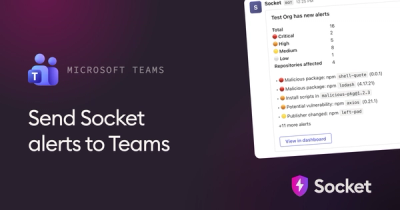
Microsoft Teams Notifications Are Now Available in Socket
Socket can now send alerts and supply chain attack notifications to Microsoft Teams, with filters that route the right updates to each channel.
By Jeppe Hasseriis - Sep 01, 2026
@misarblog/mcp
Advanced tools
MCP server for Misar.Blog — publish blog posts, manage drafts, generate AI cover images, and access analytics from Claude Code, Cursor & Windsurf.
Connect Claude Code, Cursor, Windsurf, or any MCP-compatible AI assistant to your Misar.Blog account. Publish articles, manage drafts, generate cover images, and pull analytics — all from your AI coding environment.
Two runtimes are available — choose based on what you already have installed:
| Runtime | Requires | Best for |
|---|---|---|
| Python (recommended) | Python 3.11+ · stdlib only | Claude Code, any lightweight setup |
| npm / npx | Node.js 18+ | Node-first workflows, CI/CD |
Fastest path — Python + Claude Code:
# 1. Copy the server script
cp packages/mcp/misarblog-mcp.py ~/.claude/scripts/misarblog-mcp.py
chmod +x ~/.claude/scripts/misarblog-mcp.py
# 2. Add to Claude Code MCP settings (see below)
# 3. Run misarblog_login in Claude Code to authenticate via browser
Fastest path — npx + any MCP client:
# No install needed — just add the config below and run misarblog_login
Uses Python's standard library only. No pip install required. Works on macOS, Linux, and Windows (with Python 3.11+).
If you cloned the MisarBlog repo:
cp packages/mcp/misarblog-mcp.py ~/.claude/scripts/misarblog-mcp.py
chmod +x ~/.claude/scripts/misarblog-mcp.py
Direct download (one-liner):
mkdir -p ~/.claude/scripts
curl -fsSL https://www.misar.blog/mcp/misarblog-mcp.py -o ~/.claude/scripts/misarblog-mcp.py
chmod +x ~/.claude/scripts/misarblog-mcp.py
python3 --version # must be 3.11 or later
If you're on macOS with an older system Python, use Homebrew: brew install python.
{
  "mcpServers": {
    "misarblog": {
      "command": "python3",
      "args": ["~/.claude/scripts/misarblog-mcp.py"],
      "env": {
        "MISARBLOG_API_KEY": "mbk_your_key_here"
      }
    }
  }
}
You can omit
MISARBLOG_API_KEYif you plan to use themisarblog_loginbrowser flow.
Uses Node.js 18+ with the @modelcontextprotocol/sdk. npx fetches and caches the package on first run — no manual install needed.
{
  "mcpServers": {
    "misarblog": {
      "command": "npx",
      "args": ["-y", "@misarblog/mcp"],
      "env": {
        "MISARBLOG_API_KEY": "mbk_your_key_here"
      }
    }
  }
}
npm install -g @misarblog/mcp
Then use misarblog-mcp as the command:
{
  "mcpServers": {
    "misarblog": {
      "command": "misarblog-mcp",
      "env": {
        "MISARBLOG_API_KEY": "mbk_your_key_here"
      }
    }
  }
}
pnpm add -g @misarblog/mcp
# or
yarn global add @misarblog/mcp
node --version # must be v18 or later
Claude Code stores MCP server config in ~/.claude/settings.json.
Edit the file:
# Open in your editor
code ~/.claude/settings.json
Add the mcpServers block (create settings.json if it doesn't exist):
{
  "mcpServers": {
    "misarblog": {
      "command": "python3",
      "args": ["~/.claude/scripts/misarblog-mcp.py"],
      "env": {
        "MISARBLOG_API_KEY": "mbk_your_key_here"
      }
    }
  }
}
Reload Claude Code — MCP servers start automatically on the next session. You'll see
misarblog listed when you run /mcp in any Claude Code session.
Verify the connection:
> call misarblog_get_profile
Claude Code should return your username, display name, and account status.
Cursor stores MCP config at ~/.cursor/mcp.json (global) or .cursor/mcp.json inside a
project (project-scoped, takes priority).
Global config (~/.cursor/mcp.json):
{
  "mcpServers": {
    "misarblog": {
      "command": "npx",
      "args": ["-y", "@misarblog/mcp"],
      "env": {
        "MISARBLOG_API_KEY": "mbk_your_key_here"
      }
    }
  }
}
Alternative — via Cursor Settings UI:
misarblognpx-y @misarblog/mcpMISARBLOG_API_KEY=mbk_your_key_hereVerify: open Cursor Agent mode → type use misarblog_get_profile — the tool card should appear.
Windsurf reads MCP config from ~/.codeium/windsurf/mcp_config.json.
{
  "mcpServers": {
    "misarblog": {
      "command": "npx",
      "args": ["-y", "@misarblog/mcp"],
      "env": {
        "MISARBLOG_API_KEY": "mbk_your_key_here"
      }
    }
  }
}
Reload Windsurf after saving. The MCP tools appear under the Cascade panel → Tools.
VS Code reads MCP config from .vscode/mcp.json in the workspace root, or from
User Settings (settings.json) under "mcp".
Workspace config (.vscode/mcp.json):
{
  "servers": {
    "misarblog": {
      "type": "stdio",
      "command": "npx",
      "args": ["-y", "@misarblog/mcp"],
      "env": {
        "MISARBLOG_API_KEY": "mbk_your_key_here"
      }
    }
  }
}
User settings (settings.json):
{
  "mcp": {
    "servers": {
      "misarblog": {
        "type": "stdio",
        "command": "npx",
        "args": ["-y", "@misarblog/mcp"],
        "env": {
          "MISARBLOG_API_KEY": "mbk_your_key_here"
        }
      }
    }
  }
}
Restart VS Code after saving. The misarblog_* tools appear in GitHub Copilot Chat when
you enable Agent mode (the @ icon in the chat panel).
Any MCP-compatible client that supports stdio servers works with the same pattern:
python3 (Python) or npx (npm)["~/.claude/scripts/misarblog-mcp.py"] or ["-y", "@misarblog/mcp"]stdioMISARBLOG_API_KEY=mbk_... (or use misarblog_login after connecting)mbk_MISARBLOG_API_KEY env var in your MCP configKeys have a 100 req/min rate limit. You can revoke and regenerate at any time from the settings page.
Precedence order:
MISARBLOG_API_KEY env var → ~/.misarblog/config.json → prompt to run misarblog_login
If you'd rather not handle the key manually, omit MISARBLOG_API_KEY from the config and run
misarblog_login as your first tool call. The flow:
127.0.0.1 (random port 9001–9099)https://www.misar.blog/dashboard/settings/api?mcp_port=<port>~/.misarblog/config.json — no clipboard involvedThe listener accepts connections from 127.0.0.1 only and shuts down after 120 seconds.
Example prompt:
Connect my Misar.Blog account using misarblog_login
Claude will call the tool, open your browser, and confirm once you've authorized.
The server registers 23 tools. Names are used verbatim (e.g. publish_article) — your MCP
client selects them from natural-language requests. Most require an mbk_ key; the two public tools
(list_comments, get_follow_status) need none.
| Area | Tools |
|---|---|
| Connection & account | login, status, get_profile |
| Articles & drafts | list_my_articles, get_article, publish_article, create_draft |
| Series | get_series, create_series, add_to_series |
| AI writing | research_topic, generate_title_seo, suggest_titles |
| Images | upload_image, generate_cover_image |
| Analytics | get_analytics_summary |
| Comments & follows (public) | list_comments, get_follow_status |
| Newsletter | list_newsletter_subscribers, list_newsletter_issues |
| Reactions | get_reactions, add_reaction, remove_reaction |
Full parameter tables, return shapes, and example prompts for every tool live in the MCP Tools Reference.
These are prompts you can send directly in Claude Code or Cursor Agent mode:
Publish a new article:
Write a 1000-word article about "Why AI-first blogging changes SEO forever"
and publish it on my Misar.Blog with tags ["AI", "SEO", "blogging"].
Draft with a generated cover image:
Generate a dark, futuristic cover image for an article titled "Building with MCP".
Then create a draft with that image as the cover.
Check performance:
Show me my analytics for the last 90 days.
Publish on a schedule:
Write a short announcement post and schedule it to publish tomorrow at 9am UTC.
Organize a series:
List my articles with status "published", then create a series called "AI Writing Guide"
and add the last 3 articles to it in chronological order.
If you run your own Misar.Blog instance, set MISARBLOG_BASE_URL to your domain:
{
  "mcpServers": {
    "misarblog": {
      "command": "python3",
      "args": ["~/.claude/scripts/misarblog-mcp.py"],
      "env": {
        "MISARBLOG_API_KEY": "mbk_your_key_here",
        "MISARBLOG_BASE_URL": "https://blog.yourdomain.com"
      }
    }
  }
}
MISARBLOG_BASE_URL can also be stored in ~/.misarblog/config.json (written by misarblog_login):
{
  "api_key": "mbk_...",
  "username": "yourname",
  "base_url": "https://blog.yourdomain.com"
}
The server can't find your API key. Either:
MISARBLOG_API_KEY in the MCP config env block, ormisarblog_login once to save it to ~/.misarblog/config.jsonYour key was revoked. Go to Dashboard → Settings → API Keys and generate a new one,
or run misarblog_login again to get a fresh key via the browser flow.
You've exceeded the API rate limit. Wait 60 seconds and retry. If you're running automated pipelines, add a short delay between tool calls.
misarblog_loginThe server prints the URL to stderr when webbrowser.open() fails. Copy and open it manually:
Open this URL in your browser:
  https://www.misar.blog/dashboard/settings/api?mcp_port=9042
You have 120 seconds from when the tool runs to click Authorize MCP Access.
python3: command not foundbrew install python or install from python.orgsudo apt install python3 / sudo dnf install python3python3 is in PATHAlternatively, switch to the npm/npx option — it only requires Node.js.
npx is slow on first runnpx -y @misarblog/mcp downloads the package on first run and caches it locally. Subsequent
starts are instant. If startup time matters, use npm install -g @misarblog/mcp instead.
Run /mcp in a Claude Code session to list active servers. If misarblog is missing:
Check ~/.claude/settings.json — ensure the mcpServers.misarblog block is valid JSON
Verify the script path: ls -la ~/.claude/scripts/misarblog-mcp.py
Test the server directly:
printf '{"jsonrpc":"2.0","id":1,"method":"tools/list","params":{}}\n' \
  | MISARBLOG_API_KEY=mbk_test python3 ~/.claude/scripts/misarblog-mcp.py
You should see a JSON response listing 12 tools.
misarblog_login callbackThe local HTTP server binds to 127.0.0.1. If your browser opens on a different machine
(e.g. remote VS Code over SSH), the callback won't reach the MCP server. In that case,
use the API Key method instead.
FAQs
Misar.Blog MCP server — publish and manage articles, series, comments, reactions, newsletters, AI writing tools, cover-image generation, and analytics from Claude, Cursor, VS Code, Windsurf, and any MCP client.
The npm package @misarblog/mcp receives a total of 180 weekly downloads. As such, @misarblog/mcp popularity was classified as not popular.
We found that @misarblog/mcp demonstrated a healthy version release cadence and project activity because the last version was released less than a year ago. It has 2 open source maintainers collaborating on the project.
Product
Socket can now send alerts and supply chain attack notifications to Microsoft Teams, with filters that route the right updates to each channel.

Security News
pnpm 12 rewrites the package manager in Rust, cutting install times by up to 90% while preserving pnpm 11 workflows and lockfiles.
Security News
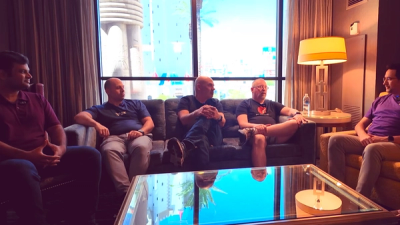
Socket CTO Ahmad Nassri joins AppSec leaders at Black Hat to discuss active malware, package manager risks, and software supply chain defense.