omniterm
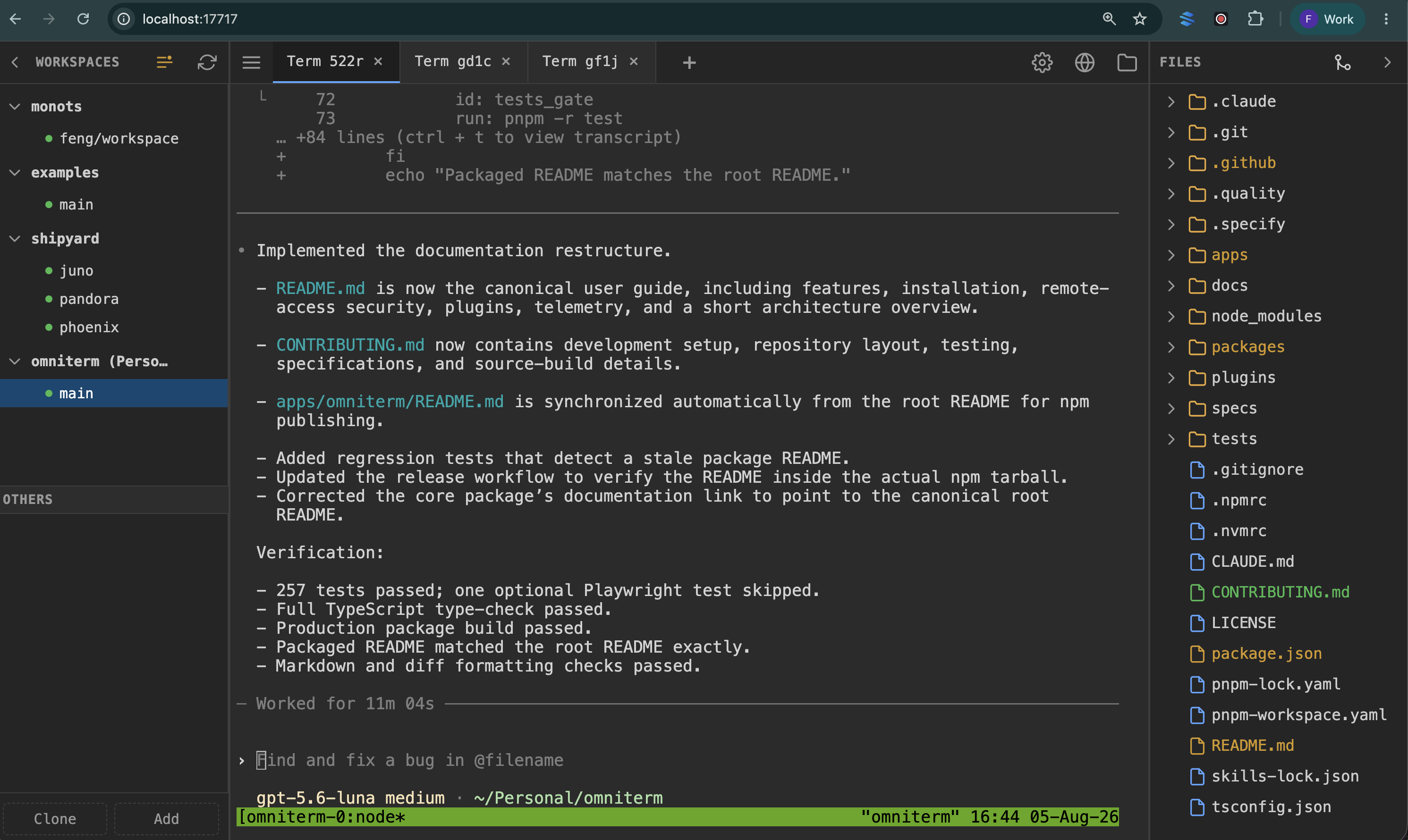
omniterm puts persistent terminal sessions, project files, and a live browser
view in one web app.
Run it on the computer that holds your projects — a laptop, a home server, or a
cloud VM with no desktop — then open it from a laptop, tablet, or phone. Your
terminal sessions keep running when you close the browser or lose your
connection.
Why use omniterm?
- Use your preferred coding agent. Run Codex, Claude Code, or any other
command-line tool.
- Keep work running. Terminal sessions survive closed tabs, lost
connections, device changes, and omniterm restarts.
- Work from any device. You only need a browser and secure network access to
the computer running omniterm.
- Run it on a headless server. No desktop, display server, or VNC needed.
- Drive a real browser on that server. When something in your terminal opens
a URL, you can click, type, and scroll that browser from your device.
- Use your existing tools. Every terminal is a real
tmux session that you
can also open over SSH.
- Add features with plugins. Plugins load at runtime without changing or
rebuilding the main app.
Install and run
omniterm requires Node.js 24 or newer, tmux, and
ttyd. It runs on a server with no desktop. Add Chrome or Chromium if you want
the interactive remote browser.
Install tmux and ttyd:
brew install tmux ttyd
sudo apt install tmux
sudo snap install ttyd --classic
Install omniterm and start it:
npm install -g @omniterm/host
omniterm
Then open http://localhost:17717.
The npm package is named @omniterm/host, but the command is omniterm. You
can also run it without installing it globally — name the package with -p and
the command after it, since the package ships more than one binary:
npx -p @omniterm/host omniterm
Change the ports
Use a different web server port:
omniterm --port 8080
omniterm uses ports 7700 through 7799 for terminal sessions. If another program
uses those ports, choose a different range:
omniterm --ttyd-ports 8800-8899
Run omniterm --help to see every command-line option.
What you get
Terminals
- Open several terminal tabs and split each tab into multiple panes.
- Arrange panes side by side or top to bottom.
- Reorder and rename tabs.
- Scroll through terminal output and select text normally.
- Find and use
tmux sessions that were started outside omniterm.
Workspaces
- Switch between Git repositories, worktrees, and regular directories.
- Clone a repository or browse the server's files to add a workspace.
- Create and manage Git worktrees from the browser.
- Run multiple coding agents in separate workspaces and watch them side by side.
Files
- Browse and edit project files with syntax highlighting and save protection.
- View images, PDFs, and CSV or TSV files without leaving omniterm.
- See file changes when another program or coding agent edits a file.
- Load editor support only when you open a file that needs it.
Interactive remote browser
When something in your terminal opens a URL — a sign-in flow, a coding agent —
Chrome starts on the server and appears in omniterm as a live view.
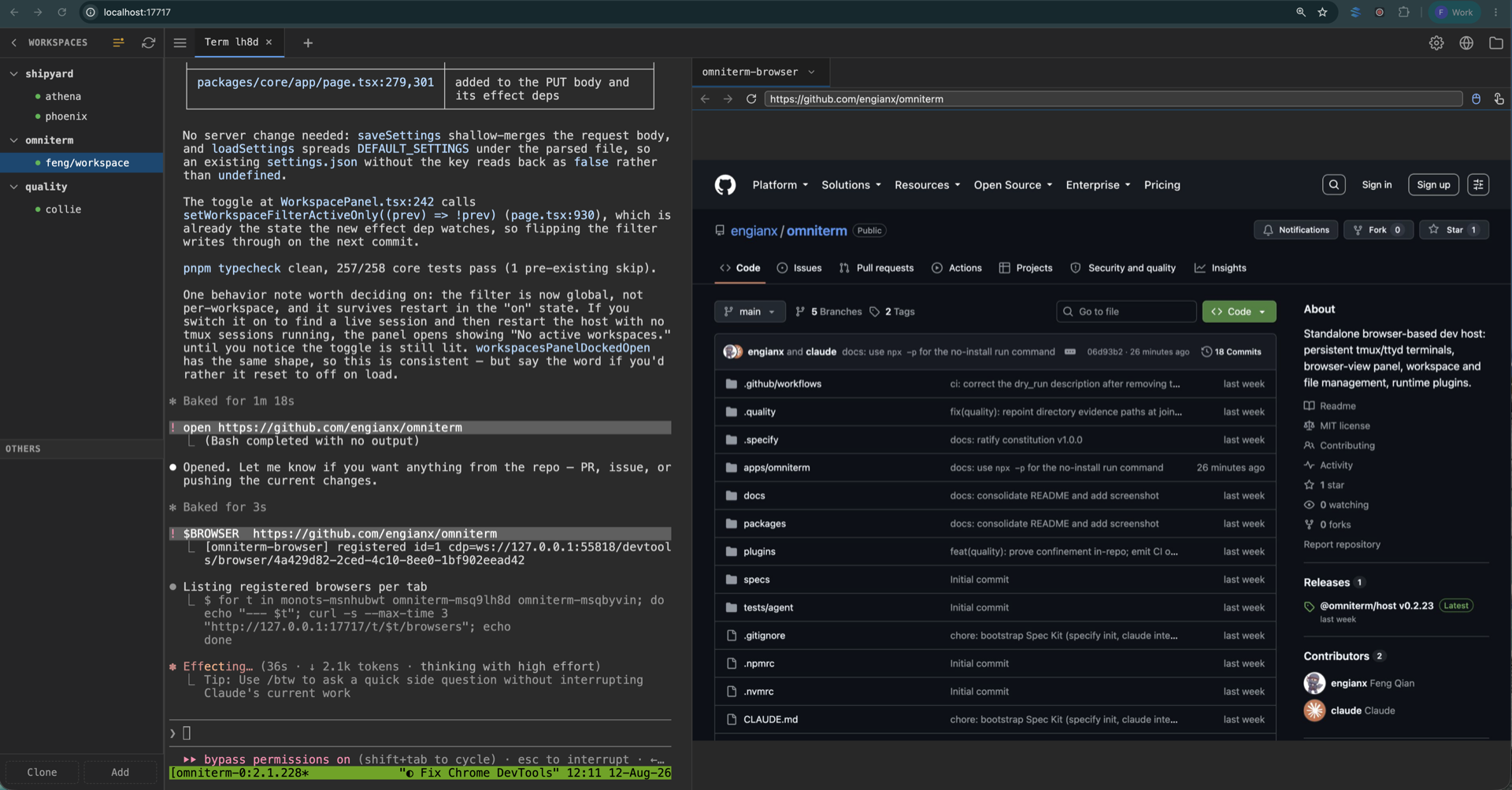
- Click, type, and scroll the remote page from any device.
- Finish sign-in flows on a server without a desktop.
- Switch between running browsers and their open pages from the tab strip.
- Dock the panel beside your terminal or float it on top.
- Put Chrome DevTools beside the page, below it, or hide it.
- Chrome uses its own profile, so your personal cookies and passwords stay out
of it.
Phones, tablets, and desktops
- Use a layout designed for both desktop and mobile screens.
- Use touch-friendly terminal controls for keys that mobile keyboards leave out.
- Add omniterm to your home screen as a Progressive Web App (PWA).
Remote access and security
[!WARNING]
By default, omniterm listens on all network interfaces. It does not provide
its own login or access control, and its APIs can start commands in your
shell. Do not expose its port directly to the public internet. Use a trusted
private network, VPN, or SSH tunnel.
For an SSH tunnel, bind omniterm to the remote computer's loopback address:
omniterm --host 127.0.0.1
Then run this on your local computer:
ssh -L 17717:localhost:17717 your-server
Open http://localhost:17717 while the tunnel is running.
You can also open http://your-server.tailnet:17717 through a private network
such as Tailscale.
Make sure your firewall or network rules allow access only from devices you
trust.
Pass environment variables to terminals
Every terminal omniterm opens starts from a clean environment: omniterm keeps a
short list of variables (TERM, HOME, PATH, and friends), drops everything
else, and then runs your login shell so your own profile builds the rest. That
stops the environment of whatever shell you launched omniterm from leaking into
every terminal.
If omniterm runs inside an environment you configured on purpose — a container,
a remote box, a CI shell — name the variables you want terminals to keep:
MY_TOOL_TOKEN=… omniterm --env-passthrough MY_TOOL_TOKEN,MY_TOOL_URL
You pass names, never values. omniterm reads the values from its own
environment, so they never appear in a config file, a log line, or an API
response. OMNITERM_ENV_PASSTHROUGH=MY_TOOL_TOKEN,MY_TOOL_URL does the same
thing, and takes precedence when both are given. GET /api/session-env reports
the names in effect, so you can check the setting without printing a secret.
One limit worth knowing: omniterm can only pass on the value that existed when
its terminal backend started, and that backend keeps running even if omniterm
itself restarts. If your value changes while omniterm is running — a token that
rotates, for example — set it from your login profile instead, which every
terminal re-reads as it opens.
A program driving the HTTP API can also set variables on a single terminal:
POST /api/create-session
{ "cwd": "/work", "name": "task-42", "env": { "TASK_ID": "42" } }
Those apply to that terminal, to the command it starts with, to the shell it
returns to when that command exits, and to any pane you split from it — and to
nothing else. These values are passed to the terminal backend as command
arguments, so other users on the same machine can see them with ps. Use them
for configuration, not for secrets.
Add plugins
Plugins add features without changing the main app. Load a published npm package
by name, or load a local plugin by the path to its built entry file:
omniterm --plugin @scope/my-plugin
omniterm --plugin ./plugins/demo-agent/dist/index.js
To load more than one plugin, repeat the --plugin option. omniterm loads them
in the order you provide them.
A local path must point to the plugin's built JavaScript entry file, not just
its directory.
To write a plugin, install
@omniterm/plugin-types
as a development dependency. Your plugin does not need to depend on omniterm's
internal code. See the
demo-agent plugin
for a complete example.
Telemetry
The official npm package collects pseudonymous usage and performance data to
help improve omniterm. A random installation ID connects events from one
installation. The ID does not come from an account, username, hostname, or
machine identifier.
Events may include:
- the installation ID, event time, omniterm version, and event name;
- the server platform and Node.js version;
- session counts and timings, file language, and cleanup counts; and
- app and terminal timings, mobile or desktop mode, and the types of workspaces,
panels, tabs, viewers, and editor languages used.
Events do not include names, file or terminal contents, file paths, repository
names, hostnames, session names, or third-party plugin identifiers. omniterm
disables PostHog's GeoIP enrichment. PostHog still receives the network data
needed to deliver an event; see PostHog's privacy policy for its handling and
retention rules.
Telemetry is on by default in the official npm package and off in automated
environments. You can turn it off in any of these ways:
omniterm telemetry off
omniterm telemetry status
omniterm --no-telemetry
export OMNITERM_TELEMETRY=0
export DO_NOT_TRACK=1
You can also turn it off in Settings → Privacy → Telemetry. Environment
settings override the saved choice. Local performance measurements remain
available at GET /api/metrics/perf, even when telemetry is off, but nothing is
sent from your computer.
The PostHog key is added when the official npm package is built. It is not
stored in this repository, so a build from source does not send telemetry. To
use your own PostHog project in a source build, set OMNITERM_POSTHOG_KEY when
you run omniterm.
How it works
omniterm runs a Node.js web server on the computer where your projects live.
The server connects the browser interface to standard command-line tools:
tmux keeps terminal sessions alive.ttyd displays those sessions in the browser.- Express provides the file, workspace, settings, and plugin APIs.
- A JSON file in your home directory stores workspace, tab, file, and layout
settings. No database is required.
- Runtime plugins can add tabs, interfaces, HTTP routes, and WebSocket
connections. The built-in terminal uses the same plugin system.
Because tmux owns the sessions, they are not locked inside omniterm. You can
use tmux attach over SSH, and terminal work continues if the omniterm process
stops.
Contributing
See the
CONTRIBUTING.md
guide for development setup, repository structure, tests, and project
conventions.
License
MIT