

Security News
/Company News
Securing the Financial Frontier: How Capital One Uses Socket for Open Source Security
Capital One is partnering with Socket to proactively secure its open source supply chain.
By Sarah Gooding - Oct 01, 2026
@page-scanner/mcp
Advanced tools
Let a local AI agent capture a web page with the Page Scanner Chrome extension.
An MCP server that lets an AI agent on your machine capture a web page with the Page Scanner Chrome extension, and get the file on disk.
The agent talks to this over stdio. The capture happens in a Chrome you are already signed in to, which means a page behind a login is a page you are logged into. Nothing leaves the machine.
This package is four tools over @page-scanner/cli, which is where the bridge, the
pairing and the daemon actually live. If you want the same thing at a shell prompt, install that
instead; the two share one pairing and one daemon, so they can be used at the same time.
1. Point the agent at the server. For Claude Code:
claude mcp add page-scanner -- npx -y @page-scanner/mcp
Or as an mcpServers block, which Claude Desktop reads from claude_desktop_config.json and
Codex and others read from .mcp.json:
{
  "mcpServers": {
    "page-scanner": {
      "command": "npx",
      "args": ["-y", "@page-scanner/mcp", "serve"]
    }
  }
}
2. Get a pairing. Ask the agent to run the pair tool, or do it yourself:
npx @page-scanner/mcp pair
It prints a port and a token and saves them to ~/.page-scanner/config.json. On macOS and Linux
that file is owner-readable only; on Windows it is not, because NTFS does not implement the mode it
is written with. See the CLI's README for how to restrict it on a shared machine.
3. Pair Chrome. Open the Page Scanner settings page (the gear in the editor toolbar, or
chrome://extensions then Details then Extension options). Under Local agents:
Chrome runs a separate copy of the extension in every profile, so repeat that for each profile you want reachable. They share the port and token and identify themselves by name.
page-scanner-mcp status says whether a pairing exists and whether anything is connected.
pair --rotate issues a new token, which also invalidates the old one everywhere.
pair toolThe pair tool returns the token to the agent, which means it lands in the conversation, and a
transcript is a place secrets should not be. It is there because being told to install a second
program before anything works is a bad first five minutes. If that trade-off is wrong for you, run
npx @page-scanner/mcp pair in a terminal instead and paste the token into Chrome yourself; the
agent never needs to see it.
Both setups run npx -y @page-scanner/mcp, which asks npm for the newest version each time the
client starts the server. Restart the client, or start a new Claude Code session, to pick one up.
The daemon restarts itself on the new version and the pairing carries over.
If you also installed the command line globally, update it at the same time with
npm install -g @page-scanner/cli@latest. A daemon of one version is replaced by a client of any
other, so the two would keep replacing each other's daemon.
pair Writes the pairing and returns the port and token to paste into Chrome. See the note
above.
list_browsers The Chrome profiles paired and connected right now, with the name you gave each
one. Start here when more than one is connected.
list_tabs The windows and open tabs of one browser. Tabs carry the windowId they belong to,
and windows say which is focused, so an agent can pick a window as well as a tab. Takes an optional
browserId, which is only required when more than one browser is connected, and an optional
waitSeconds.
scan_page Captures a page and writes it to disk. Returns the absolute path.
| Argument | Meaning |
|---|---|
browserId | Which browser. Optional when only one is connected. |
tabId | A tab from list_tabs. Give this or url, not both. |
url | Opens a background tab there, captures it, closes it again. |
windowId | Which window to open url in. Ignored with tabId. |
format | pdf (default), png, jpeg. |
pageSize | PDF only. a4 (default) and letter slice onto printable sheets with a half-inch margin; auto is one page the size of the capture. |
quality | JPEG only, 0.1 to 1. |
videoHandling | frame keeps a video's paused frame, blank leaves its area empty. |
openEditor | Also leave the capture open in a Page Scanner editor tab. |
outputPath | A file, or a directory to keep the suggested name. Defaults to the cwd. |
waitSeconds | How long to wait for a browser to connect. 0 fails immediately. |
A PDF from a vector capture keeps real, selectable text. The result says selectableText: true when
that is what you got, and carries a truncated object when the page was larger than Page Scanner
will capture and the file is missing part of it.
It can list the addresses of every tab you have open, capture any of them, and open an address of its own choosing to capture that. It captures whatever the browser renders, which on a logged-in tab means whatever you are logged in as.
It cannot reach anything without the token, and the token only exists once you have pasted it into a browser and pressed Connect. Turning the toggle off closes the connection immediately.
Three checks run on every connection: the Origin has to be a chrome-extension:// one, which
stops a web page in any browser talking to the server; the first frame has to carry the token, which
stops any other program on the machine doing so; and the protocol number has to match, so an
extension and a server that disagree say so instead of misbehaving.
chrome.debugger, so Chrome shows its "Page Scanner started debugging this
browser" bar for as long as the scan takes. That is Chrome's notice and cannot be suppressed.
Unattended, it will appear without you having asked for it.activeTab, which requires a
click, so an agent scan of a page the vector capture cannot handle fails loudly instead.chrome:// pages, the Web Store and other extensions' pages are off limits to any extension.Apache-2.0. See LICENSE.
FAQs
Let a local AI agent capture a web page with the Page Scanner Chrome extension.
The npm package @page-scanner/mcp receives a total of 362 weekly downloads. As such, @page-scanner/mcp popularity was classified as not popular.
We found that @page-scanner/mcp demonstrated a healthy version release cadence and project activity because the last version was released less than a year ago. It has 1 open source maintainer collaborating on the project.
Security News
/Company News
Capital One is partnering with Socket to proactively secure its open source supply chain.
Security News
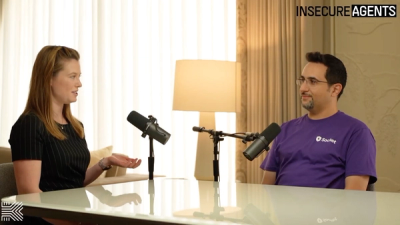
Socket CTO Ahmad Nassri discusses how to keep AI agents from bypassing package blocks, limit credential access, and monitor their actions.
Security News
GPT-6 Astra tried to plant malicious code in simulated open source projects using fake GitHub accounts and deceptive PRs during an assigned CTF challenge.