
Research
/Security News
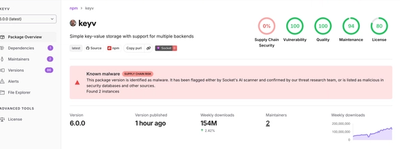
Popular npm Packages in the keyv and Cacheable Namespaces Compromised in Active Supply Chain Attack
Popular npm packages keyv and cacheable compromised.
By Socket Research Team - Aug 04, 2026
@securecode/mcp-server
Advanced tools
SecureCodeHQ MCP Server - Let Claude Code access your secrets securely
MCP Server for SecureCodeHQ. Lets Claude Code access your secrets securely — without ever seeing them.
The fastest way to set up SecureCodeHQ is from Claude Code itself. Just say:
You: "Set up SecureCode for this project"
The onboard tool walks you through everything — account creation, secret import, and MCP configuration — without leaving the terminal.
Step 1: "Create your account"  → Opens signup in your browser (one click)
Step 2: "Import your .env"     → Drag-and-drop in a secure web window (zero-knowledge)
Step 3: API key + MCP config   → Auto-created and configured by Claude
Step 4: Choose your secrets    → Select which project/env to use
Step 5: SDK setup (optional)   → Generates runtime code for your framework
After onboarding, a .securecoderc file is created in your project root with the API key and project/env config. The SDK and MCP server read it automatically.
If you already have an account and API key, add this to your project's .mcp.json:
{
  "mcpServers": {
    "securecode": {
      "command": "npx",
      "args": ["@securecode/mcp-server"],
      "env": {
        "SECURECODE_API_KEY": "sc_your_key_here"
      }
    }
  }
}
Or add it globally in ~/.claude.json. Then restart Claude Code.
By default, secret values are never shown to the AI. When Claude reads a secret, the value is written to a local file on your machine. The AI gets the file path but never sees the actual value.
You: "Get my Stripe API key"
Claude: ✓ STRIPE_KEY injected → ~/.securecode/.session/a1b2c3d4.env

The value is NOT in this conversation.
This is inject mode — the default. If you explicitly need the AI to work with the value, use reveal: true (every reveal is audited).
Once connected, Claude Code can:
"Get my Stripe API key"              → injects to local file (AI never sees value)
"Get my DB_URL with reveal"          → reveals value to AI (audited)
"List my production secrets"         → shows names and tags, never values
"Save this API key as OPENAI_KEY"    → creates a new secret
"Import my .env.production file"     → opens secure web import (zero-knowledge)
"Lock my session"                    → blocks all access until you wake it
"Set up SecureCode"                  → guided onboarding (see above)
"Add staging environment"            → import secrets for another env
"Set up the SDK for this project"    → generates loadEnv/getSecret code
"byebye"                            → locks session + cleans secrets from disk
| Tool | Description |
|---|---|
onboard | Guided setup: signup, import, API key, MCP config, SDK setup — all from Claude Code |
get-secret | Get a secret — inject to file by default, reveal: true to show to AI |
list-secrets | List all secrets with tags, expiry status, and descriptions |
create-secret | Create a new secret with tags, TTL, and domain |
update-secret | Update value, description, tags, or domain |
delete-secret | Soft-delete a secret |
renew-secret | Renew expired secrets or change TTL |
import-env | Import from .env — opens a secure web window (values never pass through AI) |
export-env | Export secrets as .env or CSV format |
get-status | Check plan, usage limits, secrets count, and MCP server version |
wake-session | Unlock session with optional tag scope and auto-sleep timer |
sleep-session | Lock session, block all access, clean injected files |
session-status | Check session status, scope, and time remaining |
byebye | End session: lock + clean all injected secrets from disk |
get-active-rules | List active MCP access rules (read-only) |
help | Get SecureCode docs: tools, SDK setup, sessions, rules, troubleshooting |
After onboarding, you can ask Claude to set up the SDK for your project:
You: "Set up the SecureCode SDK for this Next.js project"
The onboard(action: "setup-sdk") tool:
loadEnv() (bulk) or getSecret() (granular)instrumentation.ts with NEXT_RUNTIME guard)Already set up but need to add staging or production secrets? Just say:
You: "Add staging secrets to this project"
The onboard(action: "add-environment") tool opens the secure import window for a new environment without repeating the full onboarding.
Control how AI agents access your secrets with tag-based policies. Rules are created from the dashboard and enforced server-side.
| Action | Effect |
|---|---|
| Block Always | Secret is only accessible from the dashboard |
| Require Confirmation | Agent must acknowledge before accessing |
| Require Session | Requires an active session (wake-session) |
| Block Models | Only allows specific AI models |
| Notify | Sends email notification on access (non-blocking) |
You: "Read my STRIPE_LIVE_KEY"
Claude: [MCP Rule: "Block production secrets"]
        Access blocked. This secret is only accessible from the dashboard.
Rules are evaluated by priority: Block Always > Require Session > Block Models > Require Confirmation > Notify.
Control access to your secrets per session:
You: "Wake my session for the acme project staging"
Claude: Session unlocked. Only acme/staging secrets accessible.

You: "Lock my session"
Claude: Session locked. All access blocked. Injected files cleaned.

You: "byebye"
Claude: Session locked & secrets cleaned from disk. See you next time!
Sessions auto-sleep after configurable inactivity (default: 2 hours).
The MCP server includes an adaptive Tip Engine that shows security best practices:
Tips are throttled (max 3 per session, 1-week cooldown per secret) so they inform without annoying.
The MCP server checks for updates on first use. If your version is outdated, you'll see a warning:
⚠ Your SecureCode MCP server is outdated (v0.13.0 → v0.14.0).
To update, restart Claude Code — it will fetch the latest version automatically if you use npx.
reveal: true returns value to AI (audited as conscious action)sc_ prefixMIT
FAQs
SecureCodeHQ MCP Server - Let Claude Code access your secrets securely
The npm package @securecode/mcp-server receives a total of 19 weekly downloads. As such, @securecode/mcp-server popularity was classified as not popular.
We found that @securecode/mcp-server demonstrated a healthy version release cadence and project activity because the last version was released less than a year ago. It has 1 open source maintainer collaborating on the project.
Did you know?

Socket for GitHub automatically highlights issues in each pull request and monitors the health of all your open source dependencies. Discover the contents of your packages and block harmful activity before you install or update your dependencies.
Research
/Security News
Popular npm packages keyv and cacheable compromised.

Security News
A misconfiguration gave three Anthropic models internet access, and one, believing it was in a simulation, shipped a credential-stealing package to PyPI.

Security News
/Company News
Socket has joined the new Composer and Packagist sponsorship program as a launch sponsor, supporting the team that keeps PHP's package ecosystem secure.